
How To Set Up And Use Google Chrome Remote Desktop On Windows 11


 4 min. read
  Published on
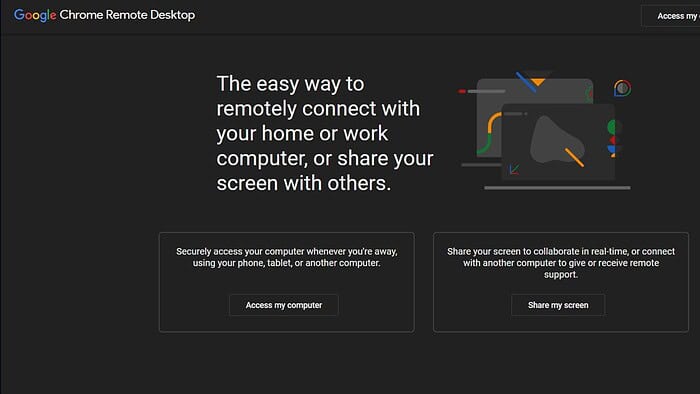
Remotely accessing your Windows 11 PC from another device is incredibly useful for troubleshooting, file access, or even just controlling your home computer when you’re away. Google Chrome Remote Desktop provides a straightforward and secure way to do this. This guide will walk you through setting it up and using it effectively.
Setting Up Chrome Remote Desktop on Windows 11: A Step-by-Step Guide
1. Download and Install the Chrome Remote Desktop App
First, you’ll need to download and install the Chrome Remote Desktop app. This is available directly from the Chrome Web Store. Open Chrome and search for "Chrome Remote Desktop". Click on the official extension from Google and hit "Add to Chrome".
2. Setting Up Remote Access
After installation, you’ll be prompted to set up remote access. This involves generating a 6-digit PIN for security. Make sure to keep this PIN safe, as it’s necessary to access your computer remotely. You can also choose to generate a unique access code instead of using a PIN. It is recommended to choose a strong and memorable PIN code or access code.
3. Enabling Remote Access on Your Windows 11 PC
Once the PIN is set, you’ll need to enable remote access on your Windows 11 machine. The application will guide you through this process, which typically involves allowing certain permissions for the Chrome Remote Desktop app.
4. Connecting from Another Device
Now that your Windows 11 PC is set up for remote access, you can connect from another device. This could be another Windows PC, a Mac, or even an Android or iOS device. Simply install the Chrome Remote Desktop app on the remote device and enter your Windows 11 PC’s PIN or access code.
5. Accessing Your Remote Desktop
Once connected, you’ll see your Windows 11 desktop on your remote device. You can control your PC as if you were sitting in front of it. You can interact with applications, files, and settings as you normally would.
Tips for Using Chrome Remote Desktop
- Strong PIN/Access Code: Choose a strong and memorable PIN or access code to protect your computer from unauthorized access.
- Network Connection: Ensure a stable internet connection on both your local and remote devices for optimal performance.
- Security: Regularly review your security settings within the Chrome Remote Desktop app.
- Performance: For smoother remote access, consider using a wired network connection instead of Wi-Fi.
- Troubleshooting: If you encounter issues, check your firewall settings and ensure that Chrome Remote Desktop has the necessary permissions.
Remote Desktop: A Comparison Table
Here’s a comparison table highlighting the key differences between using a local desktop versus a remote desktop experience:
| Feature | Local Desktop | Remote Desktop |
|---|---|---|
| Performance | Generally faster and smoother | Can be affected by network speed and latency |
| Accessibility | Always accessible from the local machine | Requires internet connection |
| Security | Potentially more secure (physical access) | Relies on secure PIN/access code and network security |
| Convenience | Convenient for everyday use | Useful for access from anywhere |
This table helps illustrate the trade-offs between local and remote desktop access. While remote access offers flexibility, it’s crucial to consider the network dependency and security implications.
Wrapping Up Chrome Remote Desktop
Chrome Remote Desktop offers a convenient and relatively simple way to access your Windows 11 PC from anywhere with an internet connection. By following these steps and keeping security in mind, you can efficiently manage and use this powerful tool.
FAQs
How secure is Chrome Remote Desktop?
Chrome Remote Desktop uses end-to-end encryption to protect your data during remote sessions. However, choosing a strong PIN or access code and maintaining a secure network connection are crucial for optimal security.
Can I use Chrome Remote Desktop on multiple devices?
Yes, you can access your computer from multiple devices simultaneously, provided you have the necessary permissions and a stable internet connection on all devices.
What if I forget my PIN or access code?
If you forget your PIN or access code, you will need to uninstall and reinstall the Chrome Remote Desktop application to reset it. This will also remove any existing remote access settings.
What are the system requirements for Chrome Remote Desktop?
Chrome Remote Desktop requires a computer running Windows 11, a stable internet connection, and the Chrome browser or the Chrome Remote Desktop application.
Related reading
- Tip: Force Google Chrome into touch mode on your Windows hybrid
- Google Chrome APK on Kindle Fire: How To Install with Ease
- How to download the latest Google Chrome offline installer to enjoy latest features
- How to use Microsoft’s Outlook Web apps offline with Google Chrome
- Google’s Desktop Messaging app is now live, here’s two ways to use it


Read our disclosure page to find out how can you help MSPoweruser sustain the editorial team Read more



Improve this guide




User forum
0 messages