
Top 9 Driver Updater Software to Optimize Your Windows PC [Updated 2026]


 12 min. read
  Updated on
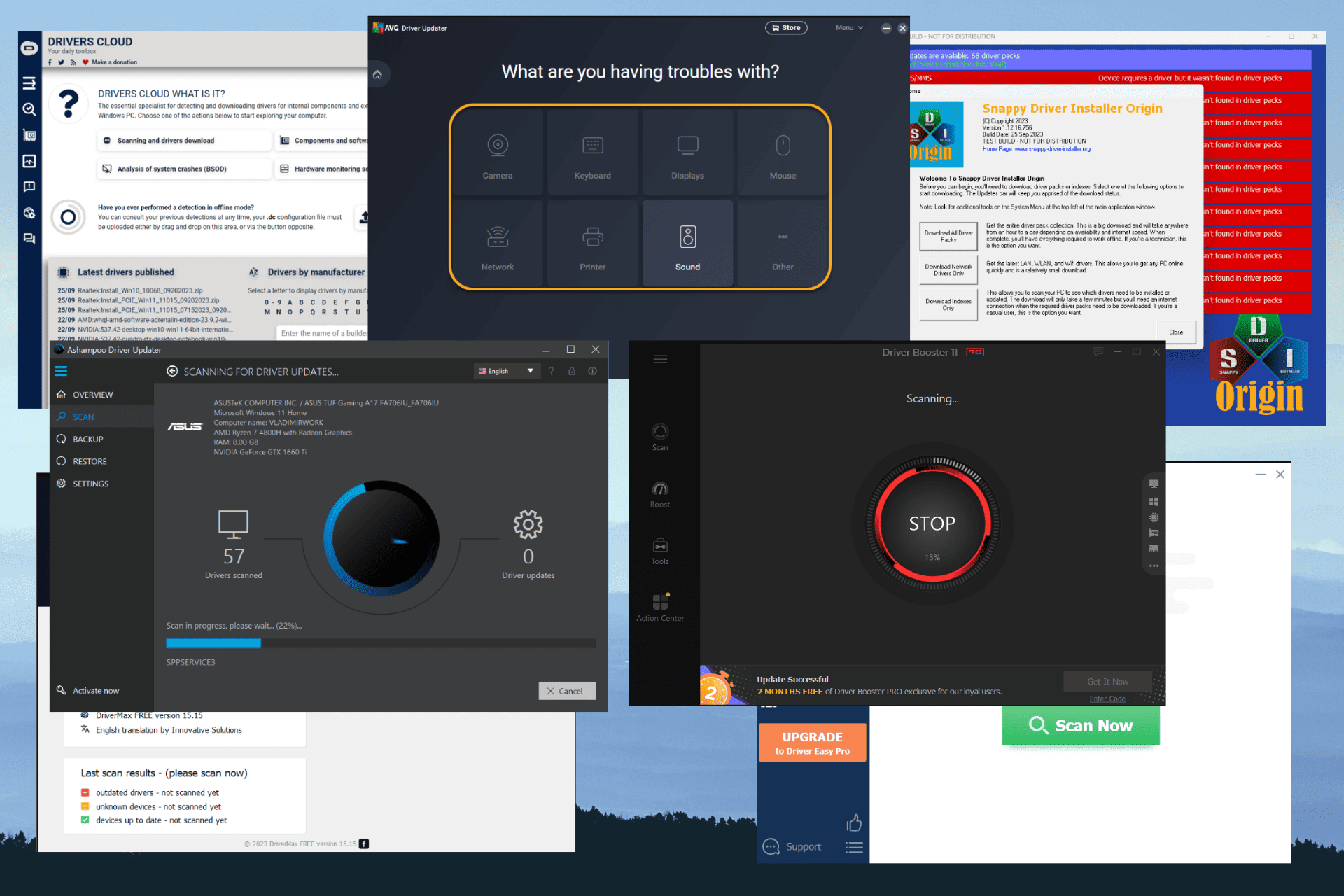
Updating drivers is crucial for maintaining system performance and security, but doing it manually can be time-consuming and risky. That’s why these tools are a game-changer for your PCs and laptops.
With numerous tools available on the internet, I tested over 20 popular options and narrowed them down to the 9 best driver updater software for both Windows 10 and Windows 11. Let’s check them out.
What’s the best driver updater for Windows 11?
1. Fortect – Driver Updater and Windows Optimizer
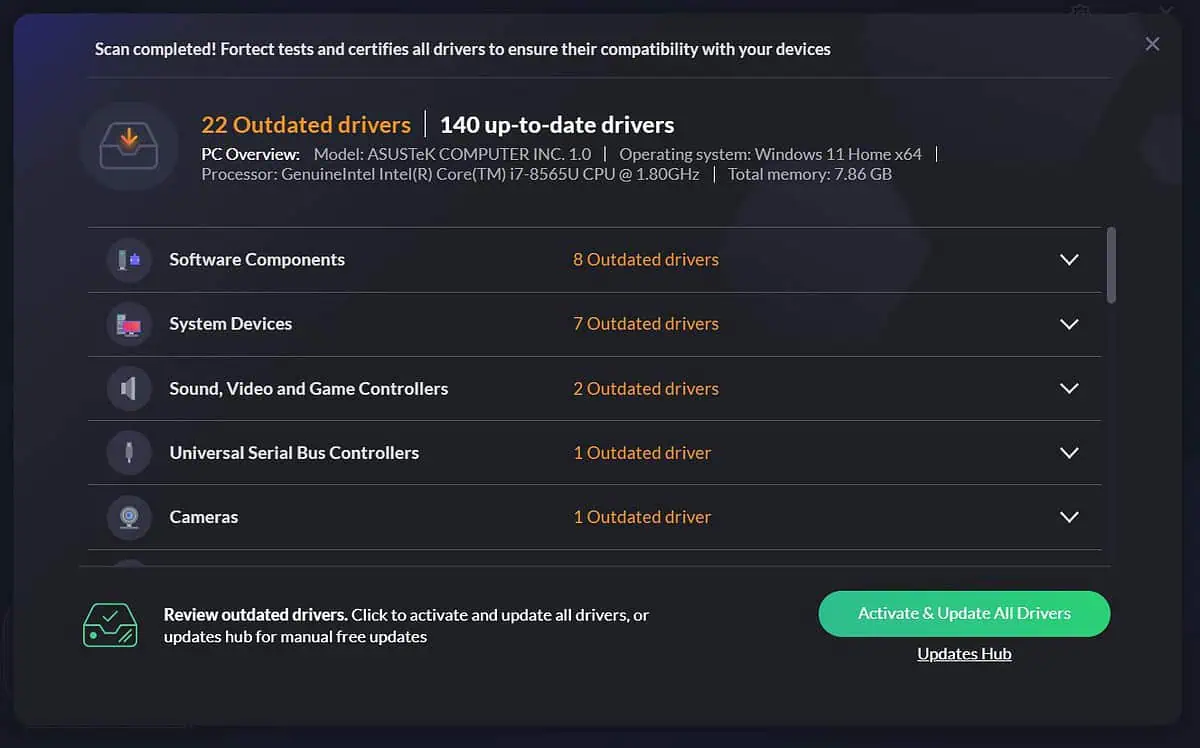
Fortect is not just a driver update software but also an efficient Windows optimizer.
You can use it to fix DLLs, broken registry, windows updates, and security errors.
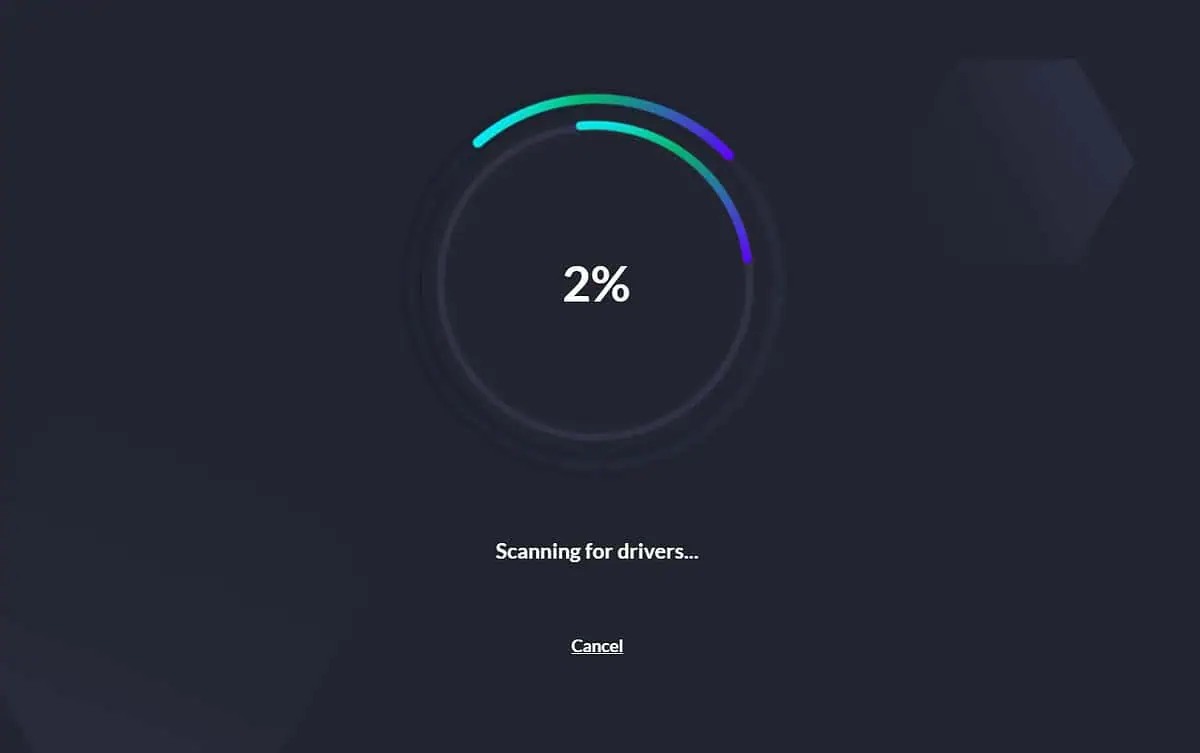
After accessing the driver updater section in the software, you can start the scan for missing or broken drivers with just one click.
Once that is done a list of drivers will be displayed and you can then choose to update them all or just pick the ones you need.
Pros:
- Excellent at long-term maintenance
- Can fix DLLs and registry
- Very fast scan
- Only certified drivers
Cons:
- Some features are not available on the free version
Also read: Free Windows Driver Updater: 10 Best Options
2. PC HelpSoft Driver Updater – Very Easy to Use Driver Updater
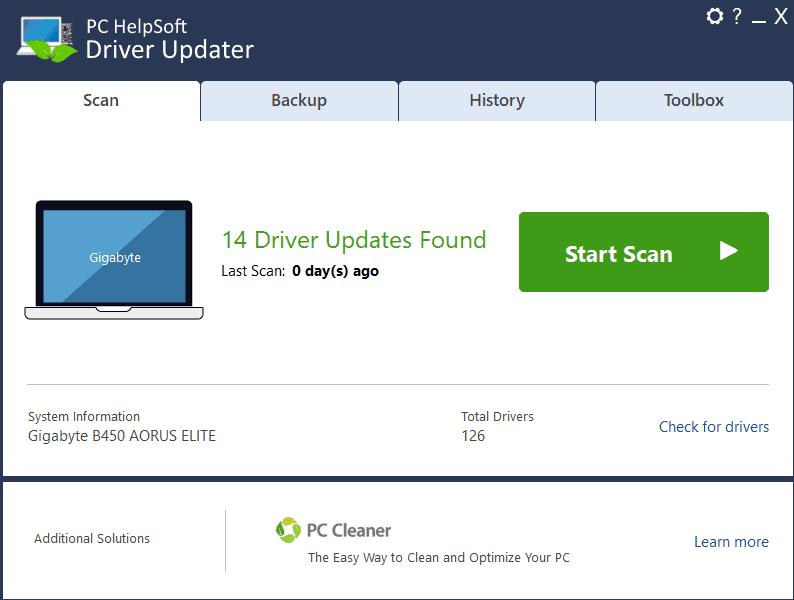
PC HelpSoft Driver Updater comes with an extensive database, which covers a massive range of hardware devices and manufacturers. This ensures that it can update the drivers from common to rare hardware components.
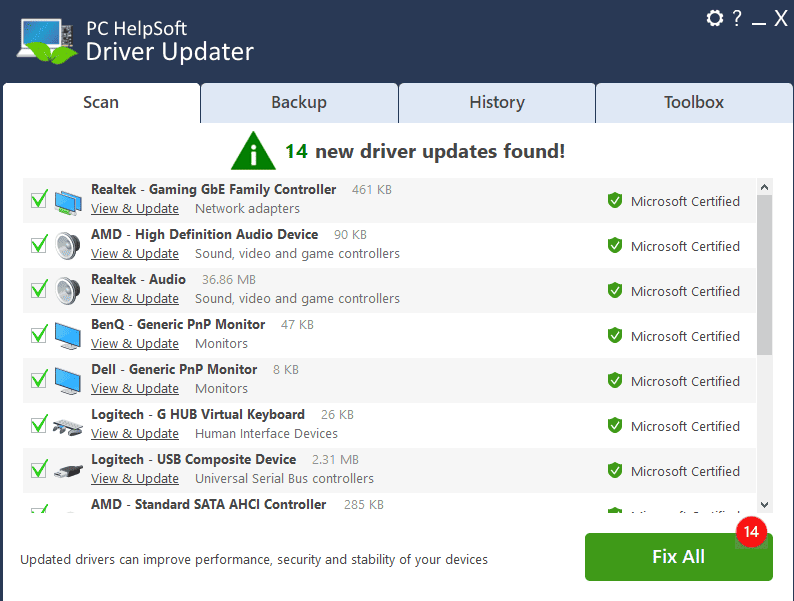
It has a clean, intuitive interface that makes navigation extremely easy, even for beginners. You can easily start scans and update your drivers with a few clicks.
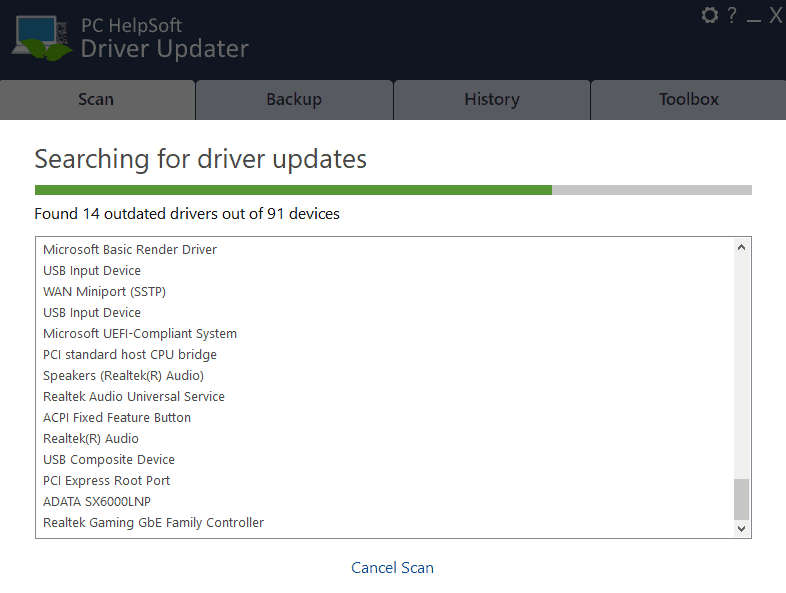
Without a doubt, PC HelpSoft Driver Updater’s standout feature is the automated scan and update process. Once initiated, HelpSoft Driver Updater quickly scans the system for outdated drivers and presents a list of available updates. You can then choose to update individual drivers or all at once, which saves time and effort.
Pros:
- Automated scanning and updating
- Large driver database
- User-friendly interface
- Safe and secure
Cons:
- Practically no free version
- Comes with additional software, so make sure you uncheck those boxes during the installation
3. Driver Booster – a Very Good Driver Updater Software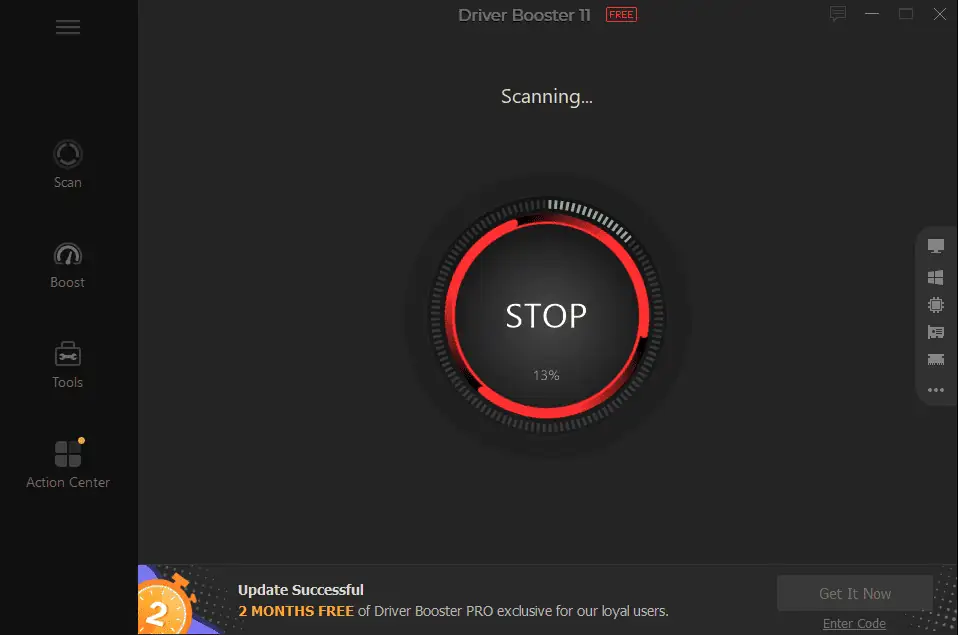
Driver Booster is my top pick for the best driver updater software for Windows 10 & 11. This tool automatically identifies outdated drivers, reducing your need to search for them manually.
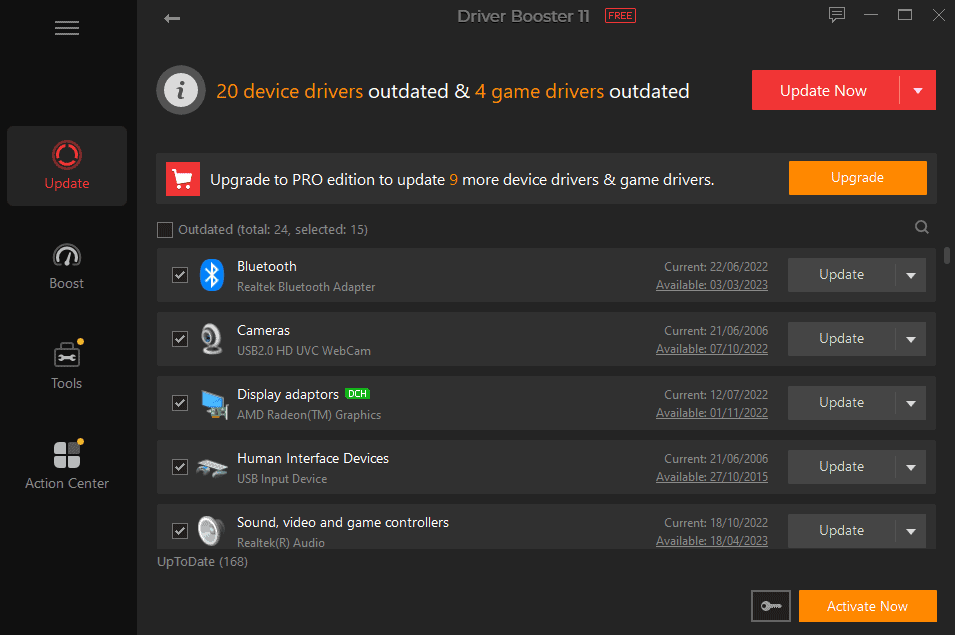
This powerful software supports over 6 million drivers, which are constantly updated and refreshed.
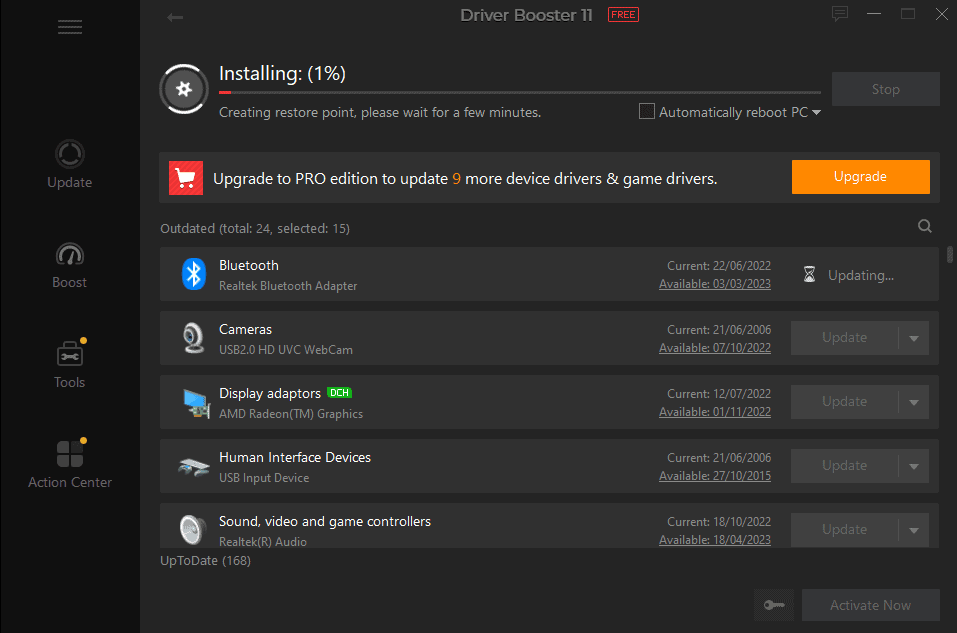
Driver Booster’s capability to install drivers very fast impressed me during my testing phase. I liked that every installation appears on the same screen, with a handy option to automatically reboot the PC.
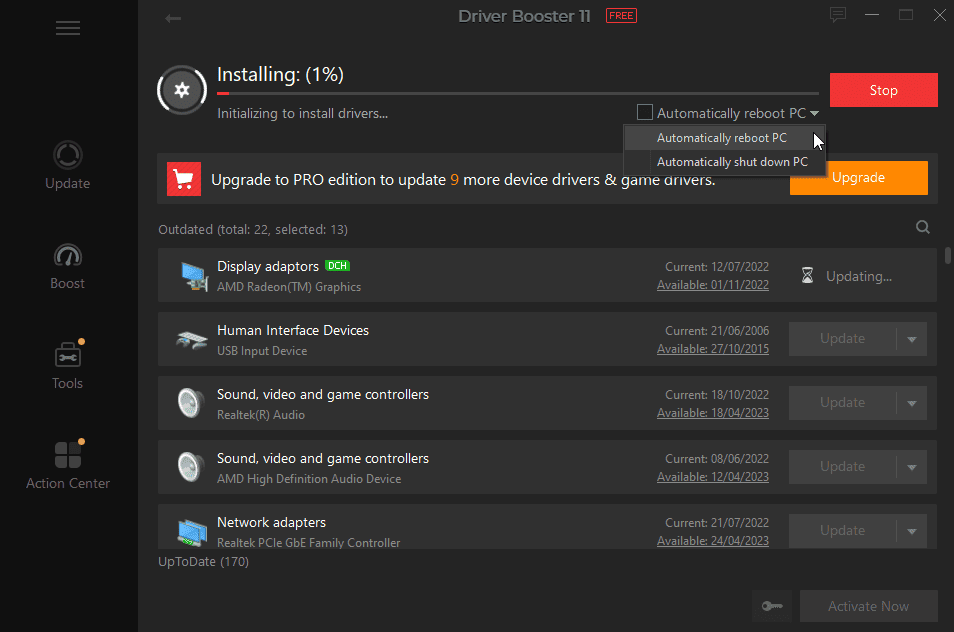
Even better, Driver Booster also creates a restore point before installing new drivers to ensure you can revert your system to a working state if anything goes wrong.
Pros:
- Automatically identifies outdated drivers and replaces them
- Database of more than 6 million drivers from more than a thousand brands
- Updates are downloaded within the software
- Allows you to compare the new and old drivers before installing
- Creates a restore point before updating drivers
Cons:
- Some users complained about the number of pop-ups
- Other software is bundled within the software’s installation and needs to be deactivated.
Also read: Manually Install Drivers Windows 11: 2 Best Methods
4. Ashampoo Driver Updater – Real-Time Monitoring
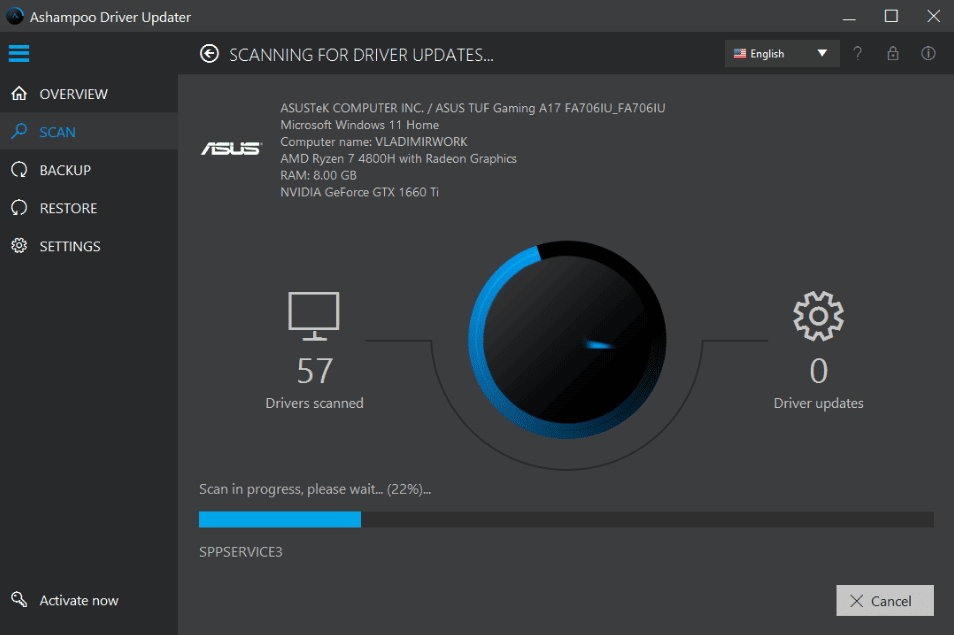
The Ashampoo Driver Updater is another powerful tool that impressed me during my testing phase with its effectiveness and speedy scanning.
As soon as you open the software, you’re welcomed by a user-friendly interface with clear menus and easily accessible options for users of all caliber. Initiating the scanning process is as easy as clicking a button, and the results are never late.
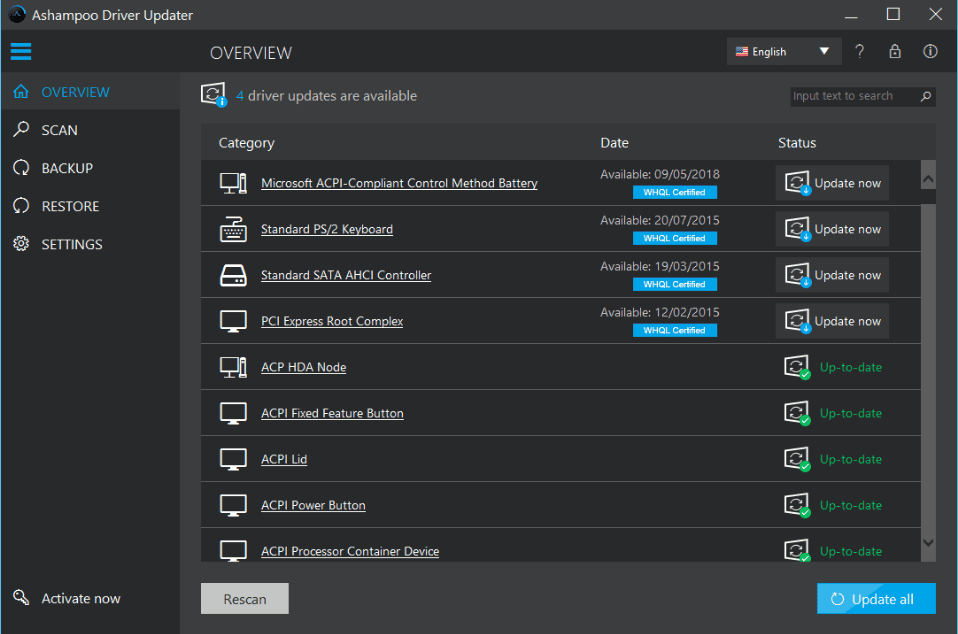
As you can see, in my case, Ashampoo Driver Updater has identified four drivers that need updates. This presents you with two valid options:
- Click the Update Now button next to each driver you want to refresh (which is free).
- Click Update All. The latter option only works if you have the pro version of the software.
In my case, I chose to update the Microsoft ACPI-Compliant Control Method Battery so I could do this completely free.
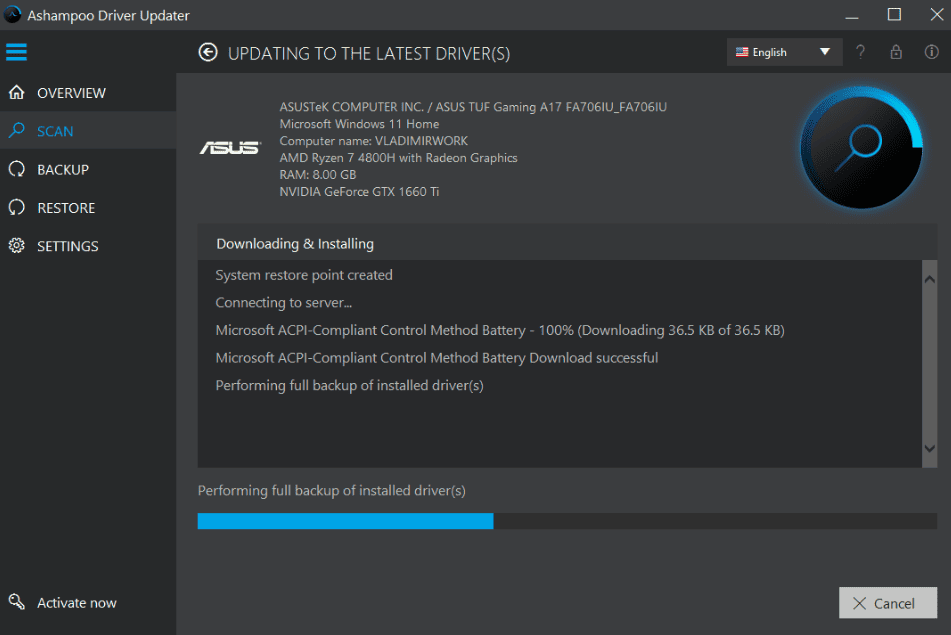
Before starting the update process, the software creates a restore point. This assures you that you can always revert the changes.
Pros:
- Clear and well-designed interface with easy access to features
- It creates an automated backup before initiating the updates
- The scanning process is relatively fast compared to other similar software
Cons:
- To perform a full update of all identified drivers, you’ll need to use the licensed version
5. AVG Driver Updater – Quick Driver Updater
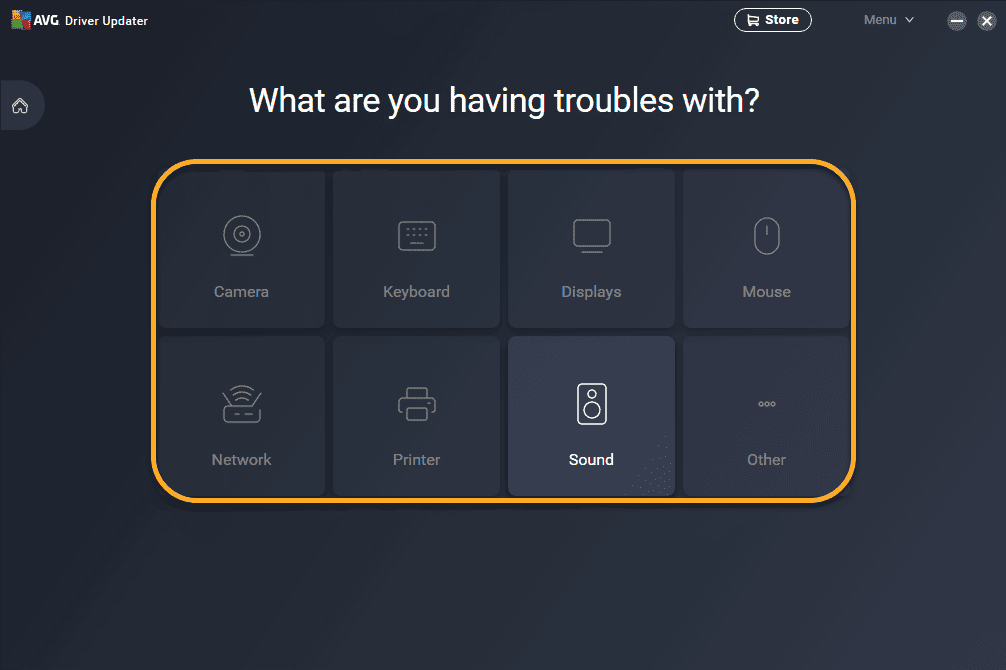
AVG Driver Updater is another excellent tool that can help you keep your PC’s drivers updated at all times and thus improve performance and system stability. This software is created by the well-known antivirus company AVG, so you can rest assured that it’s trustworthy.
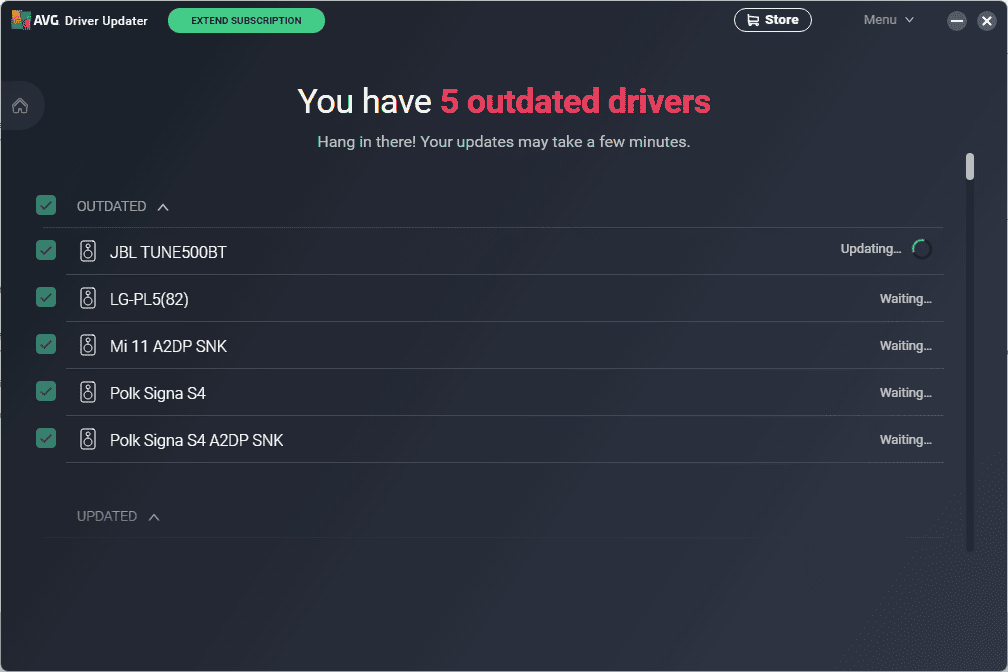
The software scans your system for outdated or corrupted drivers and presents the results. Now, you can update them all or inspect them and their details individually.
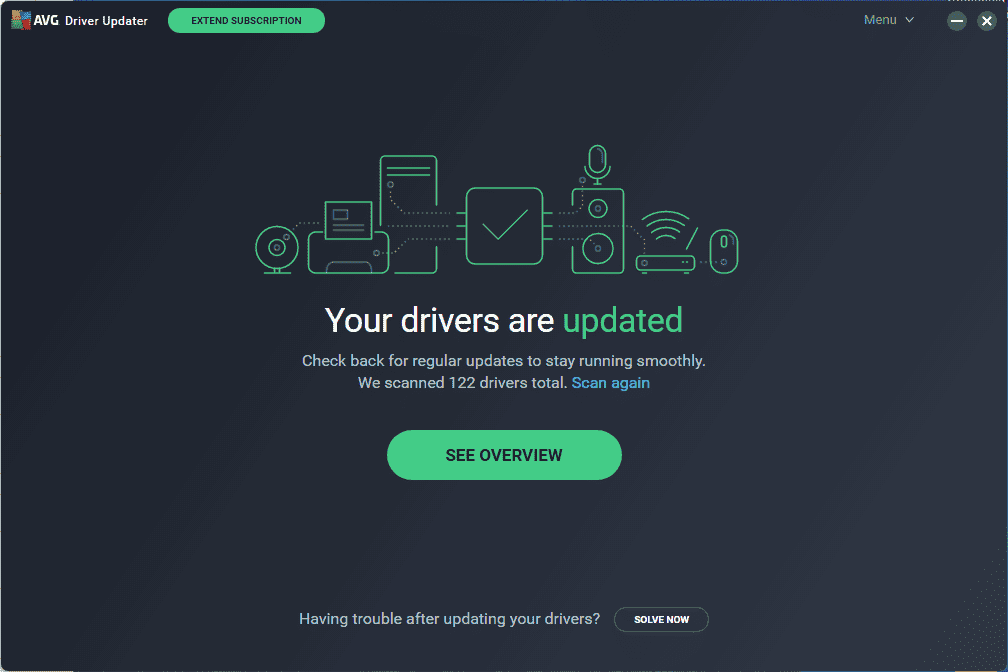
This software impressed me during the tests with its speed, both when scanning and installing the drivers. This same principle applies even when the drivers are more significant.
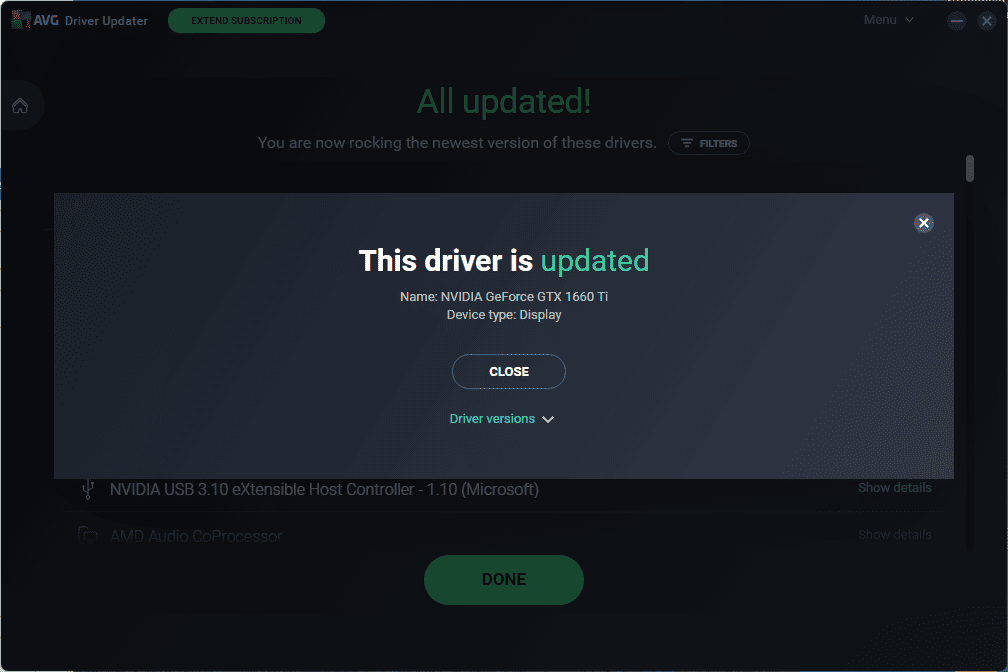
That being said, AVG Driver Updater consumes quite a lot of resources when scanning and installing. This is an essential factor to consider for those who are running lower-end PCs.
Pros:
- User-friendly interface
- Efficient and fast scanning for drivers
- Speedy installation of drivers
- Well-known brand which you can trust completely
Cons:
- The software uses quite a lot of resources
- Pricier than other driver updaters
6. Driver Easy – Manual Driver Installation
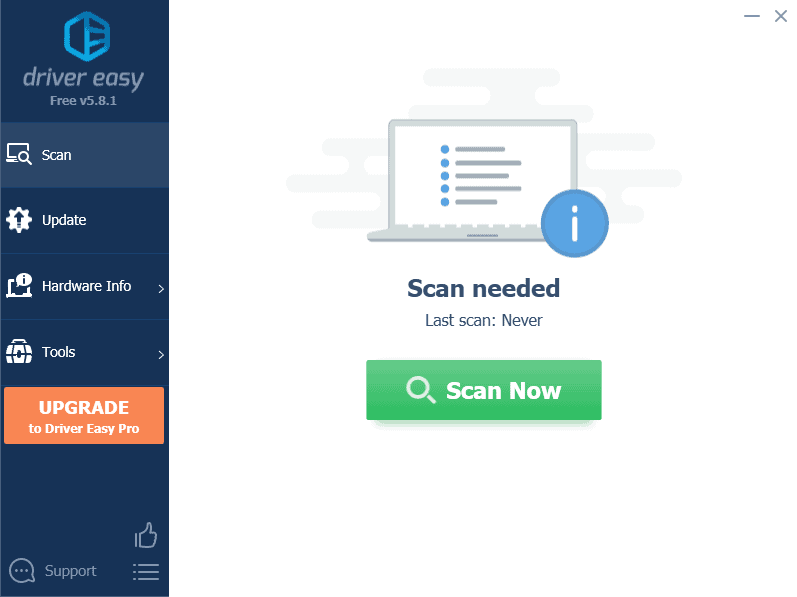
Driver Easy is another tool that ensures your PC’s drivers are constantly updated with the latest release.
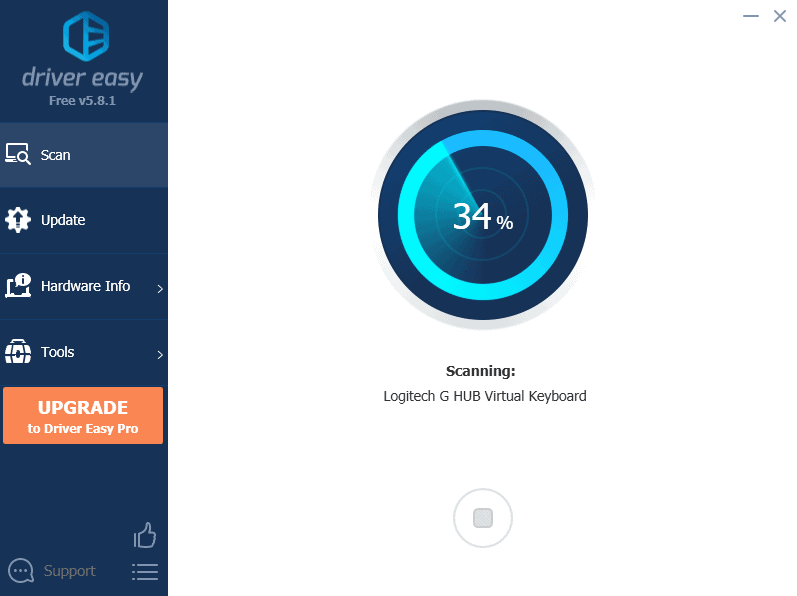
Its customizable schedule for automatic updates makes it stand out from the other software I tested for this guide. This ensures your PC’s driver updates can be performed on your schedule and thus reduce the strain on your device when you need it more.
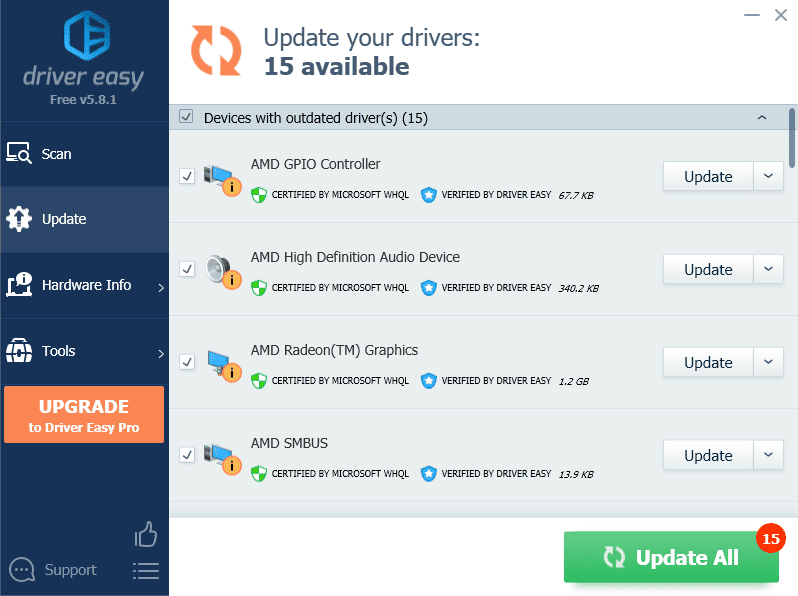
After clicking the Update button for one of the drivers, the screen below will appear. You can create a system restore point automatically or manually even.
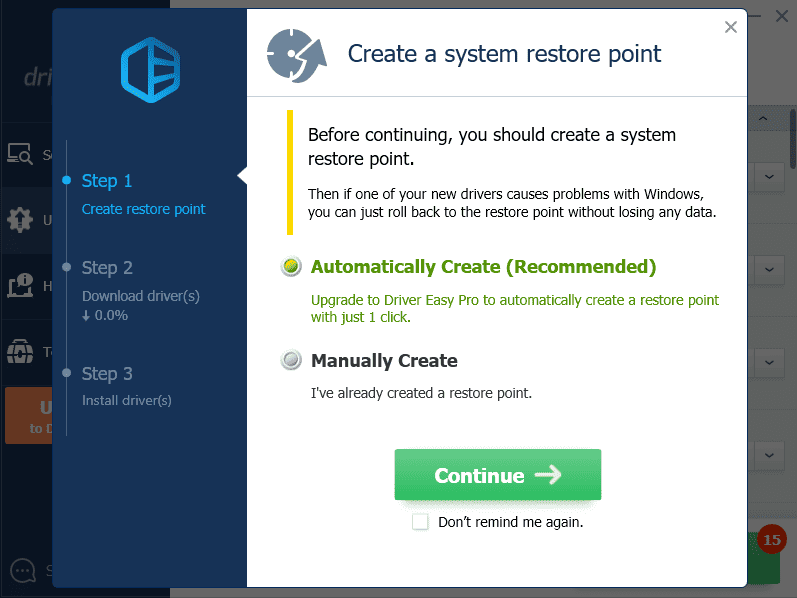
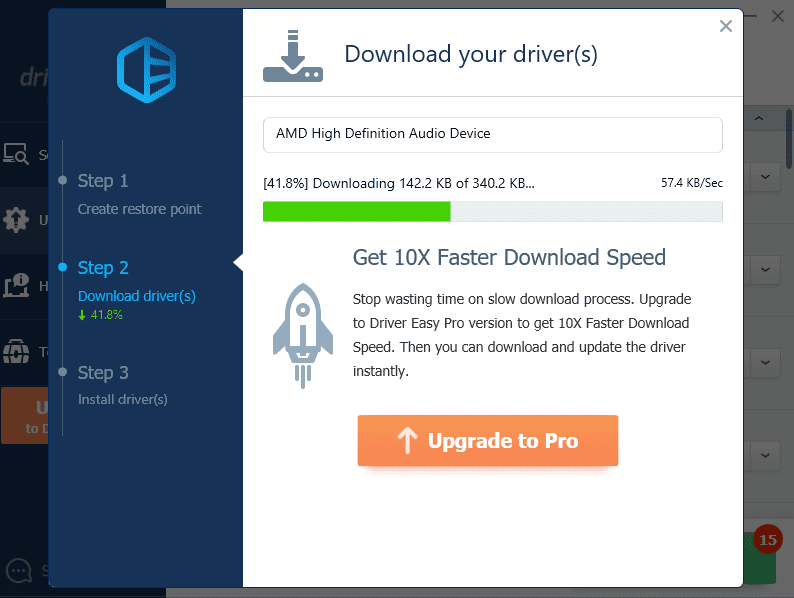
Driver Easy also uses an extensive database of drivers to ensure that every update is performed effectively.
After the download, the software will automatically open the download location of the drivers, which you can now install manually.
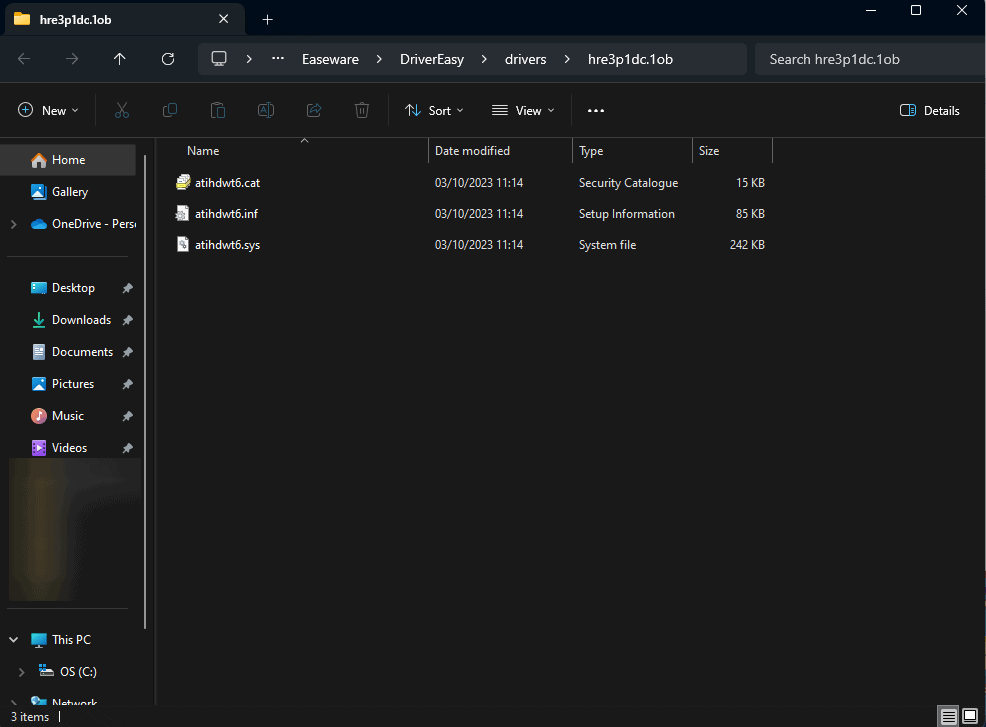
One element that disappointed me during my testing is that Driver Easy only allows you to install downloaded drivers manually. This can be annoying to some users, but at the same time, it provides you with a more personalized update process.
Furthermore, these features are enclosed in a very user-friendly and easy-to-use interface.
Pros:
- Automatically detects and downloads drivers
- Extensive driver database with the latest releases
- User-friendly interface
Cons:
- Downloaded drivers require a manual installation
- The download speed for drivers is limited in the free version
7. DriverMax – Great Results
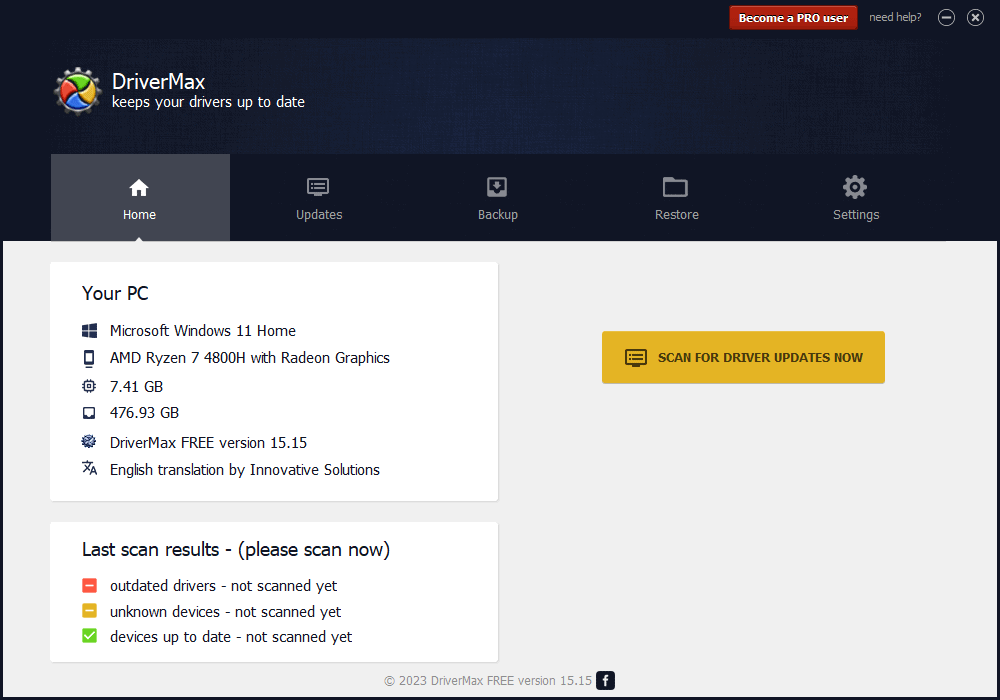
DriverMax is another software that allows users with different expertise levels to keep their PC’s drivers updated continuously. Best of all, it doesn’t affect system resources much.
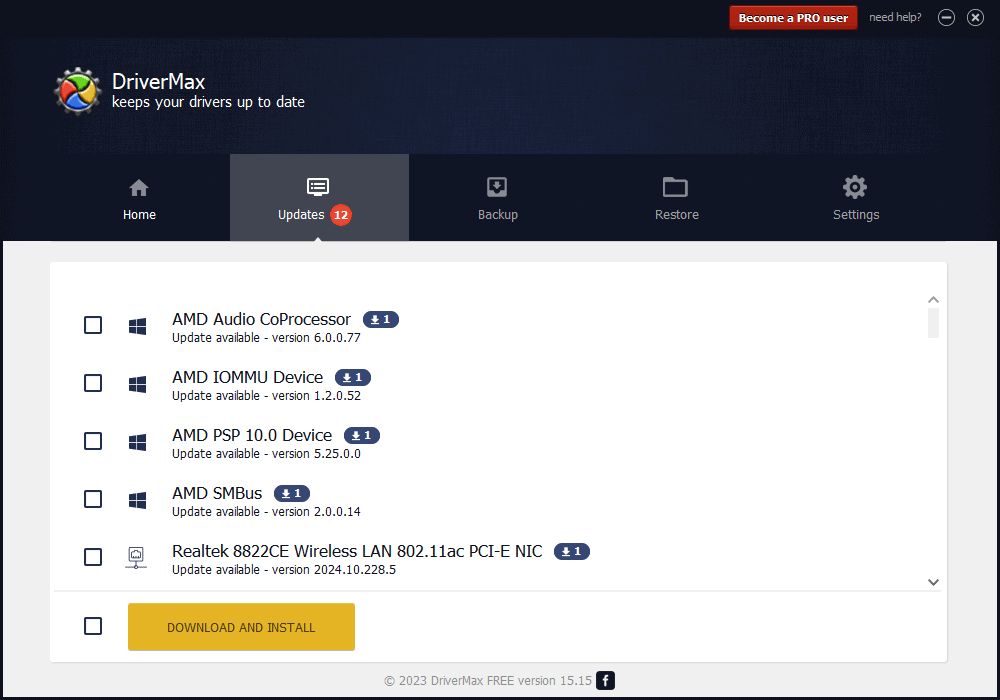
Even though using this is a free driver updater, it takes quite a long time for the app to scan your system. Of course, this will depend on the size of your PC’s storage devices.
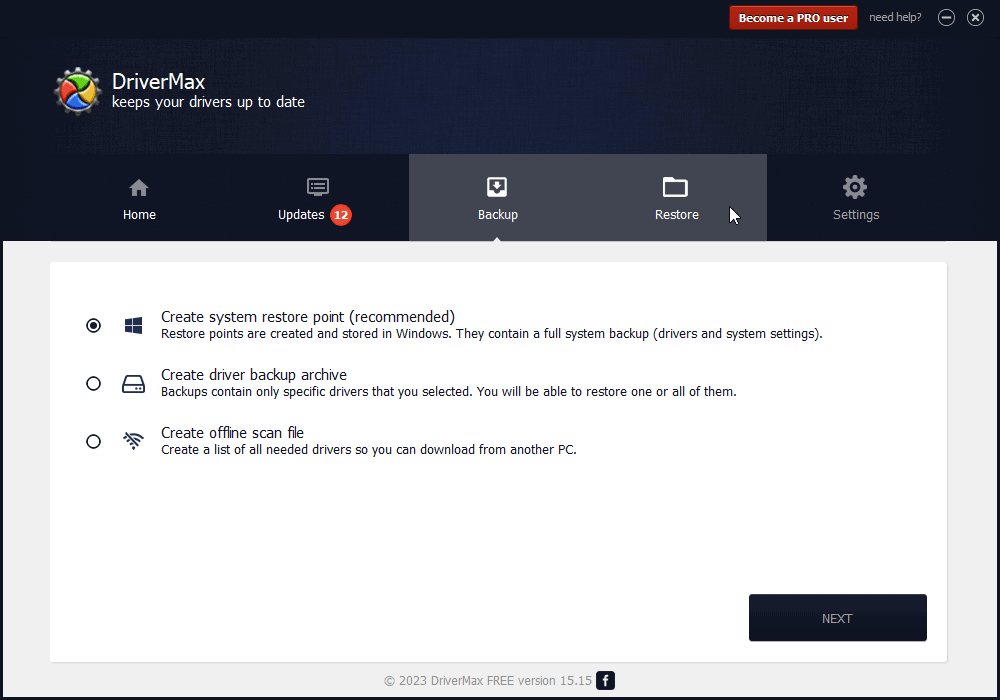
Furthermore, it can create a system restore point that ensures you can always revert any changes. You can see the features from this section in the image presented above.
Pros:
- Automatically installs any downloaded driver, making it usable for beginners and experienced users
- Well-known as a reliable and efficient software
- Free to use on both Windows 10 and 11, but with some limitations
- Creates recovery points to ensure easy reverting to previous states
Cons:
- The free version has a two drivers/day download limit and ten/month
- Some users have mentioned that the software suggested some incorrect drivers.
8. Snappy Driver Installer – Offline Installation
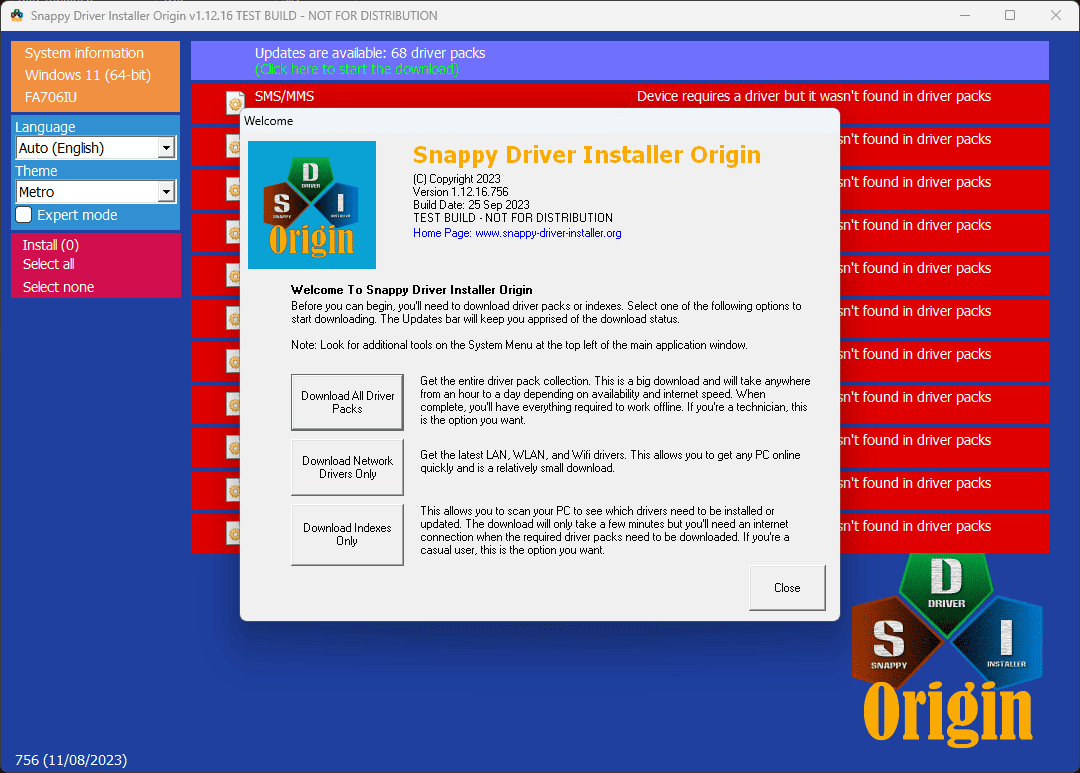
As the name suggests, Snappy Driver Installer Origin is a very efficient and versatile driver updater software that works perfectly on Windows 10 and 11 devices.
However, I need to make something clear: the other version, called Snappy Driver Installer, has been hacked. That being said, this app is perfectly safe to use, as I’ve tested it without any issues.
The feature that made this software stand out is its ability to perform offline driver installations. That way, you can access and install driver updates even when you’re not connected to the Internet. I saw this as an excellent advantage for situations with limited internet access.
Snappy Driver also uses an extensive driver database. You’ll be able to update your PC’s drivers even if you have a custom rig with obscure hardware installed.
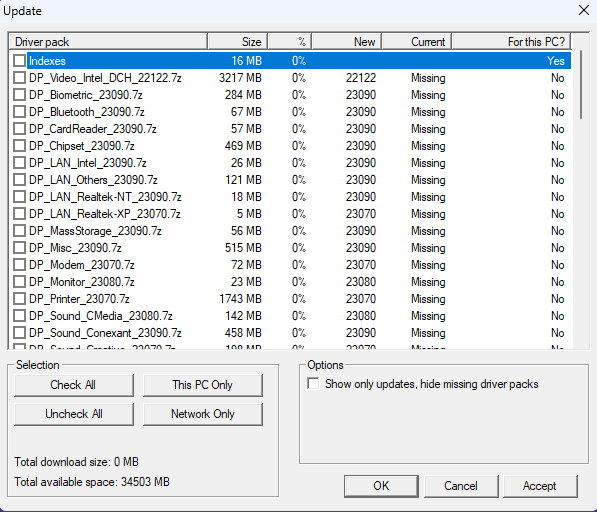
Another great feature is the variety of customization settings.
However, there’s one issue I’ve encountered during my tests: the user interface is a bit confusing. I see this as a more significant issue for beginners.
Pros:
- Offline installation of drivers after downloading driver packs
- Extensive driver database for all hardware components
- Good customization options
- Low impact on system resources
Cons:
- The user interface isn’t as intuitive as for other similar software
- Requires you to install the downloaded drivers manually
9. DriversCloud – Unique Browser-Based Driver Updater
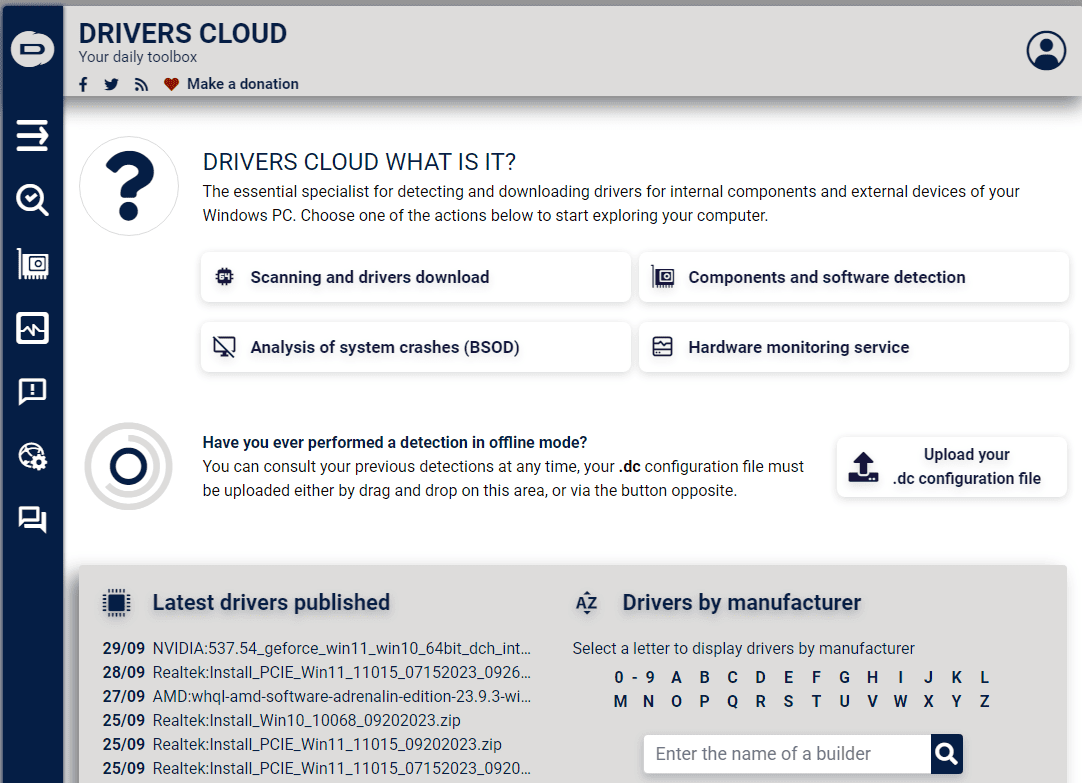
DriversCloud is a unique driver updater that operates within your web browser.
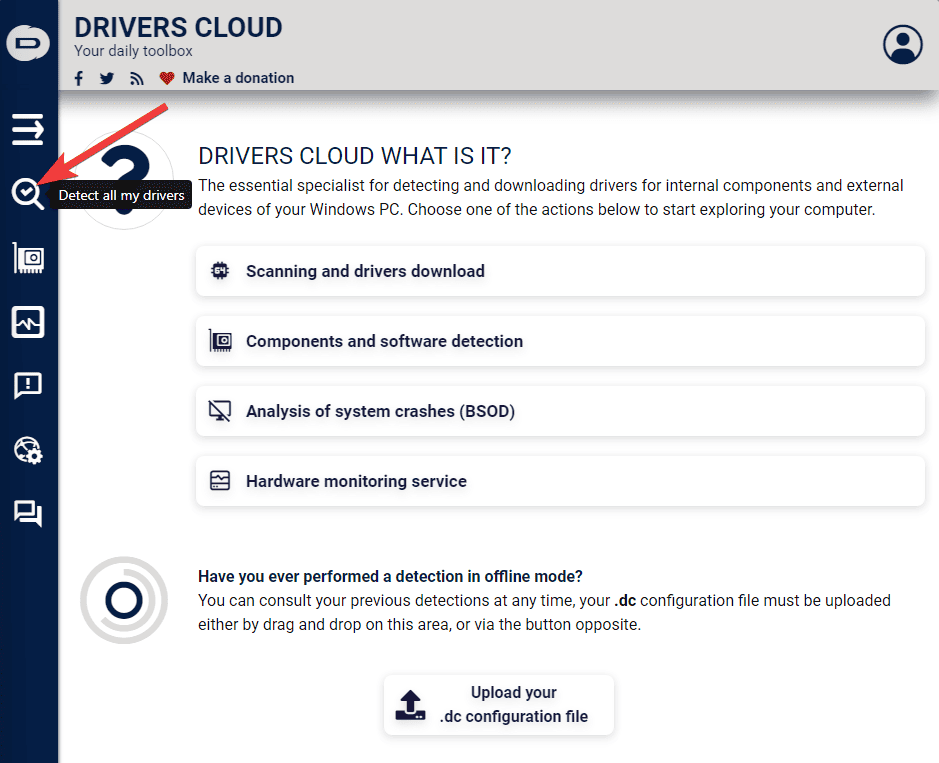
To start the process, log into the website and click Detect All My Drivers from the left sidebar.
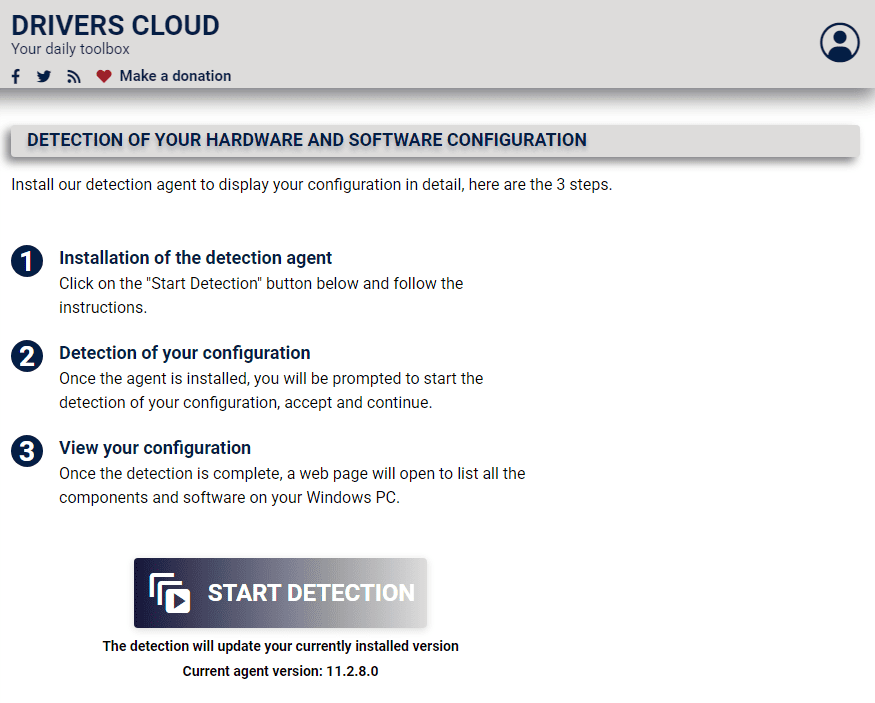
Then, you can scroll down that page and click the Start Detection button to initiate the scan.
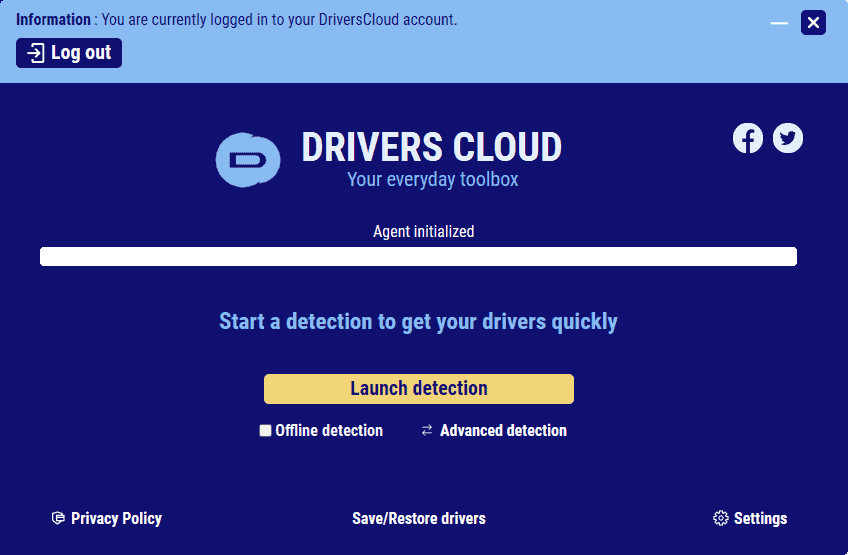
As soon as you do, the local app will open up. After that, you should click the Launch Detection button.
After the scanning process, which takes only a few seconds, a new page will automatically open inside your browser. There, you’ll be presented with the drivers you need to install.
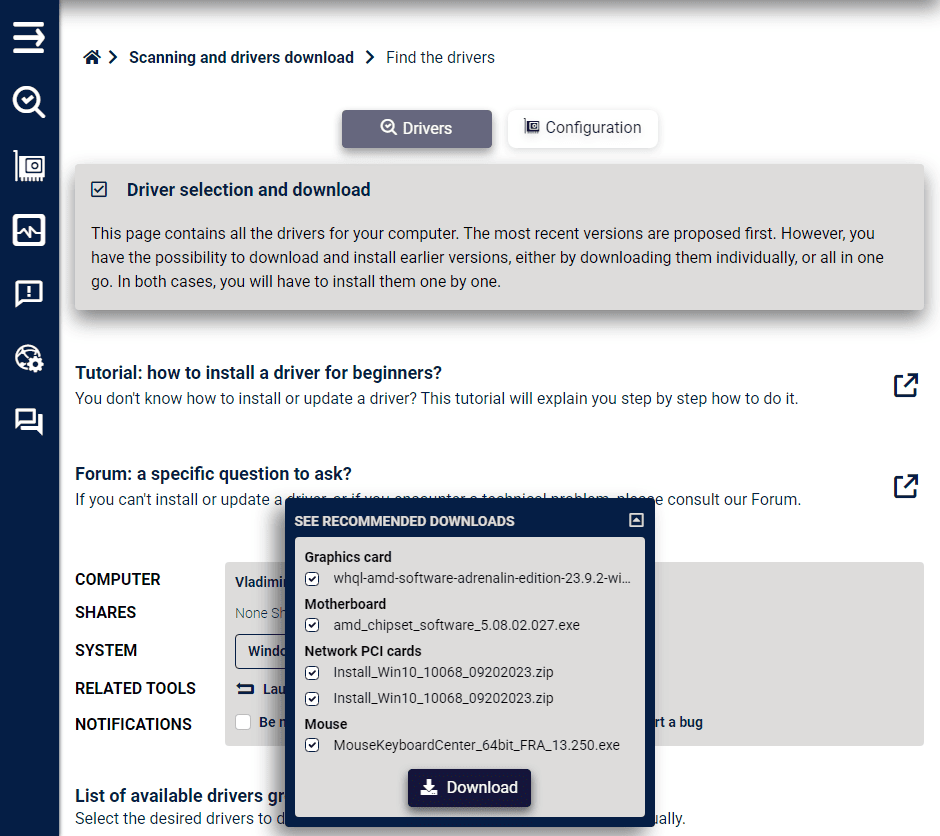
Finally, you’ll have to individually and manually install them into your system. Additionally, the DriversCloud app enables you to identify any BSOD errors.
Pros:
- Runs almost entirely on your browser, with just the identification tool being installed locally
- Automatically detects your device’s driver needs and suggests the best option
- Allows users to perform offline scanning
- Low impact on system resources
Cons:
- As the downloaded drivers need to be installed manually, it might not be the best choice for beginners
- The interface can be confusing
Testing process
Here’s a quick look at my testing process and the main criteria used:
| Software Options | Driver Database Size | User-Friendly Interface | Main Feature | Security and Reliability |
|---|---|---|---|---|
| Fortect Driver Updater | Extensive database | Yes | Only certified drivers | ***** |
| PC HelpSoft Driver Updater | Very Large database | Yes | Automated Scan and Update | ***** |
| Driver Booster by IObit | Large database | Yes | One-click updates | ***** |
| Ashampoo Driver Updater | Vast database | Yes | One-click updates | ***** |
| AVG Driver Updater | Offers reliable updates | Yes | Easy automation | ***** |
| Driver Easy | Substantial database | Yes | One-click updates | **** |
| DriverMax | Backups and restores | Yes | Automation and backups | **** |
| Snappy Driver Installer | Flexible and open-source | No | Manual or automatic updates | *** |
| DriversCloud | Extensive driver database | No | Online Identification | *** |
To create a comprehensive list of the best driver updater software for Windows 10 & 11, I’ve tested more than 20 software options.
Here’s my testing process:
- I created a set of test use cases, including custom scenarios, steps, and data. This process also included defining the expected results: update any missing drivers.
- I’ve downloaded and installed all software freshly onto my testing PC. The downloads were only done from official sources.
- I used the Windows Driver Kit (WDK) and Visual Studio for its driver-testing interface to analyze each driver that was downloaded.
- To avoid other issues, I’ve checked every result on Windows 10 & 11 virtual machines.
- The testing PC is an ASUS TUF with an AMD Ryzen 7 4800H CPU, 8GB RAM, and an NVIDIA GeForce GTX 1660Ti GPU.
Does Windows 11 Have A Built-In Driver Updater?
Yes, Windows 11 includes a built-in driver updater in its Update system.
What’s more, you can use the default Device Manager tool to update your drivers manually. Let me show you how:
Windows 10
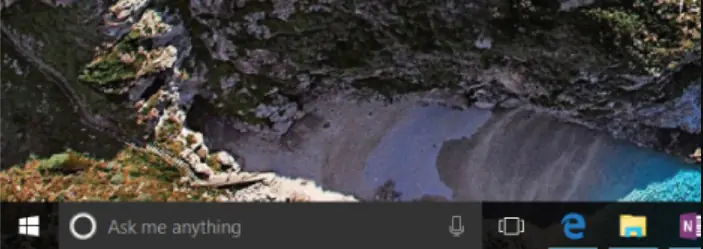
- Click the Start button, type ‘device manager‘ in the search bar, and open the Device Manager from the results.
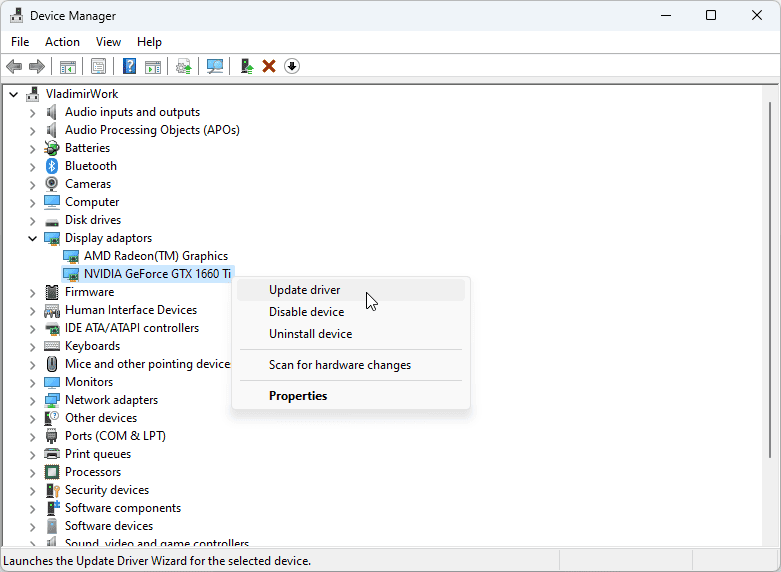
- Choose a category to see the names of the devices.

- Right-click the device you want to update and choose Update Driver.
- Choose Search automatically for the updated driver software.
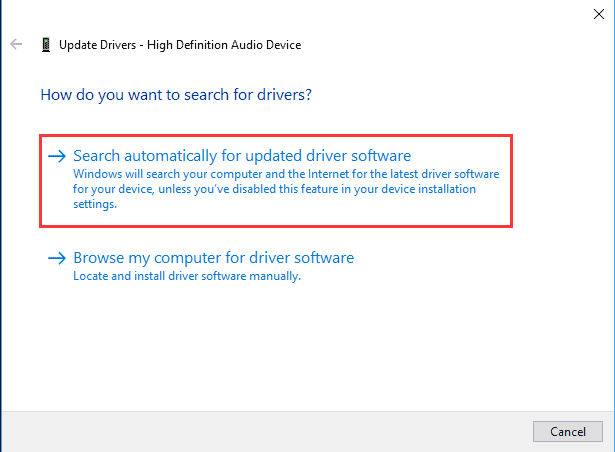
- Click Update Driver to initiate the process.
Windows 11
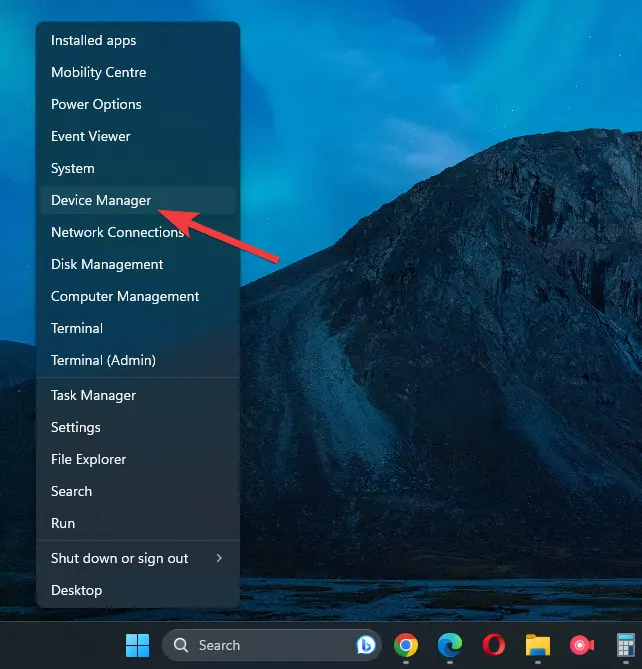
- Press the Win + X key combination to open the Start menu, and Choose Device Manager from the list.
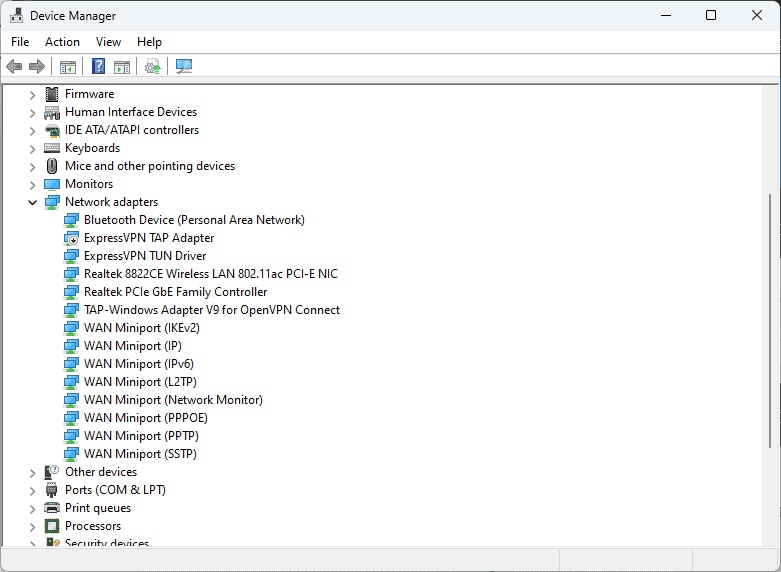
- Expand the section of drivers you want to update.
- Right-click the driver, and choose Update Driver.
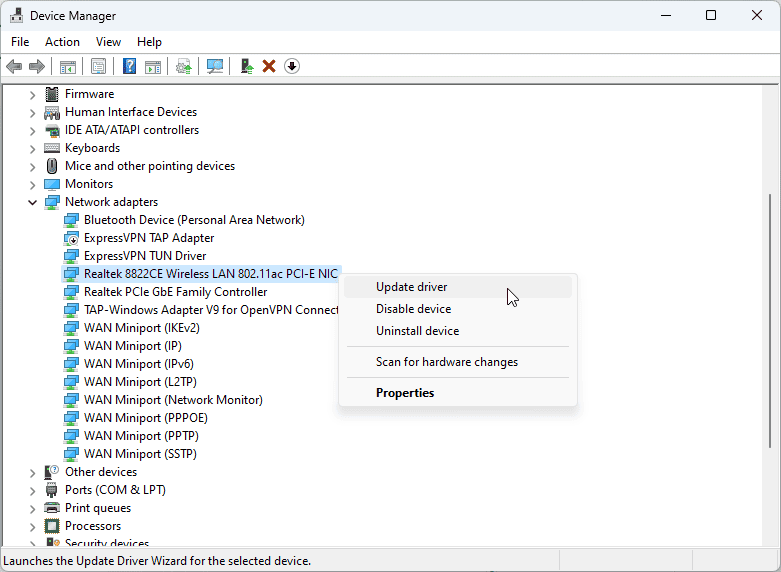
- Choose the Search automatically for drivers option to initiate the process.
- Wait for the process to complete.
Note: As mentioned previously, employing this method when updating drivers does work, but it is not very useful when updating many drivers. The time spent with this process can be better used when using a third-party update software instead.
Risks of Not Updating Your Drivers
Driver updates are designed to resolve compatibility issues, bugs, and crashes. So, neglecting them can lead to various performance problems, such as:
- Your PC slowing down
- Your monitor going black or display going blank after logging in
- Your PC not detecting your mouse, webcam, keyboard, or other peripherals.
Moreover, you’ll expose your OS to unpatched security risks. Hackers can exploit these and gain access to your system, inject malware, steal your data, and more.
You may also lose progress if your system crashes unexpectedly due to outdated drivers. Your PC will waste resources in general because of unoptimized CPU usage.
Conclusion
In this list, I’ve tested and explored some of the most recommended driver detectors and updates. Choosing the right driver updater software for Windows 10 & 11 will come down to your preference, but I can safely state that any option you pick from the list above will be helpful.
I’ve included apps with a user-friendly UI, browser-centric usage, and some software options with a low impact on system resources, making them perfect for a lower-end PC.
Let me know which one you’ve picked and why in the comment section below!


Read our disclosure page to find out how can you help MSPoweruser sustain the editorial team Read more



Improve this guide




User forum
1 messages