
Roborock Qrevo Curv manual: diagrams, Wi-Fi and dock basics


 2 min. read
 Published on
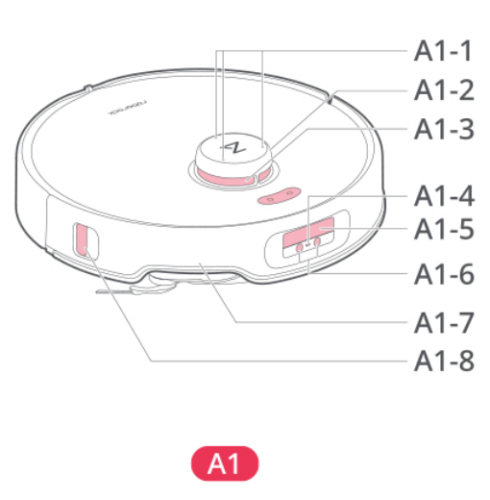
The Roborock Qrevo Curv manual uses letter-and-number references that correspond to a separate diagram sheet. Open both documents from Roborock’s support page: the text explains the controls, while the sheet shows the exact component being discussed.
Open the original Roborock Qrevo Curv manual. The official support page links the English FCC manual and a separate diagram sheet. This is the Qrevo Curv, not Curv 2 Flow.
Match the reference number to the diagram
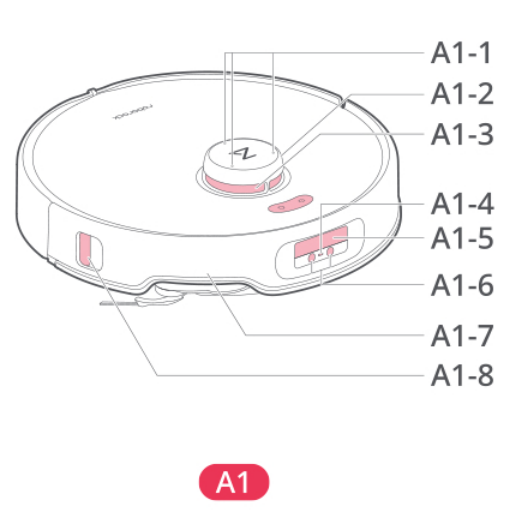
The top-view drawing is A1. In the English manual’s product overview, A1-3 identifies the LiDAR sensor, while A1-5 identifies the dock locator. The on-device controls distinguish cleaning from docking functions.
Read the whole instruction around a reference number. A diagram showing where a component sits does not mean it is intended to be pulled out or washed. The maintenance chapter is the right place to check removal and cleaning instructions.
Use the underside drawing for component identification
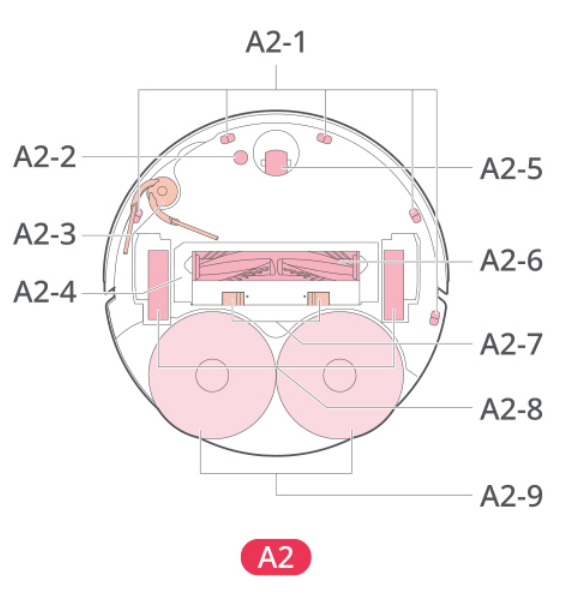
A2 is the underside view. The text identifies A2-1 as the cliff sensors, A2-3 as the side brush and A2-6 as the main brushes.
When describing a fault, use both the component name and the diagram reference. That is clearer than “the sensor underneath,” especially when several sensing and cleaning components are close together. Switch off and follow the manual’s maintenance precautions before handling cleaning parts.
Check the network and dock before restarting setup
The manual specifies 2.4 GHz Wi-Fi for app connection. Its setup section directs you to add the device in the Roborock app; screens may change with app updates. For reliable return behavior, it says to start cleaning from the dock and leave the dock in place during the run.
Keep network setup and navigation problems separate. If app connection fails, record the network band and the stage where setup stops. If the robot cannot return, record whether the dock moved after the run began. These observations give support a more useful starting point than a general “not working” report.
Documentation-based guidance. Screenshots are credited excerpts from the manufacturer’s manual; this is not a hands-on product test.


Read our disclosure page to find out how can you help MSPoweruser sustain the editorial team Read more



Improve this guide
User forum
0 messages