
Logitech PRO Wireless manual: receiver, charging and side buttons


 2 min. read
 Published on
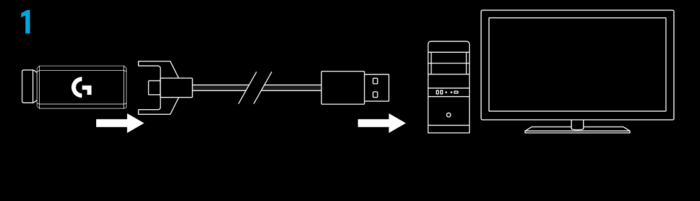
The Logitech PRO Wireless manual shows how the supplied USB cable serves two jobs: extending the receiver through an adapter and connecting directly to the mouse for charging and wired use. The two diagrams below help identify which configuration you have.
Open the original Logitech PRO Wireless manual. This is the original PRO Wireless setup guide, not a PRO X SUPERLIGHT or PRO 2 guide.
Use the receiver and adapter correctly
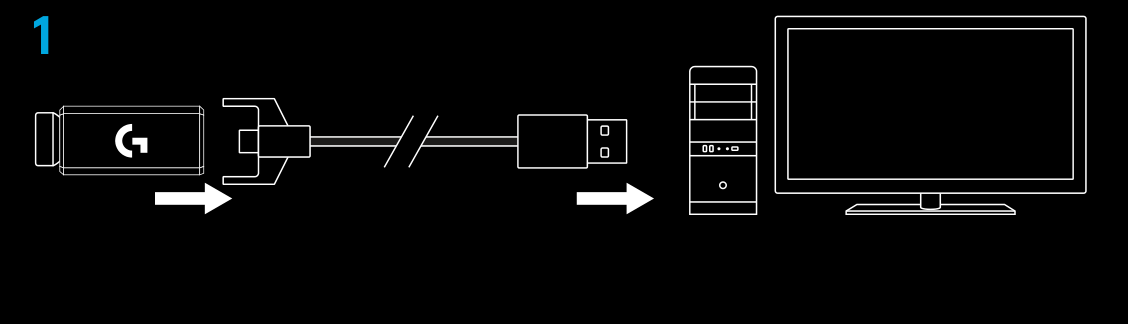
The receiver can connect directly to the PC, or through the supplied adapter and cable. Logitech recommends the extension arrangement for convenient placement and access to the charging cable. The power switch is on the mouse’s underside.
If movement stops after rearranging your desk, check which end of this chain is still connected before changing a profile. A cable ending in an adapter and receiver is not the same physical arrangement as a cable plugged into the mouse.
Move the cable to the mouse to charge
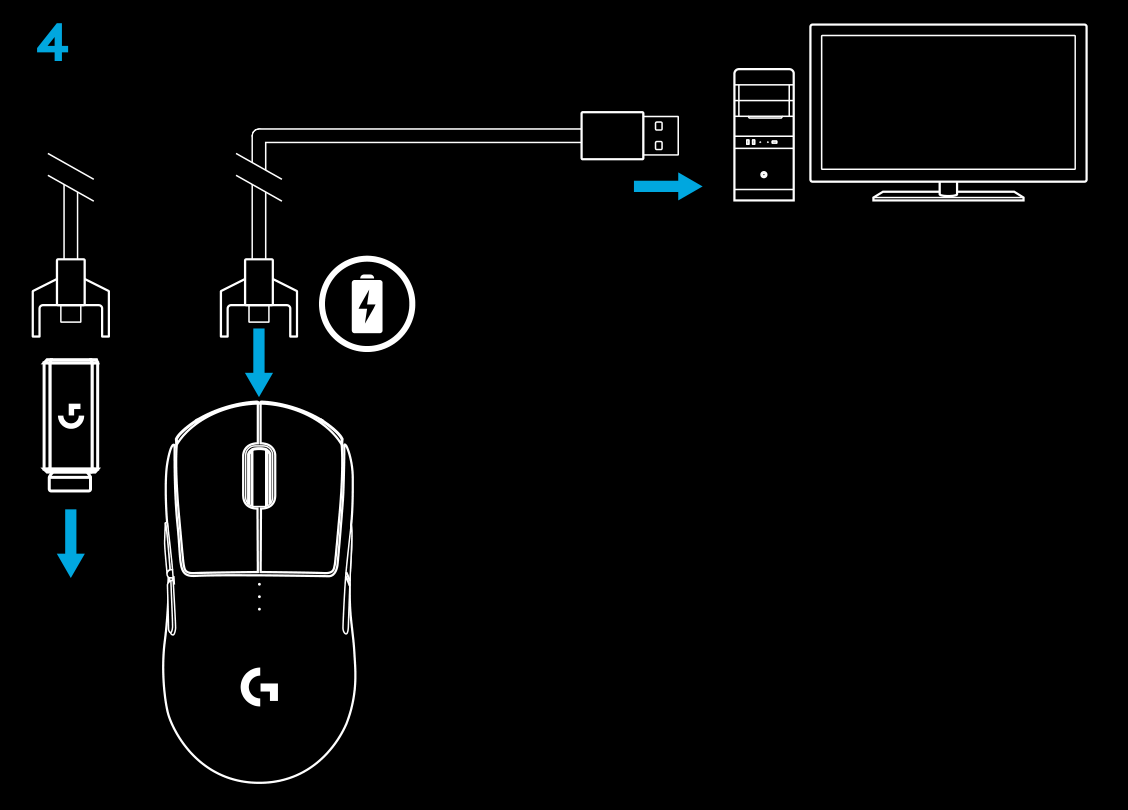
For charging, the guide shows disconnecting the cable from the adapter and inserting it into the mouse’s front connector. When connected directly to a PC, the mouse also works over the cable.
This provides a useful comparison if you are investigating a connection fault: note whether the problem occurs in the receiver arrangement, the direct cable arrangement, or both. Change only that connection for the comparison so your other settings stay consistent.
Check the button configuration before remapping
PDF pages 6–8 explain the removable magnetic side buttons and caps, including left- and right-handed arrangements. The DPI-cycle control is underneath.
The PDF’s software screenshots refer to the older Logitech Gaming Software. Logitech’s current support page says G HUB succeeded LGS for new devices; use current model-specific support when choosing software. Keep the physical configuration and software assignment separate when recording a problem—an absent side-button cap is not a missing app setting.
Documentation-based guidance. Screenshots are credited excerpts from the manufacturer’s manual; this is not a hands-on product test.


Read our disclosure page to find out how can you help MSPoweruser sustain the editorial team Read more



Improve this guide
User forum
0 messages