
How To Enable Split Screen On Windows 11 (Quick Guide)


 5 min. read
  Updated on
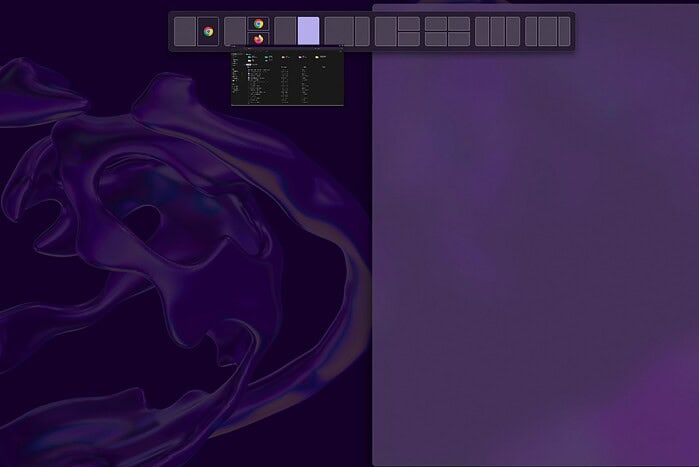
Windows 11 offers several ways to enable split-screen functionality, boosting your productivity by letting you work with two applications side by side. This guide walks you through the simplest and most efficient methods. While you test these layouts, you should also learn how to adjust screen brightness on a Windows 11 laptop, because high brightness on a split view can cause eye strain during long work sessions.
How Can I Use Split Screen in Windows 11?
Here’s how to master split-screen multitasking in Windows 11, using several built-in tools depending on how you like to work.
Method 1: Using the Snap Layouts Feature

- Open the first app: Launch the application you want on the left side of your screen.
- Maximize the window: Click the maximize button to make it full-screen.
- Grab the title bar: Hover your mouse over the title bar of the maximized window. You’ll see a small icon with a grid of layout options in the upper-right corner of the window.
- Select a Snap Layout: Click the icon and choose the layout that places your first app on one side of the screen, leaving space for a second app.
- Choose your second app: Windows 11 will suggest other open apps to fill the rest of the screen. Click the app you want to pair.
If your display goes black or freezes while snapping a window, follow our guide on how to fix a black screen of death in Windows 11. Display crashes can interrupt snapping and block the Snap Layouts menu from appearing.
Method 2: Using the Snap Groups Feature

Snap Groups let you bring back a previous split-screen setup without rearranging every window again.
- Arrange your apps: Use Method 1 to arrange two apps in a split-screen layout.
- Minimize the apps: Minimize both apps.
- Restore the Snap Group: Hover over the taskbar icon for one of those apps. Windows 11 will show the pair as a group, so you can restore both windows in the same layout with one click.
If the screen turns black instead of restoring the layout, see how to fix Windows 11 black screen issues. That guide walks through common causes like driver crashes, GPU timeouts, or bad monitor input selection.
Method 3: Manual Drag and Drop (for precise control)

Use this method if you want exact window sizes instead of the preset grid.
- Open both apps: Launch both applications you want to view at the same time.
- Resize the first window: Drag the first window to one side of the screen and resize it to the width you prefer.
- Resize the second window: Drag the second window to fill the remaining space on the screen.
When you troubleshoot weird window behavior (apps not snapping, GPU stutter, DirectX overlay conflicts), you can run system diagnostics. Learn how to use the DirectX Diagnostic Tool in Windows for troubleshooting to check graphics and display drivers. This helps if one app keeps flickering in split view while the other app looks fine.
Tips for Efficient Split-Screen Usage
- Experiment with different layouts to see which view fits your workflow (chat + document, browser + spreadsheet, editor + preview, and so on).
- Use Snap Layouts to create fast, clean two-pane layouts without dragging borders around every time.
- Use Snap Groups to save and instantly restore your preferred app pairings.
- Use a large external display or ultra-wide monitor for more space. You can also use screensavers to prevent burn-in or reduce distraction during breaks — see how to find the best free screensavers for Windows 11 and set something low-motion and subtle.
Mastering Multitasking in Windows 11
Windows 11 split-screen features give you real multitasking, not just window chaos. You can research on one side and write on the other, watch a tutorial while you follow steps, or compare two dashboards live. If you do a lot of this for long work sessions and your display suddenly goes dark, freezes, or refuses to wake up, follow the steps in our Windows 11 black screen of death fix guide before assuming the monitor failed.
FAQs
How do I close a split screen in Windows 11?
Close one or both apps. Windows will let the remaining app take over the full screen.
Can I use split screen with more than two apps?
Yes, but it needs more manual work. You can drag and resize three or even four windows, though it starts to get cramped. For truly separate workspaces, create multiple desktops and switch between them instead of forcing everything on one screen.
What if my apps don’t snap correctly?
Check your display scaling and resolution. Some apps (especially older tools, hardware dashboards, or games) don’t follow Windows window rules. If the screen goes black or flashes when you try to snap, use the steps in how to fix Windows 11 black screen issues to stabilize the display first.
My screen isn’t splitting correctly. What should I do?
Make sure you run the correct resolution for your monitor and update your graphics drivers. If you suspect a graphics or DirectX problem, you can use the DirectX Diagnostic Tool in Windows to troubleshoot GPU issues.


Read our disclosure page to find out how can you help MSPoweruser sustain the editorial team Read more



Improve this guide


User forum
0 messages