
How To Add And Customize Widgets In Windows 11 (Quick Guide)


 3 min. read
  Published on

Windows 11 introduced widgets, providing quick access to information and apps. This guide will walk you through adding and customizing widgets to personalize your Windows 11 experience. Widgets offer a convenient way to stay updated on news, weather, calendar events, and more, all without opening individual applications. Let’s dive in and make your desktop truly your own.
How Do I Access and Manage My Windows 11 Widgets?
Accessing the Widgets Panel
Click the Widgets icon: Locate the small, square Widgets icon on your taskbar. It usually sits to the right of the Start button. Clicking this icon will open the Widgets panel.
Explore Available Widgets: The Widgets panel displays a variety of widgets categorized for easy browsing. You’ll find options for news, weather, calendar, sports scores, and more.

Adding Widgets
Find the “+” Button:
At the bottom of the Widgets panel, you’ll see a “+” button. Click this to open the full Widget list.
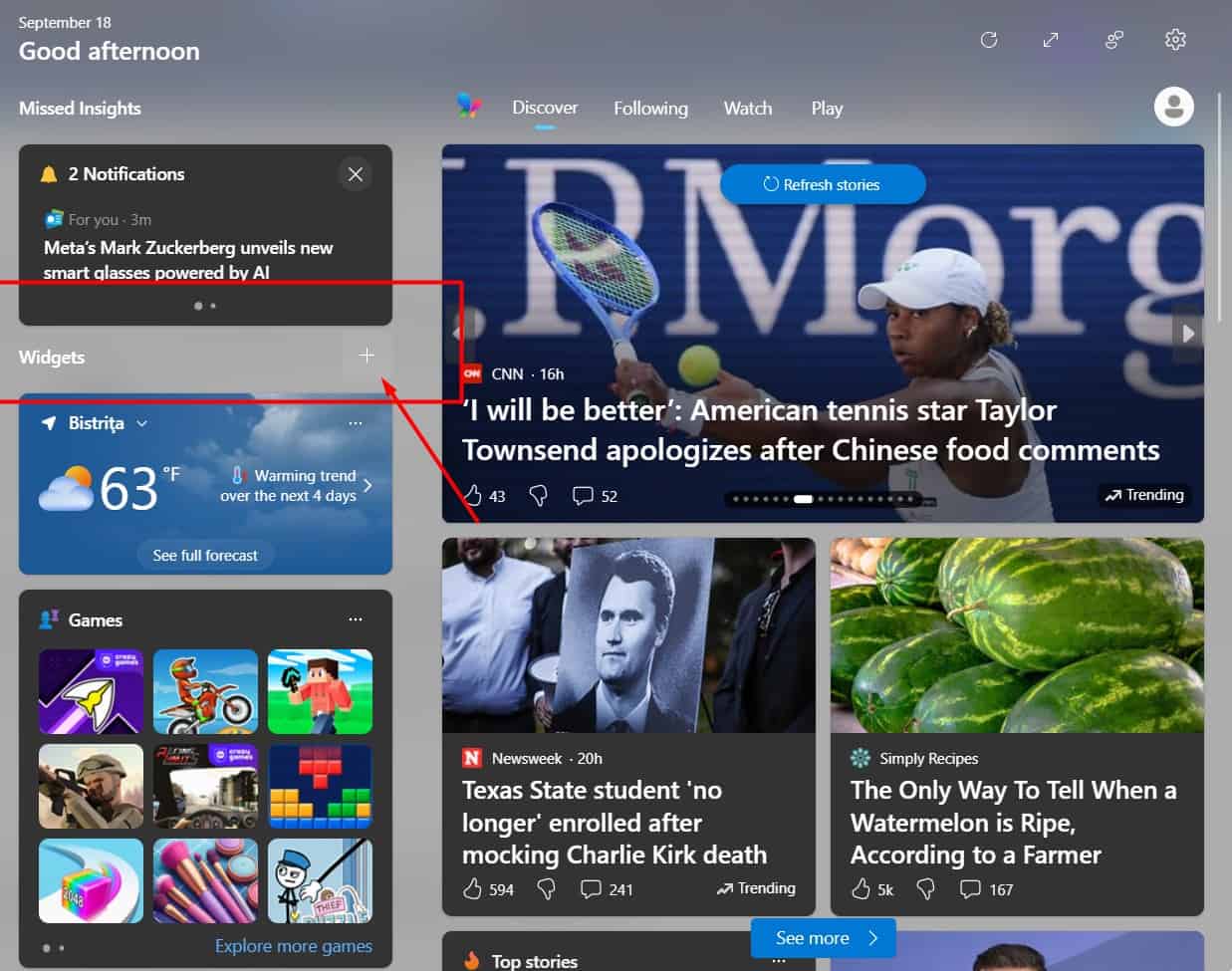
Select Widgets to Add:
Browse the list of available widgets. Click the “+” button next to any widget you want to add to your panel. The widget will instantly appear on your Widgets panel.
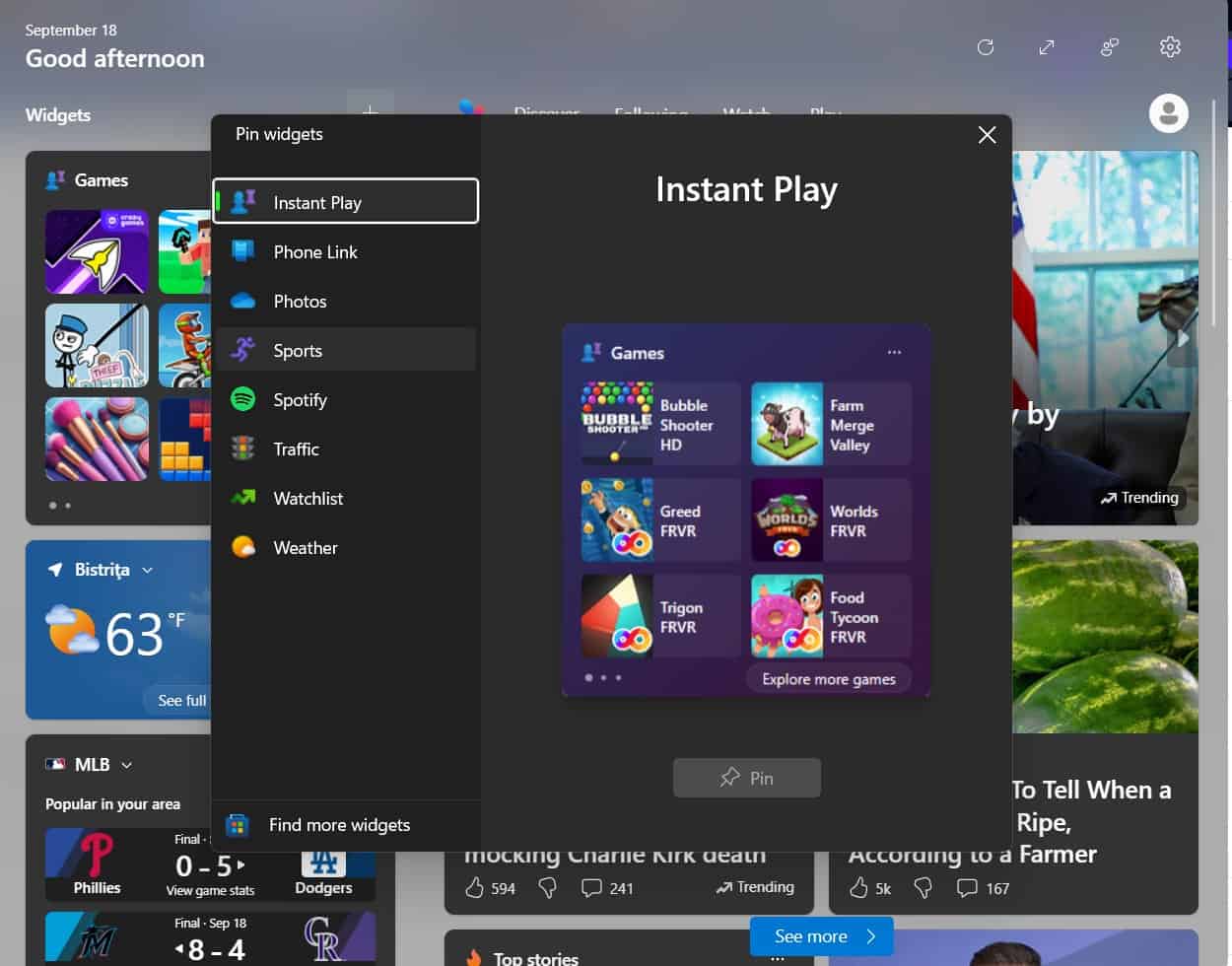
Rearrange Widgets:
You can easily rearrange widgets by clicking and dragging them to your preferred order.
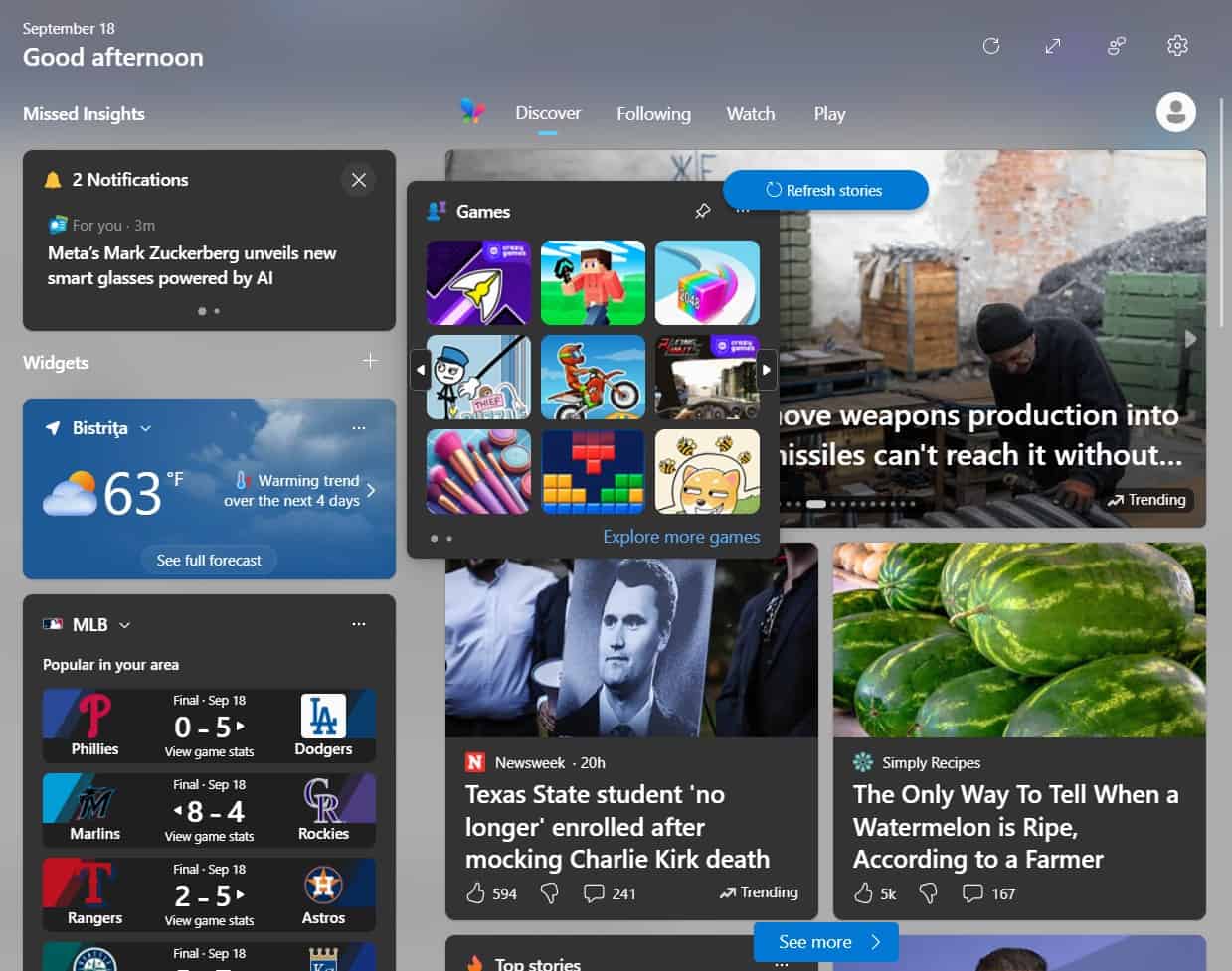


Customizing Widgets
Many widgets offer customization options. For example, you can change the location for weather widgets or select your favorite sports teams for sports score widgets. These options are typically accessed via a settings gear icon within each widget.
Removing Widgets
To remove a widget, simply click the three vertical dots in the upper right corner of the widget, and then select “Remove.”
Tips for Widget Management
- Regularly check for updates: Microsoft frequently updates the available widgets and their functionality.
- Experiment with different widgets: Find the widgets that best suit your needs and daily workflow.
- Keep your widgets organized: A well-organized widget panel makes it easier to find the information you need quickly.
Wrapping Up Widget Management
Mastering the art of adding and customizing widgets in Windows 11 is a simple yet powerful way to enhance your desktop experience. By following these steps, you can personalize your Windows 11 experience and access the information you need most efficiently.
FAQs
How do I get more widgets for Windows 11?
Currently, the widgets available are primarily built-in to the Windows 11 operating system. Microsoft occasionally adds new widgets through Windows updates.
Can I create my own custom widgets for Windows 11?
No, currently there isn’t a built-in method to create custom widgets in Windows 11. Third-party apps may offer similar functionality in the future.
Why are my widgets not updating?
Ensure your computer has a stable internet connection. Check the individual widget settings to see if there are any issues with data synchronization. Restarting your computer might also resolve some update problems.
How do I change the size or layout of my widgets?
The size and layout of the widgets are largely predetermined. While you can rearrange their order, you cannot resize them individually or significantly change their layout.
Related reading
- How To Fix A Black Screen Of Death In Windows 11 (Quick Fix)
- DNS Address Cannot Be Found on Windows 11 – 10 Proven Fixes
- How To Use The DirectX Diagnostic Tool For Troubleshooting In Windows (Quick Guide)
- How To Find Windows Media Player In Windows 11/10 (Quick Guide)
- How To Manually Update Windows 11/10 (Quick Guide)


Read our disclosure page to find out how can you help MSPoweruser sustain the editorial team Read more



Improve this guide




User forum
0 messages