
How To Update Minecraft Bedrock On PC Windows 11: A Step-by-Step Guide


 4 min. read
  Published on

If you’re playing Minecraft Bedrock Edition on PC, regular updates are a must. They add new features, fix annoying bugs, and keep your game running smoothly.
Below I’ll show you how to update Minecraft Bedrock on Windows 11 using either the Microsoft Store or Xbox app, and how to troubleshoot when updates don’t install properly.
How Do I Update Minecraft Bedrock Edition on Windows 11?
Updating Through the Microsoft Store
- Open the Microsoft Store: Click the Microsoft Store icon on your taskbar or search for it in the Start Menu.
- Go to your Library: Click the “Library” icon in the bottom-left corner of the window.
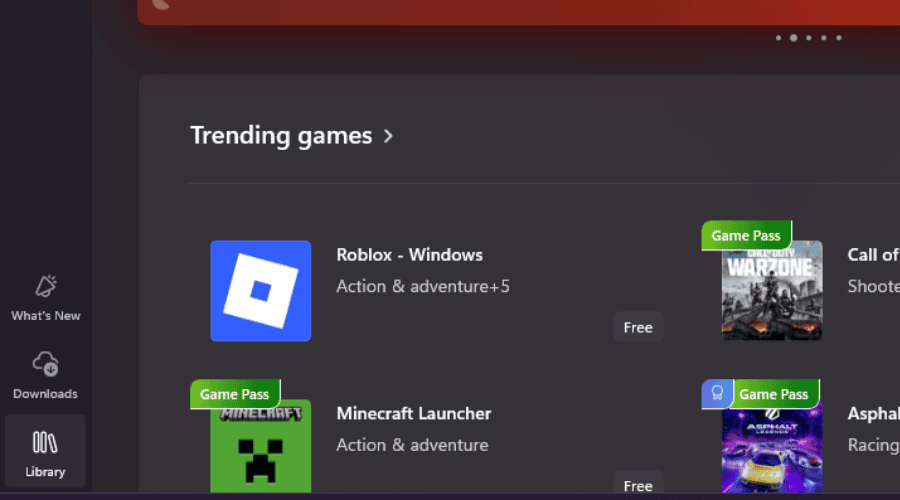
- Check for Updates: Click the “Get updates” button in the top-right corner to check for updates for all apps, including Minecraft.
- Update Minecraft: If an update appears for Minecraft Bedrock Edition, click “Update” to install it.
- Launch Minecraft: After the installation finishes, click “Play” to launch the updated version.

Updating Through the Xbox App
- Open the Xbox App: Search for the Xbox app in the Start Menu or click its icon on the taskbar.
- Access Your Library: Select “My Library” on the left-hand panel.
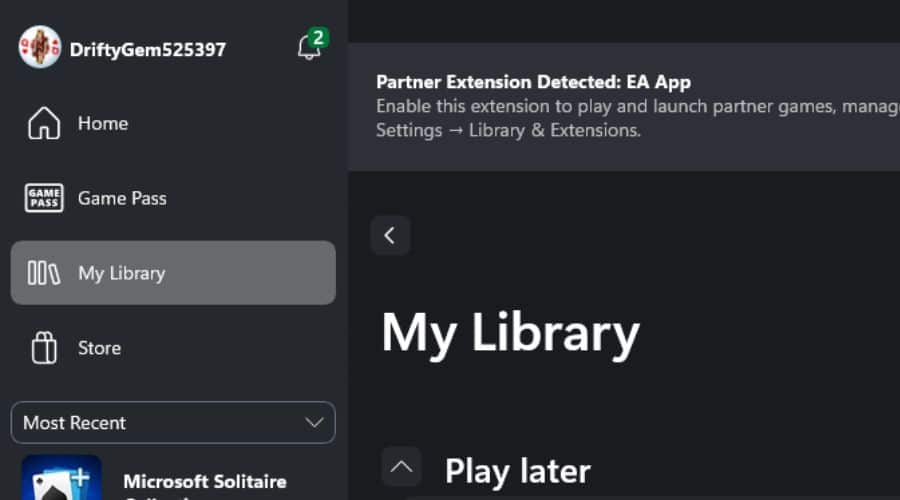
- Check for Updates: Locate Minecraft Bedrock Edition in your installed games list. If an update is available, the “Update” button will appear.
- Update Minecraft: Click “Update” to start the download and installation.
- Launch Minecraft: Once completed, click “Play” to start the updated version.

Troubleshooting Update Issues
- Check Your Internet Connection: A weak or unstable network can interrupt updates. If you suspect connection issues, follow our guide on how to change network adapter settings in Windows 11 to restore connectivity.
- Restart the Microsoft Store or Xbox App: Close and reopen the app to refresh background processes.
- Restart Your PC: A reboot clears temporary issues that could block updates.
- Check for Windows Updates: Open **Settings > Windows Update** and click **Check for updates**. Outdated system files can cause compatibility issues.
- Clear the Microsoft Store Cache: Press Windows + R, type “wsreset.exe,” and press Enter to reset the cache.
- Reinstall Minecraft: Uninstall and reinstall the game from the Microsoft Store or Xbox app if all else fails.
Tips for Smooth Updates
- Close Minecraft Before Updating: Ensure the game isn’t running during updates.
- Monitor Download Progress: Watch progress in the Microsoft Store or Xbox app to verify it’s downloading properly.
- Avoid Interruptions: Don’t turn off your PC or disconnect from the internet while an update is installing.
- Check for Known Issues: Visit the official Minecraft forums to see if recent updates are causing widespread problems.
If you also play Minecraft on Android, you can streamline your device management by learning how to scan a barcode with Android to redeem Marketplace codes or access quick downloads from your phone.
Update Method Comparison
| Feature | Microsoft Store | Xbox App |
|---|---|---|
| Access | Available to all Windows 11 users | Requires an Xbox account and the Xbox app |
| Update Detection | Automatically detects updates for all apps | Automatically detects updates for Xbox games |
| Ease of Use | Simple and straightforward | User-friendly interface |
| Potential Issues | Can sometimes experience cache-related errors | May require Xbox Game Pass for certain features |
Keeping Minecraft Bedrock Edition Up to Date
Staying on the latest version ensures better performance and access to new content. If you experience sound issues after an update, check our detailed guide on how to install Realtek audio drivers in Windows 11 to fix audio problems before launching Minecraft again.
You can also improve your control precision by following how to change mouse sensitivity in Windows 11, especially if you use a gaming mouse for building and combat.
For Android users, how to install Showbox on Android provides an easy way to explore entertainment apps alongside your mobile gaming routine.
FAQ
How do I know if my Minecraft is up to date? Check the version on the Minecraft main menu and compare it to the latest version on the official website.
Why is my Minecraft not updating? Check your internet connection, restart the Microsoft Store or Xbox app, or reboot your PC. You can also clear the Microsoft Store cache or reinstall Minecraft.
Does Minecraft Bedrock Edition update automatically? Yes, automatic updates occur if they’re enabled in the Microsoft Store or Xbox app.
Is Minecraft Bedrock Edition free on Windows 11? No, you must purchase it through the Microsoft Store to play it legally.
How long does it take to update Minecraft? Update time depends on your internet speed and the file size—usually between a few minutes and an hour.


Read our disclosure page to find out how can you help MSPoweruser sustain the editorial team Read more



Improve this guide




User forum
0 messages