
How To Screen Mirror On Roku: A Step-by-Step Guide


 5 min. read
  Updated on
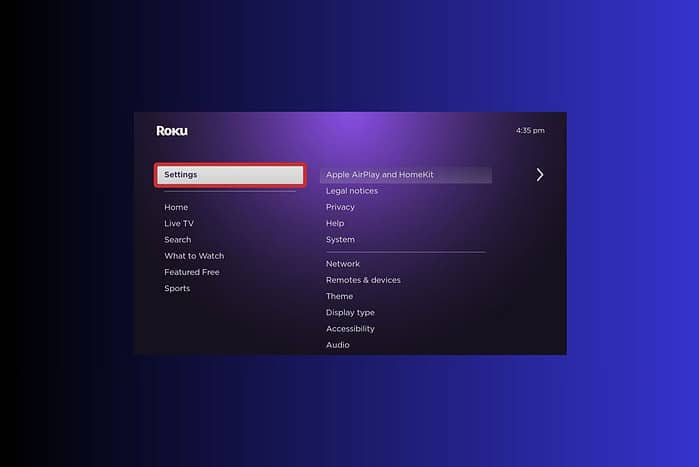
By following these instructions, you’ll be able to effortlessly display content from your other devices onto your Roku TV, enhancing your viewing experience and making it easier to share with friends and family.
And if you plan to present long documents using screen mirroring, you can keep everything neatly structured by adding custom page numbers in Google Docs before displaying them.
How Do I Start Screen Mirroring on My Roku?
Enabling Screen Mirroring on Your Roku Device
Before you can start screen mirroring, you need to ensure that the feature is enabled on your Roku device. Here’s how:
- Press the Home button on your Roku remote.
- Scroll down and select Settings.
- Select System.
- Choose Screen mirroring.
- Select Screen mirroring mode.
- Choose your preferred mode:
- Prompt: Your Roku will display a prompt asking you to allow or deny each screen mirroring connection.
- Always allow: Any device can connect to your Roku without a prompt.
- Never allow: No devices can connect to your Roku via screen mirroring.
Connecting Your Android Device to Roku
If you have an Android device, the screen mirroring process is generally straightforward. If you run into performance issues while mirroring apps like Instagram, you can often fix them by clearing the Instagram cache first to ensure smoother streaming.
- Open the Settings app on your Android device.
- Look for options like Cast, Screen mirroring, Smart View, or Wireless display. The exact wording may vary depending on your device’s manufacturer.
- Select your Roku device from the list of available devices.
- Your Android device’s screen should now be mirrored on your Roku TV.
Connecting Your Windows PC to Roku
Screen mirroring from a Windows PC is also relatively simple. If you’re setting up development tools or preparing apps to demo on a larger screen, you can prepare in advance by installing MongoDB in Windows 11 or configuring other software before mirroring your display.
- Press the Windows key + K on your keyboard to open the Connect pane.
- Select your Roku device from the list.
- If prompted, enter the PIN displayed on your Roku TV on your computer.
- Your Windows PC screen should now be mirrored on your Roku TV.
Connecting Your iPhone or iPad to Roku
Screen mirroring from iOS devices requires a third-party app, as Roku doesn’t natively support AirPlay 100%. If your iPhone asks for encryption details at startup during testing or development, understanding the underlying cause can help — such as reviewing what triggers recovery screens using guides like this BitLocker recovery key overview.
- Download a screen mirroring app from the App Store (e.g., “Roku Cast”).
- Open the app and follow the on-screen instructions to connect to your Roku.
- Once connected, you can mirror your iPhone or iPad screen to your Roku TV.
Tips for a Smooth Screen Mirroring Experience
- Ensure both devices are on the same Wi-Fi network: This is crucial for a stable connection.
- Keep devices close to each other: A stronger Wi-Fi signal improves performance.
- Close unnecessary apps: This frees up resources and reduces lag.
- Update your Roku software: Make sure your Roku is running the latest software version for optimal performance.
- Restart your devices: If you encounter issues, try restarting both your Roku and the device you’re mirroring from.
- Make reading mirrored documents easier: If you often display Google Docs on your TV for long sessions, you can reduce eye strain by enabling Google Docs dark mode first.
Roku Screen Mirroring: Sharing Made Easy
Screen mirroring on Roku offers a seamless way to share content from your devices onto your TV. Whether it’s photos, videos, or presentations, the process is simple and convenient, enhancing your entertainment experience.
FAQ
Why is my Roku not showing up as an available device? Ensure both your Roku and the device you’re mirroring from are connected to the same Wi-Fi network. Also, check that screen mirroring is enabled in your Roku settings.
How do I stop screen mirroring on Roku? On your Android or Windows device, simply disconnect from the Roku device in the screen mirroring settings. On iOS, close the screen mirroring app.
Can I screen mirror from multiple devices at the same time? No, Roku only supports screen mirroring from one device at a time.
Is screen mirroring the same as casting? While both involve sending content to your TV, screen mirroring duplicates your device’s screen, while casting sends specific content (like a video) to the TV, allowing you to use your device for other tasks.
What if I’m experiencing lag or buffering during screen mirroring? Try reducing the resolution on your mirroring device, closing unnecessary apps, and ensuring a strong Wi-Fi signal.
Screen Mirroring vs. Casting: A Quick Comparison
| Feature | Screen Mirroring | Casting |
|---|---|---|
| Functionality | Duplicates the entire device screen | Sends specific content (video, audio) to the TV |
| Device Usage | Device screen is mirrored on the TV | Device can be used for other tasks |
| App Support | Works with any app on the device | Requires app support (e.g., YouTube, Netflix) |
| Network Usage | Generally higher network usage | Generally lower network usage |
| Battery Drain | Higher battery drain on the mirroring device | Lower battery drain on the casting device |


Read our disclosure page to find out how can you help MSPoweruser sustain the editorial team Read more



Improve this guide

User forum
0 messages