
ASUS Vivobook K6502VU manual: ports, charging and hardware diagrams


 2 min. read
 Published on
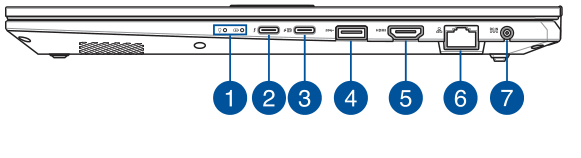
The ASUS Vivobook K6502VU manual is the K6502V-family E-Manual, edition E21265. Start with its hardware diagrams when identifying a socket or charging connection, rather than assuming that every USB-C-shaped port behaves identically.
Open the original ASUS Vivobook K6502VU manual. ASUS lists this English manual on the K6502VU support page. It is the January 2023 first edition; Windows screens and model-specific options can differ from those shown. Confirm your complete model code before using a feature described for the wider family.
Identify the right-side connections
The right-side drawing on page 24 numbers the indicators and connectors. The following pages describe the individual ports, including Thunderbolt 4 and USB-C display/power functions. The manual explicitly notes that some transfer rates vary by model.
Compare the socket symbol and its numbered description before buying an adapter. A cable that carries charging power is not automatically evidence that it supports the display connection you want. For an external monitor, identify the intended video path at both ends before troubleshooting the operating system.
Keep the underside ventilation clear
The underside illustration identifies the air vents and speakers. ASUS warns against blocking ventilation with objects such as paper, books, clothing or cables while the laptop is operating.
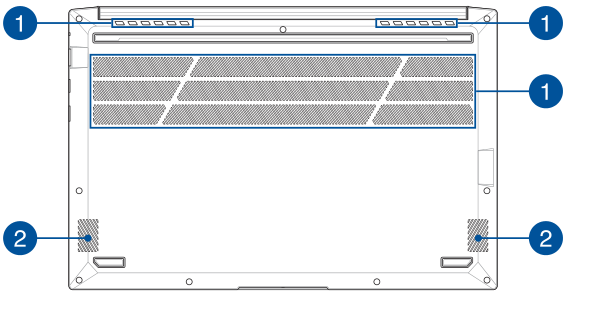
For a desk setup, put the computer on a stable surface where fabric cannot cover the base. This is especially worth checking when the machine is moved from a desk to a sofa: the software has not changed, but the physical airflow may have.
Use the charging section for power questions
Pages 26–27 describe USB Power Delivery and specify a 20V/5A source for the documented charging function. Treat that as a compatibility requirement, not a promise that an arbitrary phone charger will power the laptop normally.
Keep the original adapter available when diagnosing charging behaviour. Record whether the battery indicator changes with the original supply before comparing a dock or USB-C adapter. That gives you a baseline without changing several components at once.
Documentation-based guidance. Screenshots are credited excerpts from the manufacturer’s manual; this is not a hands-on product test.


Read our disclosure page to find out how can you help MSPoweruser sustain the editorial team Read more



Improve this guide
User forum
0 messages