
YouTube Music: How to Remove Song from Playlist (Quick Guide)


 2 min. read
  Published on
Key notes
- YouTube Music allows you to remove specific songs from your playlists without any restrictions.
- The steps are the same for Windows, Android, and iOS devices.
- Open YouTube Music and go to Library>Playlists. Click the three dots next to the song and select “Remove from playlist”.

Want to know how to remove a song from a playlist on YouTube Music? I use the platform daily and listen to music while I work, so I’ve made a bunch of playlists. But from time to time I remove songs that I no longer like.
Here’s how you can do it, as well!
How To Remove a Song from a Playlist on YouTube Music
I’ve covered three methods, depending on your device:
On PC
Follow these steps:
- Go to YouTube Music or open the app if you’ve downloaded it.
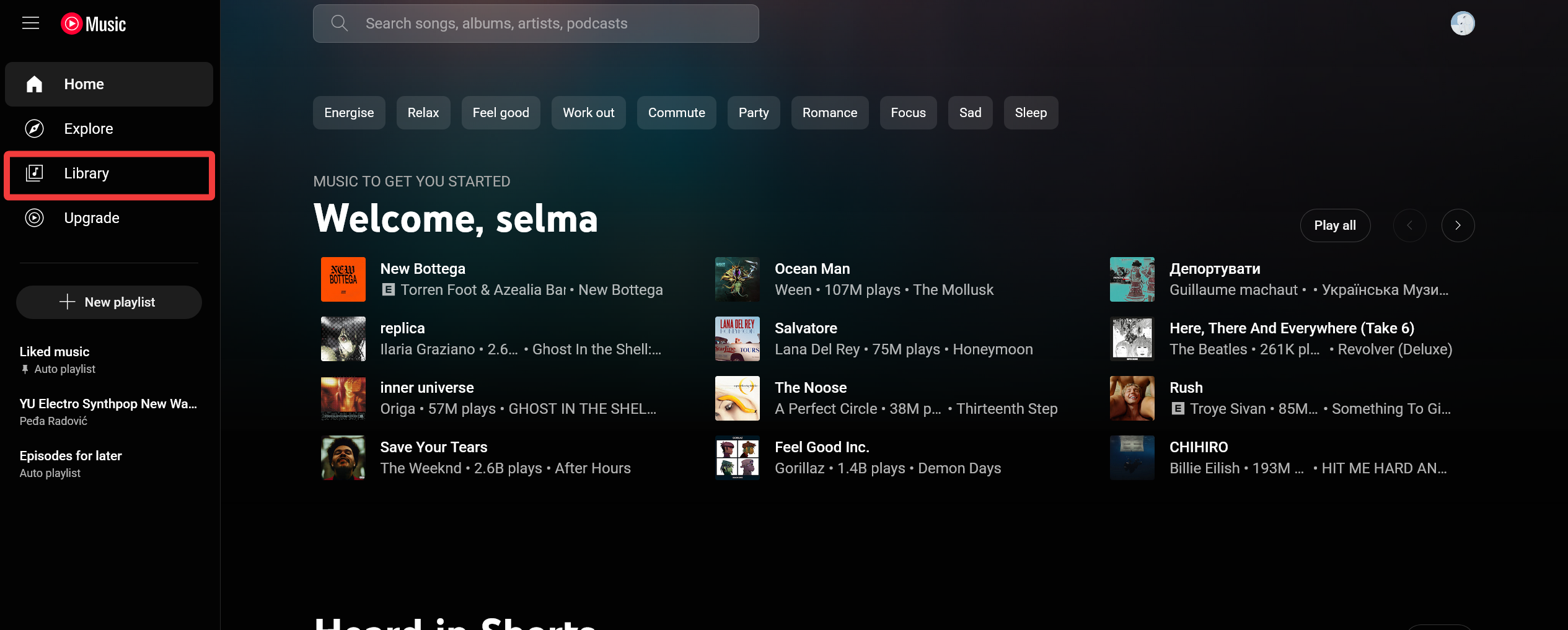
- Click on “Library.”
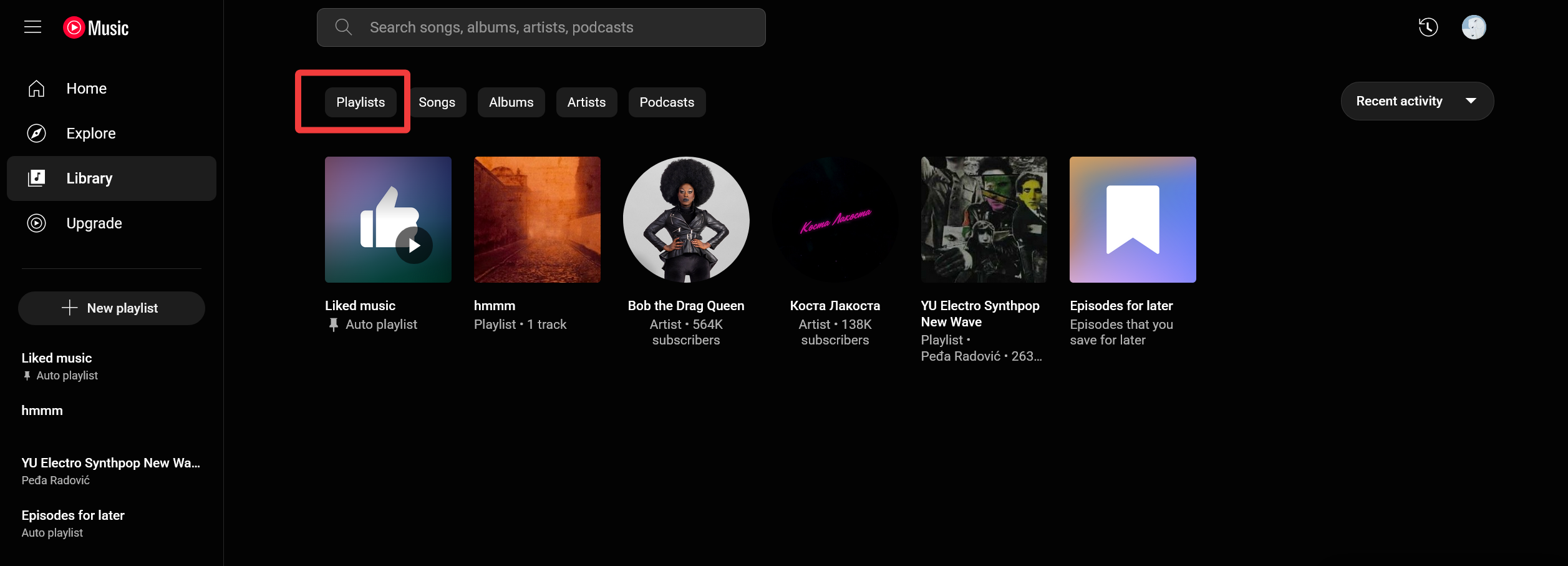
- Select “Playlists” in your library.
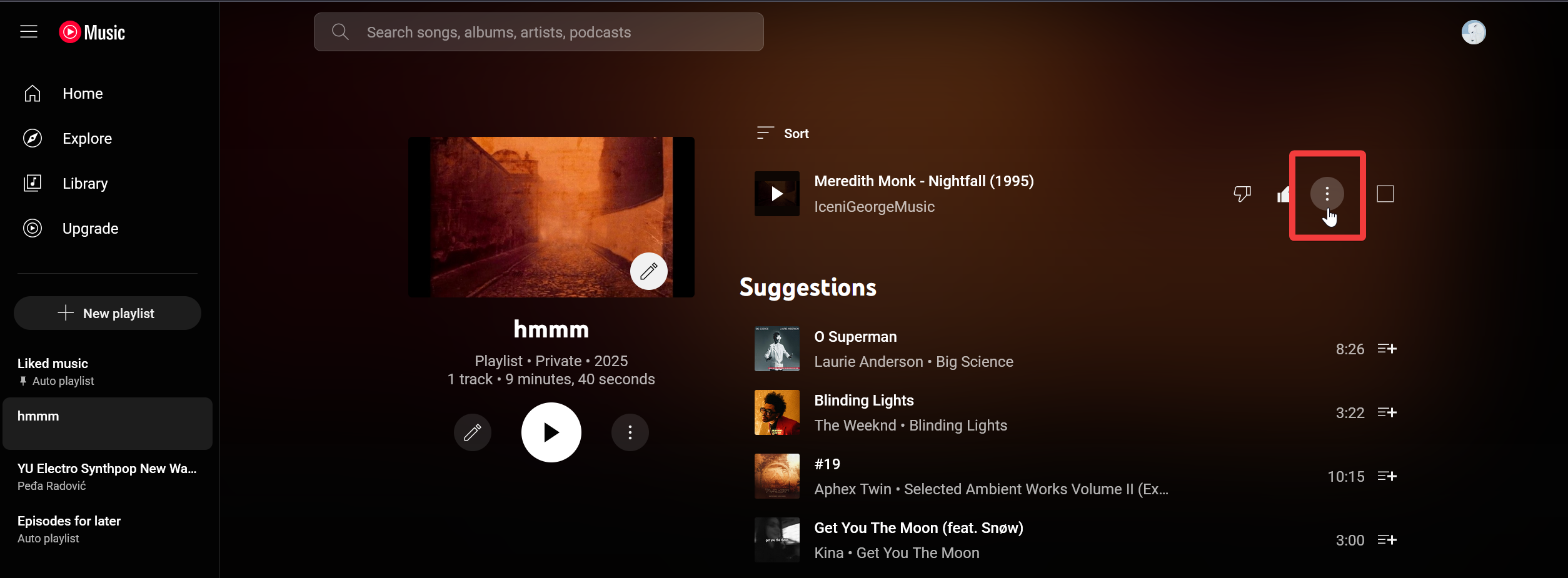
- Find the song you want to remove and click the three dots next to it.
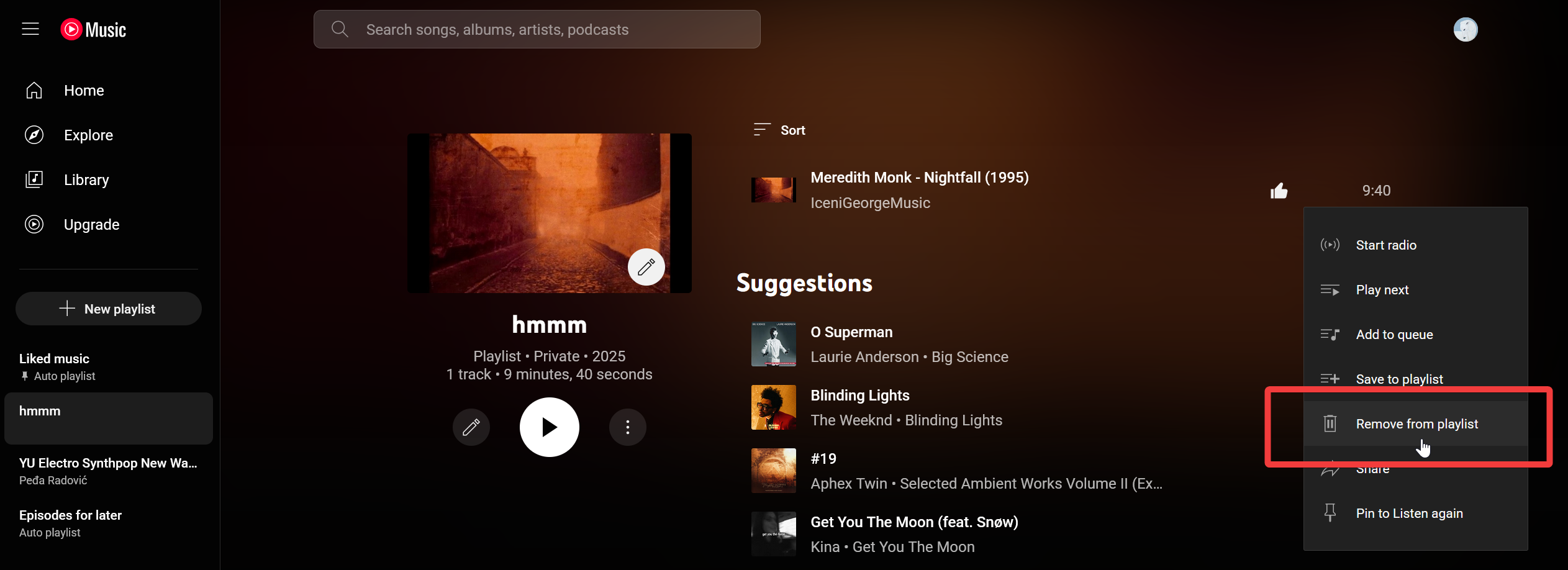
- Choose “Remove from playlist.”


Via Android/iOS
The steps are the same for both operating systems. Here’s how to do it:
- Open the YouTube Music app.
- Tap “Library.”
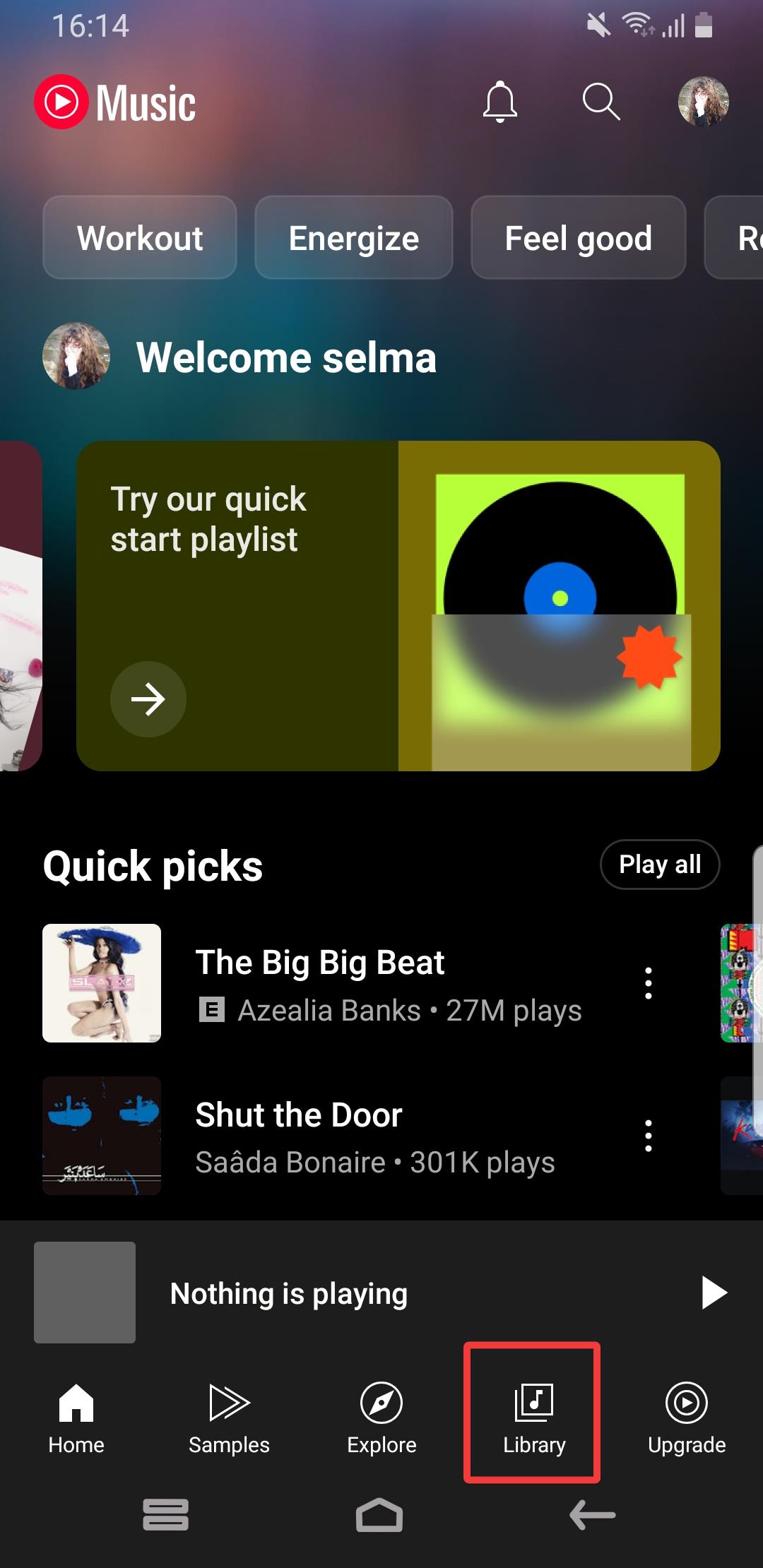
- Choose “Playlists” and open the one you want to edit.
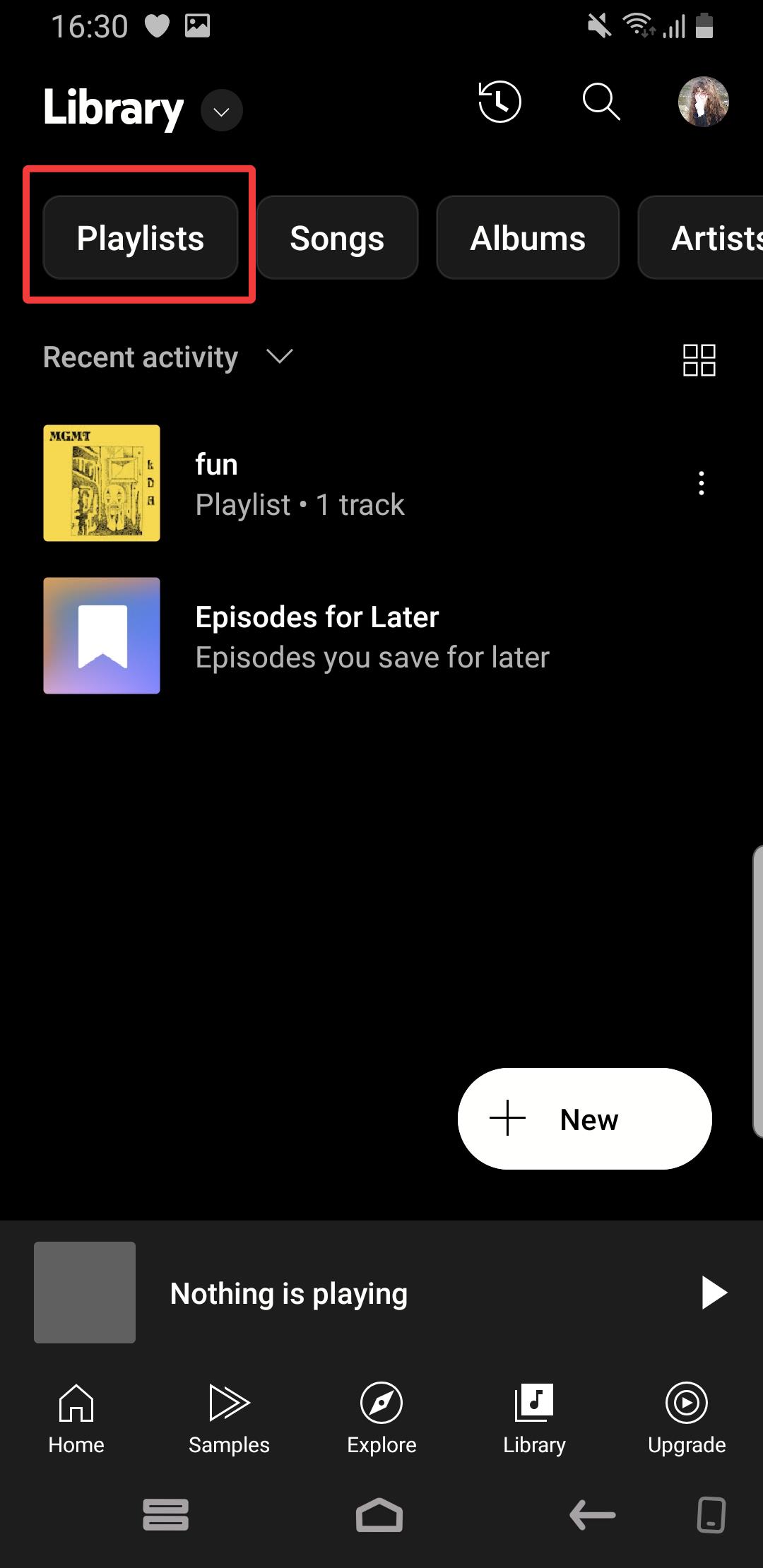
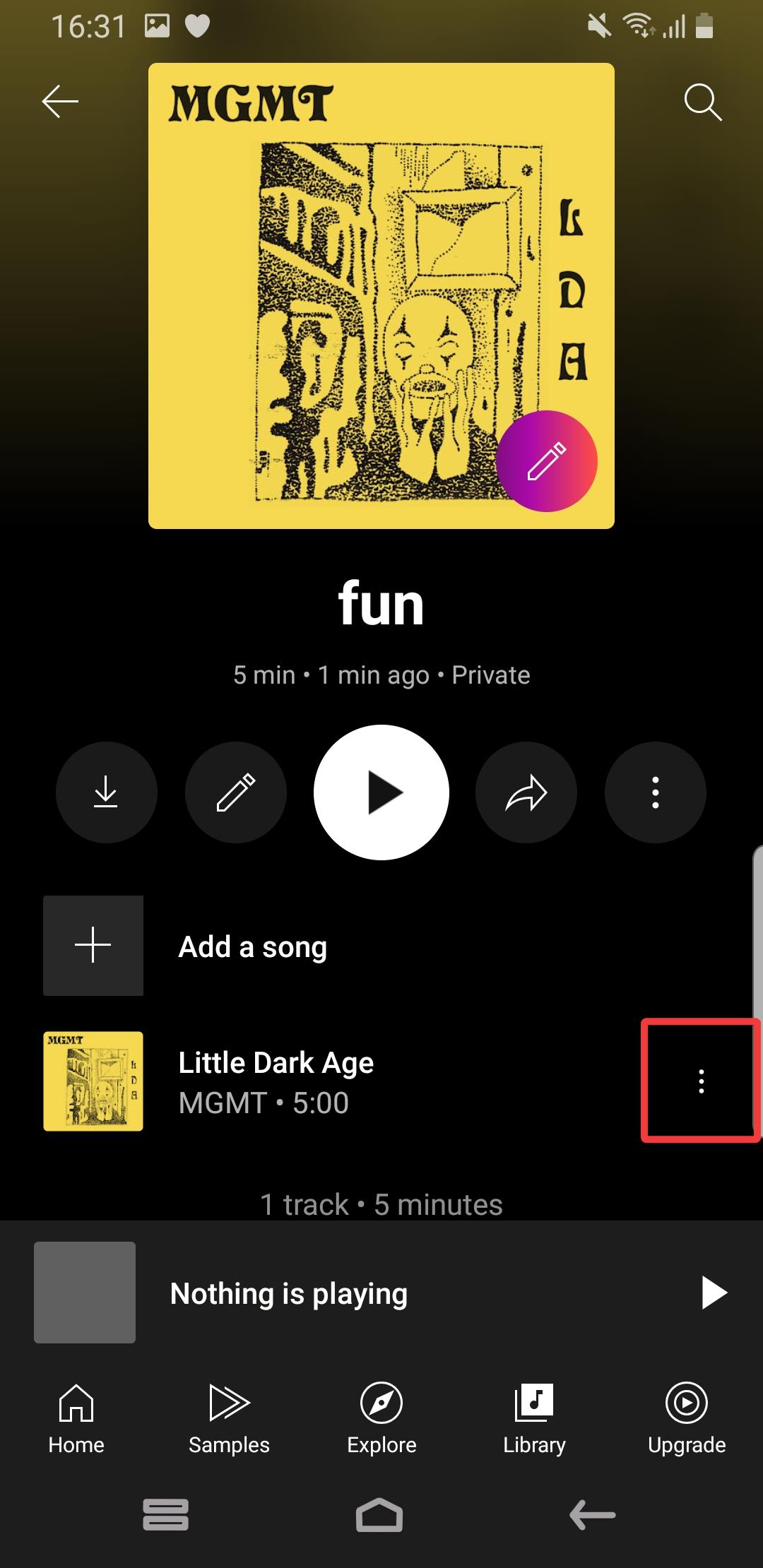
- Locate the song you wish to remove and tap the three dots on the right.
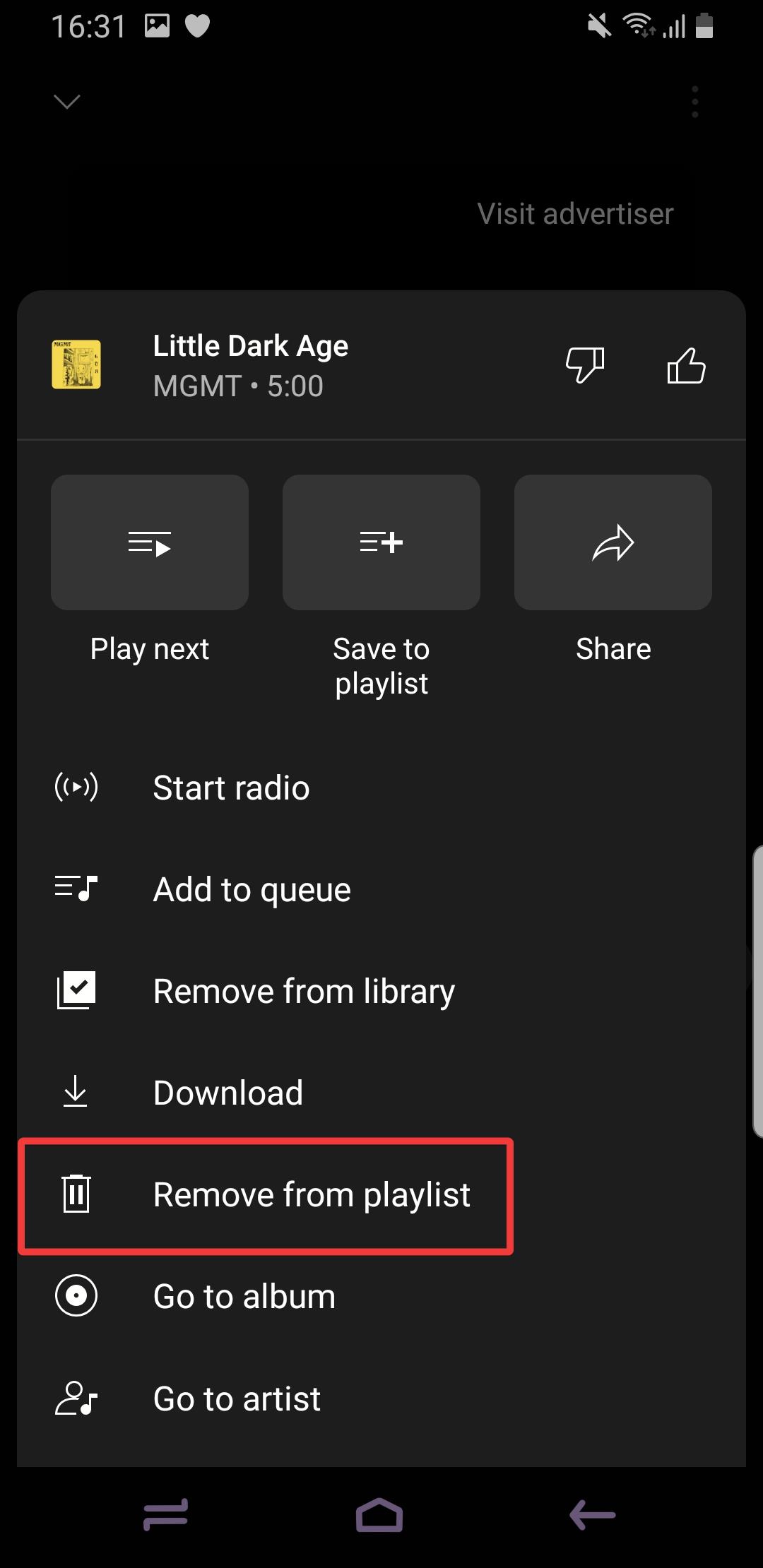
- Select “Remove from playlist.”


So, now you know how to remove a song from a playlist on YouTube Music easily, no matter the device you’re using. Moreover, you can learn how to add music to a presentation from YouTube and convert clips to MP3.
If you have any more questions, feel free to ask in the comments!


Read our disclosure page to find out how can you help MSPoweruser sustain the editorial team Read more



Improve this guide




User forum
0 messages