
How to use Sony WH-1000XM4 with a phone and PC at the same time


 2 min. read
 Published on
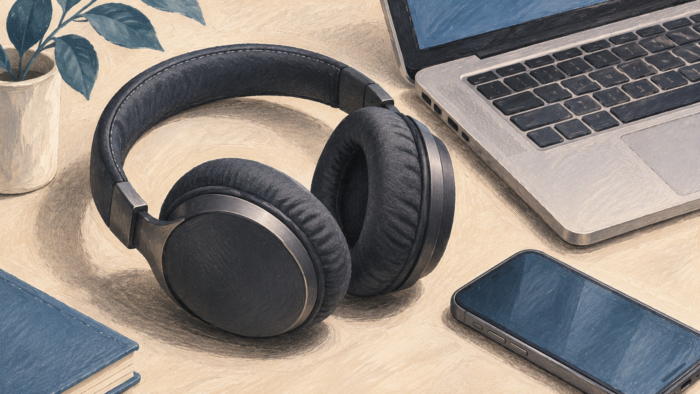
The WH-1000XM4 can maintain Bluetooth connections to two devices when Connect to 2 devices simultaneously is enabled in Sony's headphone app. This lets you move between phone and PC playback without pairing again each time.
Sony's older manual calls the app Headphones Connect; its current name is Sound Connect. The option's location can vary with the app version.
Enable the two-device connection
- Pair the headphones with the phone and the PC individually.
- Connect the phone and open Sony's app for the headphones.
- Enable Connect to 2 devices simultaneously.
- Connect the PC through its Bluetooth settings.
- Play audio on the PC, stop it, then start playback on the phone.
Test switching without competing audio
Multipoint does not mix two music streams. Stop playback on the first device before starting it on the second. Otherwise, the first stream can continue to occupy the headphones and make the second connection appear broken.
A useful check is to choose two obviously different recordings. Play one on the PC, pause it, and start the other on the phone. You can then tell immediately which device you are hearing.
Sony states that enabling this two-device mode disables LDAC, with AAC or SBC used instead. If your priority is LDAC on a compatible source, choose that listening setup rather than expecting both features together.
After the test, check a real call separately. The fact that both devices can play music does not confirm that your PC's meeting application has selected the intended microphone and speaker.


Read our disclosure page to find out how can you help MSPoweruser sustain the editorial team Read more



Improve this guide
User forum
0 messages