
How to pair Sony WH-1000XM4 headphones with a Windows PC


 2 min. read
 Published on
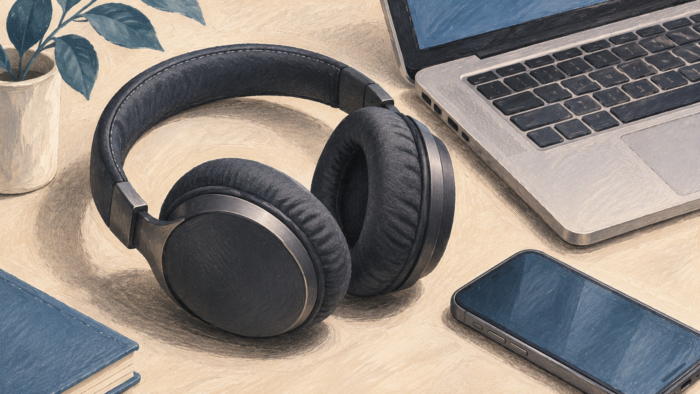
To pair a Sony WH-1000XM4 with another computer, hold its power button for about seven seconds until you hear the pairing announcement. A normal power-on can reconnect to an existing device without making the headphones discoverable to a new PC.
Keep the charged headphones close to the computer during setup. These instructions are for WH-1000XM4, not the similarly named WF earbuds.
Add the headphones in Windows
- Put the headphones into pairing mode and check for the blue indicator flashing twice repeatedly.
- Open Windows Bluetooth settings and start adding a Bluetooth device.
- Select WH-1000XM4. If LE_WH-1000XM4 appears first, wait for the regular name; Sony says it can take up to about a minute.
- Complete the pairing prompt. If a passkey is requested, Sony specifies 0000.
- Play a short audio clip and confirm that it reaches the headphones.
Verify the connection you actually need
Music playback and a meeting microphone are separate checks. After confirming playback, open your calling application's audio settings if you also plan to use the headphones for calls. Make a test recording or use its available test-call feature.
If the device is missing from the list, repeat pairing mode rather than rapidly cycling power. Sony cancels pairing mode after five minutes without a connection.
Once paired, ordinary reconnection should not require registering the headphones again. Keep a note of whether the failure occurs during discovery, connection or audio playback; those observations are more useful than the broad description that Bluetooth does not work.


Read our disclosure page to find out how can you help MSPoweruser sustain the editorial team Read more



Improve this guide
User forum
0 messages