
How to switch the MX Keys Mini between media keys and F-keys


 2 min. read
 Published on
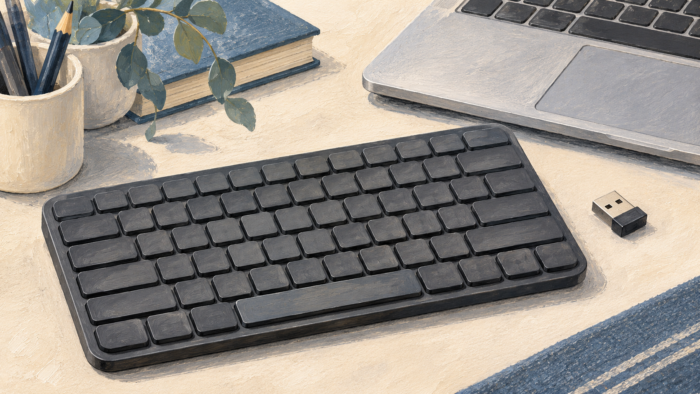
Press Fn + Esc on the Logitech MX Keys Mini to switch between media-key and F-key behavior. This is useful when the top row adjusts media controls but an application expects a numbered function key.
Logitech documents media keys as the default. The switch changes which behavior is available directly, so test the exact shortcut you need after using it.
Change the top-row behavior
- Select the Easy-Switch channel connected to the computer you are using.
- Open the application where you need the function key.
- Press Fn and Esc together, then release them.
- Try the intended function key on a safe test file or screen.
Press Fn + Esc again if you want to return to the previous mode. A software notification may show the change, but the application's response is the practical check that the key is doing what you expect.
Check the application before changing more settings
An application can assign a different command to the same function key, and some shortcuts also require Ctrl, Alt or another modifier. Confirm the application's shortcut before assuming the keyboard is still in the wrong mode.
For example, write down the full combination shown in the application's own menu. Test that combination after switching the top row. If it works, you have solved the keyboard-mode part of the task; there is no reason to reset the connection.
Use the mode that suits your most frequent work. Someone using spreadsheet shortcuts all day may prefer direct F-keys, while someone mainly adjusting playback may prefer media controls. The reversible Fn + Esc switch lets you compare the two without rebuilding your device pairings.
Manufacturer documentation: Guide.


Read our disclosure page to find out how can you help MSPoweruser sustain the editorial team Read more



Improve this guide
User forum
0 messages