
Why your Logitech K400 Plus will not appear in Bluetooth settings


 2 min. read
 Published on
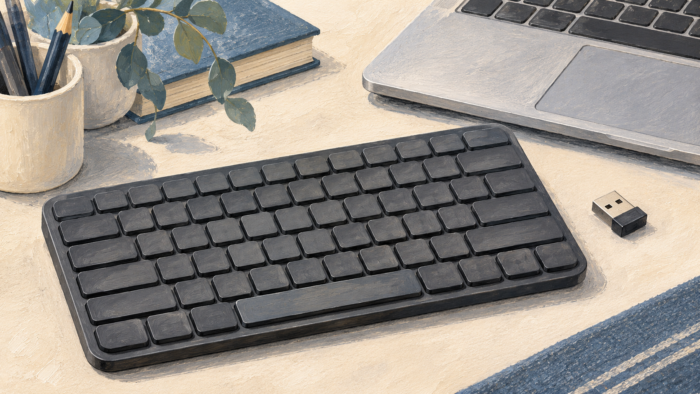
The Logitech K400 Plus connects through a USB Unifying receiver. Searching for it in your PC's Bluetooth menu will not establish the connection. Start by finding the receiver supplied with the keyboard and checking that the PC has a suitable USB connection.
This guide concerns the K400 Plus. Read the model on the keyboard itself before buying a replacement receiver; Logitech uses several wireless systems across its product range.
Connect the receiver first
- Plug the keyboard's existing paired Unifying receiver into a USB port on the PC.
- Turn on the K400 Plus and check that its batteries are installed correctly.
- Move a finger across the touchpad and watch for pointer movement.
- Open a blank text document and type a few characters. Test the click buttons as well.
These checks separate keyboard input, pointer movement and clicking. If one works, record which function still fails instead of repeating Bluetooth setup.
If the USB receiver is missing
A generic Bluetooth adapter does not replace the K400 Plus receiver. Confirm the receiver type and current pairing method with Logitech before ordering a replacement. An unpaired replacement also needs pairing; inserting it alone is not evidence that the keyboard has connected.
If you already have the original receiver, test it directly on the PC rather than through a dock for the first check. Keep the keyboard close while testing. Once typing and the touchpad work, move back to your normal seating position and check them again.
For a living-room PC, test the connection in the actual room layout before treating the setup as finished. A successful desk test does not tell you whether your usual position works reliably.
Manufacturer documentation: Guide.


Read our disclosure page to find out how can you help MSPoweruser sustain the editorial team Read more



Improve this guide


User forum
0 messages