
How to use the Sony WH-1000XM4 microphone in PC video calls


 2 min. read
 Published on
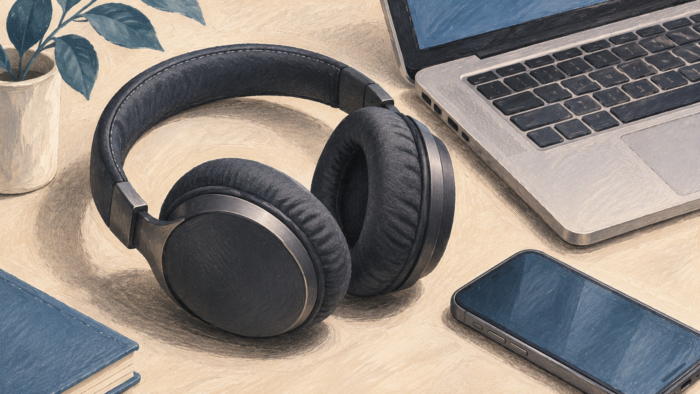
For a PC video call, select the WH-1000XM4 as both the speaker and microphone in the calling app. Where Windows exposes separate entries, Sony specifies the Hands-Free connection for calls; the Stereo entry is for music playback.
Some computers and applications show only a single WH-1000XM4 name. Use the controls actually present instead of searching indefinitely for a label your system does not expose.
Check both audio directions
- Connect the headphones to the computer over Bluetooth.
- Open the calling application's audio settings.
- Select WH-1000XM4 for speaker output and microphone input. If separate profiles appear, choose the Hands-Free calling entries.
- Use a test call or recording to confirm that your voice is captured.
- Play the test back and verify that you can hear it through the headphones.
Do not stop after hearing the meeting
Hearing another participant confirms only the output path. The application might still be recording from a laptop or webcam microphone. Inspect the input selection and its level meter while speaking.
Sony also notes that Speak-to-Chat can mute headphone audio when your voice is detected if the microphone path is not set up as intended. Disable that feature if it interferes with the call.
Keep a short test recording rather than relying on the device name alone. Compare it with the laptop microphone if you are unsure which input is active, and choose the one that is clearest in your room.
This procedure checks configuration. It does not establish call quality across every meeting app, Bluetooth adapter or noisy environment.
Manufacturer documentation: Guide.


Read our disclosure page to find out how can you help MSPoweruser sustain the editorial team Read more



Improve this guide
User forum
0 messages