
How to save one page of a Word document as a PDF


 2 min. read
 Published on
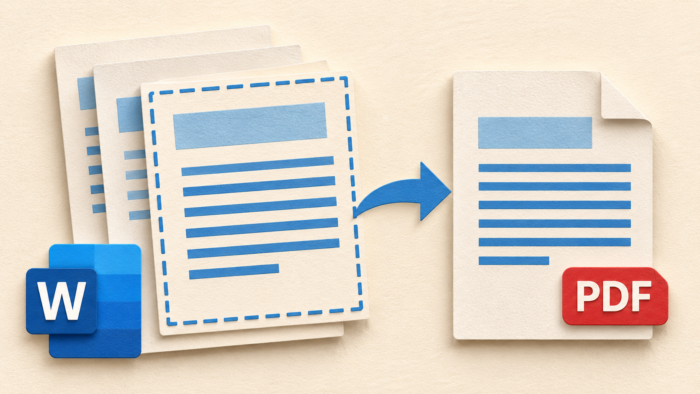
You can save a single Word page as a PDF by choosing PDF in the desktop app’s Save dialog, opening Options, and limiting the Page range to that page.
Export one page in Word for Windows
- Identify the page you need.
- Select File > Save a Copy or Save As, then Browse.
- Choose PDF as the file type.
- Open Options. If needed, select More Options first.
- Under Page range, choose the page-range option and set both the starting and ending page to the page you want. For page 3, use 3 for both values.
- Under Publish what, select Document for output without tracked-change markup, or Document showing markup if you intend to include it.
- Confirm the options, then save the PDF.
Source: Microsoft’s Office PDF-export guide.
Check that you exported the right page
Open the saved PDF before sharing it. Confirm that it contains exactly one page, then compare its heading, first paragraph and final line with the page you intended to send. Also check tables, pictures, headers and footers.
This is particularly useful for reports with a cover page or restarted page numbering. Treat the actual exported content as the final check, rather than assuming a visible page number identifies the page you expected. If the wrong content appears, return to Word and revise the range.
Use a filename that makes the extract easy to distinguish from the full report, such as Project-report-summary-page.pdf. Keep the original Word file available for future edits.
Need a different Office export?
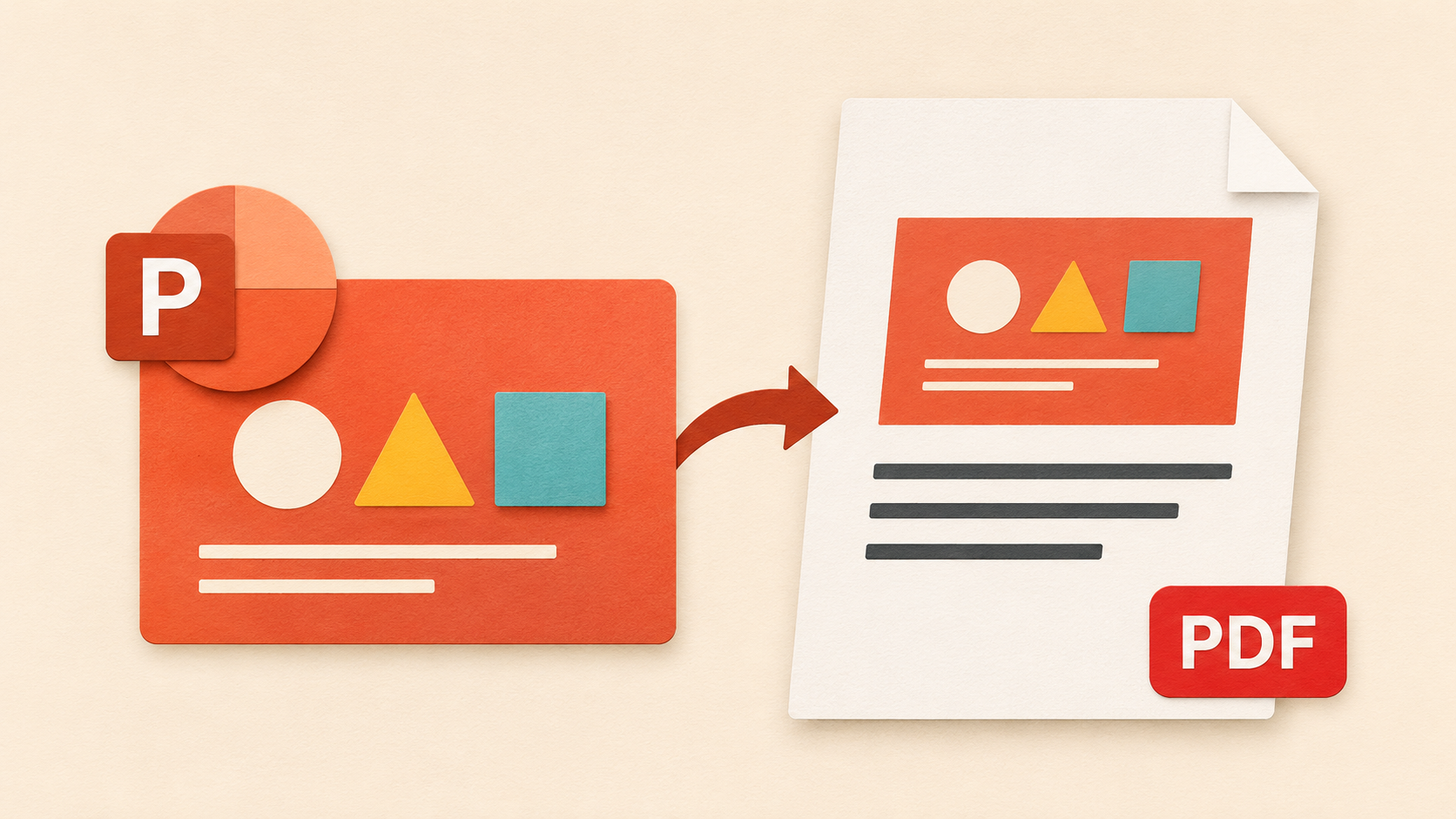
Speaker notes in PowerPoint require a different output layout. Our guide to saving PowerPoint notes as a PDF explains how to include the slide and its notes on the same page.


Read our disclosure page to find out how can you help MSPoweruser sustain the editorial team Read more



Improve this guide


User forum
0 messages