
How to launch Windows 10 apps on start up


 2 min. read
  Updated on
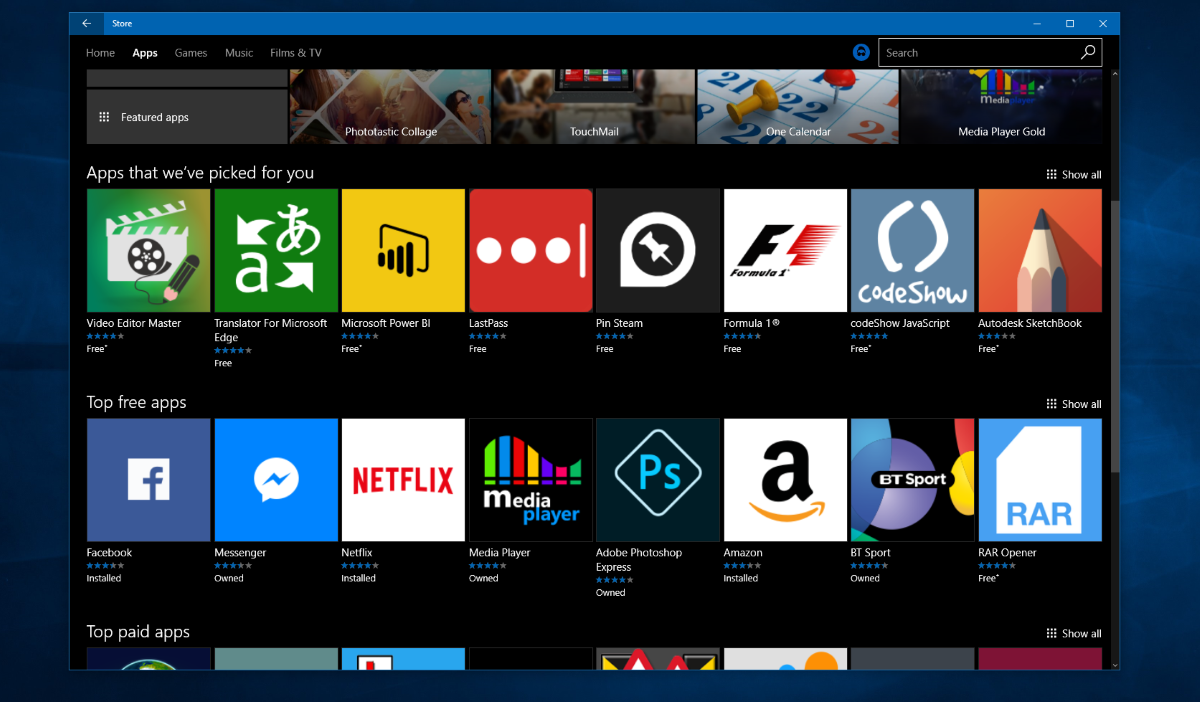
Microsoft offers apps for Windows the ability to launch their services on Startup. Apps like OneNote, Evernote, Slack and Skype, for instance, can often be configured to open automatically upon a full boot.
However, newer universal Windows apps are not able to do this due to out of the box due to API limitations and the like. Luckily, there are ways to get around that using the native tols built into Windows.
How to configure universal apps to launch on startup
- Find the app’s URL. The URL is the address used to call the app, for instance Facebook Messenger has a URL of “fbmessenger”. To find the URL, there are two ways of doing this in Windows 10. The first method invokvles navigating to Settings > System >Default Apps and opening the option which says 2choose default applications by protocol. Many – but not all apps show their URLs there and you can easily identify which app Is which. If your app is installed but doesn’t shpw up here, youll have to try a different method. The registry editor (accesed by typing regedit into the search bar) and navigate to “HKEY_CURRENT_USER\Software\Classes”. Once there, you can access the URLS of all installed apps.
- Now, create a new shortcut in File Explorer or on the desktop and name it “%windir%\System32\cmd.exe /c start “” “App’s URL Protocol name:”. For instance, using my Facebook Messenger example, it should look something like “%windir%\System32\cmd.exe /c start “” “App’s URL fbmessenger:”
- Open the Windows 10 Start Up Folder by invoking the run dialog box (either via right clicking on the start menu and selecting “run” or by typing run into the search box) and and typing shell:startup and drag your newly created shortcut there.
- Either restart your PC or sign in and sign out again, this should now cause the app to open automatically. You can revert the change by removing the shortcut from the Start up folder.

Readers help support MSpoweruser. We may get a commission if you buy through our links.

Read our disclosure page to find out how can you help MSPoweruser sustain the editorial team Read more



Improve this guide




User forum
0 messages