
How to Quickly Change Default Browser in Windows 11


 2 min. read
  Published on

How to change default browser in Windows 11 quickly and permanently? Follow this guide to set Chrome, Firefox, or any other browser as your default for all web links and HTML files.
Fastest ways to change browser in Windows 11
1. Open Default Apps Settings
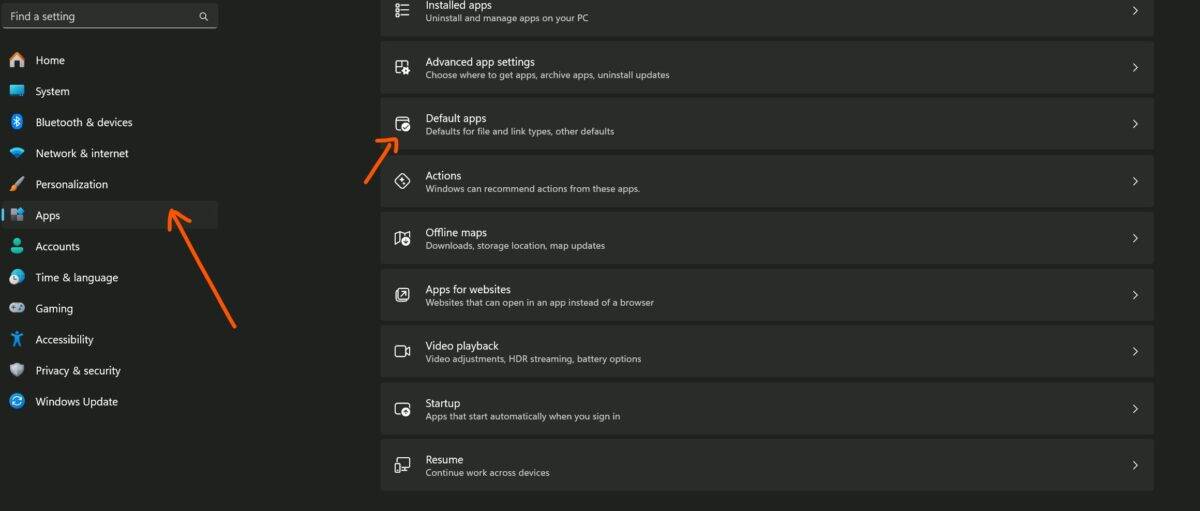
- Press Windows + I to launch Settings
- Go to Apps > Default apps
2. Search for Your Browser

- In the Search apps bar, type your browser name (e.g., Chrome, Firefox, Brave)
- Click on it to open extension associations
3. Set as Default for All Relevant File Types

- Click on each of these and switch from Microsoft Edge to your preferred browser:
.htm.htmlHTTPHTTPS
- Select your browser > Click OK
-> Tip: Click Set default at the top (if available) to apply it in one go.
Fastest Way to Change Default Browser in Windows 11
- Install your new browser (e.g., Chrome)
- When prompted after first launch, click Set as default
- This shortcut sets major file types automatically
-> Works best with the latest Windows 11 builds (22H2 and above)
Why Windows 11 Makes It Harder
Microsoft split default browser settings per file type to favor Edge. That’s why you must manually change multiple associations unless using a browser that supports 1-click default switching (e.g., Firefox, Brave).
FAQs
Why can’t I set Chrome as default in Windows 11?
Make sure you’re changing all extensions (HTTP, HTTPS, .html, etc.) in Settings > Default apps.
Does clicking “Set as default” inside the browser work?
Yes, but only on newer builds. Otherwise, you must change each file type manually.
How to revert back to Microsoft Edge as default?
Repeat the process and select Microsoft Edge for all browser-related file types.
Is there a script to change default browser in Windows 11?
No official script, but tools like EdgeDeflector used to work before Windows 11 updates blocked them.


Read our disclosure page to find out how can you help MSPoweruser sustain the editorial team Read more



Improve this guide




User forum
0 messages