
How to Instantly Open Task Manager in Windows 11


 2 min. read
  Published on

Looking for the fastest way to open Task Manager in Windows 11? Whether you’re using a keyboard, touchscreen, or need it while frozen, here are all the ways to launch it instantly.
Fastest Ways to Open Task Manager in Windows 11
1. Use the Ctrl + Shift + Esc Shortcut

- Press Ctrl + Shift + Esc on your keyboard
- Task Manager will open immediately
-> This is the fastest and most direct method
2. Right-Click the Taskbar
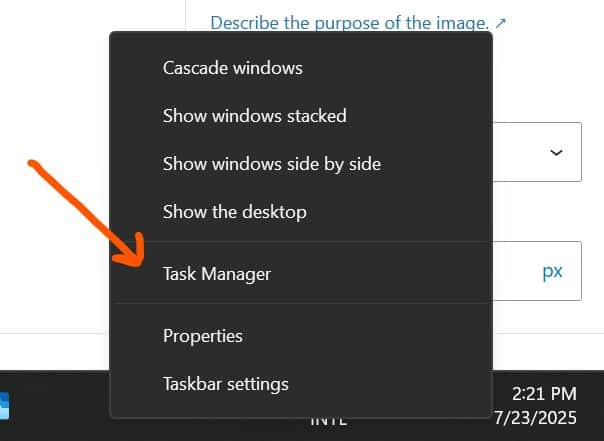
- Right-click the Start button or taskbar
- Select Task Manager from the context menu
-> Works well with mouse or touchscreen
3. Press Ctrl + Alt + Delete
- Press Ctrl + Alt + Delete
- Click on Task Manager from the list
? Useful when the system is lagging or frozen. This is probably the most known and classical option.
4. Use Windows Search

- Press Windows key, then type
task manager - Click Task Manager from search results
-> Voice-search friendly and ideal for new users
5. Open from Run Dialog
- Press Windows + R to open Run
- Type
taskmgrand hit Enter
-> Keyboard-only and fast
6. Launch via Command Prompt or PowerShell

- Open Command Prompt or Windows Terminal
- Type
taskmgrand press Enter
-> Works even in minimal or recovery environments
7. Create a Desktop Shortcut (Optional)
- Right-click on desktop > New > Shortcut
- Enter:
taskmgr - Name it “Task Manager” and click Finish
-> One-click access forever
When Should You Use Task Manager?
- To close unresponsive apps
- To monitor CPU, RAM, and GPU usage
- To disable startup programs
- To check background processes
FAQs
What is the fastest way to open Task Manager in Windows 11?
Use Ctrl + Shift + Esc – it opens Task Manager instantly.
Can I open Task Manager without a keyboard?
Yes, right-click the Start button or use the touchscreen Start menu and search for it.
Why won’t Task Manager open in Windows 11?
You may have corrupted system files. Try running sfc /scannow or use Safe Mode.
Is there a command to launch Task Manager?
Yes – type taskmgr in Run (Windows + R) or Terminal.


Read our disclosure page to find out how can you help MSPoweruser sustain the editorial team Read more



Improve this guide




User forum
0 messages