
How To Insert Emojis In A Microsoft Outlook Email (Quick Guide)


 5 min. read
  Updated on
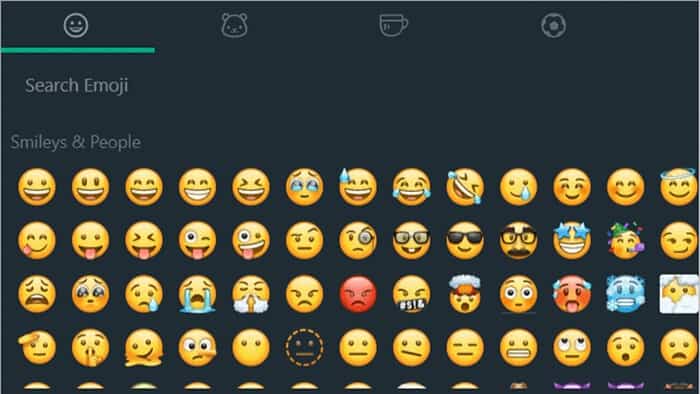
Adding emojis to your Outlook emails can add a touch of personality and visual appeal. Whether you’re sending a casual message to a friend or a more formal email to a colleague, knowing how to insert emojis can enhance your communication.
This guide will walk you through the simple steps to add emojis to your Outlook emails, regardless of whether you’re using the desktop application or the web version. We’ll cover various methods to ensure you find the best approach for your workflow. If you also encounter issues where Outlook isn’t displaying email content properly, you can fix that easily before customizing your messages with emojis.
How Do I Add Emojis to My Outlook Emails?
Table of contents
Inserting Emojis Using the Windows Emoji Panel (Desktop App)
- Open a new email message in Microsoft Outlook.
- Position your cursor where you want to insert the emoji in the email body.
- Press the Windows key + . (period) simultaneously. This will open the Windows emoji panel.
- Browse the available emojis and select the one you want to add. The emoji will be inserted directly into your email.
- Continue writing your email and adding more emojis as needed.
Using the Emoji Panel in Outlook on the Web
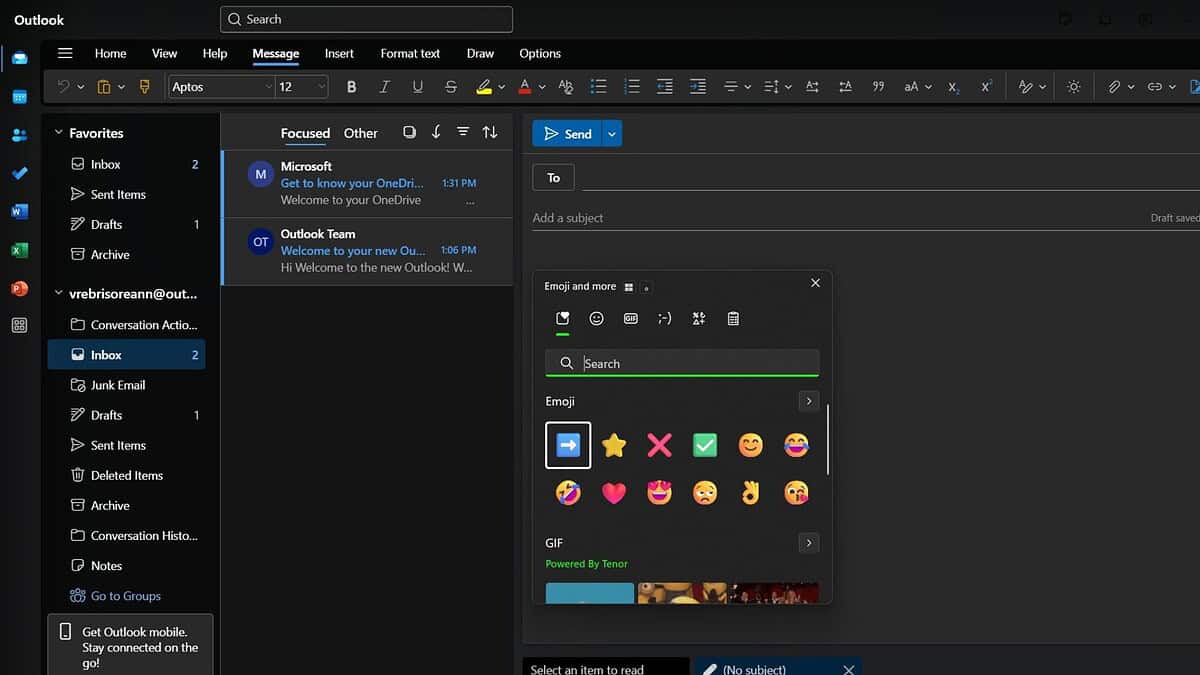
- Compose a new email in Outlook on the web.
- Place your cursor where you’d like to insert the emoji.
- Click on the smiley face icon in the email composer’s toolbar. This will open the emoji panel.
- Select your desired emoji from the panel.
- Finish composing your email.

Copying and Pasting Emojis
If you have an emoji copied from another application (like a website or a document), you can simply paste it into your Outlook email. This method is useful if you have a specific emoji in mind that isn’t easily found within the Outlook emoji panel. While you’re enhancing your email style, you can also create or update your Outlook email signature to match your personal or professional tone.
Using the Character Map (Windows Desktop App)
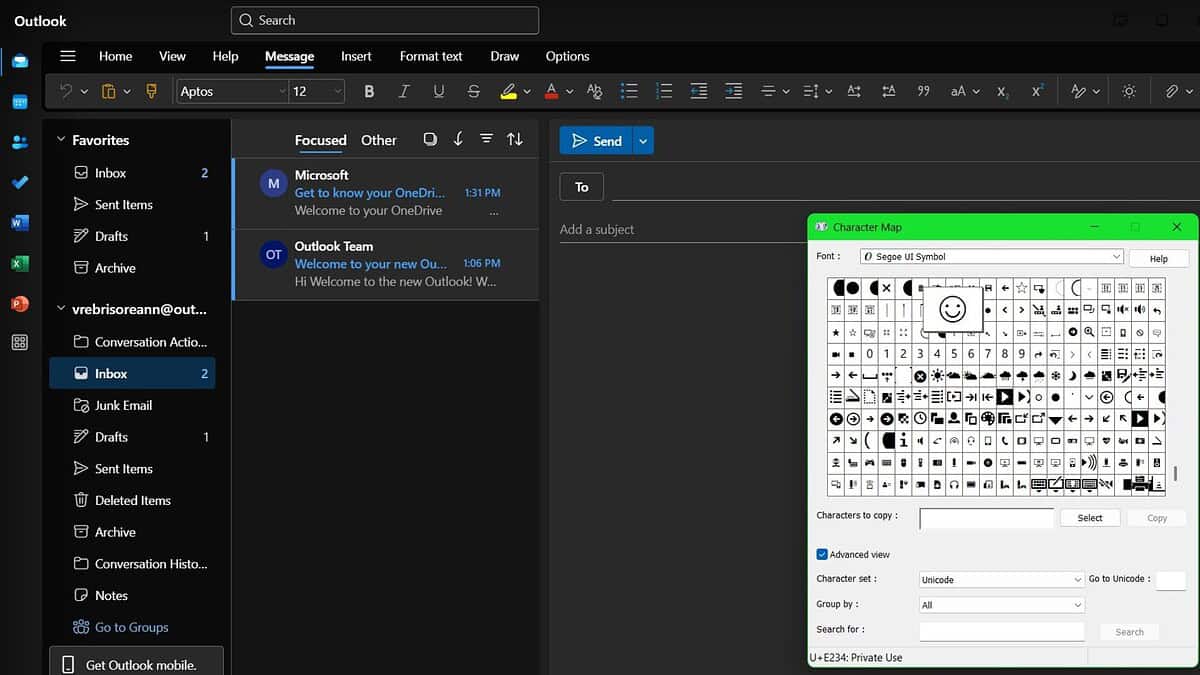
For a wider selection of characters, including emojis, you can use the Character Map utility built into Windows. If you’re interested in trying other built-in Microsoft tools, check out this quick guide on how to travel virtually using Microsoft Bing Travel.
- Search for “Character Map” in the Windows search bar.
- Open the Character Map application.
- Browse the available characters and select an emoji.
- Click “Select” then “Copy.”
- Paste the emoji into your Outlook email.
Tips for Using Emojis in Outlook
- Context is Key: Use emojis sparingly and appropriately. Overuse can make your emails seem unprofessional. Consider your audience and the tone of your message.
- Accessibility: Be mindful that not everyone can see emojis, so always ensure your message is clear and understandable even without them. Use alternative text descriptions if necessary.
- Platform Compatibility: While most emojis are universally supported, some might not display correctly on older devices or email clients. If your email formatting seems off, you can clear your browser cache in Microsoft Edge to fix loading or rendering issues.
Wrapping Up Emoji Insertion in Outlook
Adding emojis to your Outlook emails is a straightforward process. Whether you utilize the built-in emoji panel, copy and paste, or the Character Map, you can easily personalize your messages and make them more engaging. If you’re preparing system-related emails or documentation, you might also need to download the latest Windows 10 ISO directly from Microsoft for installation or testing purposes. Remember to use emojis thoughtfully and consider the context of your communication.
FAQs
How do I access the emoji panel in Outlook Mobile?
The emoji panel’s location varies slightly depending on your mobile device’s operating system and Outlook app version. Generally, you’ll find it near the text input field, often represented by a smiley face icon or a keyboard icon with a smiley face. For mobile browsing issues, such as slow loading or display problems, it might help to clear your cookies and cache in Microsoft Edge if you’re using it on Android or iOS.
Can I use custom emojis in Outlook?
Outlook doesn’t natively support custom emojis. You’re limited to the emojis provided within the application’s emoji panel or those you copy from other sources.
Why are some of my emojis not showing up in Outlook?
This can be due to several factors, including compatibility issues between different email clients and operating systems, or the use of emojis that aren’t supported by Outlook. Try using more common emojis to ensure wider compatibility.
What if I can’t find the emoji I want?
If you can’t find a specific emoji in the standard Outlook panel, try using the Character Map (Windows) or copying and pasting from another source. Remember that the availability of emojis can depend on your operating system and Outlook version.


Read our disclosure page to find out how can you help MSPoweruser sustain the editorial team Read more



Improve this guide


User forum
0 messages