
How to Import KMZ Files Into Google Maps [Step-by-Step]


 2 min. read
  Updated on

Google Maps doesn’t support KMZ files anymore, but there’s a neat workaround I’ll share with you today.
KMZ files are just compressed KML ones. So, a quick conversion will do the trick. Follow along to see how to go about it:
How To Import KMZ Files Into Google Maps?
Because it’s not possible to just drop a KMZ into Google Maps, you’ll need to convert the file into KML format and use Google My Maps.
For this tutorial, I downloaded a KMZ file of global heat flow data for Italy from the website Datapages.
Before importing a KMZ file into Google My Maps, here are the steps you should follow:
- Find an online KMZ to KML converter. For this guide, I used the MyGeodata converter.
- Choose the KMZ file from your local storage and upload it to MyGeodata.
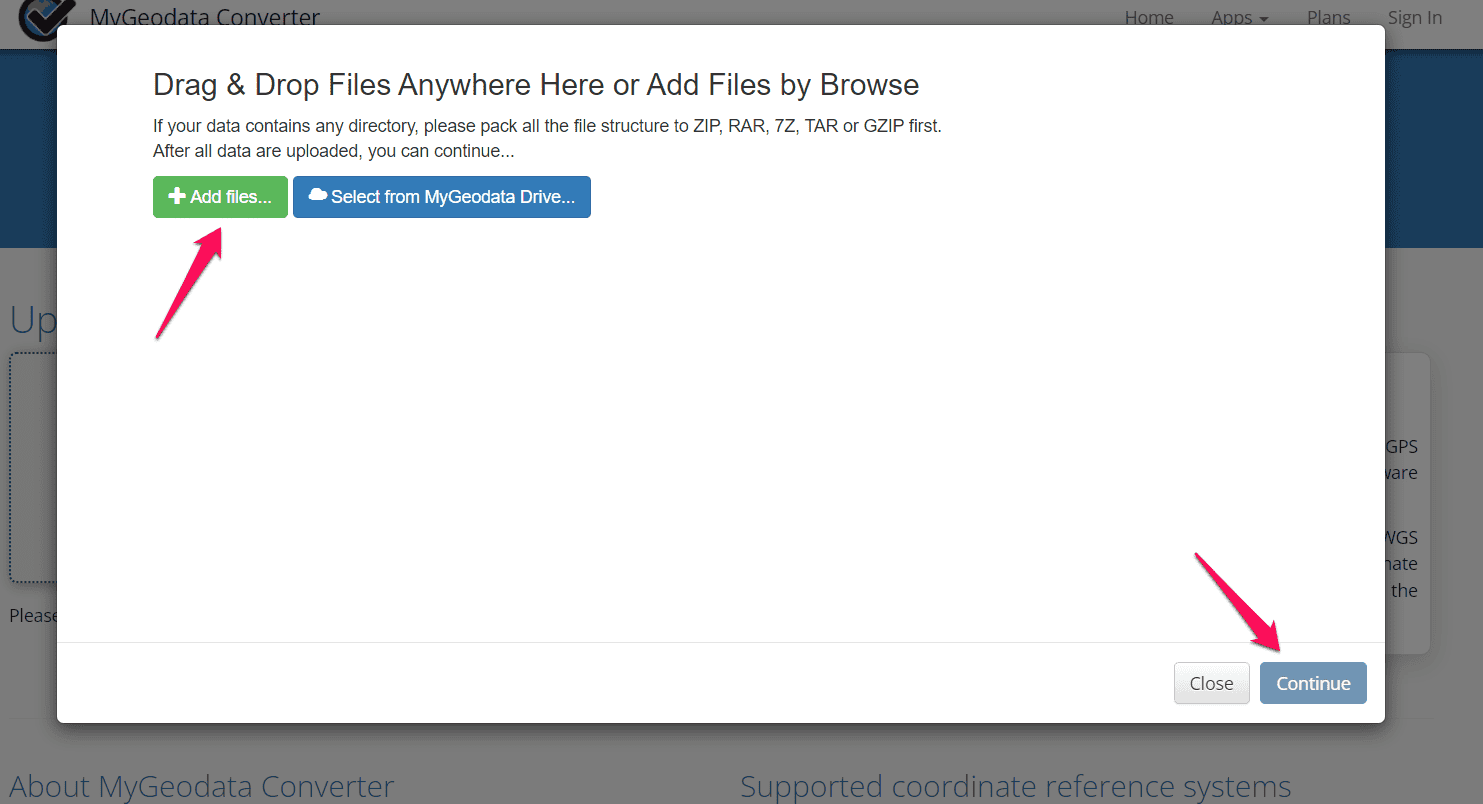
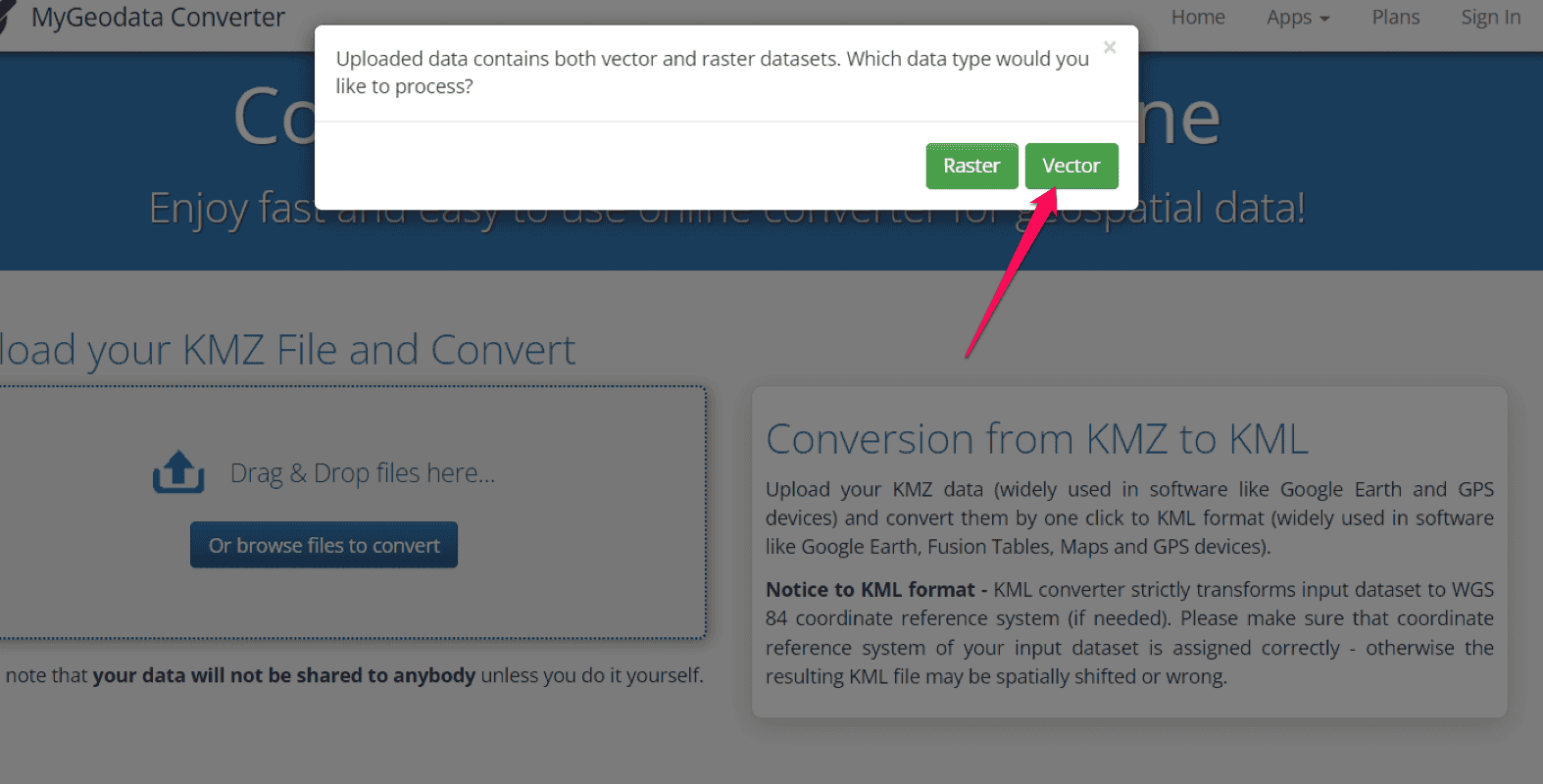
- When applicable, the tool will let you choose between a Raster and Vector dataset. Choose Vector.
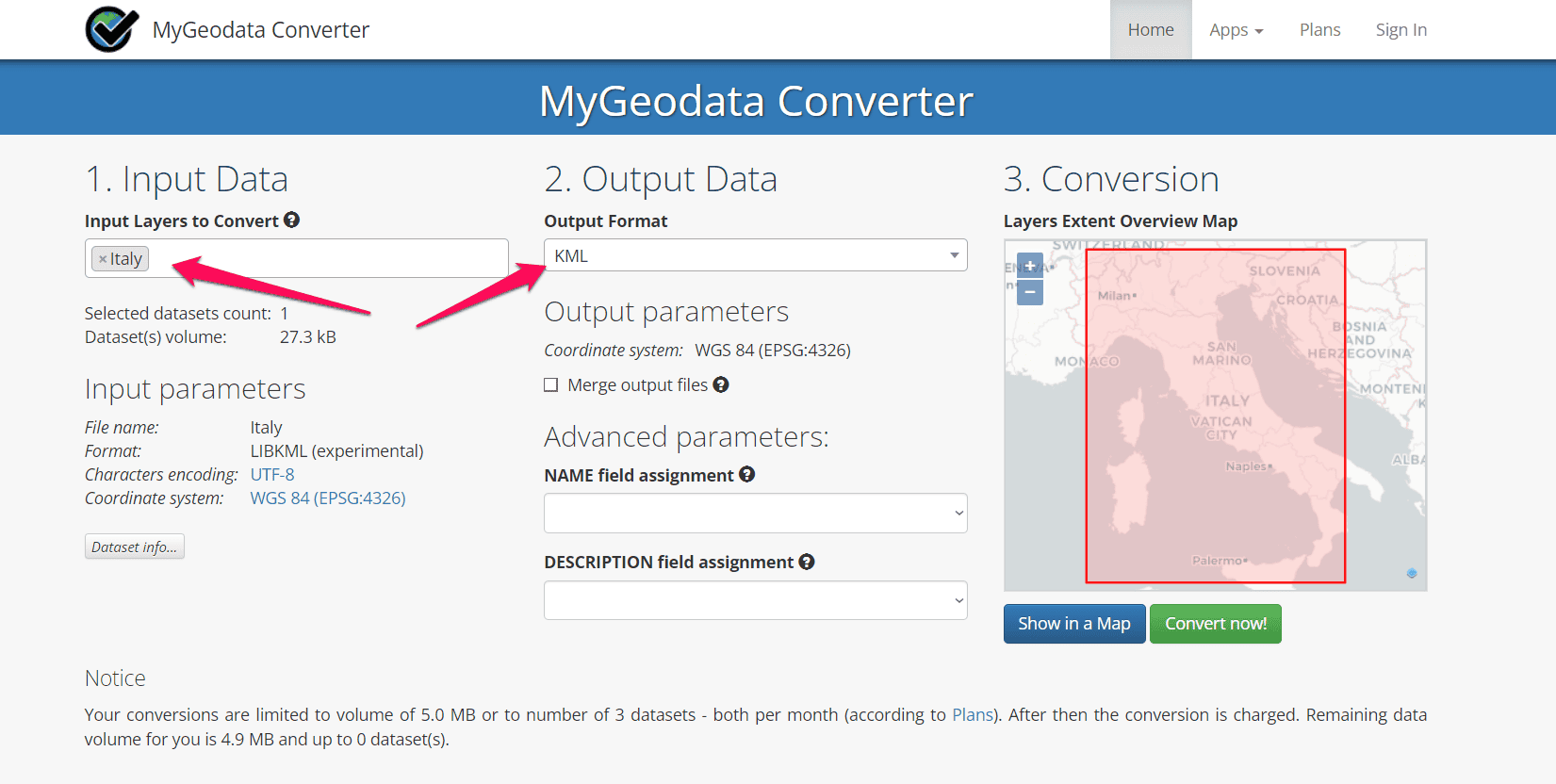
- On the next page, you’ll see the file you want to convert, and the output format will be automatically set to KML. Click Convert, and once the process is complete, download the file.
- The downloaded file will be named “mygeodata.zip.”
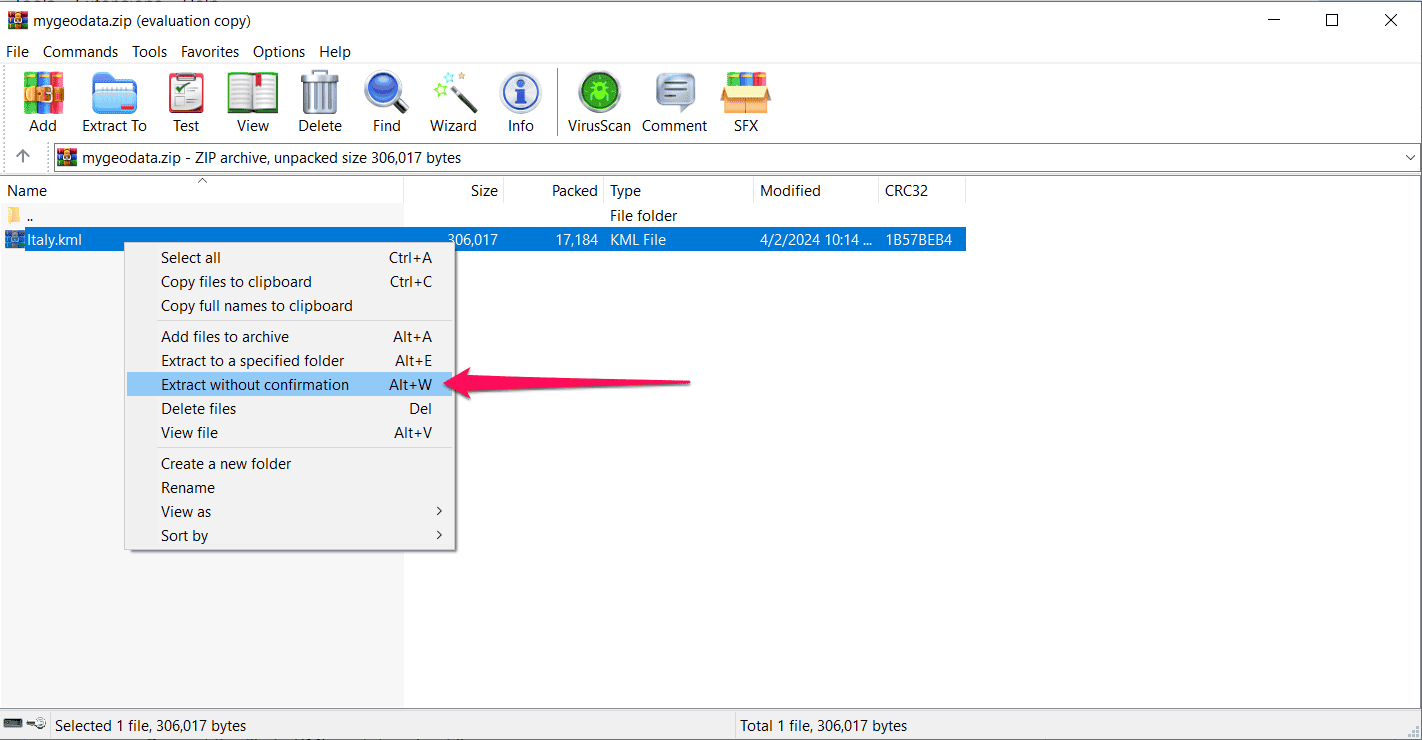
- Double-click on it to unzip and open it, and you’ll see a KML file. It will have the same name as the KMZ file you uploaded at the beginning, followed by “KML.” In my case, the file was called “Italy.KML.”
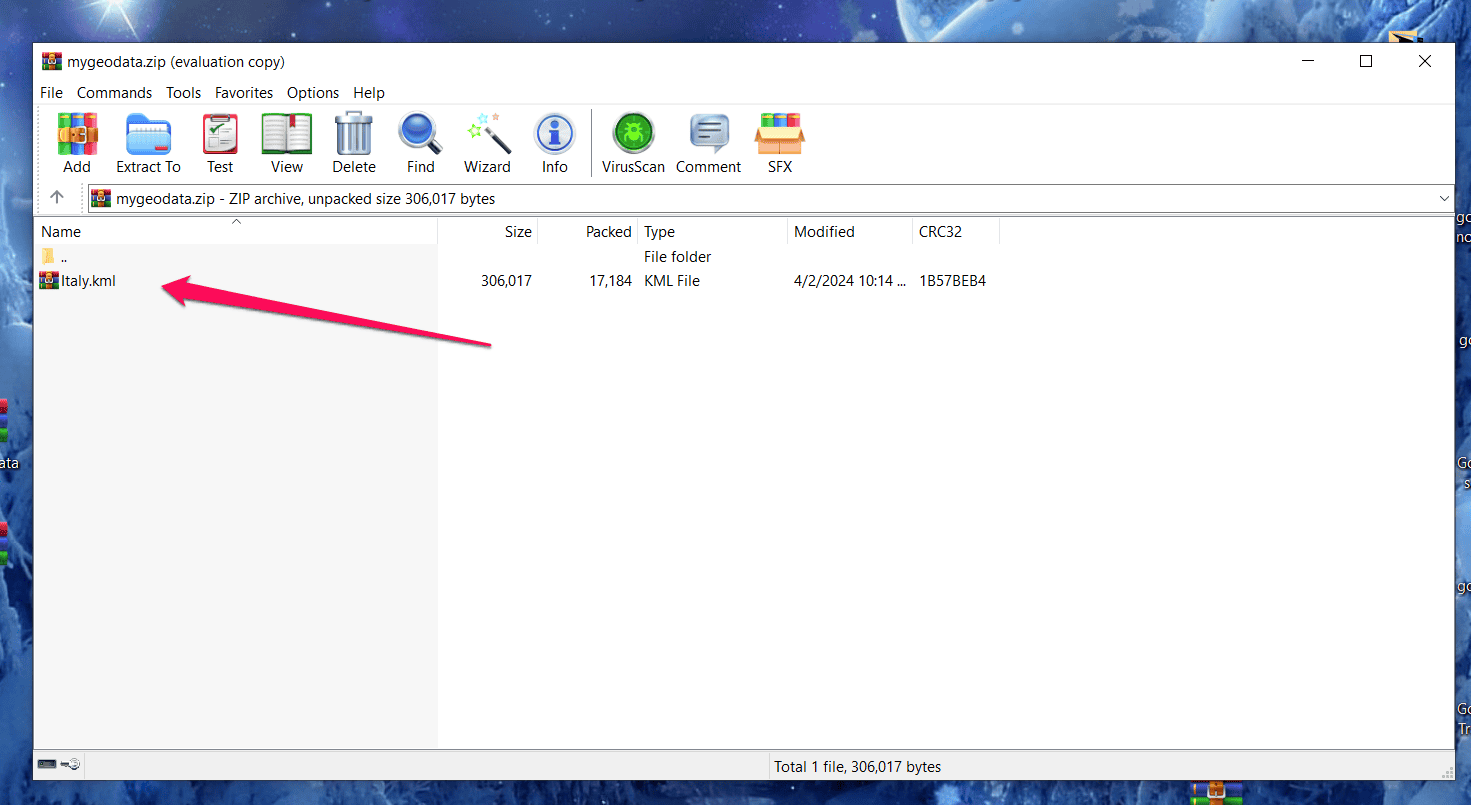
- Right-click on the file and select Extract without confirmation. You’ll get a new KML file that you can upload to Google My Maps.
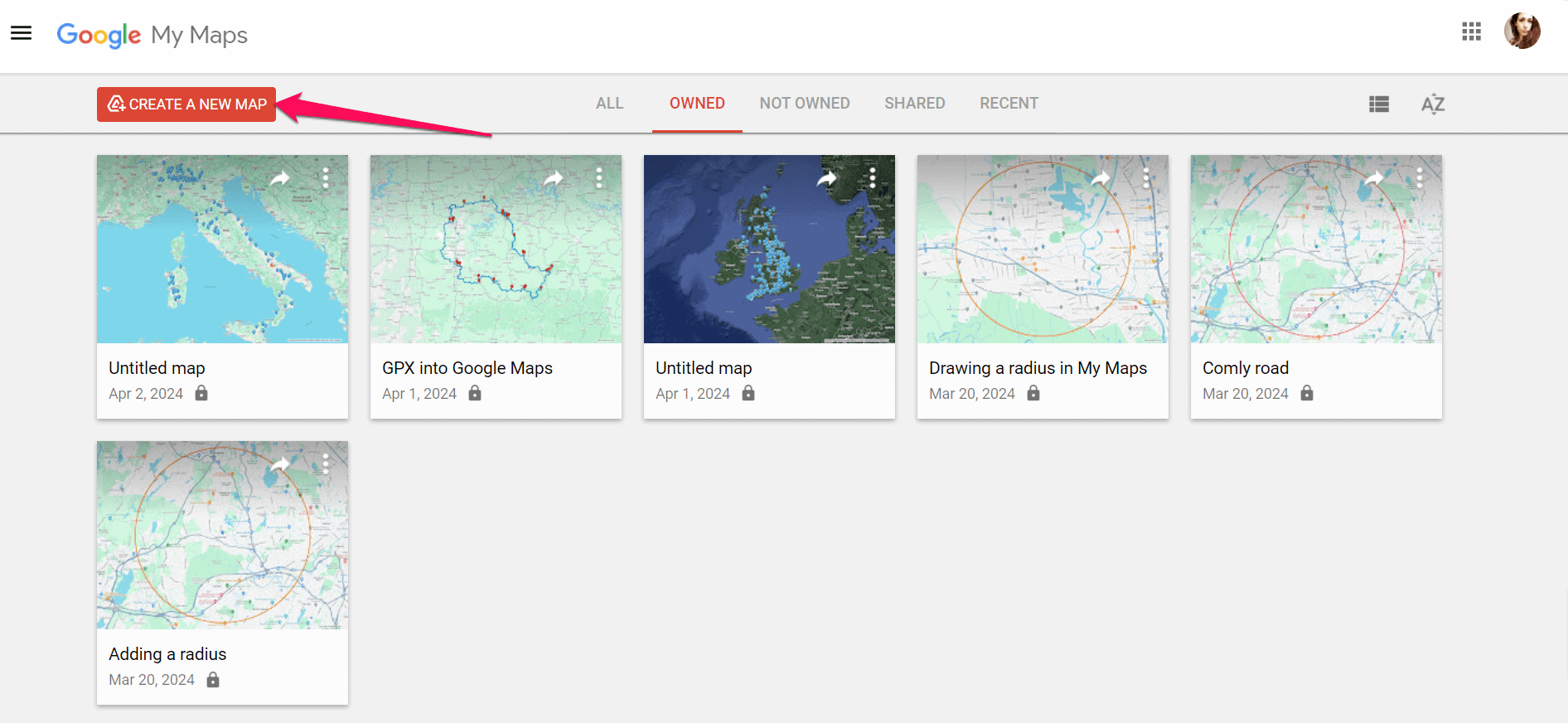
- To do that, open Google My Maps, and hit Create a new map.
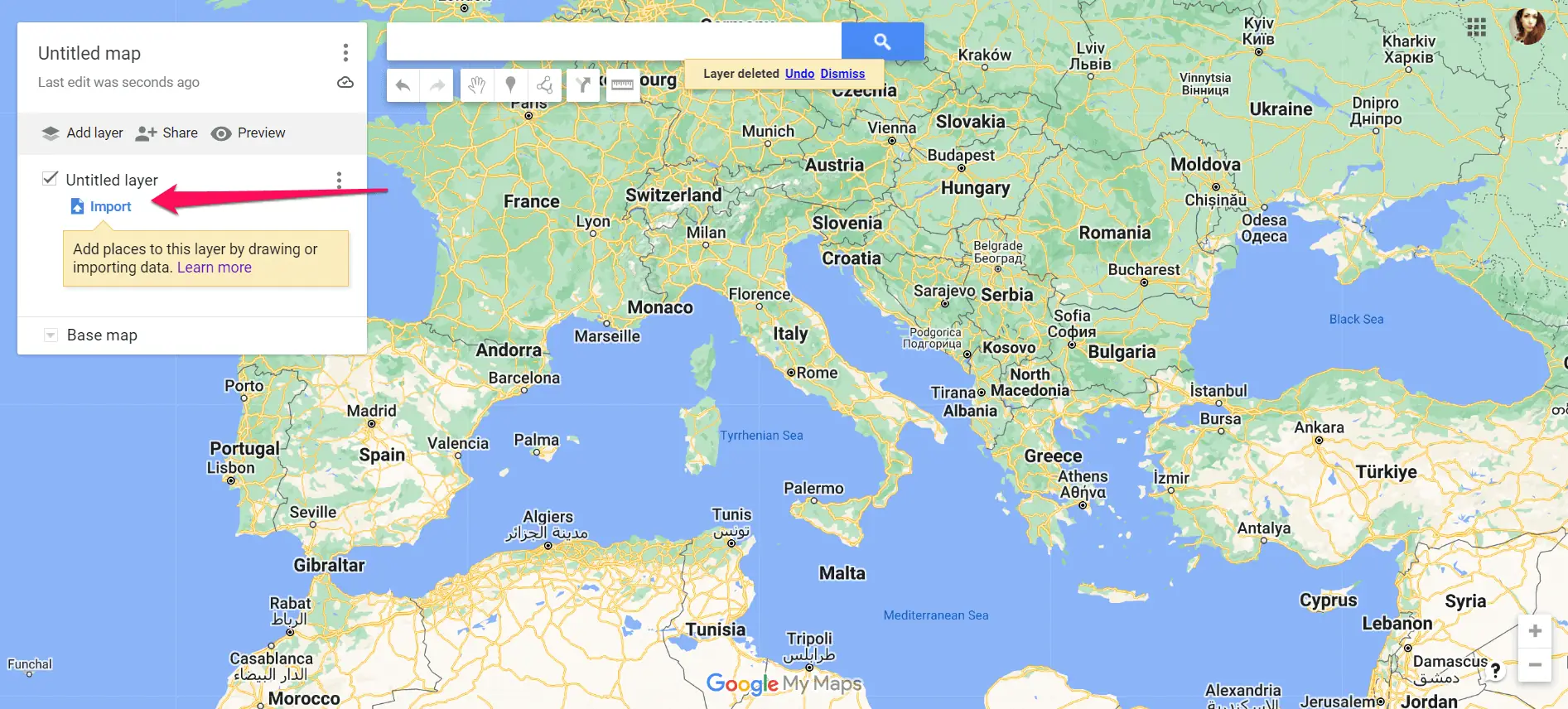
- It will automatically add a new layer. Below the layer title, click Import to add your KML file.
- Locate the file and upload it to Google My Maps.
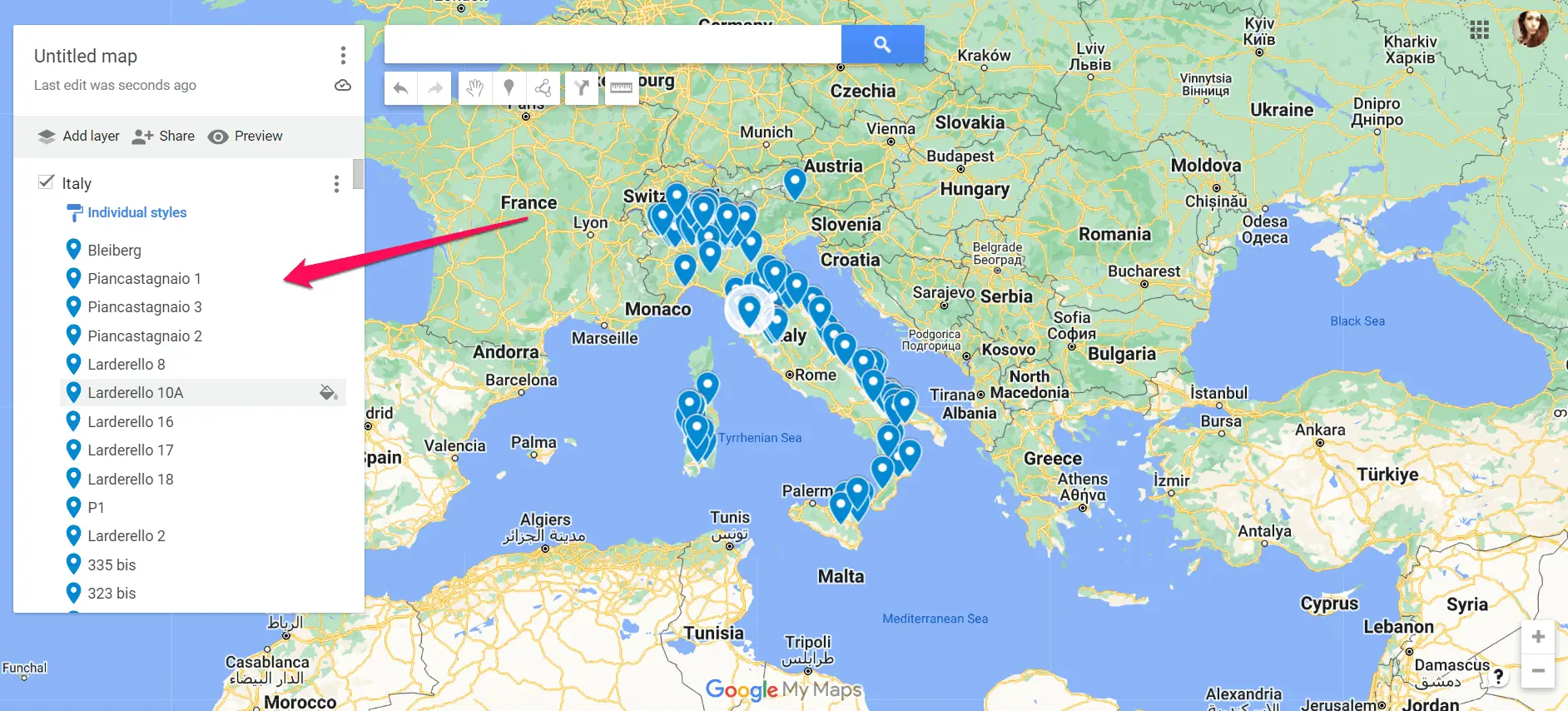


You should now see your file in My Maps.
All in all, using Google Maps and KMZ files in conjunction isn’t possible. However, you can use Google My Maps, and follow the steps in this guide to enhance your maps with external data and customizations.


Read our disclosure page to find out how can you help MSPoweruser sustain the editorial team Read more



Improve this guide




User forum
1 messages