
How to stop Microsoft Authenticator from sending approvals to your old phone


 4 min. read
 Published on
If your old phone still lights up when you sign in to Teams or Outlook, keep it handy. It can approve the sign-in that lets you register its replacement. Restoring Microsoft Authenticator on a new phone can bring back your work email address, but your employer still needs to know which phone can approve a request.
For a work or school account, the change happens in Microsoft’s Security info. Add Authenticator on the new phone, complete a test approval there, then remove the old phone’s Authenticator entry. If you’ve already traded in the old phone, start with the recovery options below.
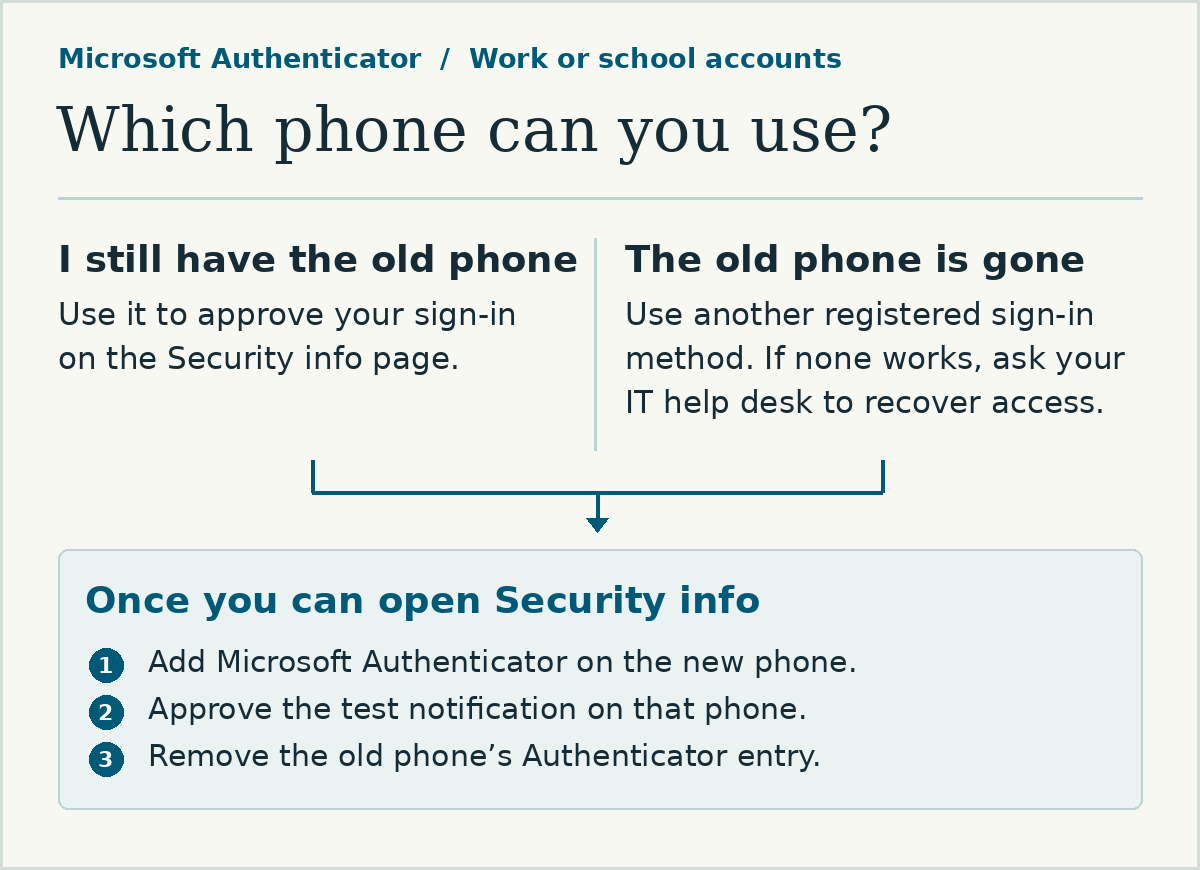
If you can still use the old phone
On a computer, open Security info and sign in with the work or school account whose prompts you want to move. If that sends a request to the old phone, approve the sign-in you just started. Keep the browser open while you set up the new phone.
- On the computer, select Add sign-in method, choose Microsoft Authenticator, then select Add. Follow the prompts until the browser displays a QR code.
- On the new phone, open Microsoft Authenticator. Tap +, choose Work or school account, then Scan a QR code. Scan the code on your computer. If you can’t use the camera, select Can’t scan the image on the computer and Enter code manually on the phone.
- Back on the computer, select Next. Microsoft sends a test notification. Complete it on the new phone and wait for the browser to confirm setup. If the request appears only on the old phone, keep that registration in place while you check which phone scanned the code and whether notifications are enabled on the new phone.
Already restored Authenticator and see Sign in to add your account under your work address? You can open that entry and follow the sign-in prompts. Microsoft restores the account name first and requires you to finish setup on the replacement device. The address appearing in the app is only the first part of the move. Microsoft’s guide to restored accounts explains what comes back.
If you’ve already given up the old phone
At the verification prompt on the computer, look for the option to sign in another way. Choose a method you previously registered and can still use, such as a security key or a text message if your organization allows it. Once you’re in Security info, register the replacement phone using the steps above.
If every choice sends you back to the missing phone, contact your organization’s IT help desk. Tell them the Authenticator approvals for your work account go to a phone you no longer have and you need to register the replacement. The help desk can verify your identity and guide you through the recovery method your organization allows.
Check which phone can approve a real sign-in
Leave Security info open. In a private browser window, start a sign-in to a work app you normally use. If it asks you to approve the sign-in, complete the request on the new phone and make sure the app opens. A browser that lets you straight into Outlook without a prompt hasn’t tested Authenticator. The test notification during registration gives you a check even when your organization lets you skip a second prompt.
Once the new phone works, return to Security info and remove the Authenticator entry for the old phone. If you can’t tell two entries apart, ask IT to identify the old registration before removing either one. If you still own the old phone, clear Authenticator from it after checking any other accounts it holds. Uninstalling the app alone leaves the old registration on your account. Microsoft’s Authenticator FAQ covers removing an old device.


Read our disclosure page to find out how can you help MSPoweruser sustain the editorial team Read more



Improve this guide




User forum
0 messages