
How To Fully Shutdown Windows 11: A Step-by-Step Guide


 4 min. read
  Updated on
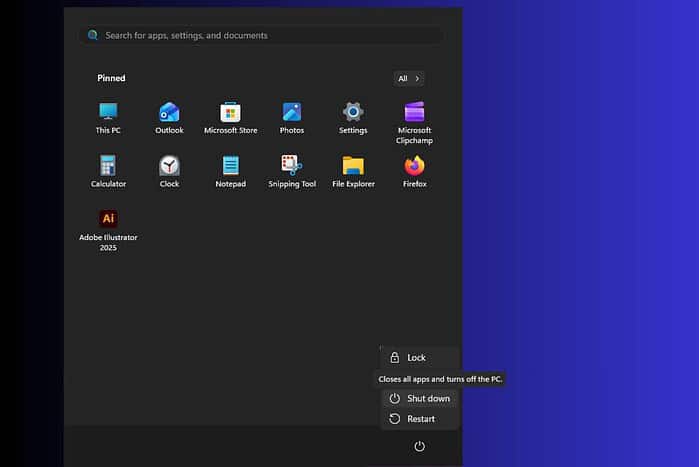
Completely shutting down your Windows 11 PC helps clear out background processes that can drain your battery or slow things down.
In this guide, I’ll walk you through simple methods like using the Start Menu, Alt + F4, Command Prompt, or shortcuts so you can power off your computer fully and start fresh every time.
What’s the best way to completely shut down Windows 11?
Using the Start Menu Shutdown Option
This is the most common and straightforward method to shut down your Windows 11 PC.
- Click the Start button on the taskbar.
- Click the Power icon.
- Select Shut down from the options.
Utilizing the Alt + F4 Shortcut
This classic Windows shortcut provides a quick way to access the shutdown menu.
- Ensure you are on the Desktop. If an application is open, minimize it first.
- Press Alt + F4 on your keyboard.
- Select Shut down from the dropdown menu.
- Click OK.
Employing the Command Prompt
For more advanced users, the command prompt offers a direct way to shut down the system. You can also learn more about troubleshooting common issues by following our guide on how to troubleshoot Windows 11 to prevent recurring problems.
- Press the Windows key + R to open the Run dialog box.
- Type cmd and press Enter to open the Command Prompt.
- Type the command
shutdown /s /f /t 0and press Enter.
/sinitiates a shutdown./fforces running applications to close./t 0sets the shutdown timer to 0 seconds, ensuring immediate shutdown.
Shutting Down from the Sign-in Screen
You can also shut down your Windows 11 PC directly from the sign-in screen.
- Press Windows key + L to go to the sign-in screen.
- Click the Power icon in the bottom-right corner of the screen.
- Select Shut down.
Creating a Shutdown Shortcut
For even faster access, create a dedicated shutdown shortcut on your desktop. You can easily manage settings and check for updates before shutdown by reading about how to change your IP address on Windows 11 if needed.
- Right-click on an empty area of your Desktop.
- Select New > Shortcut.
- In the “Type the location of the item” field, enter
shutdown /s /f /t 0. - Click Next.
- Enter a name for the shortcut, such as “Shutdown“, and click Finish.
- Double-click the shortcut to immediately shut down your computer.
Tips for a Full Shutdown
- Save your work: Always save all open documents and close applications before shutting down to prevent data loss.
- Check for updates: Before shutting down, check for and install any pending Windows updates. Sometimes updates require a full shutdown to complete installation.
- Disable Fast Startup (if needed): Fast Startup is a feature that can prevent a full shutdown. To disable it, go to Control Panel > Power Options > Choose what the power buttons do. Click “Change settings that are currently unavailable,” then uncheck “Turn on fast startup (recommended).”
Windows 11 Shutdown Methods Compared
Here’s a brief comparison of the different shutdown methods available in Windows 11:
| Method | Ease of Use | Speed | Force Close Apps | Best For |
|---|---|---|---|---|
| Start Menu | Very Easy | Moderate | No | Everyday use |
| Alt + F4 | Easy | Moderate | No | Quick access when on the desktop |
| Command Prompt | Advanced | Fast | Yes | Experienced users, forcing app closures |
| Sign-in Screen | Easy | Moderate | No | Shutting down without logging in |
| Shutdown Shortcut | Very Easy | Fast | Yes | One-click shutdown from the desktop |
FAQ
Why should I fully shut down my Windows 11 PC? A full shutdown ensures all processes are terminated, preventing battery drain and resolving potential performance issues.
Does restarting my computer achieve the same result as a full shutdown? No, restarting typically doesn’t fully close all processes, especially with Fast Startup enabled. A full shutdown provides a cleaner state.
How do I know if my Windows 11 PC is fully shut down? Ensure that all lights on your computer are off and that the fan is not running. On laptops, the power indicator light should also be off.
What is Fast Startup, and why might I want to disable it? Fast Startup is a feature that speeds up boot times by saving a hibernation file. However, it can prevent a full shutdown and may cause issues with updates or hardware changes.
Can a forced shutdown damage my computer? While not ideal, forcing a shutdown (e.g., holding the power button) should only be used as a last resort if your computer is unresponsive. Regularly doing so can potentially lead to data corruption.
Ensuring a Clean Windows 11 Shutdown
Completely shutting down your Windows 11 PC is essential for maintaining optimal performance and resolving various technical issues. By utilizing these methods, you can ensure a clean and efficient shutdown every time.


Read our disclosure page to find out how can you help MSPoweruser sustain the editorial team Read more



Improve this guide




User forum
0 messages