
How To Download Internet Explorer In Windows 11: A Step-by-Step Guide


 5 min. read
  Updated on

Windows 11 no longer includes Internet Explorer as a standalone browser, but it’s still hidden inside as a legacy feature. If you need it for older sites or apps, this guide shows how to access Internet Explorer mode through Microsoft Edge — no downloads required.
Instead of reinstalling the old browser, you’ll turn on a built-in compatibility mode that lets you load outdated web apps or internal company pages safely. If you also use Outlook at work, here’s how to set an out-of-office reply.
Where Do I Find Internet Explorer on Windows 11?
Enable Internet Explorer Mode in Microsoft Edge
- Open Microsoft Edge.
- Click the three dots (ellipsis) in the top-right corner to open the menu.
- Select Settings.
- In the left sidebar, click Default browser.
- Under Internet Explorer mode (IE mode) availability, choose Allow from the dropdown menu.

- Click the Restart button that appears.

After you enable IE mode, Edge can load older pages using the Internet Explorer engine. This helps with outdated internal dashboards, legacy vendor portals, and older management tools that still expect Internet Explorer 11 behavior. If you manage older Windows systems, you may also find value in our guide to Windows 7 optimization tools for better performance, since a lot of those same environments still depend on IE-era software.
Load a Website in IE Mode
- Open Microsoft Edge.
- Go to the website you want to view in Internet Explorer mode.
- Click the three dots (ellipsis) in the top-right corner to open the menu.
- Select Reload in Internet Explorer mode. The page reloads using the Internet Explorer engine.
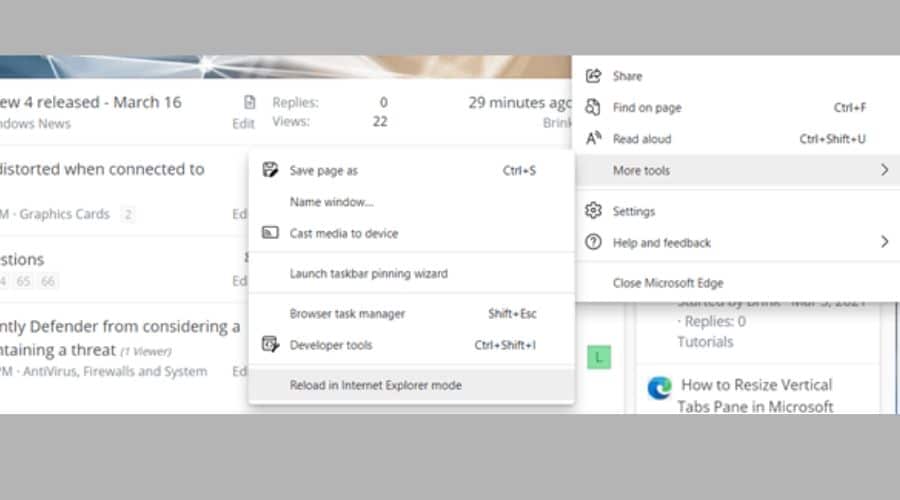

When IE mode activates, Edge shows a small Internet Explorer icon in the address bar. You’ll also see an option to “Open this page in Internet Explorer mode next time,” which helps if you visit that site often. This works well for internal business tools, government portals, and devices like marine GPS units that still rely on browser-based dashboards. For navigation-heavy workflows, especially on boats and vessels, you can also explore the best marine navigation software that supports more modern platforms.
Pin a Website to the Taskbar in IE Mode
- Open Microsoft Edge and load the website in Internet Explorer mode as described above.
- Click the three dots (ellipsis) in the top-right corner to open the menu.
- Go to More tools.
- Select Pin to taskbar. Windows creates a taskbar shortcut that opens the site directly in IE mode.
This shortcut helps in environments where you always need the same legacy page (for example, an inventory system or router control panel). It also lets non-technical users access that page in IE mode with one click, without going through Edge settings every time. If you’re also setting up machines for general office users, you can improve usability by following how to make Google your homepage in Windows 11, so new browser tabs open somewhere familiar instead of a default corporate landing page.
Create a Desktop Shortcut to a Website in IE Mode
- Open Microsoft Edge and load the website in Internet Explorer mode as described above.
- Copy the URL of the website from the address bar.
- Right-click your desktop and select New > Shortcut.
- In the “Type the location of the item” field, enter the following, replacing “[website URL]” with the actual URL you copied:
"%ProgramFiles%\Internet Explorer\iexplore.exe" [website URL] - Click Next.
- Give the shortcut a name (for example, “Legacy Portal (IE Mode)”) and click Finish.
This method basically forces that URL to open using the old Internet Explorer engine each time, which helps with legacy business portals that still break in Chromium-based browsers.
Tips for Using Internet Explorer Mode
- Compatibility View: If a website still doesn’t display correctly in IE mode, add it to the Compatibility View list in the Internet Explorer settings panel inside Edge.
- Security: Internet Explorer no longer receives feature updates and may expose old attack surfaces. Only use IE mode for trusted internal sites or tools that you control. For everyday browsing, Edge (with Google set as your homepage) stays safer, faster, and more modern. You can follow our list of the best free spreadsheet software to handle data work in modern web apps instead of relying on old browser-based intranet tools.
- Troubleshooting: If IE mode won’t enable, confirm that Internet Explorer features are turned on in Windows Features (search for “Turn Windows features on or off”).
Internet Explorer vs. IE Mode in Edge
| Feature | Internet Explorer (Standalone) | IE Mode in Edge |
|---|---|---|
| Availability | Not directly available | Feature within Microsoft Edge |
| Security Updates | No longer receiving | Receives Edge security updates |
| Modern Web Support | Limited | Full Edge support for other sites |
| Performance | Slower | Faster, leveraging Edge engine |
Accessing Legacy Content on Windows 11
By using Internet Explorer mode in Microsoft Edge, you get two advantages: you keep access to legacy web apps that require IE-only technologies such as ActiveX or old intranet frameworks, and you avoid running an unsupported standalone Internet Explorer browser. This helps you keep compatibility without giving up modern security practices or performance tuning.
FAQ
How do I enable Internet Explorer on Windows 11? You don’t install classic Internet Explorer. You turn on Internet Explorer mode in Microsoft Edge under Settings > Default browser.
Why is Internet Explorer not working on Windows 11? Internet Explorer doesn’t run as a standalone browser anymore. You need to load sites in IE mode. Make sure IE mode is allowed in Edge settings and then restart Edge.
Is Internet Explorer still available? Not as a normal browser. However, its rendering engine still ships in Windows 11 and you can access it through IE mode in Edge.
How do I open a website in Internet Explorer mode? Open Edge, visit the site, click the three dots menu, and select Reload in Internet Explorer mode.


Read our disclosure page to find out how can you help MSPoweruser sustain the editorial team Read more



Improve this guide




User forum
0 messages