
Don't like the new Windows 11 Start Menu? You can easily bring back the old Windows 10 version


 1 min. read
  Published on
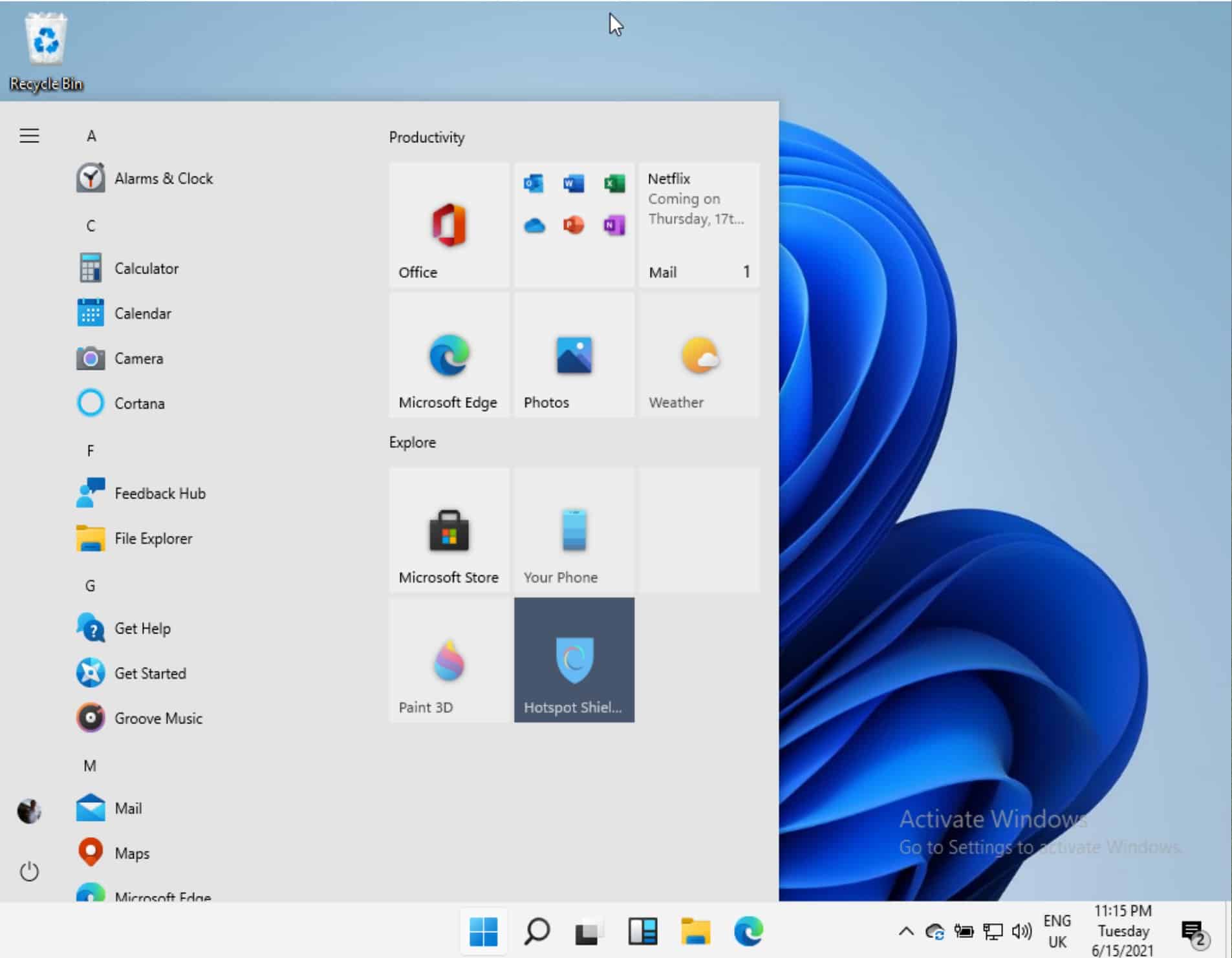
Probably the most controversial element of the new Windows 11 OS is the new Start Menu, which brings a more tablet-like home screen to the OS.
Of course, we know Windows 11 is merely Windows 10 with some lipstick, and if you have grown accustomed to the old Windows 10 Start Menu, it is pretty easy to re-enable it in Windows 11.
All you have to do is:
- Open Regedit
- Navigate to HKEY_CURRENT_USER\Software\Microsoft\ Windows\CurrentVersion\Explorer\Advanced\
- Create a new DWord called Start_ShowClassicMode
- Set its value to 1.
If this sounds like gobbledygook to you, you should probably not be using a registry editor.
You can also move the Start button using the option in Settings under Personalization > Task bar, at which point the OS will be virtually indistinguishable from Windows 10, save for a few more rounded corners.
via Rafael Rivera


Read our disclosure page to find out how can you help MSPoweruser sustain the editorial team Read more



Improve this guide


User forum
0 messages