
How to share a keyboard and mouse between two PCs through a Dell U2723QE


 3 min. read
 Published on
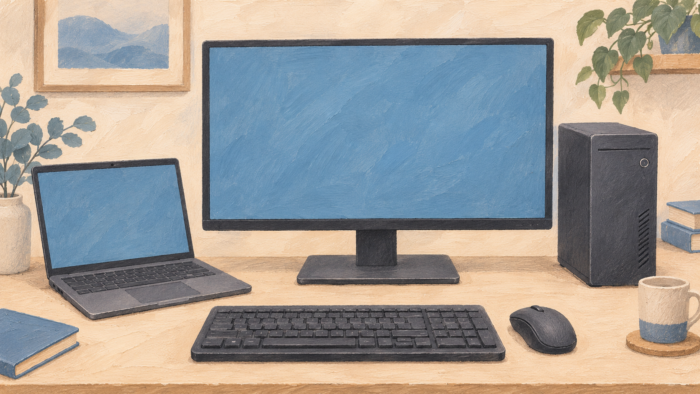
The Dell U2723QE can share a keyboard and mouse between two computers through its built-in KVM function. Each computer needs a USB data connection to the monitor as well as a video connection. A PC connected only by DisplayPort can show its desktop while still having no route to the keyboard plugged into the monitor.
Check the model label before following the wiring below: U2723QE and P2723QE have similar names but different connection arrangements. Dell’s model-specific support explanation identifies a separate USB-C upstream port on the U2723QE for the second computer.
Connect both the display and USB paths
For a laptop using USB-C video alongside a desktop using DisplayPort, Dell documents this arrangement:
| Device | Connection to the U2723QE |
|---|---|
| Laptop with compatible USB-C video output | USB-C to USB-C cable to the monitor’s USB-C video/data input, identified as port 5 in Dell’s diagram |
| Desktop video output | DisplayPort cable to the monitor’s DP input, port 4 |
| Desktop USB data | USB-A to USB-C upstream cable to the monitor’s separate USB-C upstream port, port 8 |
| Shared keyboard and mouse | Monitor USB-A downstream ports |
Use the port diagram in the monitor’s documentation to identify the connectors. The two USB-C connections have different roles; the second PC’s upstream connection is what gives it access to attached USB devices.
A wireless keyboard or mouse with its own USB receiver can use the receiver in a downstream port. Dell’s KVM guidance excludes Bluetooth peripherals paired directly to a computer from this USB-sharing method. Changing the monitor’s input does not transfer such a Bluetooth pairing.
Configure switching and test both computers
Once the cables are connected, use the monitor’s on-screen controls to configure its input and USB assignments. Dell also documents a software route: open Dell Display and Peripheral Manager, go to Input Manager, select KVM Wizard, and follow the instructions for the connected computers. Use the matching monitor documentation if your software presents different controls.
Open a blank text document on each PC and give them different temporary headings, such as “Laptop test” and “Desktop test.” Switch to the laptop, type a short line and move the pointer. Switch to the desktop and repeat. Confirm that both the displayed computer and the computer receiving keyboard input change together.
If the desktop picture appears but typing still controls the laptop, trace the desktop’s separate USB cable and review the USB assignment for its video input. That symptom calls for checking the data route before replacing a working DisplayPort cable. If neither computer sees the keyboard, check where the keyboard or receiver is connected and test it directly on a PC to isolate the peripheral from the monitor setup.
Sources: Dell’s KVM setup guide, U2723QE connection explanation and monitor documentation.


Read our disclosure page to find out how can you help MSPoweruser sustain the editorial team Read more



Improve this guide
User forum
0 messages