
The Sims 4 Not Opening? The Ultimate Fix Guide


 7 min. read
  Updated on

You double-click The Sims 4 icon, the EA App might flash for a moment, but then… nothing. The game simply doesn’t launch, or it crashes to the desktop before you even see the Maxis logo. This is one of the most common and frustrating issues for Simmers, and its causes are almost always rooted in a handful of specific areas: outdated or broken mods, corrupted cache files, launcher glitches, or conflicts with system software like OneDrive.
This comprehensive guide moves beyond generic advice to provide the specific, community-vetted troubleshooting steps that have proven effective time and again, drawn from years of forum discussions and player experience.
Initial Diagnosis: Is It Your Game or a Global Problem?
While rare, sometimes the issue isn’t on your computer at all. Before you start deleting files, take 60 seconds to check for a widespread service outage, which can happen after a major game patch.
- Check the Official Channels: The first place to look is the official @TheSims and @EAHelp Twitter/X accounts. They will post announcements if there is a known issue with a new patch or an EA App server outage that prevents games from launching.
- Consult Community Hubs: Real-time feedback is invaluable. Visit the official Sims 4 forums (Answers HQ) and the r/TheSims subreddit. If there’s a major problem, the “new” posts section will be flooded with other players reporting the exact same issue. This is the fastest way to confirm if “it’s not just you.”
- Use DownDetector: Search for “EA” or “The Sims” on a third-party outage site like DownDetector. A large, sudden spike in user reports confirms a server-side problem.
Deep Dive into Why The Sims 4 Fails to Launch
Understanding the why helps you apply the right fix. Here are the primary culprits for a no-launch scenario:
- Broken Mods or Custom Content (CC): This is the #1 cause, especially after a game update. The Sims 4 patches frequently change game code, which can make older script mods (like MCCC, UI Cheats) or even certain types of CC (like custom careers or traits) incompatible, leading to a crash on startup.
- Corrupted Cache Files: The game generates temporary files to speed up loading. The most well-known is
localthumbcache.package, but others likesimcompositor.cacheandsocialcache.packagecan also become corrupted and prevent the game from starting. - EA App Glitches: The launcher itself can be the problem. A background process might be stuck, the app may have lost its administrator privileges, or its own cache could be corrupted, preventing it from successfully passing the “launch” command to the game.
- OneDrive Syncing Conflicts: If you use Microsoft OneDrive, its “Backup” feature can take control of your
Documentsfolder. This is where your Sims 4 user data is stored. If OneDrive is actively syncing or has placed a “lock” on these files, the game cannot read or write to them, causing it to fail to start. - System-Level Issues: An outdated graphics driver, a pending Windows update, or security software (antivirus/firewall) incorrectly flagging the game can all block the launch process.
The Ultimate Step-by-Step Troubleshooting Checklist
Follow these steps in order. They are arranged from most common and least invasive to more advanced. Do not skip steps.

Level 1: The Essential First Steps
- Run the EA App as an Administrator: This simple step resolves many permission-related issues.
- Completely close the EA App. Open Task Manager (
Ctrl+Shift+Esc) and ensure no “EA” or “EABackgroundService” processes are running. - Right-click on the EA App desktop shortcut and select “Run as administrator.”
- Try to launch The Sims 4 from within the admin-level EA App.
- Completely close the EA App. Open Task Manager (
- Delete Core Cache Files: This is the most effective, non-destructive fix. It is 100% safe and forces the game to generate fresh, clean files.
- Navigate to your user folder at
Documents > Electronic Arts > The Sims 4. - Delete the following file:
localthumbcache.package. - If you have a
cachefolder, delete all files inside it (but not the folder itself). - If you see a file named
lastCrash.txtorlastException.txt, delete those as well. - Try to launch the game again.
- Navigate to your user folder at
- Repair the Game: This function within the EA App checks for any missing or corrupted core game files and replaces them.
- Open the EA App (as an administrator).
- Go to your Library and find The Sims 4 tile.
- Click the three dots (
...) in the top-right corner of the game tile. - Select Repair. This process can take several minutes. Once complete, try launching the game.
Level 2: The Mod & CC Troubleshooting Process
If the game still won’t launch, the next suspect is custom content. This process will definitively prove if mods are the issue.
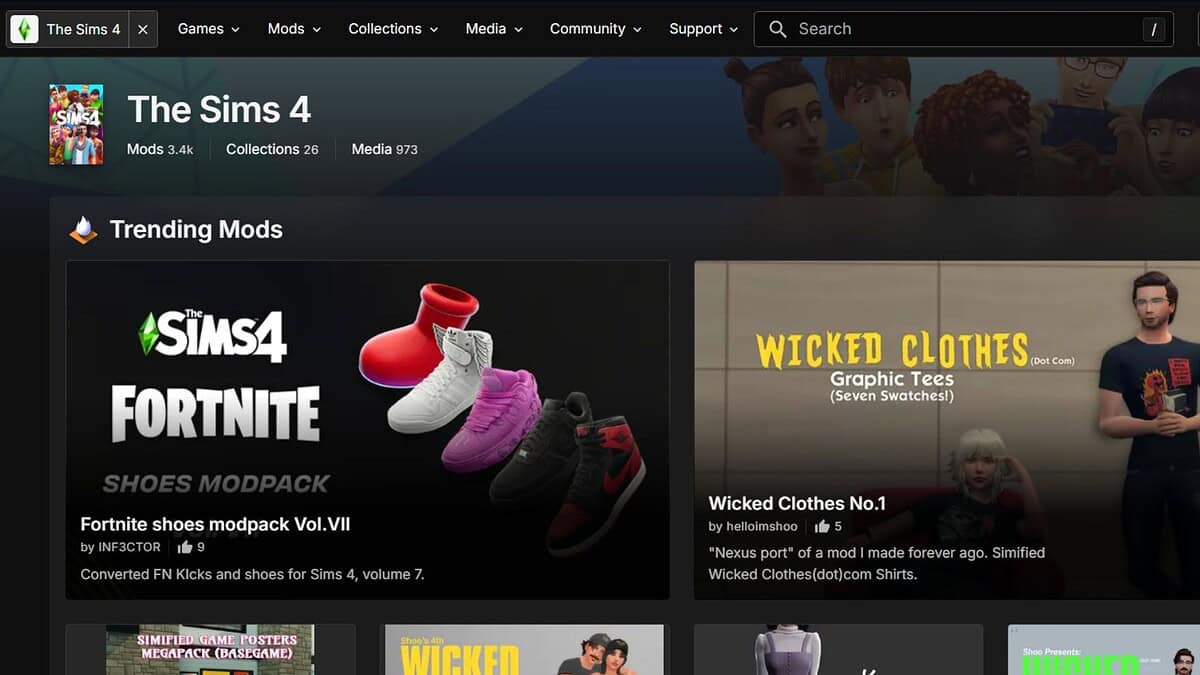
- Test Without Mods:
- Navigate to
Documents > Electronic Arts > The Sims 4. - Right-click on your Mods folder and rename it to
Mods_Backup. This prevents the game from loading any mods. - Launch the game.
- If it launches successfully: The problem is 100% caused by one or more broken mods or CC files in that folder. Proceed to the next step.
- If it still doesn’t launch: The issue is not with your mods. You can rename the folder back to “Mods” and skip to Level 3.
- Navigate to
- The 50/50 Method (To Find the Broken File): This is the community-standard method for isolating a bad file without checking every single one.
- Create a new, empty Mods folder in your Sims 4 directory.
- Take roughly half of the files from your
Mods_Backupfolder and move them into the newModsfolder. - Launch the game.
- If it launches, the bad file is in the half you didn’t move. Set the tested files aside and repeat the process with the remaining untested half.
- If it crashes, the bad file is in the half you just tested. Remove that half and repeat the process, splitting it in half again.
- Continue this process of halving the batch of mods you’re testing until you are left with the single file that causes the crash. Remove it and check for an updated version from its creator.
Level 3: System and Folder Conflicts
- Disable or Reconfigure OneDrive: If you use OneDrive, you must check for conflicts.
- Right-click the OneDrive cloud icon in your system tray.
- Click “Pause syncing” and select a duration. Try to launch the game.
- For a permanent fix, go to OneDrive
Settings > Sync and back up > Manage backup. Turn off the backup for theDocumentsfolder. This will move the folder from OneDrive back to its default local location on your PC, giving The Sims 4 direct access.
- Create a Fresh Sims 4 User Folder: This can resolve issues with corrupted save files or settings.
- Navigate to
Documents > Electronic Arts. - Rename the
The Sims 4folder toThe Sims 4_Old. - Launch the game. The game will generate a brand new, factory-fresh
The Sims 4folder. It will be as if you’re starting for the first time (no saves, no mods). - If the game launches, it means some file in your old user folder was the problem. You can then carefully move your
SavesandTrayfolders fromThe Sims 4_Oldto the new folder to restore your progress.
- Navigate to
- Update Your System:
- Graphics Drivers: Go directly to the NVIDIA, AMD, or Intel website and download the latest drivers for your graphics card. Do not rely on Windows Update for this; you can always use a third-party software such as Fortect Driver Updater.
- Windows Update: Go to
Settings > Update & Securityand install all pending Windows updates.
Conclusion: A Methodical Path to Playing
While a non-launching Sims 4 is frustrating, the problem is almost always solvable. The cause is overwhelmingly likely to be a broken mod/CC after a patch or a corrupted localthumbcache.package file. By methodically working through the steps—starting with repairing the game and testing without your Mods folder—you can efficiently isolate the cause. If those fail, addressing deeper system conflicts like OneDrive or generating a fresh user folder will resolve even the most stubborn launch failures.


Read our disclosure page to find out how can you help MSPoweruser sustain the editorial team Read more



Improve this guide



User forum
0 messages