
How to Show "My Computer" on Desktop in Windows 11


 2 min. read
  Updated on
In Windows 11, the classic “My Computer” icon (now called This PC) is hidden by default. If you want quick access to your drives and folders directly from the desktop, here’s how to show it.
Table of contents
Step-by-Step: Show “This PC” on Your Desktop
1. Open Personalization Settings

- Right-click on an empty space on your desktop.
- Select Personalize.
2. Go to Themes

- In the left-hand menu (or scroll down), click on Themes.
3. Open Desktop Icon Settings
- Under Related settings, click on Desktop icon settings.
4. Enable “Computer”
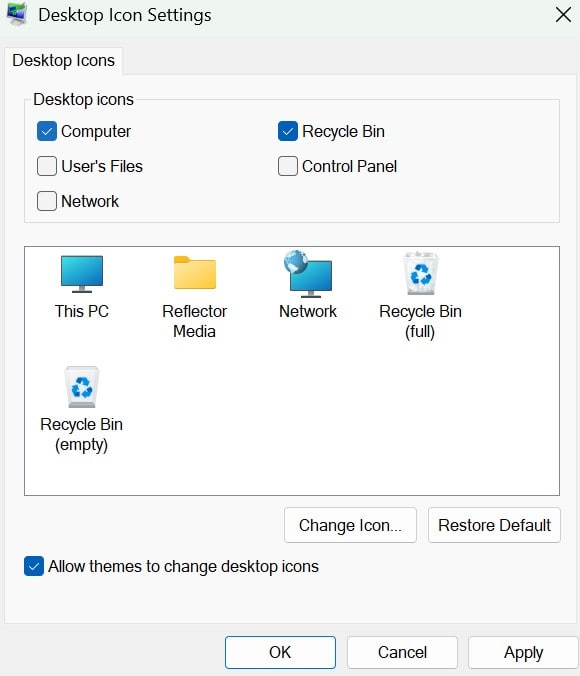
- In the window that opens, check the box next to Computer.
- Click Apply, then OK.
Now, the This PC icon will appear on your desktop, just like the old “My Computer” icon from earlier Windows versions.
Alternate Method via Run Command
You can also access the same setting with a quick shortcut:
- Press
Win + Rto open the Run dialog. - Type: nginxCopyEdit
control desk.cpl,,0 - Hit Enter – this opens Desktop Icon Settings directly.
Final Tip
You can also enable icons like Recycle Bin, User’s Files, Network, and Control Panel in the same menu.

Readers help support MSpoweruser. We may get a commission if you buy through our links.


Read our disclosure page to find out how can you help MSPoweruser sustain the editorial team Read more



Improve this guide




User forum
0 messages