
HP Smart App For Windows: Download, Install, Use, And Uninstall (A Quick Guide)


 4 min. read
  Updated on
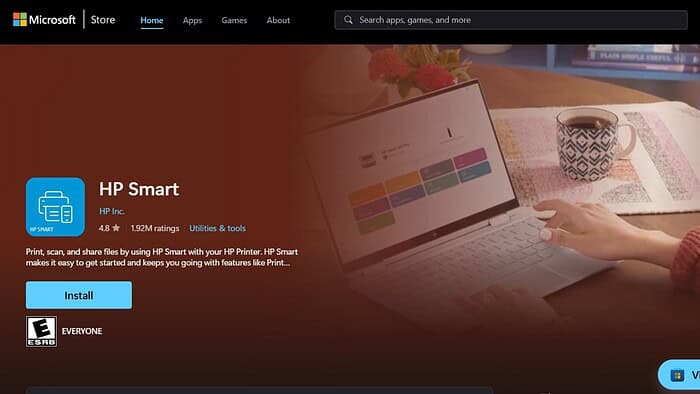
This guide provides a comprehensive walkthrough of the HP Smart app for Windows, covering everything from download and installation to troubleshooting and uninstallation. Whether you’re a seasoned HP user or new to their printer ecosystem, this step-by-step guide will help you get the most out of this powerful tool. HP Smart simplifies printer management, allowing you to easily print, scan, and manage your HP printer directly from your Windows computer.
How Can I Get the Most Out of HP Smart on My Windows PC?
Downloading the HP Smart App
- Open your preferred web browser (e.g., Chrome, Edge, Firefox).
- Go to the official HP website: www.hp.com (replace with actual HP download link for Smart app).
- Search for “HP Smart Windows” in the search bar.
- Click on the download link for the HP Smart app for Windows. Make sure you select the correct version compatible with your Windows operating system (e.g., Windows 10, Windows 11).
- Save the downloaded file to a location you can easily find (e.g., your Downloads folder).
Installing the HP Smart App
- Locate the downloaded HP Smart installer file.
- Double-click the installer file to launch the installation process.
- Follow the on-screen instructions. This typically involves accepting the license agreement and choosing the installation location.
- Once the installation is complete, the HP Smart app will launch automatically.
Using the HP Smart App
The HP Smart app provides various functionalities. You can:
- Print: Easily print documents and photos from your computer.
- Scan: Scan documents and images directly to your computer, saving them in various formats (PDF, JPEG, etc.).
- Manage Printer Settings: Adjust printer settings like paper size, print quality, and wireless connectivity.
- Order Ink/Toner: Check ink/toner levels and order replacements directly through the app.
- Troubleshoot Printer Issues: Diagnose and resolve common printer problems using the app’s built-in troubleshooting tools.
Uninstalling the HP Smart App
- Open the Windows Settings app.
- Go to Apps > Apps & features.
- Find “HP Smart” in the list of installed apps.
- Click on “HP Smart” and select Uninstall.
- Confirm the uninstallation process.
Tips for Using HP Smart
- Ensure your printer is connected to your Wi-Fi network before using the app.
- Regularly check for updates to the HP Smart app to benefit from the latest features and bug fixes.
- If you encounter any issues, refer to HP’s support website for troubleshooting assistance.
HP Smart App: A Quick Summary
The HP Smart app is a user-friendly tool for managing your HP printer from your Windows computer. From downloading and installation to daily use and eventual uninstallation, the process is straightforward and well-documented. By following the steps outlined above, you can efficiently utilize all the features of HP Smart and optimize your printing experience.
FAQs
What if HP Smart isn’t detecting my printer?
Ensure your printer is powered on, connected to your Wi-Fi network, and that your computer is also connected to the same network. Try restarting both your printer and your computer. If the problem persists, check your printer’s network settings and ensure it’s broadcasting its SSID.
How do I update the HP Smart app?
The app usually notifies you of available updates. Alternatively, you can check for updates manually within the app’s settings.
Can I use HP Smart to print from my phone?
While this guide focuses on the Windows version, HP Smart is also available on mobile platforms (Android and iOS) allowing for printing and scanning from your smartphone or tablet.
How do I scan to a specific folder?
The HP Smart app allows you to specify the destination folder for your scanned documents during the scanning process. Look for options to select a folder within the app’s scan settings.
Related reading
- How To Download And Install A Free Office Suite On Windows 11 (Quick Guide)
- How to Download and Use CapCut AI Video Editor on Windows PC [Full Guide]
- Steps to Download & Install Synaptics Touchpad Driver in Windows 11 [Updated 2025]
- Download and Install Realtek Audio Driver in Windows 11
- How to Manually Download and Install Windows Updates


Read our disclosure page to find out how can you help MSPoweruser sustain the editorial team Read more



Improve this guide




User forum
0 messages