
How To Turn On Dark Mode In Windows 11: Step-by-Step Guide


 5 min. read
  Updated on
Dark mode helps reduce eye strain and gives Windows 11 a sleek, modern feel. This guide explains how to enable it, personalize the theme, and control when it’s used. If you often work late, learn how to manage background apps to prevent them from using power or brightening your screen unnecessarily.
Switching to dark mode only takes a few clicks, and you can easily fine-tune it to match your preferences.
Want to Enable Dark Mode on Windows 11?
Using the Settings App
- Open the Settings app. Press
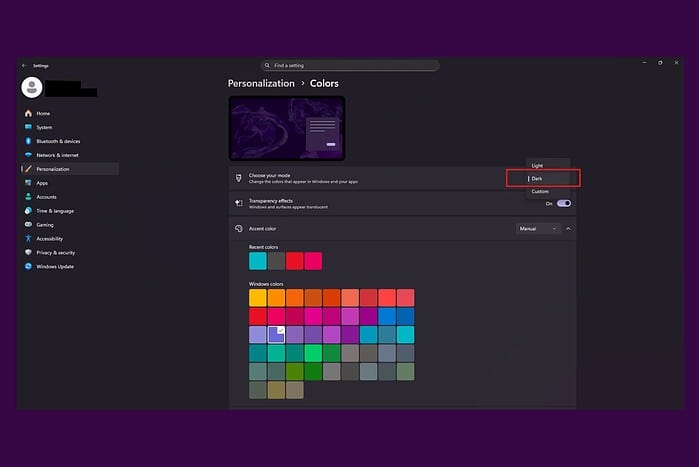
Windows key + I, or search for “Settings” in the Start menu. - Click on “Personalization”. You’ll find it in the left sidebar.
- Select “Colors”. This opens the Windows 11 color and theme options.
- Choose “Dark” from the “Choose your mode” dropdown menu. Windows switches your system theme to dark mode immediately.
If you like to work in a distraction-free view once dark mode is enabled, you can also force full screen in Windows 11 for apps, browsers, and videos. Full screen plus dark mode gives you a clean, high-focus work area with no bright UI elements on the edges.
Using the Quick Settings Menu
- Open the Quick Settings menu. Click the battery, network, or volume icon in the bottom-right corner of the taskbar.
- Click the “Dark mode” quick action button. If you don’t see it, click “Edit quick actions,” then add the Dark mode toggle so you can turn it on and off faster.
Quick Settings helps when you switch environments throughout the day. For example, you might use light mode in a bright office and dark mode at home. If you use command-line tools often, keep in mind that dark mode doesn’t prevent you from opening system tools. You can still open Command Prompt in Windows 11 at any time to run scripts, check system info, or automate tasks in a darker terminal window.
Customizing Dark Mode
- Choose a custom mode. Under Settings > Personalization > Colors, pick “Custom.” This lets you set different modes for Windows elements and app interfaces. For example, you can keep Windows itself dark but force apps to stay light, or flip that setup.
- Adjust accent colors. Still in Colors, choose an accent color that pairs well with dark mode. You can let Windows pick a color from your wallpaper, or choose one manually for contrast.
If you code, write scripts, or work with dev tools at night, you’ll probably want dark mode inside your editor too. While you tune that workflow, make sure you know how to install Python on Windows 11. Installing Python lets you automate tasks, run quick utilities, and work in terminals that already respect your dark theme.
Scheduling Dark Mode
Windows 11 doesn’t include built-in dark mode scheduling. You can’t tell it “switch to dark at sunset” without help. You can still automate it with third-party tools from the Microsoft Store. Two common options include:
- Auto Dark Mode: Schedule light/dark mode by time or sunrise/sunset.
- Dark Auto Theme: Similar idea, but with extra theme and color controls.
Automatic switching helps if you move between bright and dim environments every day. If you also check email late at night in a browser, consider cleaning up your inbox workflow. You can follow this step-by-step AOL Mail sign-in guide to jump straight into email without digging through multiple login prompts in a bright white page at 2 AM.
Tips
- Some apps use their own internal dark theme setting. Check each app’s appearance or theme menu. Don’t assume Windows will force it for you.
- If dark mode doesn’t fully apply across the UI, restart your PC and try again.
- Keep Windows Update current. Updates often include theme, taskbar, and UI fixes that affect how dark mode looks and behaves.
Enjoy the Dark Side
Switching to dark mode in Windows 11 only takes a moment, and it can make long sessions feel softer on the eyes. You can toggle dark mode from Settings for full control or flip it quickly through Quick Settings. You can even mix and match colors and app themes so the interface fits the way you work.
FAQ
How do I turn off dark mode in Windows 11?
Go back to Settings > Personalization > Colors and choose “Light” in the “Choose your mode” dropdown. Or turn off the Dark mode toggle in Quick Settings if you added it.
Does dark mode save battery life on laptops?
Yes, dark mode can save battery on OLED and AMOLED laptop displays. Those panels light up individual pixels, so darker UI elements draw less power. On standard LCD panels the difference is smaller, but you may still prefer the comfort at night.
Can I schedule dark mode to turn on automatically at night?
Not with stock Windows alone. You need a third-party scheduling app like Auto Dark Mode. Set your preferred times once, and let the app handle switching for you.
Why is dark mode not working for all my apps?
Some apps ignore Windows’ theme setting. Open each app’s settings and look for Appearance, Theme, or Dark Mode. Older apps may not support dark styling at all.
Is dark mode better for my eyes?
Dark mode helps many people, especially in dim rooms. Some people still read better with light backgrounds and dark text. Try both and stick with whatever feels more comfortable over long sessions.


Read our disclosure page to find out how can you help MSPoweruser sustain the editorial team Read more



Improve this guide




User forum
0 messages