
How To Turn Off The Screen Rotation Lock On IPhone: A Step-by-Step Guide


 5 min. read
  Updated on
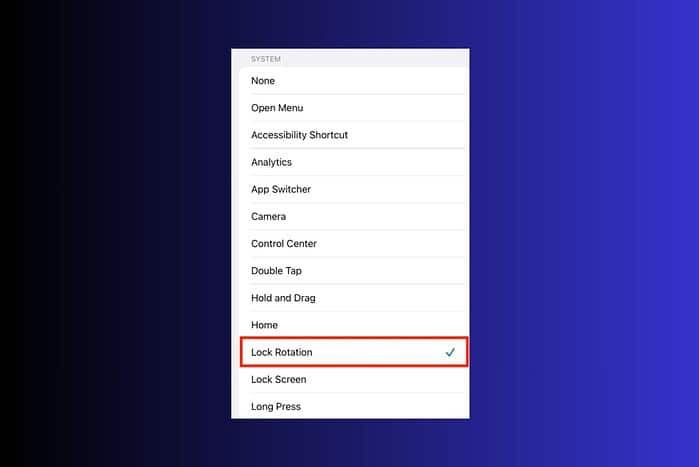
In this step-by-step guide, I will walk you through the process of disabling the screen rotation lock. I’ll cover the diffferent methods available, ensuring you can easily switch between locked and unlocked screen orientations as needed.
Let’s get started.
Table of contents
How Do I Disable Screen Rotation Lock on My iPhone?
Turning Off Screen Rotation Lock via Control Center
The Control Center is the quickest and most convenient way to toggle the screen rotation lock on and off. Here’s how to use it:
- Access Control Center:
- On iPhones with Face ID (iPhone X and later), swipe down from the top-right corner of the screen.
- On iPhones with a Home button, swipe up from the bottom edge of the screen.
- Locate the Rotation Lock Icon: Look for an icon that resembles a padlock inside a curved arrow. If the icon is red and the background is white, the screen rotation lock is enabled.
- Tap the Rotation Lock Icon: Tap the icon to disable the screen rotation lock. The icon will turn white, and the background will turn dark, indicating that the lock is now off.
Disabling Screen Rotation Lock in Settings (If Applicable)
In older iOS versions, there used to be a setting within the Settings app itself. While less common now, it’s worth checking if you can’t find the Control Center option.
- Open the Settings App: Locate and tap the “Settings” app icon on your iPhone’s home screen.
- Navigate to General: Scroll down and tap on “General.”
- Check for “Use Side Switch to”: If you see this option, tap on it.
- Select “Orientation Lock”: If “Orientation Lock” is selected, the side switch on your iPhone controls the screen rotation lock. To disable it, flip the side switch. If “Mute” is selected, the side switch controls the mute function, and the Control Center method is the only way to toggle the rotation lock.
Checking AssistiveTouch Settings
In some cases, AssistiveTouch might be interfering with screen rotation. Here’s how to check and adjust those settings:
- Open the Settings App: Locate and tap the “Settings” app icon on your iPhone’s home screen.
- Navigate to Accessibility: Scroll down and tap on “Accessibility.”
- Tap Touch: Scroll down and tap on “Touch.”
- Tap AssistiveTouch: If AssistiveTouch is enabled, tap on it.
- Customize Top Level Menu: Check if any of the icons are related to screen rotation lock. If so, you can customize the menu or disable AssistiveTouch if it’s causing issues.
Tips
- Restart your iPhone: If you’re having trouble disabling the screen rotation lock, try restarting your iPhone. This can often resolve minor software glitches.
- Check for iOS updates: Ensure your iPhone is running the latest version of iOS. Software updates often include bug fixes that can address unexpected behavior.
- Clean your screen: Sometimes, a dirty or smudged screen can interfere with the touch sensors, making it difficult to tap the Control Center icons accurately.
Easy Screen Orientation Control
Turning off the screen rotation lock on your iPhone is a simple process that gives you more control over how your screen displays content. By following these steps, you can quickly and easily switch between locked and unlocked screen orientations.
FAQ
How do I know if my screen rotation lock is on? You’ll see a padlock icon inside a curved arrow in the Control Center when the screen rotation lock is enabled. The icon will be red, and the background will be white.
Why won’t my iPhone screen rotate even when the lock is off? Some apps don’t support landscape mode. Try rotating your screen in a different app, such as Photos or Safari.
Can I lock the screen in landscape mode? Yes, you can enable the screen rotation lock when your iPhone is in landscape mode to keep it from rotating back to portrait mode.
Is there a way to automatically disable the screen rotation lock in certain apps? No, iOS doesn’t offer a built-in feature to automatically disable the screen rotation lock for specific apps. You’ll need to manually toggle it on or off as needed.
What if the rotation lock icon is missing from my Control Center? Go to Settings > Control Center and make sure “Orientation Lock” is included in the “Included Controls” list. If it’s not, add it from the “More Controls” section.
iPhone Screen Rotation Lock: Troubleshooting
| Issue | Possible Solution |
|---|---|
| Screen won’t rotate even when unlocked | Ensure the app supports landscape mode; restart your iPhone; check for iOS updates. |
| Rotation lock icon is missing | Go to Settings > Control Center and add “Orientation Lock” to the “Included Controls” list. |
| AssistiveTouch interfering | Disable AssistiveTouch or customize its menu to remove any screen rotation lock controls that might be conflicting. |
Simple Steps for Screen Rotation Control
Turning off the screen rotation lock on your iPhone is a straightforward process that enhances your device’s usability. By mastering this simple function, you can ensure your screen displays content exactly how you want it, whether you’re browsing the web, watching videos, or viewing photos.
Related reading
- How To Screen Mirror On Roku: A Step-by-Step Guide
- How To Clear Instagram Cache On IPhone: A Step-by-Step Guide
- How To Install MongoDB In Windows 11: A Step-by-Step Guide
- How To Bypass BitLocker Recovery Key On Windows 11: A Comprehensive Guide
- How To Add Custom Page Numbers In Google Docs (Easy Guide)


Read our disclosure page to find out how can you help MSPoweruser sustain the editorial team Read more



Improve this guide




User forum
0 messages