
How To Sign In To Microsoft Outlook: A Step-by-Step Guide


 6 min. read
  Updated on
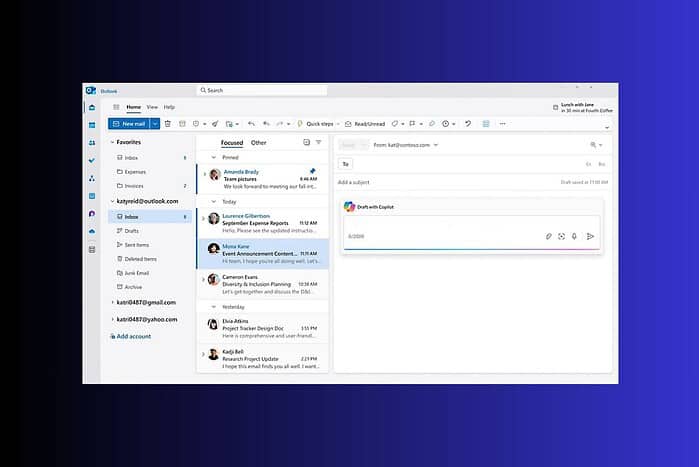
Wondering how to sign in Microsoft Outlook? This quick guide shows you how to access your Outlook account on desktop, web, and mobile. Signing in correctly keeps your emails, calendar, and contacts synced across all your devices.
If you’re setting up a new PC, you might also want to learn how to download Windows 10 before installing the Outlook app.
In this article:
How Do I Log In To Microsoft Outlook?
Signing In to Outlook on the Desktop App
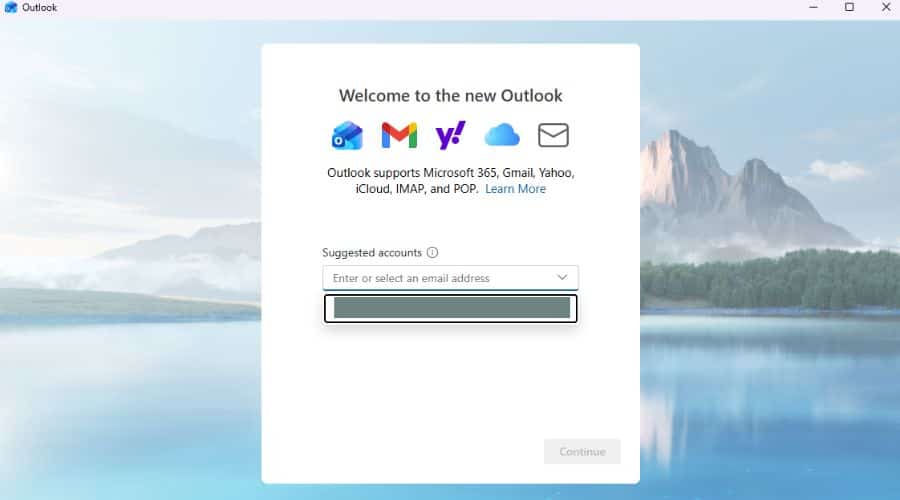
If you have the Microsoft Outlook desktop application installed on your computer, follow these steps to sign in:
- Open the Outlook application. Locate the Outlook icon on your desktop or in your Start menu (Windows) or Applications folder (Mac) and double-click to launch it.
- Enter your email address. When prompted, type in the email address associated with your Microsoft account.

- Click “Connect”. This will initiate the sign-in process.
- Enter your password. Type in the password for your Microsoft account.
- Click “Sign in”. This will authenticate your credentials and grant you access to your Outlook account.
- (Optional) Stay signed in. You may be asked if you want to stay signed in. If you’re on a personal device, selecting “Yes” can save you time in the future. However, avoid this on shared computers.
Accessing Outlook Through a Web Browser
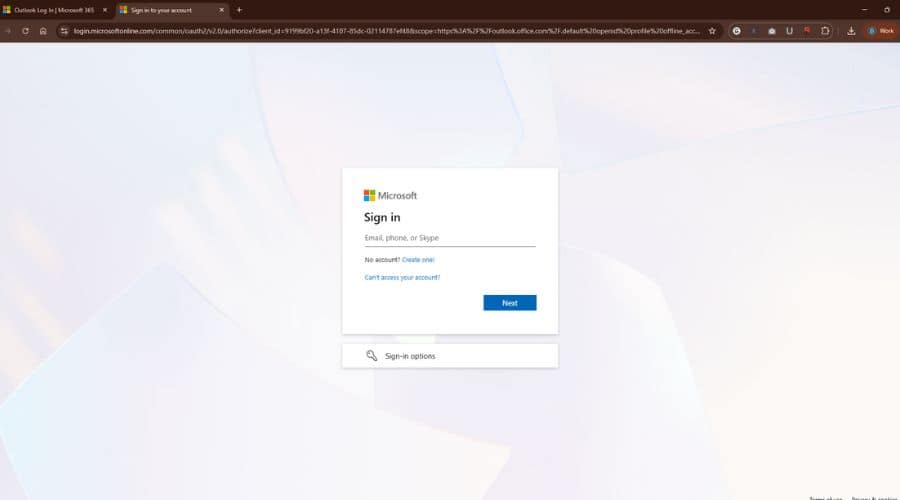
You can also access Outlook through a web browser on any device with an internet connection:
- Open your web browser. Use your preferred browser, such as Chrome, Firefox, Safari, or Edge.
- Go to the Outlook website. Type
outlook.live.cominto the address bar and press Enter. - Enter your email address. On the Outlook web page, enter the email address associated with your Microsoft account.
- Click “Next”. This will take you to the password entry screen.
- Enter your password. Type in the password for your Microsoft account.
- Click “Sign in”. This will log you in to your Outlook account in the web browser.
- (Optional) Stay signed in. You might be asked if you want to stay signed in. Choose “Yes” if you’re on a personal device for convenience.
If your browser feels sluggish or login pages take longer to load, consider optimizing performance by checking out tools like modern website builders and browser extensions that can simplify navigation and page management.
Signing In to Outlook on the Mobile App
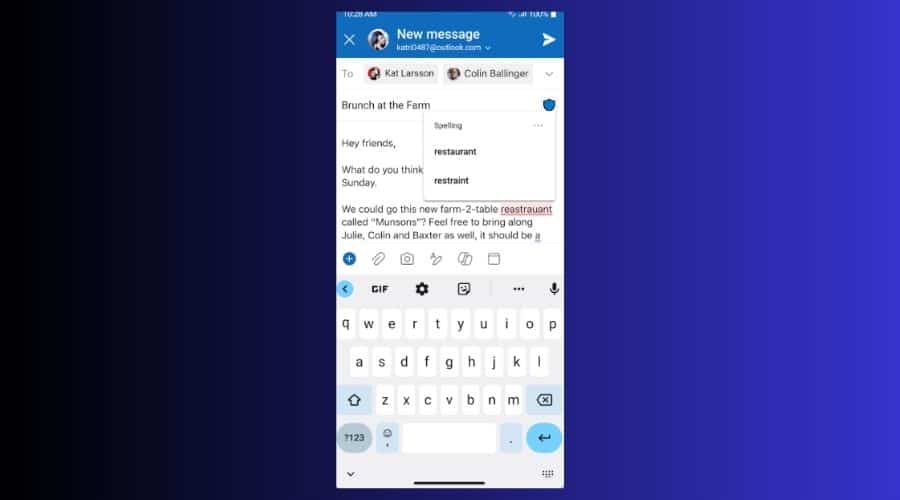
The Microsoft Outlook mobile app allows you to access your email on the go. Here’s how to sign in:
- Download and install the Outlook app. If you haven’t already, download the Microsoft Outlook app from the App Store (iOS) or Google Play Store (Android).
- Open the Outlook app. Tap the Outlook icon on your home screen to launch the app.
- Enter your email address. When prompted, enter the email address associated with your Microsoft account.
- Tap “Add Account”.
- Enter your password. Type in the password for your Microsoft account.
- Tap “Sign in”. This will authenticate your credentials and add your account to the Outlook app.
- (Optional) Add another account. You can add multiple email accounts (e.g., Gmail, Yahoo) to the Outlook app by following the same steps.
For users who multitask or manage creative projects on their phones, exploring music sequencer apps can show how mobile productivity tools extend far beyond communication.
Tips for a Smooth Sign-In Experience
- Double-check your email address and password: Make sure you’re typing them correctly to avoid errors.
- Ensure a stable internet connection: A reliable internet connection is crucial for a successful sign-in.
- Update your browser or app: Keep your web browser or Outlook app updated to the latest version for optimal performance and security.
- Enable two-factor authentication (2FA): For added security, consider enabling 2FA on your Microsoft account. This adds an extra layer of protection by requiring a code from your phone or another device in addition to your password.
- Clear browser cache and cookies: If you’re experiencing issues signing in through a web browser, try clearing your browser’s cache and cookies.
- Use a strong and unique password: Protect your account by using a strong, unique password that you don’t use for other services.
Outlook also works well with creative or professional software that keeps your workflow organized. If you’re editing media or podcast content, you might want to try vocal remover tools to refine your projects while managing communication through Outlook.
Comparing Sign-In Methods
| Feature | Desktop App | Web Browser | Mobile App |
|---|---|---|---|
| Accessibility | Requires installation | Accessible anywhere | Accessible on the go |
| Offline Access | Limited offline access | Requires internet | Limited offline access |
| Notifications | Real-time alerts | Browser-dependent | Push notifications |
| Account Management | Comprehensive | Basic account access | Simplified account access |
Desktop and mobile sign-ins both have unique strengths, similar to how creative platforms like FiveM on Windows 11 expand possibilities by letting you customize how you interact with different environments.
Staying Connected with Outlook
Signing in to Microsoft Outlook is a straightforward process, whether you’re using the desktop app, a web browser, or the mobile app. By following these steps and tips, you can ensure a smooth and secure sign-in experience, allowing you to stay connected and productive with your email, calendar, and contacts.
And if you’re building your personal or business brand online, pairing Outlook with modern website builders ensures seamless integration between communication and web presence.
FAQ
How do I reset my Outlook password if I forgot it?
Go to the Microsoft account recovery page, enter your email address, and follow the instructions to reset your password.
Can I use Outlook with a Gmail account?
Yes, you can add a Gmail account to Outlook by following the steps for adding an account in the Outlook app or desktop application.
Is it safe to stay signed in to Outlook on a public computer?
No, it is not recommended to stay signed in to Outlook on a public computer, as this could compromise your account security.
What should I do if I can’t sign in to Outlook?
Double-check your email address and password, ensure you have a stable internet connection, and try clearing your browser’s cache and cookies if using the web version. If the issue persists, contact Microsoft support.
How do I sign out of Outlook?
In the desktop app, go to File > Account > Sign out. In the web version, click on your profile icon and select Sign out. In the mobile app, go to Settings > Account > Remove Account.


Read our disclosure page to find out how can you help MSPoweruser sustain the editorial team Read more



Improve this guide




User forum
0 messages