
How To See Recently Opened Files In Windows 11/10 (Quick Guide)


 4 min. read
  Updated on
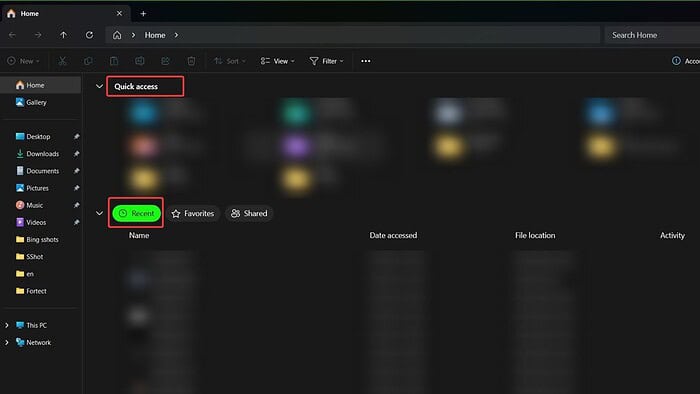
Finding recently opened files in Windows 11 and 10 is surprisingly easy, thanks to several built-in features. Whether you’re looking for a specific document, image, or application, this guide will show you the quickest and most efficient methods to access your recent activity. No matter your Windows version, these methods will help you quickly locate what you need. If you also need to clean up storage, check out this guide on how to delete temporary files in Windows 11/10.
How Can I Quickly Access My Recently Opened Files?
This section outlines the various ways you can find your recently opened files in Windows 11 and 10.
Using the Start Menu
- Click the Start button in the bottom-left corner of your screen.
- You’ll see a list of recently opened apps and files. Click on the file you’re looking for.
Using File Explorer’s Quick Access
- Open File Explorer (the folder icon in the taskbar).
- In the left-hand navigation pane, click on Quick access.
- You’ll find a list of your frequently used folders and recently opened files. If your system behaves unexpectedly or files won’t open, learn how to fix corrupted system files in Windows 11.
Using the Jump List (Right-Click Menu)
This method works for individual applications and file types.
- Right-click on the application’s icon on the taskbar or in the Start Menu.
- A menu will appear, showing a list of recently opened files associated with that application.
Accessing Recent Files Through Specific Applications
Many applications (like Microsoft Word or Adobe Photoshop) maintain their own “Recent Files” lists within their menus. Check the application’s “File” menu for an option like “Recent,” “Open Recent,” or a similar command. If you removed something by mistake, you can follow this guide to recover deleted Excel files on Windows 10/11 or learn the quick steps to recover deleted files.
Tips for Managing Recently Opened Files
- Clear Recent Files: If you want to remove items from your recent files list, you can usually do so within the application’s settings. For example, in File Explorer, you can manage your Quick Access history.
- Privacy Concerns: Be mindful of the files appearing in your recent files list, especially if you share your computer. If you ever encounter display issues, this guide shows how to fix a black screen of death in Windows 11.
Wrapping Up: Finding Your Recent Files
Accessing recently opened files in Windows 11 and 10 is straightforward. The methods outlined above offer various ways to quickly locate your files, depending on your needs and preferences. Choose the method that best suits your workflow and remember to utilize the tips to manage your recent files list effectively.
FAQs
How do I clear my recent files list in Windows 11?
The method for clearing your recent files list varies depending on where you’re viewing them (Start Menu, File Explorer, or within a specific application). In File Explorer’s Quick Access, you can manage the history, though there isn’t a single “clear all” button for all recent files across the system. For application-specific recent files, check the application’s settings or options.
How many recently opened files does Windows 11 keep track of?
The number of recently opened files tracked by Windows 11 varies depending on the application and system settings. There isn’t a fixed number. You might see a few recent items, or potentially dozens, depending on usage.
Can I disable the recent files feature in Windows 11?
You can’t completely disable the tracking of recently opened files, as it is part of the operating system’s core functionality. However, you can manage and clear the lists as described above, limiting what’s displayed.
Where are the recently opened files stored on my hard drive?
Recently opened files aren’t stored in a single, easily accessible location. The system and applications store references to them. Clearing the lists removes the references, not the files. The actual files remain in their original locations.


Read our disclosure page to find out how can you help MSPoweruser sustain the editorial team Read more



Improve this guide




User forum
0 messages