
How to Install Winget in Windows 11


 3 min. read
  Published on

The Windows Package Manager (winget) is a command-line tool that simplifies app installation and updates on Windows 11. While it’s usually preinstalled, some systems may not have it – or may need a manual update.
Follow this guide to check, install, or update winget on any Windows 11 PC.
4 Steps to install Winget
Step 1: Check if Winget is Already Installed
- Press Windows + R, type
cmd, then press Enter. - In Command Prompt, type: nginxCopyEdit
winget - If you see a list of commands, winget is already installed. If you get an error, continue to the next step.
Step 2: Update App Installer via Microsoft Store
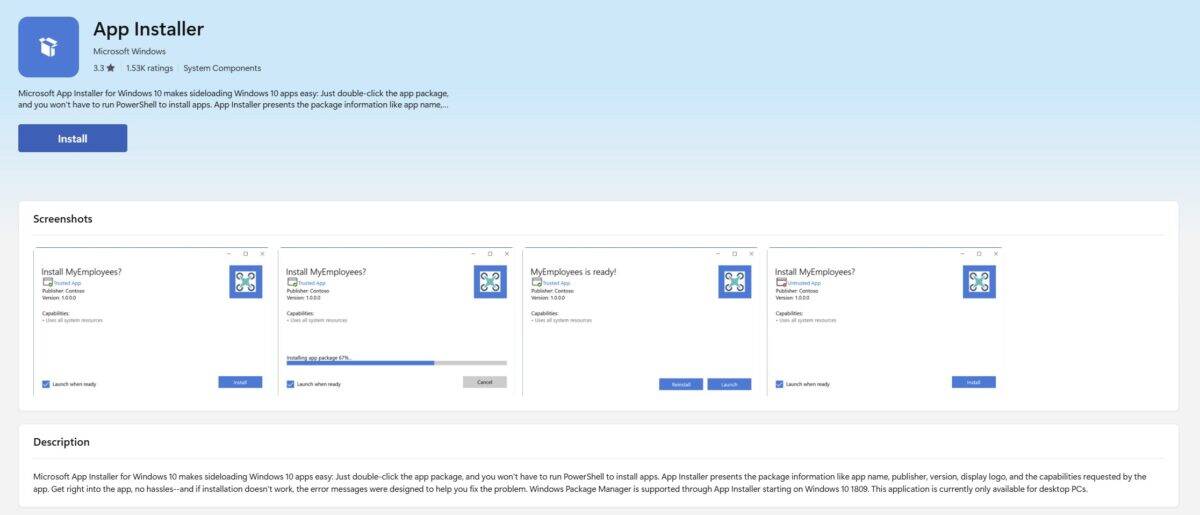
Winget is part of the App Installer package. To install or update it:
- Open the Microsoft Store.
- Search for App Installer or just go to this link
- Click Install or Update.
- Once done, reopen Command Prompt and test with
winget.
Tip: If Microsoft Store is disabled or unavailable, use the manual method below.
Step 3: Manually Install Winget from GitHub
If you can’t access the Microsoft Store:
- Go to the official App Installer GitHub Releases.
- Download the latest
.msixbundlefile. - Double-click the file and follow the on-screen instructions.
- Open CMD and run
wingetto verify the installation.
Step 4: Enable Windows Package Manager in Group Policy (if needed)
Some systems block winget by policy:
- Press Windows + R, type
gpedit.msc, and press Enter. - Navigate to: mathematicaCopyEdit
Computer Configuration > Administrative Templates > Windows Components > App Package Deployment - Make sure Allow App Installer is set to Enabled.
FAQ: Common Winget Installation Issues
- Winget not recognized after install?
Restart your PC. If the issue persists, re-register App Installer via PowerShell. - Using a local account without Microsoft Store?
Use the GitHub method instead of relying on the Store.
Installing winget on Windows 11 is simple once you know where to look. Whether through the Microsoft Store or a direct GitHub package, this tool gives you full control over software management via the command line.
Let us know which method worked for you – or if you need help with scripting bulk installations.


Read our disclosure page to find out how can you help MSPoweruser sustain the editorial team Read more



Improve this guide




User forum
0 messages