
How to Install Canon imageFORMULA R40 Driver on Windows 11


 1 min. read
  Published on
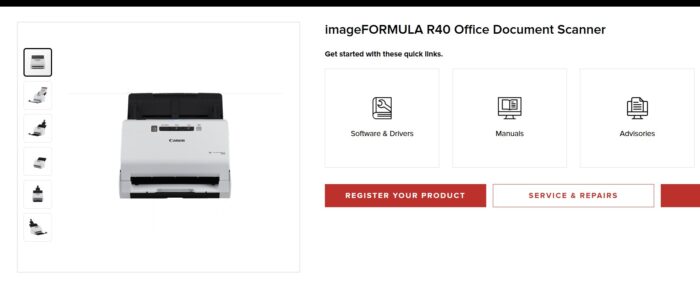
Looking to install the Canon imageFORMULA R40 driver on Windows 11? Follow this step-by-step guide to download, install, and troubleshoot the official Canon driver so your scanner works smoothly on the latest Windows version.
Time needed: 3 minutes
- Go to Canon’s Support Page
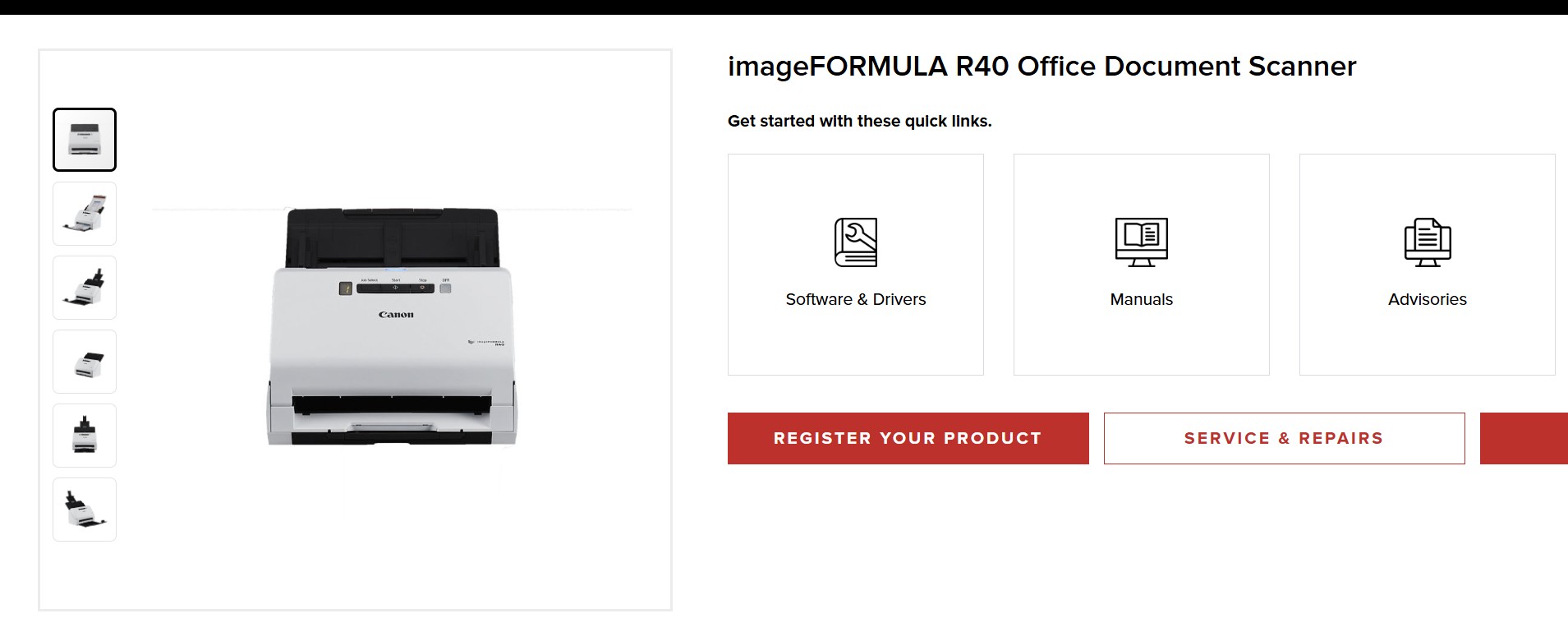
Navigate to the official Canon support page for imageFORMULA R40.
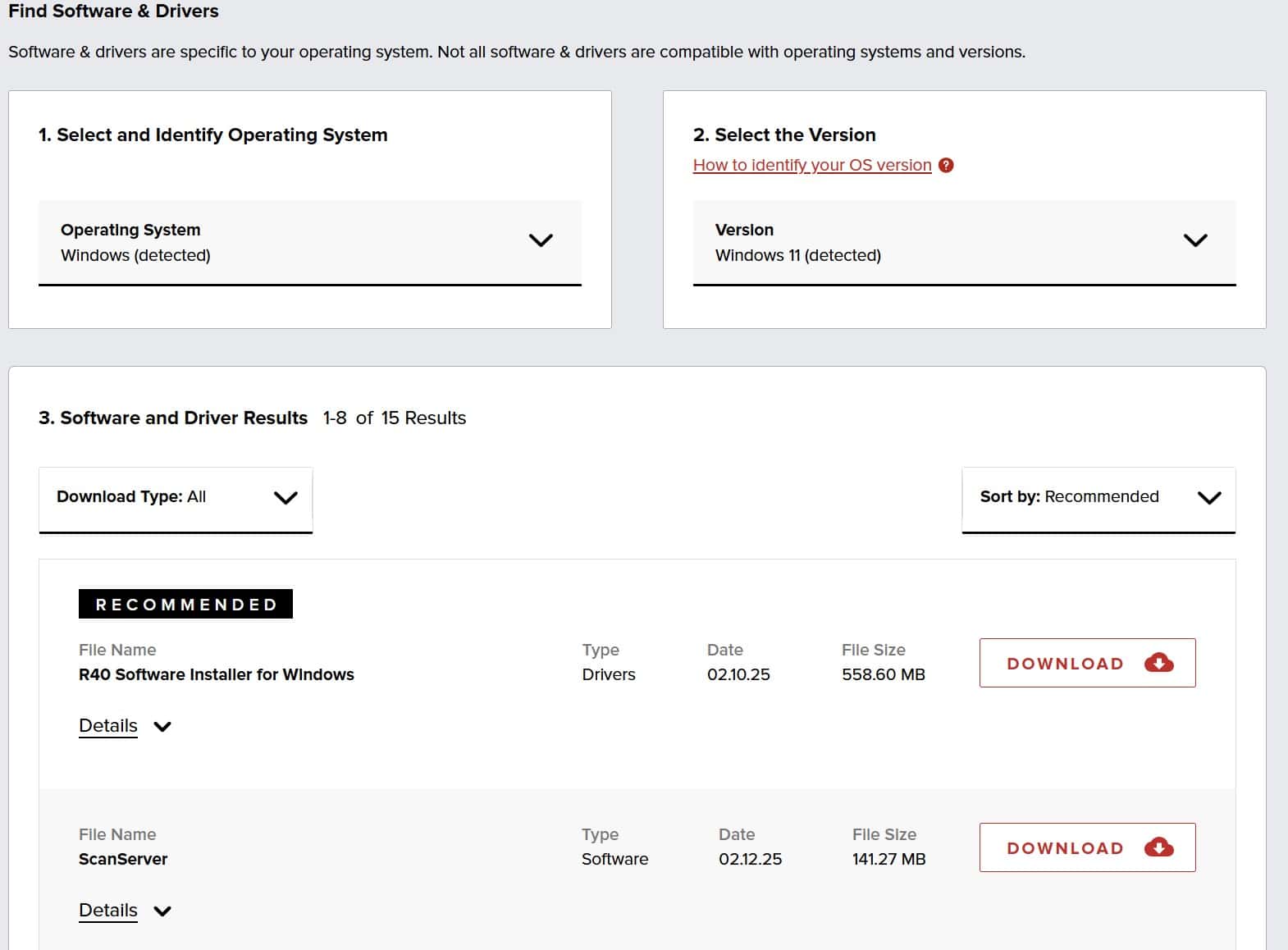
Select Windows 11 (64-bit) from the OS dropdown.
- Download the Latest Driver Package
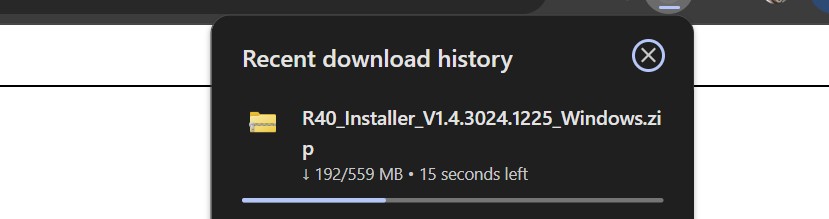
Locate the file named R40_Installer_V1.4.3024.1225_Windows.zip.
Click Download to save the installer package (~570 MB).
- Install the Canon R40 Driver
Unzip the downloaded file.
Double-click the installer (setup.exe) and follow the on-screen instructions to install the driver, software, and manuals.
- Troubleshoot if Scanner is Not Recognized
Run the Restoration Tool for Windows Registry available under Utilities on the Canon support page.
Restart the Windows Image Acquisition (WIA) service: PressWin + R, typeservices.msc, and press Enter.
Locate Windows Image Acquisition, right-click it, and choose Restart.
Temporarily disable Windows Defender if it blocks device communication.


Read our disclosure page to find out how can you help MSPoweruser sustain the editorial team Read more



Improve this guide




User forum
0 messages