
How To Find The AppData Folder In Windows 11/10 (Quick Guide)


 4 min. read
  Updated on
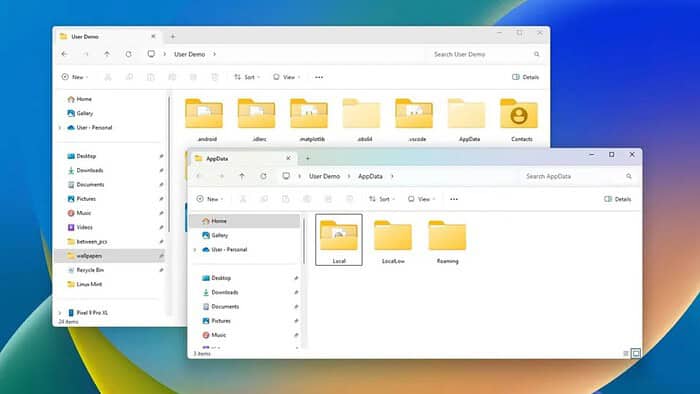
To find the Windows AppData folder on your PC you’ll have to access File Explorer, use the run command or the Windows search bar. We’ll walk you thorugh all the steps below.
In this folder you’ll find application data that stores over time on your Windows 11 and 10 PC. Removing this data is a quick and safe way to free up some space, so go ahead and check out the steps below and quickly clean up your PC.
Table of contents
How Do I Access My AppData Folder?
Use any of the methods below to reach your AppData directory quickly. If File Explorer acts up or refuses to create folders while you work inside AppData, follow our fixes to fix “Can’t create a new folder” errors in Windows 11 before you continue.
Method 1: Using File Explorer (Recommended)
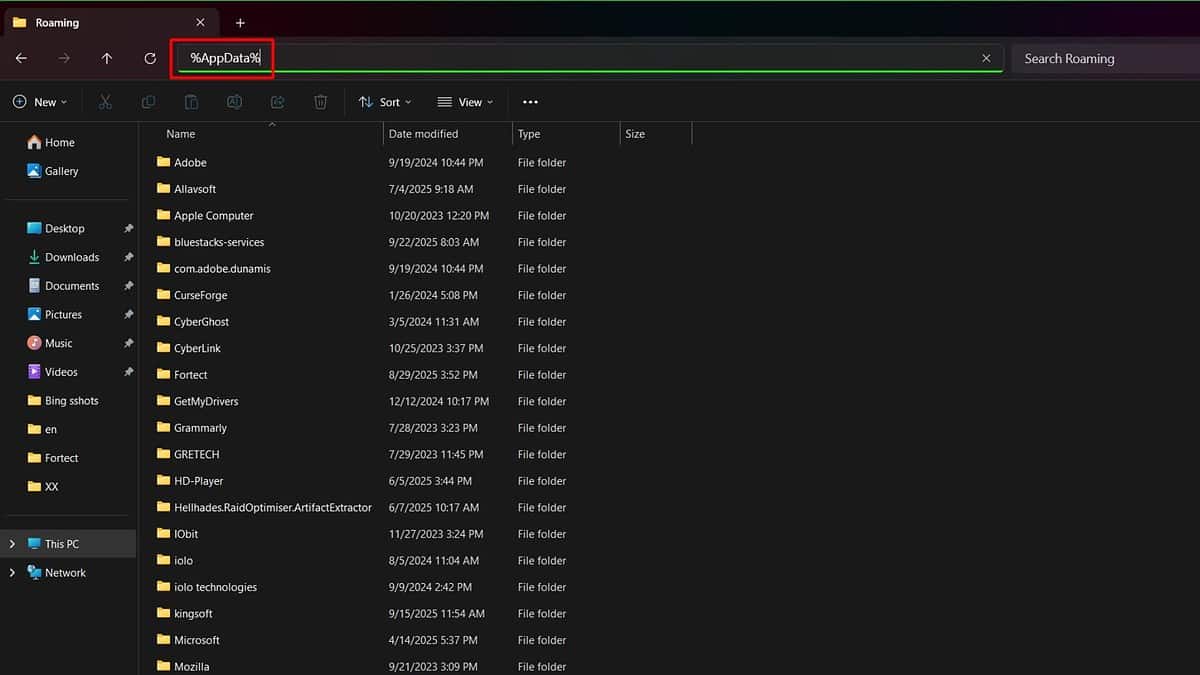
- Open File Explorer with Windows + E.
- In the address bar, type
%AppData%and press Enter. Windows opens the Roaming subfolder inside AppData.
Don’t see AppData at all on your system? Work through this guide to find the AppData folder when it’s missing in Windows 11 and restore visibility.
Method 2: Navigating Through File Explorer
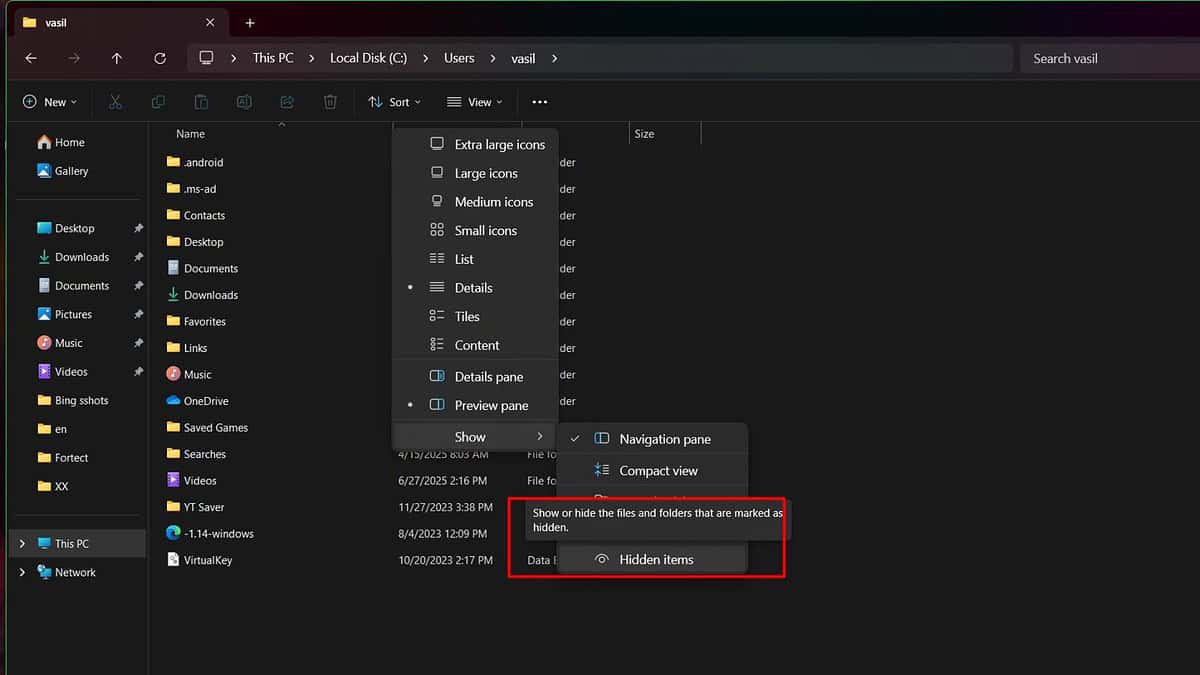
- Open File Explorer.
- Go to
C:\Users\[YourUsername]. - Reveal hidden items:
- Click View on the ribbon (or the toolbar in Windows 11).
- Enable Hidden items.
- Open the now-visible AppData folder.
If Quick Access keeps pinning unwanted folders as you navigate, you can reduce clutter by adjusting it. Here’s how to turn off folders in Quick Access on Windows 10; similar steps apply in Windows 11.
Method 3: Using the Run Command

- Press Windows + R to open Run.
- Type
%AppData%and press Enter to open AppData\Roaming.
Method 4: Using the Search Bar
- Click Start and type AppData.
- Select the AppData folder result to open it.
Tips for Working with the AppData Folder
- Back up smart: Back up the specific app folders you care about (browser profiles, editors, launchers) instead of copying everything.
- Protect sensitive data: Some apps store tokens and caches here. If you share a PC, learn how to password-protect files and folders in Windows to keep private data safe.
- Clean safely: Clear old caches and logs, but leave databases and current profiles intact to avoid breaking apps.
Understanding the AppData Folder Structure
The AppData folder includes three subfolders:
- Local: Data tied to this device (large caches, temp data).
- LocalLow: Data for low-integrity apps (sandboxed or restricted).
- Roaming: Settings that can sync with your account between devices.
If thumbnails flicker or File Explorer stutters while you browse heavy AppData paths, update your GPU driver to stabilize rendering. Use this quick guide to update graphics drivers in Windows 11 before you continue organizing large folders.
Wrapping Up AppData Access
You can reach AppData fast with %AppData%, expose it in File Explorer, or jump via Run or Search. Work carefully, back up important app folders, and protect sensitive files. With these steps, you’ll navigate, clean, and back up AppData without breaking your apps.
FAQs
What is the AppData folder used for?
Apps store user-specific settings, caches, and working files here.
Where is the AppData folder located?
Go to C:\Users\[YourUsername]\AppData. It’s hidden by default, so enable Hidden items in File Explorer.
Why is my AppData folder hidden?
Windows hides it to prevent accidental edits that could break apps.
How do I show hidden files and folders?
In File Explorer, open View and enable Hidden items (Windows 11/10).


Read our disclosure page to find out how can you help MSPoweruser sustain the editorial team Read more



Improve this guide




User forum
0 messages