
How To Delete Temporary Files On Windows 11/10 (Quick Guide)


 4 min. read
  Updated on
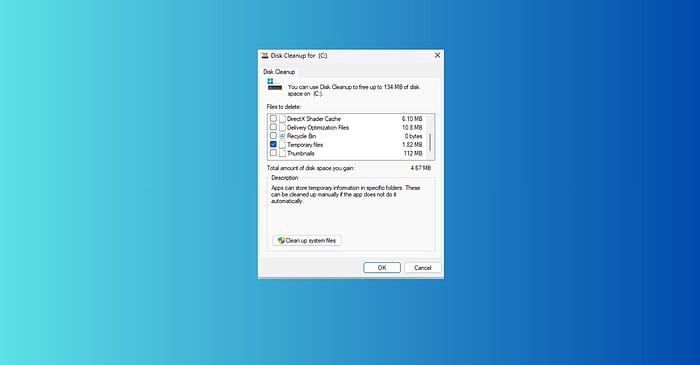
Here’s how you can delete temporary files on your Windows 11 or 10 PC so they no longer take up valuable disk space. If they pile up over time, these files can impat performance and speed.
Follow the step-by-step instructions below to quickly free up space and maintain a healthy operating system.
Table of contents
How Can I Efficiently Delete Temporary Files?
Here’s a breakdown of several methods to effectively delete temporary files on your Windows PC:
Method 1: Using Disk Cleanup
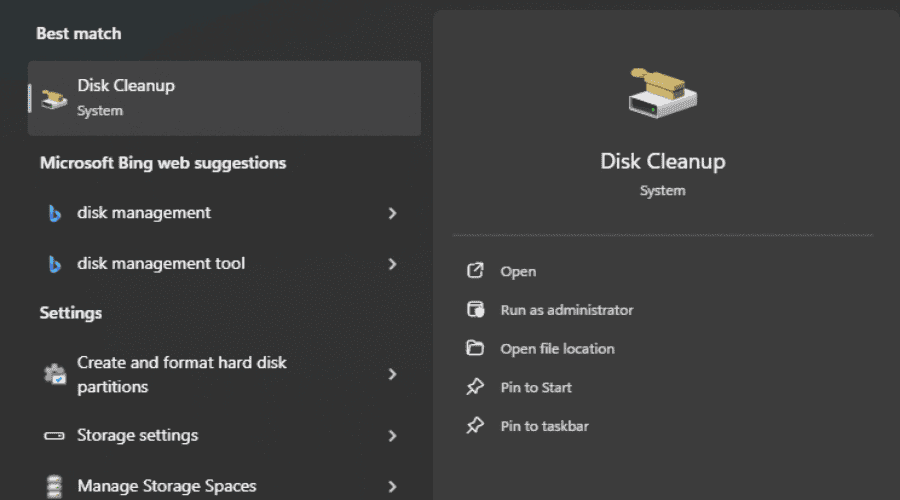
- Open Disk Cleanup: Search for “Disk Cleanup” in the Windows search bar and select the application.
- Select Drive: Choose the drive (usually C:) you want to clean. The tool will analyze the drive and identify temporary files.
- Select Files to Delete: Check the boxes next to the file types you want to remove. Typically, you’ll want to select “Temporary files,” “Downloaded Program Files,” and “Recycle Bin.” If you’re cleaning after removing apps or recovering deleted files in Windows 10/11, Disk Cleanup helps clear leftover data safely.
- Confirm Deletion: Click “OK” to begin the cleaning process. This may take a few minutes depending on the size of the files.
Method 2: Manually Deleting Temporary Files
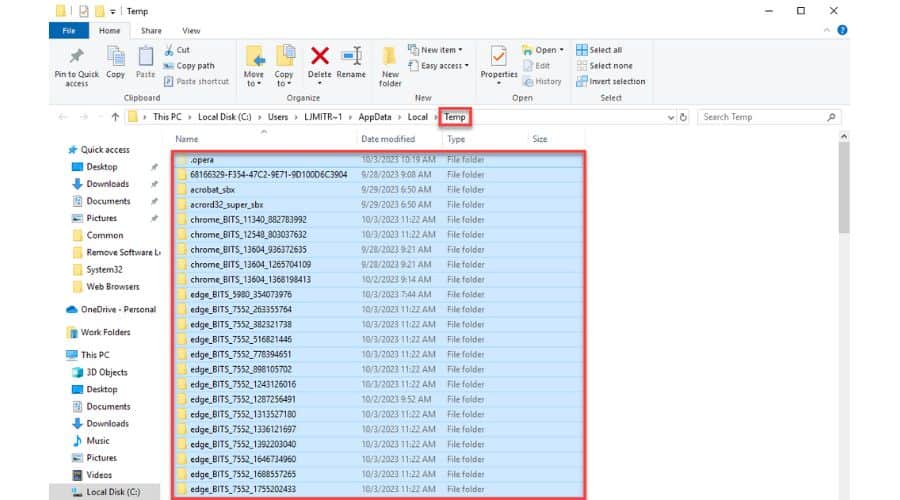
This method offers more granular control but requires navigating several folders. It can also help if your system has corrupted system files on Windows 11 that interfere with automatic cleanup tools.
- Navigate to the Temp Folder: Open File Explorer and paste the following path into the address bar:
%temp%This will open the main temporary files folder. - Delete Files: Select all the files and folders within this directory (Ctrl+A). Then, press the Delete key. You may encounter files you cannot delete; simply skip those.
- Repeat for Other Temp Folders: Additional temporary files might reside in other locations. Try these paths as well:
%localappdata%\Tempand%userprofile%\AppData\Local\Temp. Repeat the selection and deletion process for each. If you can’t delete a folder, similar to when you can’t create a new folder on Windows 11, restart the PC and try again.
Method 3: Using Storage Sense (Windows 11)
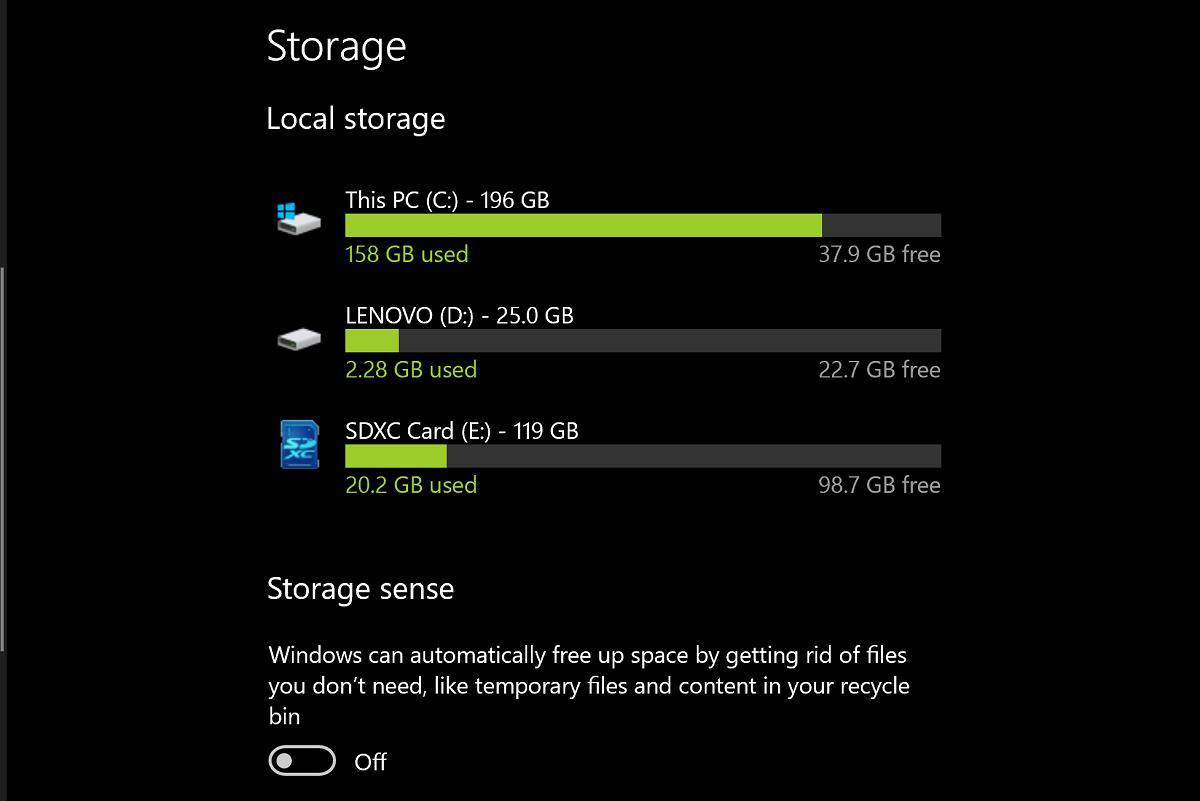
Windows 11 includes a built-in feature called Storage Sense that automatically manages storage space. It can automatically clear temporary files, empty the Recycle Bin, and even remove old files from your Downloads folder. If you recently recovered deleted Excel files or restored old data, Storage Sense helps you tidy up leftover cache efficiently.
- Access Storage Sense: Open Settings (Win + I), click “System,” then “Storage.”
- Configure Storage Sense: Turn on Storage Sense and configure the settings to automatically delete temporary files and other unnecessary items based on your preferences. This is a great set-it-and-forget-it solution.
Method 4: Third-Party Cleaning Tools (Use with Caution)
Several third-party applications can clean temporary files and other system junk. While these can be helpful, exercise caution and always choose reputable software from known developers. Incorrectly deleting system files can cause problems. For example, if you prefer visual enhancements, use tools that won’t interfere with system visuals like when you find free screensavers for Windows 11.
Tips for Maintaining a Clean System
- Regularly delete your browser history and cookies.
- Empty your Recycle Bin frequently.
- Uninstall unused programs.
- Consider using a cloud storage service to offload large files.
Keeping Your System Optimized
Regularly deleting temporary files is a crucial aspect of maintaining a healthy and efficient Windows system. Employing these methods ensures that your computer runs smoothly and efficiently, preventing performance issues caused by unnecessary file clutter. Remember to choose the method that best suits your comfort level and technical skills.
FAQs
What are temporary files, and why should I delete them?
Temporary files are created by programs and the operating system to store data temporarily. They can accumulate over time, consuming disk space and potentially slowing down your computer. Deleting them frees up space and can improve performance.
Is it safe to delete all temporary files?
Generally, yes. Windows usually prevents you from deleting files that are currently in use. However, it’s always a good idea to back up important data before performing a major cleanup.
How often should I delete temporary files?
A good rule of thumb is to delete temporary files at least once a month, or more frequently if you notice your computer slowing down.
What if I accidentally delete a file I need?
Windows usually has a recycle bin, allowing you to recover accidentally deleted files. However, if the file is permanently deleted, recovery may be difficult or impossible — unless you use a dedicated recovery method like the one in recovering deleted Excel files.


Read our disclosure page to find out how can you help MSPoweruser sustain the editorial team Read more



Improve this guide




User forum
0 messages