
How To Copy And Paste On Windows 11: A Step-by-Step Guide


 5 min. read
  Updated on
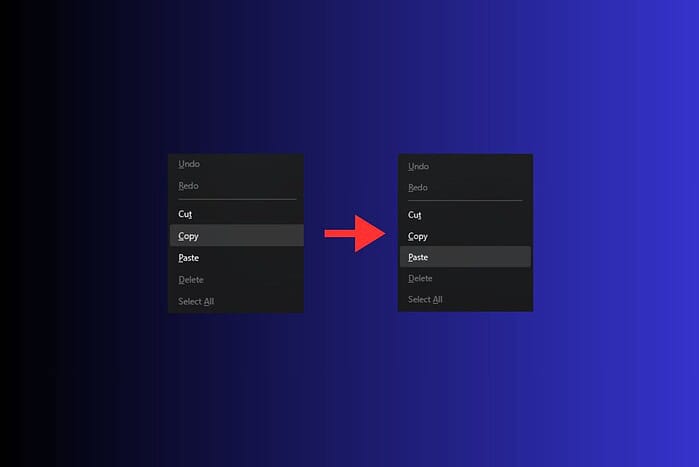
To copy and paste in Windows 11, you can use keyboard shortcuts, the right-click menu, or even the clipboard history. The process is very easy, but sometimes you have to pay attention to which method you use depending on what you want to achieve. Let’s break it down.
Table of contents
What Are The Ways To Copy and Paste On Windows 11?
Using Keyboard Shortcuts
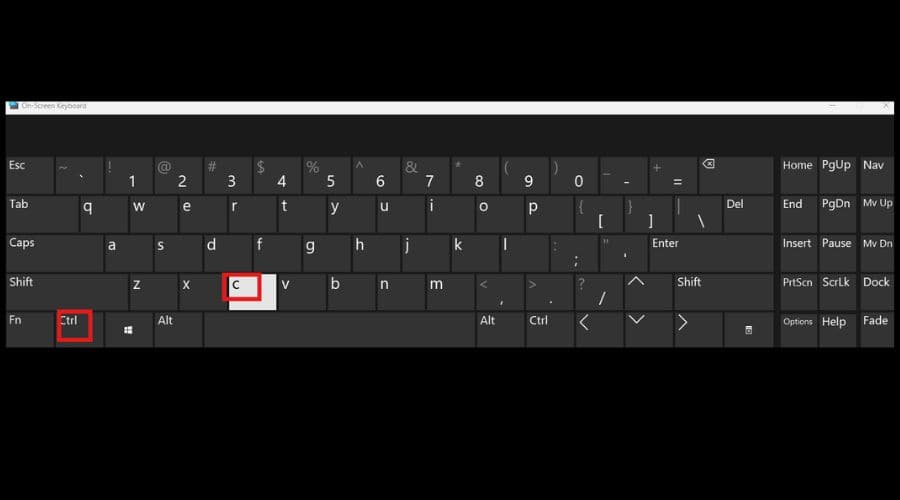
Keyboard shortcuts are the quickest and most efficient way to copy and paste on Windows 11.
- Select the item: Use your mouse or keyboard to highlight the text, image, or file you want to copy.
- Press Ctrl + C: This command copies the selected item to the clipboard.
- Navigate to the destination: Open the application or folder where you want to paste the item.
- Press Ctrl + V: This command pastes the copied item into the destination.
Using the Right-Click Menu

The right-click menu provides another straightforward method for copying and pasting.
- Select the item: Use your mouse or keyboard to highlight the text, image, or file you want to copy.
- Right-click: Right-click on the selected item to open the context menu.
- Select “Copy”: Choose the “Copy” option from the menu.
- Navigate to the destination: Open the application or folder where you want to paste the item.
- Right-click: Right-click in the destination area.
- Select “Paste”: Choose the “Paste” option from the menu.
Using the Clipboard History
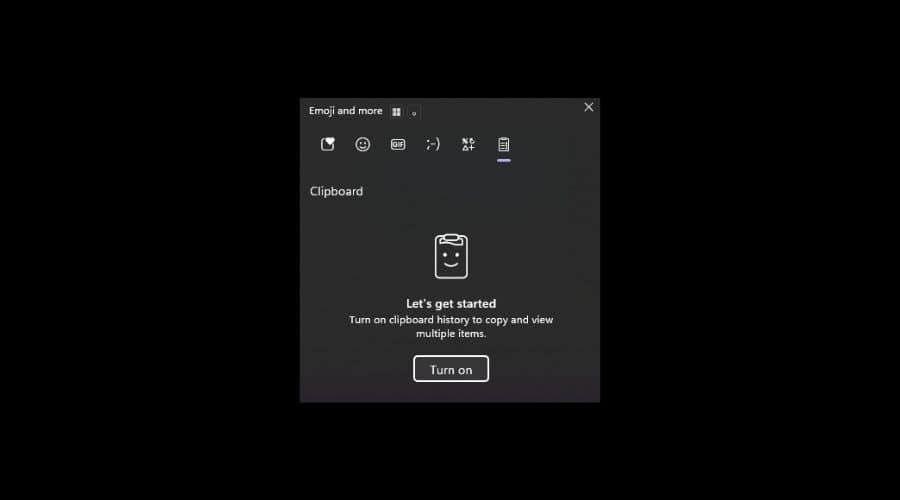
Windows 11’s clipboard history feature allows you to access multiple copied items.
- Enable Clipboard History: Press
Windows Key + Vto open the clipboard history. If it’s the first time using it, click “Turn on.” - Copy Multiple Items: Copy several texts, images, or files using
Ctrl + Cor the right-click menu. - Open Clipboard History: Press
Windows Key + Vagain to open the clipboard history. - Select the Item to Paste: Click on the item you want to paste from the clipboard history.
Copying and Pasting Files
Copying and pasting files is slightly different from copying text or images, but still straightforward.
- Select the File: Click on the file you want to copy.
- Press Ctrl + C: This copies the file to the clipboard. Alternatively, right-click and select “Copy.”
- Navigate to the Destination Folder: Open the folder where you want to paste the file.
- Press Ctrl + V: This pastes the file into the destination folder. Alternatively, right-click and select “Paste.”
Copying and Pasting with Touchscreen
For devices with a touchscreen, copying and pasting is even more intuitive.
- Select the Item: Tap and hold on the text or file you want to copy until the selection handles appear.
- Adjust the Selection: Drag the handles to select the desired portion.
- Tap “Copy”: A small menu will appear; tap “Copy.”
- Navigate to the Destination: Open the application or folder where you want to paste the item.
- Tap and Hold: Tap and hold in the destination area until the menu appears.
- Tap “Paste”: Select “Paste” from the menu.
Copying and Pasting from Web Pages
Copying and pasting from web pages is a common task, and it’s generally the same as copying from other applications.
- Select the Text or Image: Use your mouse to highlight the text or image you want to copy.
- Press Ctrl + C: This copies the selected content to the clipboard. Alternatively, right-click and select “Copy.”
- Navigate to the Destination: Open the application where you want to paste the content.
- Press Ctrl + V: This pastes the copied content into the destination. Alternatively, right-click and select “Paste.”
Comparing Copy-Paste Methods
Here’s a quick comparison of the different methods for copying and pasting on Windows 11:
| Method | Speed | Convenience | Clipboard History | Use Case |
|---|---|---|---|---|
| Keyboard Shortcuts | Fast | High | No | Quick transfers of single items |
| Right-Click Menu | Medium | Medium | No | Situations where keyboard shortcuts are not convenient or accessible |
| Clipboard History | Medium | High | Yes | Managing and pasting multiple items at once |
| Touchscreen Gestures | Medium | High | No | Devices with touchscreens, offering intuitive interaction |
| Drag and Drop | Fast | Medium | No | Moving files and folders between locations |
Tips
- Clear Clipboard History: Regularly clear your clipboard history to protect sensitive information. Press
Windows Key + Vand click the three dots next to an item, then select “Delete.” - Use “Copy as Path”: Right-click on a file and select “Copy as path” to copy the file’s full path to the clipboard.
- Troubleshooting: If copy and paste isn’t working, restart your computer or check for conflicting software.
Mastering Copy and Paste on Windows 11
By mastering these techniques, you can significantly improve your efficiency and productivity while using Windows 11. Whether you prefer keyboard shortcuts, right-click menus, or the clipboard history, understanding these methods will make your computing experience smoother and more effective.
FAQ
How do I enable clipboard history in Windows 11? Press Windows Key + V and click “Turn on” when the clipboard history window appears.
Why is copy and paste not working on my computer? Restart your computer or check for conflicting software that might be interfering with the clipboard.
Can I copy and paste between different applications? Yes, you can copy and paste between most applications on Windows 11.
How do I clear my clipboard history? Press Windows Key + V, click the three dots next to an item, and select “Delete.” To clear all items, go to Settings > System > Clipboard and click “Clear.”


Read our disclosure page to find out how can you help MSPoweruser sustain the editorial team Read more



Improve this guide




User forum
0 messages