
How To Completely Uninstall McAfee From Windows 11 (Quick Guide)


 5 min. read
  Updated on
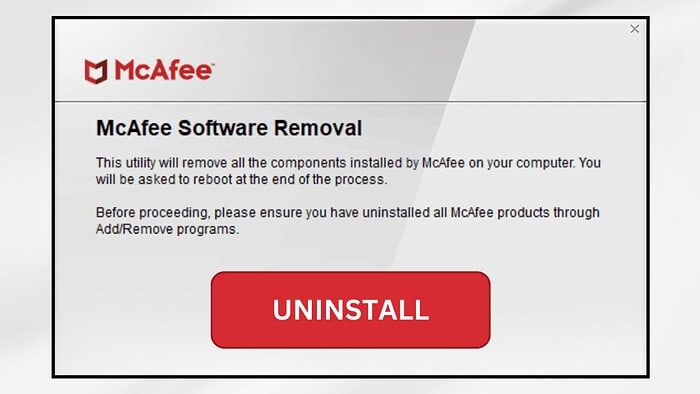
McAfee, while a popular antivirus solution, can sometimes become problematic. Perhaps it’s interfering with other software, causing performance issues, or you’ve simply decided to switch security providers. Whatever the reason, completely removing McAfee from your Windows 11 system requires a more thorough approach than simply dragging its icon to the Recycle Bin. This guide provides a step-by-step process to ensure a clean and complete uninstallation. We’ll cover both standard uninstallation methods and advanced techniques for stubborn remnants.
How Do I Completely Remove McAfee From My Windows 11 PC?
Method 1: Using the Standard Uninstaller
Close McAfee: Before beginning, ensure all McAfee applications are closed. Check your system tray (bottom-right corner of your screen) for any McAfee icons and right-click to close them.
Access the Control Panel: Search for “Control Panel” in the Windows search bar and open it.
Uninstall McAfee: In the Control Panel, select “Programs and Features” (or “Uninstall a program”). Locate “McAfee” in the list of installed programs.
Initiate Uninstallation: Right-click on “McAfee” and select “Uninstall.” Follow the on-screen prompts to complete the uninstallation process. This may involve restarting your computer.
Reboot your PC: After the uninstallation completes, restart your computer to ensure all McAfee processes are terminated.
Method 2: Using McAfee’s Removal Tool
If the standard uninstallation method leaves behind files or registry entries, McAfee offers a dedicated removal tool. This tool is designed to thoroughly clean up any lingering McAfee components.
Download the Removal Tool: Download the official McAfee Consumer Product Removal tool from the McAfee support website. Ensure you download it from a trusted source to avoid malware.
Run the Tool: Once downloaded, run the removal tool. It will guide you through the process of completely removing McAfee from your system. You might need administrative privileges to run this tool.
Reboot your PC: After the removal tool completes its task, restart your computer.
Method 3: Manual Removal (Advanced Users Only)
This method is for advanced users only and requires a good understanding of the Windows registry and file system. Incorrectly modifying the registry can damage your system. Proceed with caution!
Identify McAfee Files and Folders: Locate the main McAfee installation directory (typically found in
C:\Program Files\McAfee). Delete all files and folders within this directory.Registry Cleanup: Open the Registry Editor (regedit.exe) and search for McAfee-related keys. Carefully delete any entries related to McAfee. Again, exercise extreme caution when modifying the registry.
Reboot your PC: After completing this process, restart your computer.
Tips for a Clean McAfee Uninstall
- Disable Real-time Protection: Before uninstalling, temporarily disable McAfee’s real-time protection to avoid conflicts.
- Check Task Manager: After uninstalling, open Task Manager (Ctrl+Shift+Esc) and ensure no McAfee processes are running.
- Use a Third-Party Uninstaller: If you are still experiencing issues, consider using a third-party uninstallation tool like Revo Uninstaller to remove stubborn McAfee files.
Verifying Complete Removal
After following any of the above methods, it’s crucial to verify that McAfee has been completely removed. Restart your computer and search your system for any remaining McAfee files or processes. If any are found, repeat the chosen uninstallation method or consider using a third-party uninstaller.
McAfee Removal Comparison Table
| Method | Ease of Use | Effectiveness | Risk of System Damage |
|---|---|---|---|
| Standard Uninstaller | High | Moderate | Low |
| McAfee Removal Tool | High | High | Low |
| Manual Removal | Low | High | High |
This table highlights the different methods for uninstalling McAfee, comparing their ease of use, effectiveness, and risk of causing system damage. Choose the method that best suits your technical skills and comfort level.
Final Thoughts on McAfee Removal
Successfully uninstalling McAfee from Windows 11 requires a systematic approach. While the standard uninstaller is a good starting point, using McAfee’s removal tool or, for advanced users, manual removal, ensures a thorough and complete removal of all McAfee components. Remember to always back up your important data before attempting any major system changes.
FAQs
How do I uninstall McAfee if I can’t access the Control Panel?
If you can’t access the Control Panel due to McAfee issues, try booting into Safe Mode. This starts Windows with minimal drivers and programs, potentially allowing you to uninstall McAfee from the Control Panel.
What if the McAfee uninstaller doesn’t work?
If the McAfee uninstaller fails, try using McAfee’s dedicated removal tool. If that doesn’t work, manual removal (for advanced users only) might be necessary. Consider using a third-party uninstaller as a last resort.
My computer is running slow after uninstalling McAfee. What should I do?
Restart your computer. If the slow performance persists, check your Task Manager for any lingering processes or high disk/CPU usage. Run a disk cleanup and consider malware scanning.
Will uninstalling McAfee leave my computer vulnerable?
Yes, temporarily. Immediately install a new antivirus solution after uninstalling McAfee to protect your computer from malware.
Related reading
- 7 Ways To Force Uninstall Programs On Windows 11 (Quick Fix)
- HP Smart App For Windows: Download, Install, Use, And Uninstall (A Quick Guide)
- How To Change Mouse Sensitivity And Other Settings In Windows 11 (Quick Guide)
- How To Find Screenshots On Windows 11 And 10 (Quick Guide)
- 6 Ways To Fix Realtek HD Audio Manager Missing In Windows 11/10 (Quick Fix)


Read our disclosure page to find out how can you help MSPoweruser sustain the editorial team Read more



Improve this guide




User forum
0 messages