
How To Change Mouse Settings In Windows 11/10 (Quick Guide)


 4 min. read
  Updated on
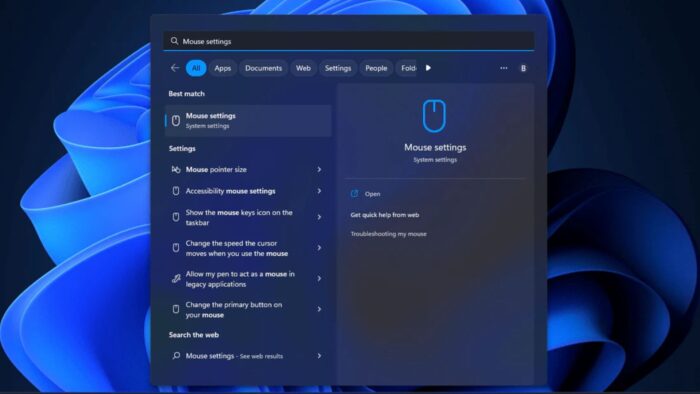
This guide provides a straightforward approach to customizing your mouse settings in Windows 11 and 10. Whether you need to adjust the pointer speed, scroll wheel behavior, or button functions, we’ll walk you through the process step-by-step. We’ll cover both the basic and more advanced settings, ensuring you can tailor your mouse experience to your preferences. This is crucial for comfort, productivity, and even gaming performance.
How Can I Adjust My Mouse Settings?
Here’s how to access and modify your mouse settings in Windows 11 and 10, offering different approaches to suit your needs.
Method 1: Accessing Mouse Settings Through Settings
Open Settings: Click the Start button, then select the gear icon (Settings).
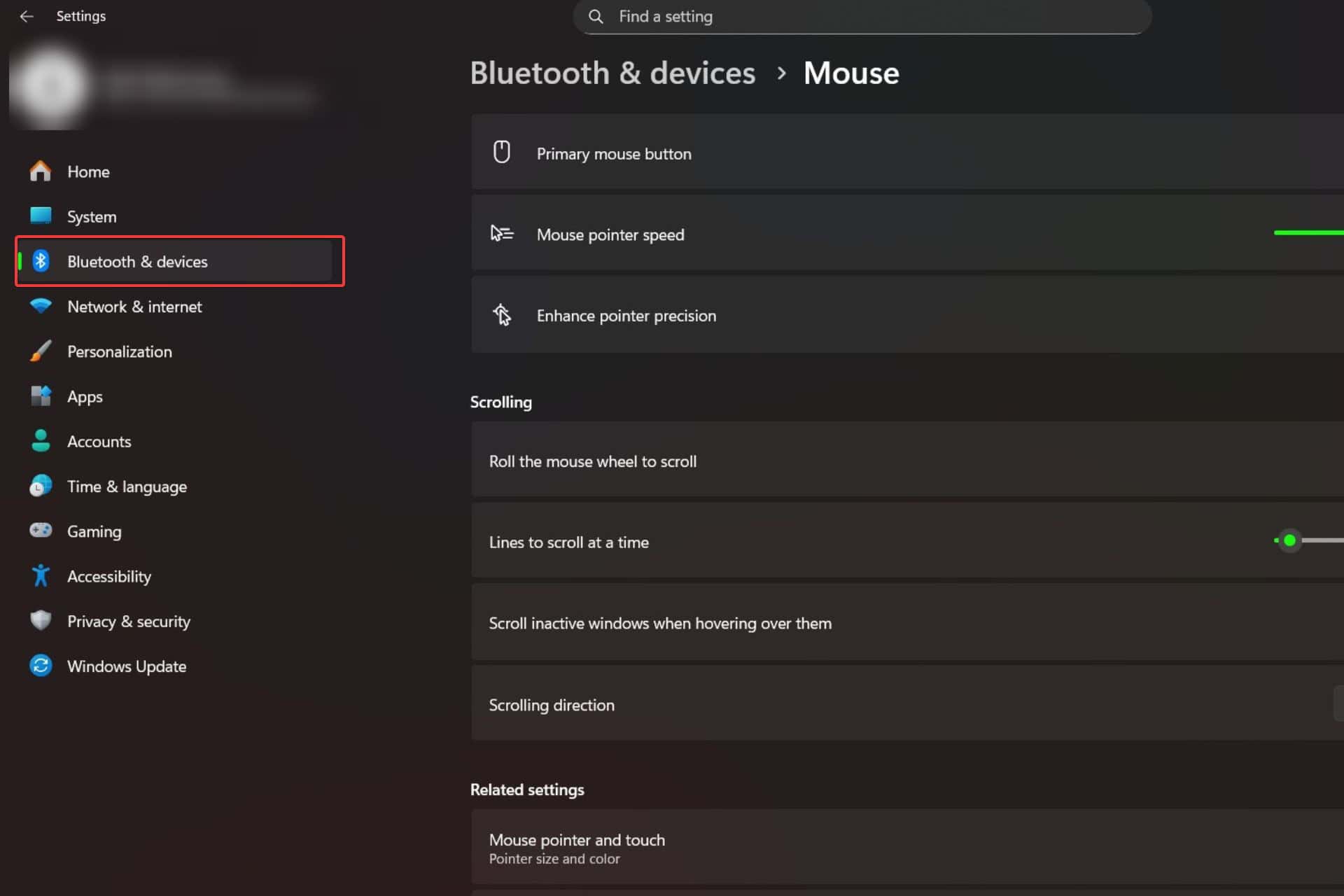
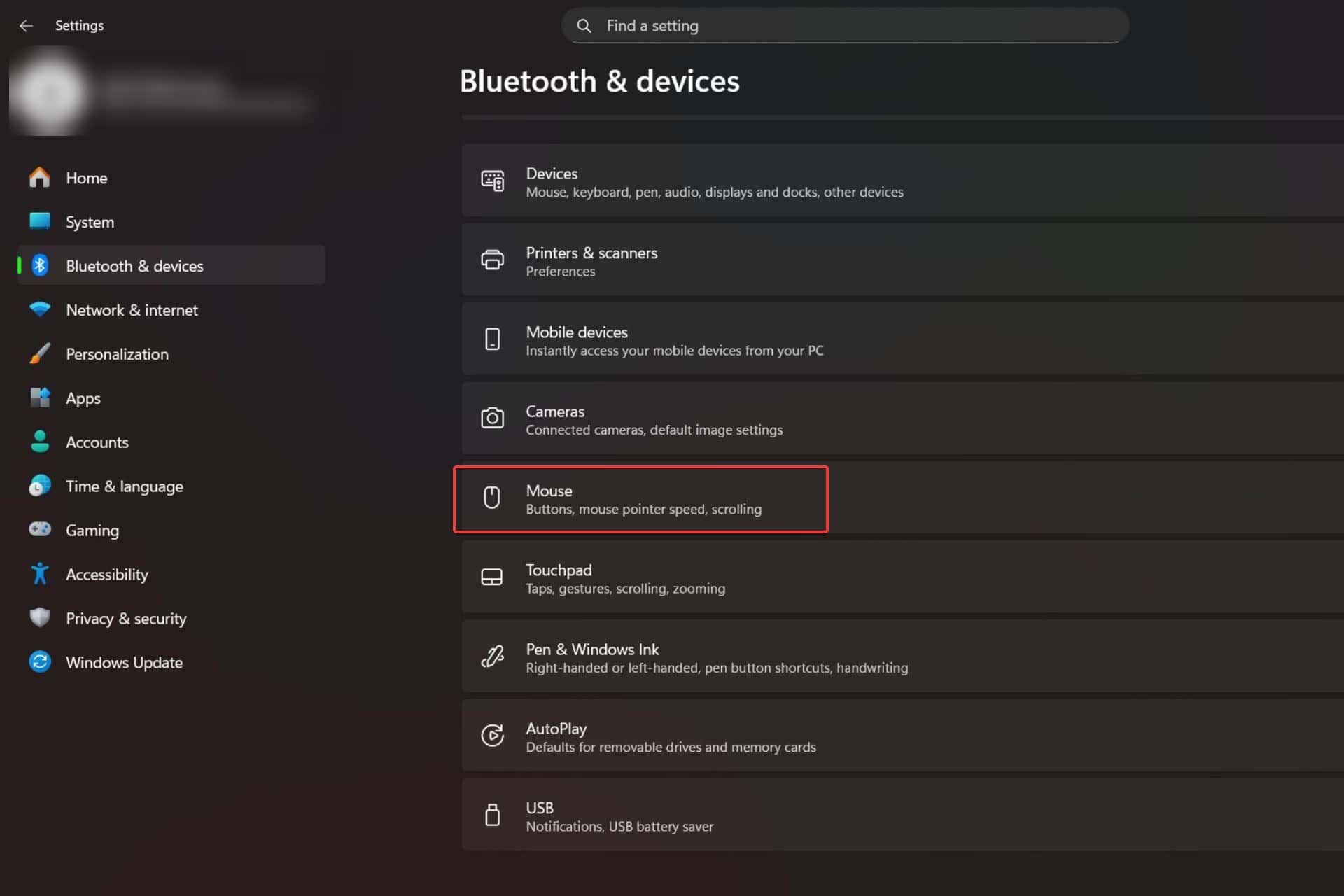
Navigate to Bluetooth & devices: In the Settings app, click on “Bluetooth & devices”.

Select Mouse: Click on “Mouse”.
Adjust Settings: Here you’ll find options to adjust:
- Primary button: Choose whether the left or right button is the primary button.
- Pointer speed: Control the speed at which the cursor moves across the screen. Use the slider to adjust to your preference.
- Scroll wheel: Configure the speed and direction of scrolling.
- Additional mouse options: This button opens the classic Mouse Properties window (detailed in Method 2), offering more advanced settings.
Method 2: Using the Classic Mouse Properties Window
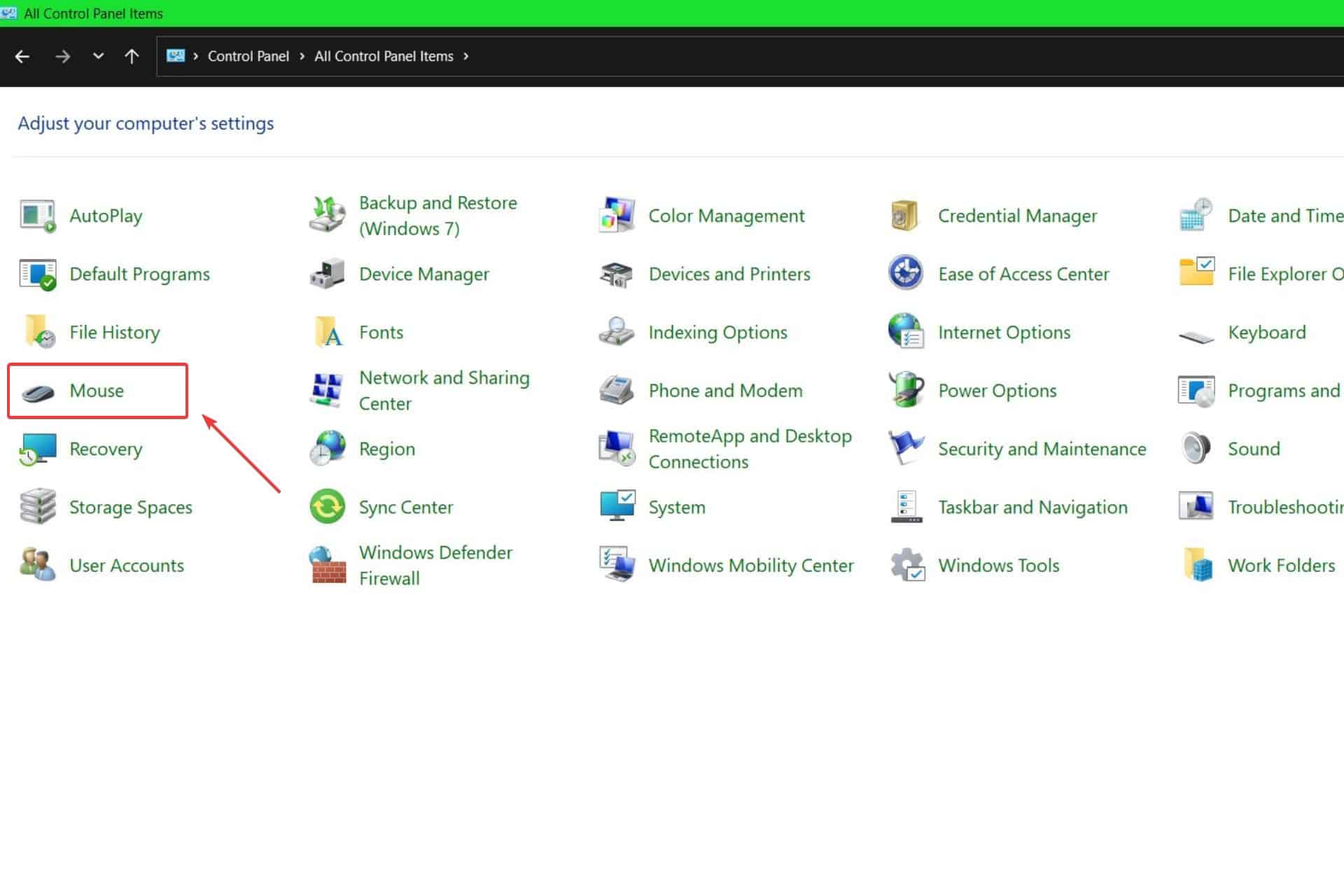
Open Control Panel: Search for “Control Panel” in the Windows search bar and open it.
Find Mouse: In the Control Panel, search for “Mouse” and click on “Mouse”. Alternatively, change the “View by” option to “Large icons” or “Small icons” to easily locate the “Mouse” option.
Explore the Tabs: The Mouse Properties window offers several tabs with detailed settings:
- Buttons: Change the primary button, and swap left and right click functionality.
- Pointers: Select different cursor styles.
- Wheel: Adjust vertical and horizontal scrolling speeds.
- Hardware: View information about your connected mouse.

Method 3: Using the Mouse Properties via the Control Panel (Alternative Route)
This method uses a slightly different navigation path within the Control Panel:
- Open Control Panel: Search for “Control Panel” and open it.
- Select Hardware and Sound: Click on “Hardware and Sound”.
- Choose Mouse: Under “Devices and Printers,” click on “Mouse”. This will open the same Mouse Properties window as Method 2.
Tips for Optimizing Your Mouse Settings
- Experiment with pointer speed: Find a speed that feels comfortable and allows for precise control.
- Double-check your scroll wheel settings: Ensure the scrolling direction is correct and the speed is appropriate for your workflow.
- Consider using a different cursor: Choose a cursor style that improves visibility and reduces eye strain.
- Regularly clean your mouse: Dust and debris can affect performance and tracking accuracy.
Wrapping Up Mouse Settings Adjustments
Mastering your mouse settings enhances your Windows experience. By adjusting pointer speed, scroll wheel behavior, and button functions, you can optimize your workflow and improve your overall productivity. Remember to save your changes after making any adjustments.
FAQs
What if my mouse pointer is moving too slowly or too fast?
Adjust the pointer speed using the slider in the Mouse settings. You can find this setting in both the Settings app and the classic Mouse Properties window. Experiment to find the speed that works best for you.
How do I change the primary mouse button?
In both the Mouse settings and the Mouse Properties window, there’s an option to switch the primary button. This allows you to use the right button as the primary click, useful for left-handed users.
Can I customize the scroll wheel behavior?
Yes, you can adjust the scrolling speed and direction in both the Settings app and the Mouse Properties window. Some mice also offer additional scroll wheel customization options through their own software.
My mouse buttons aren’t working correctly. What should I do?
First, try restarting your computer. If the problem persists, check your mouse’s connection, try a different USB port, and consider updating or reinstalling your mouse drivers. If you’re still experiencing issues, check the mouse itself for physical damage.
Related reading
- New volume mixer not showing in Windows 11 Quick Settings? Here is how to enable it
- How To Use The DirectX Diagnostic Tool For Troubleshooting In Windows (Quick Guide)
- How To Find Windows Media Player In Windows 11/10 (Quick Guide)
- How To Update Graphics Drivers In Windows 11 (Quick Guide)
- How To Download Razer Synapse For Windows PC (Quick Guide)


Read our disclosure page to find out how can you help MSPoweruser sustain the editorial team Read more



Improve this guide




User forum
0 messages