
How To Add A Printer In Windows 11: A Step-by-Step Guide For Beginners


 6 min. read
  Updated on
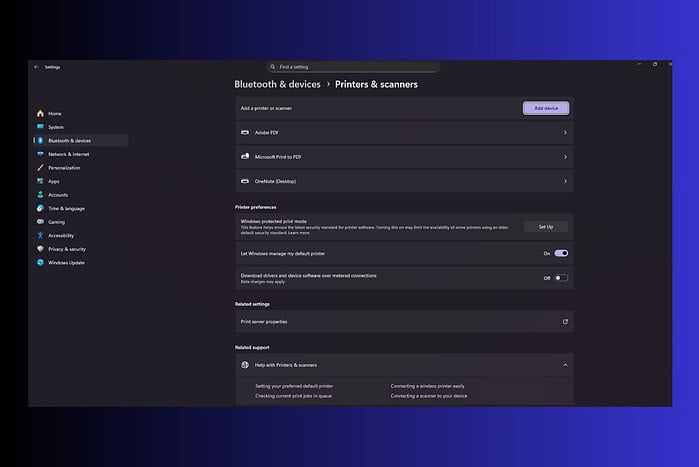
Below, I’ll show you how to add a printer to your Windows 11 PC.
This tutorial is designed for beginners, so you don’t need any technical expertise to follow along. We’ll walk you through each step, explaining everything clearly and concisely. By the end of this guide, you’ll be able to confidently add and manage printers in your Windows 11 environment.
If you also print documents straight from your phone, this guide on how to print from your iPhone walks you through the process.
Table of contents
Need to Connect Your Printer? Here’s How!
Connecting a printer to your Windows 11 computer is generally a straightforward process. The specific steps may vary slightly depending on whether you’re using a wired (USB) or wireless connection. Here’s how to handle both scenarios:
Adding a Wireless Printer
Connecting a wireless printer allows you to print from anywhere within your Wi-Fi network’s range. Here’s how to set it up:
- Ensure the printer is powered on and connected to your Wi-Fi network. Most printers have a Wi-Fi setup option in their settings menu.
- Open the Settings app on your Windows 11 computer. You can do this by pressing the Windows key + I.
- Click on “Bluetooth & devices” in the left sidebar.
- Click on “Printers & scanners”.
- Click the “Add device” button. Windows will start searching for available printers.
- Select your printer from the list of available devices. If your printer is not listed, make sure it is turned on, connected to the same Wi-Fi network as your computer, and within range.
- Click “Add device”. Windows will install the necessary drivers and configure the printer.
- Follow any on-screen prompts to complete the installation. You might be asked to confirm settings or print a test page.
Adding a Wired (USB) Printer
Connecting a printer via USB is a simple and reliable method. Here’s how to do it:
- Ensure your printer is turned on.
- Connect the USB cable from your printer to an available USB port on your Windows 11 computer.
- Wait for Windows to detect the printer. Windows will usually detect the printer automatically and begin installing the necessary drivers.
- Follow any on-screen prompts to complete the installation. If Windows doesn’t automatically detect the printer, proceed to the next step.
- Open the Settings app on your Windows 11 computer. You can do this by pressing the Windows key + I.
- Click on “Bluetooth & devices” in the left sidebar.
- Click on “Printers & scanners”.
- Click the “Add device” button. Windows will start searching for available printers.
- If your printer is listed, select it and click “Add device”. If not, click “Add manually”.
- If adding manually, choose “Add a local printer or network printer with manual settings” and click “Next”.
- Select the port your printer is connected to (usually USB001 or similar) and click “Next”.
- Select your printer’s manufacturer and model from the list. If your printer is not listed, you may need to download the drivers from the manufacturer’s website and install them manually.
- Follow the on-screen prompts to complete the installation.
Setting a Default Printer
Once you’ve added your printer, you might want to set it as the default printer. This means that Windows will automatically use this printer for all print jobs unless you specify otherwise.
- Open the Settings app on your Windows 11 computer.
- Click on “Bluetooth & devices” in the left sidebar.
- Click on “Printers & scanners”.
- Select the printer you want to set as the default.
- Click the “Set as default” button. If you do not see this option, ensure that “Let Windows manage my default printer” is turned off.
Troubleshooting Printer Problems
Sometimes, you may encounter problems when adding or using a printer. Here are a few common issues and how to resolve them:
- Printer not found: Make sure the printer is turned on, connected to the network (for wireless printers), and within range. Restart both your computer and the printer.
- Driver issues: If the printer is not working correctly, try updating or reinstalling the drivers. You can download the latest drivers from the manufacturer’s website.
- Printing errors: Check for paper jams, low ink levels, or other hardware issues. Run the printer troubleshooter in Windows Settings.
- Advanced connection issues: If Windows doesn’t see USB devices at all or you need to tweak hardware options, you might need to adjust firmware settings; this step-by-step guide shows you how to get to BIOS in Windows 11.
Tips
- Keep your printer drivers up to date: Regularly check the manufacturer’s website for driver updates to ensure optimal performance and compatibility.
- Use the printer troubleshooter: Windows has a built-in printer troubleshooter that can automatically diagnose and fix common printing problems.
- Restart your computer and printer: Sometimes, a simple restart can resolve many printing issues.
- Format your documents before printing: For cleaner documents, you can quickly improve layout by adding horizontal lines in Microsoft Word to separate sections.
- Capture issues for remote support: If you manage printers from a tablet, you can show technicians exactly what you see by following this guide on how to screenshot on an iPad.
Printing Made Easy
Adding a printer in Windows 11 doesn’t have to be a headache. By following these simple steps, you can quickly connect your printer and start printing documents, photos, and more. Whether you choose a wireless or wired connection, the process is designed to be user-friendly and efficient. Once everything works smoothly, you can even print important online pages like social profiles; if you need to grab your profile link first, here’s a guide on how to find your Facebook URL.
FAQ
How do I find my printer’s IP address? You can usually find the IP address in the printer’s network settings menu, accessible through its control panel.
What if my printer isn’t listed when I try to add it? Make sure the printer is turned on, connected to the same network as your computer, and within range. You may also need to install the printer drivers manually.
Can I add a printer that’s connected to another computer on my network? Yes, you can add a network printer by browsing for it in the “Add a printer” dialog or by specifying its IP address.
How do I remove a printer from Windows 11? Go to Settings > Bluetooth & devices > Printers & scanners, select the printer you want to remove, and click “Remove”.
Why is my printer printing blank pages? Check ink levels, paper supply, and print head alignment. Clean the print heads if necessary.
Printer Connection Methods Compared
| Feature | Wired (USB) | Wireless (Wi-Fi) |
|---|---|---|
| Connection Type | Physical cable connection | Wireless network connection |
| Setup | Generally simpler, plug-and-play | Requires network configuration, may be more complex |
| Reliability | More reliable, less prone to interference | Can be affected by network congestion or signal strength |
| Mobility | Limited by cable length | Allows printing from anywhere within network range |
| Best For | Single-user, direct connection | Multiple users, shared printing |
Final Thoughts
With these steps, you’re well on your way to effortless printing in Windows 11. Enjoy the convenience of having your printer readily available for all your printing needs!


Read our disclosure page to find out how can you help MSPoweruser sustain the editorial team Read more



Improve this guide




User forum
0 messages