
Fix Print Job Stuck In Queue: Clear Printer Queue In Windows 11 (Quick Fix)


 5 min. read
  Updated on
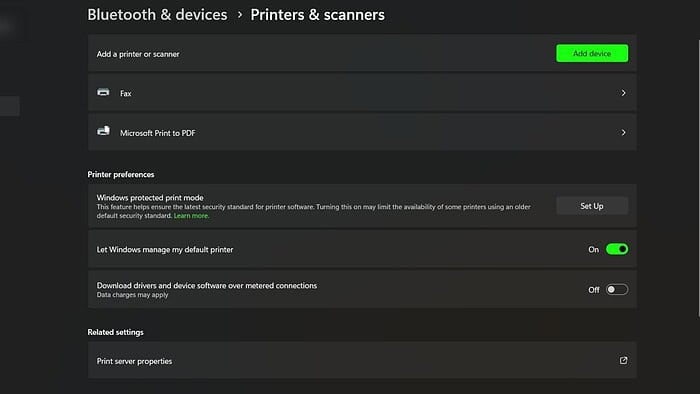
Let’s cover several ways to clear the print queue and get your documents printing again quickly. If your main issue is that the device constantly appears offline instead of processing jobs, you can also follow this dedicated guide to fix printer offline status on Windows 10 and 11.
Why is My Print Job Stuck?
Several factors can cause print jobs to become stuck in the queue. These include printer driver conflicts, network connectivity problems, insufficient printer memory, or corrupted print jobs themselves. Let’s explore the most effective solutions to tackle this issue. When the queue repeatedly shows “Documents waiting,” you can also dive into this in-depth guide on fixing printer documents waiting problems for more scenarios.
Method 1: Restart the Printer and Computer
The simplest solution is often the most effective. Restarting both your printer and your computer can resolve temporary glitches and clear any minor software conflicts that might be causing the print job to hang.
- Turn off your printer: Completely power down the printer, unplugging it from the power outlet if possible.
- Wait 60 seconds: Allow ample time for the printer to fully power down.
- Turn on your printer: Plug the printer back in and power it on.
- Restart your computer: Restart your Windows 11 computer.
- Resubmit the print job: Attempt to print the document again.
Method 2: Cancel Stuck Print Jobs
If restarting doesn’t work, the next step is to manually cancel any stuck print jobs from the queue. For users who prefer using Command Prompt instead of the graphical interface, you can also clear the print queue via CMD with a few simple commands.
- Open the Printers & Scanners settings: Search for “Printers & scanners” in the Windows search bar and open the settings.
- Locate your printer: Find your printer in the list of connected devices.
- Open the printer queue: Click on your printer to open its queue.
- Cancel stuck jobs: Select any jobs that are listed as “printing” or “paused” and click the “Cancel” button.
Method 3: Restart the Print Spooler Service
The Print Spooler service manages print jobs. Restarting this service can often clear up any issues within the print queue.
- Open Services: Search for “services” in the Windows search bar and open the Services app.
- Locate Print Spooler: Find the “Print Spooler” service in the list.
- Restart the service: Right-click on “Print Spooler” and select “Restart.”
Method 4: Delete Print Jobs from the Spooler Folder
If the above methods fail, you can manually delete the print jobs from the spooler folder. Caution: Be careful when modifying system folders.
- Open File Explorer: Navigate to
C:\Windows\System32\spool\PRINTERS. - Delete the files: Delete all the files within the
PRINTERSfolder. You may need administrator privileges to do this. - Restart the Print Spooler: Restart the Print Spooler service (as described in Method 3).
Method 5: Update or Reinstall Printer Drivers
Outdated or corrupted printer drivers can also cause print job issues. Updating or reinstalling them can often resolve the problem. If you also notice that the device only outputs half pages or incomplete documents, this step pairs well with dedicated fixes like those in this guide on solving a printer that prints only half pages.
- Open Device Manager: Search for “Device Manager” in the Windows search bar and open it.
- Expand Printers: Locate your printer under the “Printers” section.
- Update or reinstall: Right-click on your printer and select either “Update driver” or “Uninstall device.” If you uninstall, Windows will attempt to reinstall the driver automatically.
Updating drivers can be done much faster and easier with the help of professional software. In just a few minutes, you can scan for, identify, and install all the right drivers.
? Try PC HelpSoft Driver Updater
Tips
- Check your printer’s status: Ensure the printer is online and has enough paper and ink.
- Check network connectivity: Verify that your computer and printer are connected to the same network. If you use a wireless Canon model and it refuses to join the network, follow these step-by-step fixes for a Canon printer not connecting to Wi-Fi.
- Try a different document: Test with a smaller, simpler document to rule out issues with the original file.
- Run a Windows Update: Ensure your operating system is up-to-date.
Troubleshooting Complete
This guide has provided several methods to resolve the common issue of print jobs getting stuck in the Windows 11 print queue. By following these steps, you can efficiently restore your printing functionality and improve your workflow. When you still see multiple jobs piling up with no output, you can further refine your troubleshooting using this collection of best fixes for documents stuck in the printer queue.
FAQs
What should I do if my printer is offline?
Check your printer’s power connection and network cable. Ensure the printer is turned on and connected to the same network as your computer. If using a wireless connection, verify the network settings on both the printer and your computer. You can also use the dedicated offline-status guide that explains how to solve an offline printer status on Windows.
Why are my print jobs stuck in the queue even after restarting?
There could be a problem with the printer driver, the print spooler service, or corrupted print files. Try the methods outlined in this guide, focusing on canceling stuck jobs, restarting the spooler service, and updating or reinstalling printer drivers.
How do I clear the printer queue completely?
You can delete the print jobs from the spooler folder (Method 4), but proceed with caution as this involves manipulating system files. Ensure you have administrator privileges before attempting this method. If you prefer command-line tools, you can also clear the print queue using CMD.
My printer is still not working after trying all these steps. What should I do?
If the problem persists, contact your printer manufacturer’s support or seek assistance from a qualified IT professional. There may be a more complex hardware or software issue requiring specialized troubleshooting, especially if you also notice symptoms like half-printed pages, frequent offline status, or repeated “documents waiting” messages.


Read our disclosure page to find out how can you help MSPoweruser sustain the editorial team Read more



Improve this guide




User forum
0 messages