
How to enable Precision Touchpad drivers on your non-precision PC


 2 min. read
  Published on
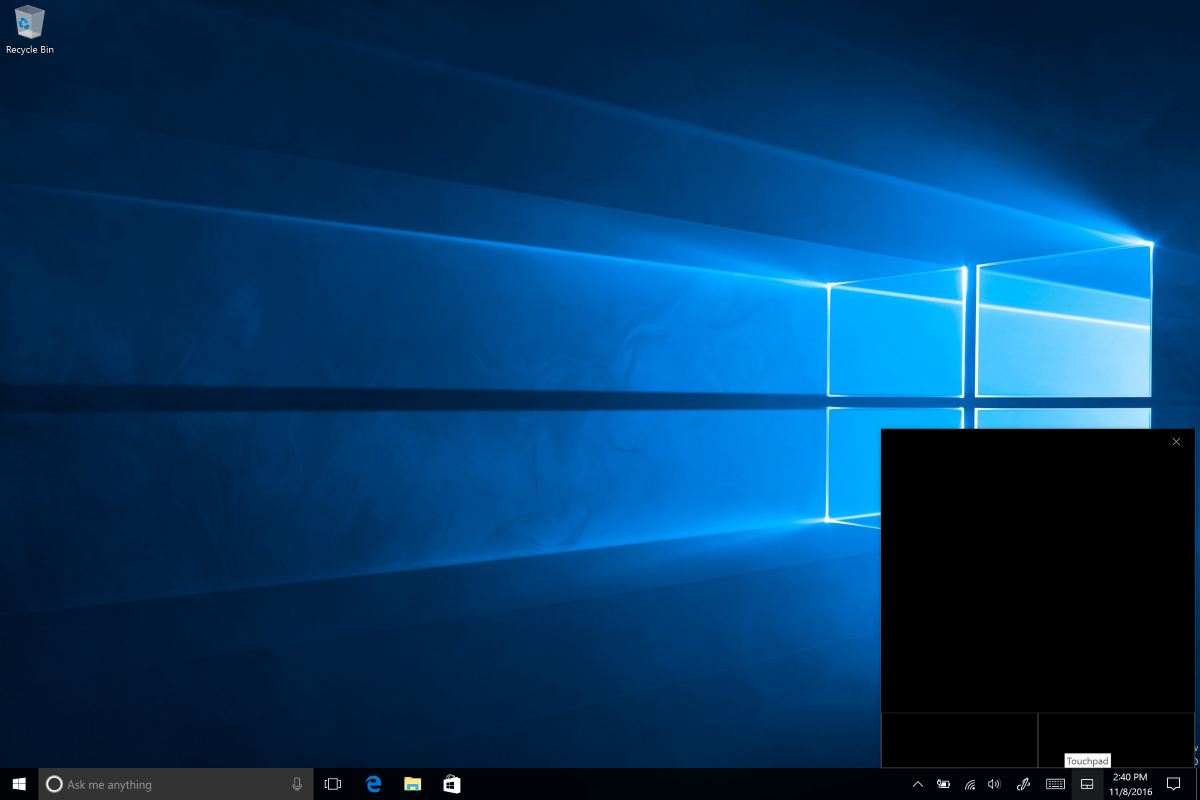
It’s no secret that Windows Precision Touchpad drivers have gone a long way in bringing touchpad functionality in Windows PCs on par with MacBooks — alongside with better hardware design and roomier touchpads of course. Not all PCs ship with these drivers, with some manufacturers opting for Synaptics and Elan drivers which are inferior to Microsoft’s Precision drivers in terms of multi touch and gesture support.
There’s a way to replace Synaptics and Elan drivers with Microsoft’s better all round precision touchpad drivers via this guide. You might need to have an external mouse on hand in case the touchpad temporarily atops working while you’re working with the drivers.
How to enable Precision Touchpad drivers on your non-precision PC
- Open the Windows Device manager and navigate to “Mice and other pointing devices”
- Check what driver you have, it should either be Synaptics or Elan.
- Download Elan or Synaptics precision drivers from either Softpedia or Lenovo according to your configuration.
- Unzip the device drivers and make a note of where you stored them
- Re-open device manager and right repeat steps 1 to 2.
- Right click on the appropriate device driver (either Synaptics or Elan) and choose “update driver.” [Note: Do not uninstall this driver, but instead install the new precision drivers over it]
- Rather than searching the web automatically for new drivers as you would normally do, choose to search your computer for driver software.
- Subsequently select “Let me pick from a list of installed drivers”. Select either your Synaptics or Elan drivers and then choose “Have Disk” in the next menu.
- Browse the autorun.inf in the folder of the drivers you extracted previously and select that.
- Choose either Synpatics or Elan pointing device and the click next to continue to the driver installation.
- Install the driver and reboot.


Read our disclosure page to find out how can you help MSPoweruser sustain the editorial team Read more



Improve this guide




User forum
0 messages