
Download Or Update Dell Drivers Using Dell Update Utility (Quick Guide)


 4 min. read
  Updated on
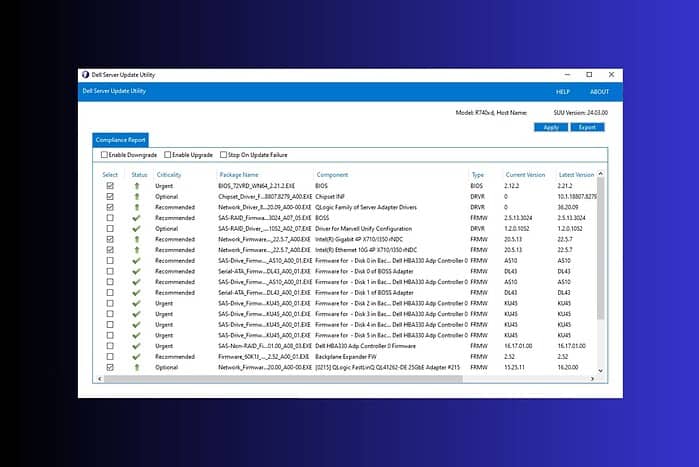
Dell Update is a built-in utility designed to automatically detect and install the latest drivers for your Dell computer. Keeping drivers updated helps prevent crashes, improve performance, and maintain system stability.
In this guide, you’ll learn how to download, install, and use Dell Update to ensure your device always runs with the latest software and hardware optimizations.
How Do I Use the Dell Update Utility to Update My Drivers?
Downloading the Dell Update Utility
- Visit the Dell Support Website: Open your web browser and navigate to the official Dell Support website.
- Enter Your Service Tag: Locate your computer’s Service Tag. This unique identifier is usually found on a sticker on your computer, in its documentation, or by running Dell SupportAssist. Enter this tag into the search bar on the Dell Support website.
- Find the Drivers & Downloads Section: Once your computer is identified, find the “Drivers & downloads” section.
- Download the Dell Update Utility: Locate the Dell Update utility and download the installer file.
- Run the Installer: Once the download is complete, run the installer file and follow the on-screen instructions to install the Dell Update Utility.
Updating Drivers with the Dell Update Utility
- Open the Dell Update Utility: After installation, launch the Dell Update Utility.
- Scan for Updates: The utility will automatically scan for available driver updates. This may take a few minutes depending on your internet connection and the number of drivers installed.
- Review Updates: Once the scan is complete, review the list of available updates. You can choose to update all drivers or select specific ones.
- Apply Updates: Select the drivers you wish to update and click the “Apply” or equivalent button. The utility will download and install the selected updates.
- Restart Your Computer: After the installation is complete, restart your computer to ensure the changes take effect.
Troubleshooting Tips
- Slow Download Speeds: If you’re experiencing slow download speeds, ensure you have a stable internet connection. Consider running the update during off-peak hours.
- Driver Conflicts: If you encounter any issues after updating drivers, try uninstalling the problematic driver and reinstalling it. You might also consider rolling back to a previous driver version.
- Error Messages: Carefully read any error messages that appear during the update process. These messages usually provide clues to resolving the issue. Consult Dell’s support documentation for further assistance.
Comparing Driver Update Methods: Dell Update vs. Manual Downloads
| Method | Pros | Cons |
|---|---|---|
| Dell Update Utility | Convenient, automated, reduces risk of installing incorrect drivers | Requires internet connection, may not include all available drivers |
| Manual Downloads | Allows for more control, can access drivers not included in the utility | More time-consuming, higher risk of installing incorrect drivers |
This table compares the Dell Update Utility with manual driver downloads, highlighting the advantages and disadvantages of each approach. Choosing the right method depends on your technical skills and preferences.
Keeping Your Drivers Updated
Regularly updating your drivers is essential for maintaining optimal performance and stability. Use the Dell Update Utility to simplify this process and avoid potential problems caused by outdated drivers. Remember to restart your computer after each update to ensure the changes take effect.
FAQs
What is the Dell Update Utility?
The Dell Update Utility is a software application provided by Dell that automatically scans for and installs the latest drivers and firmware updates for your Dell computer. This helps ensure optimal system performance and stability.
How often should I update my Dell drivers?
While there’s no single definitive answer, it’s generally recommended to check for updates at least once a month or whenever you experience performance issues. The Dell Update Utility makes this process easy and efficient.
What if the Dell Update Utility doesn’t find any updates?
If the Dell Update Utility doesn’t find any updates, it’s possible that your drivers are already up-to-date. However, you can manually check the Dell Support website for the latest drivers for your specific computer model.
What should I do if I experience problems after updating drivers?
If you encounter problems after updating drivers, try restarting your computer first. If the issue persists, you can try rolling back to the previous driver version or contacting Dell support for assistance.


Read our disclosure page to find out how can you help MSPoweruser sustain the editorial team Read more



Improve this guide




User forum
0 messages