
Top Overclocking Software For Peak Performance


 7 min. read
  Updated on
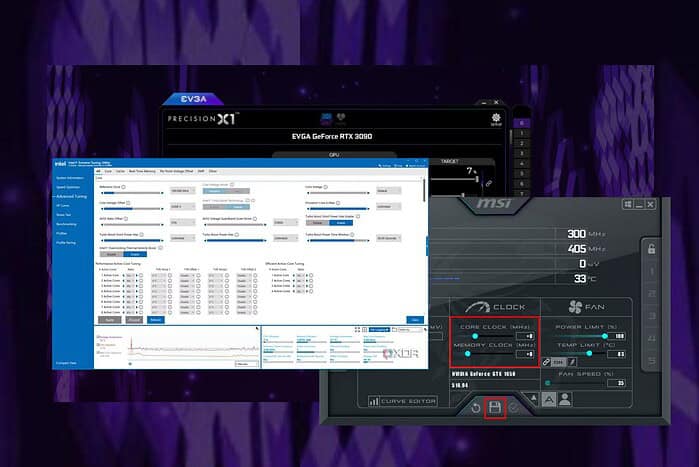
This article will explore eight of the best overclocking software options available, helping you unlock the full potential of your CPU and GPU. For a broader overview of tuning tools, you can also review Top Overclocking Software For Peak Performance.
Choosing the right overclocking software is crucial for a successful and safe overclocking experience. The software should offer comprehensive monitoring capabilities, intuitive controls, and compatibility with your specific hardware.
Table of contents
Which Overclocking Software is Best?
MSI Afterburner
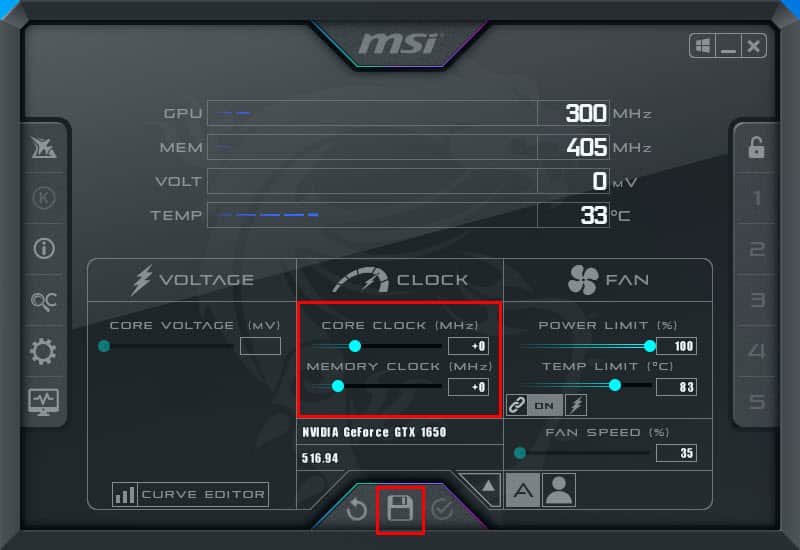
MSI Afterburner is arguably the most popular and widely used overclocking software. It offers a comprehensive suite of features for both CPU and GPU overclocking, including real-time monitoring, fan control, and custom profiles. Its user-friendly interface makes it accessible to beginners, while its advanced settings cater to experienced overclockers.
MSI Afterburner allows you to adjust core clock speeds, memory clock speeds, and voltage, giving you precise control over your GPU’s performance. The real-time monitoring feature displays critical information such as temperature, clock speeds, and fan speeds, allowing you to track your overclocking progress and ensure stability.
- Core clock adjustment
- Memory clock adjustment
- Voltage control
- Real-time monitoring
Pricing: Free
EVGA Precision X1
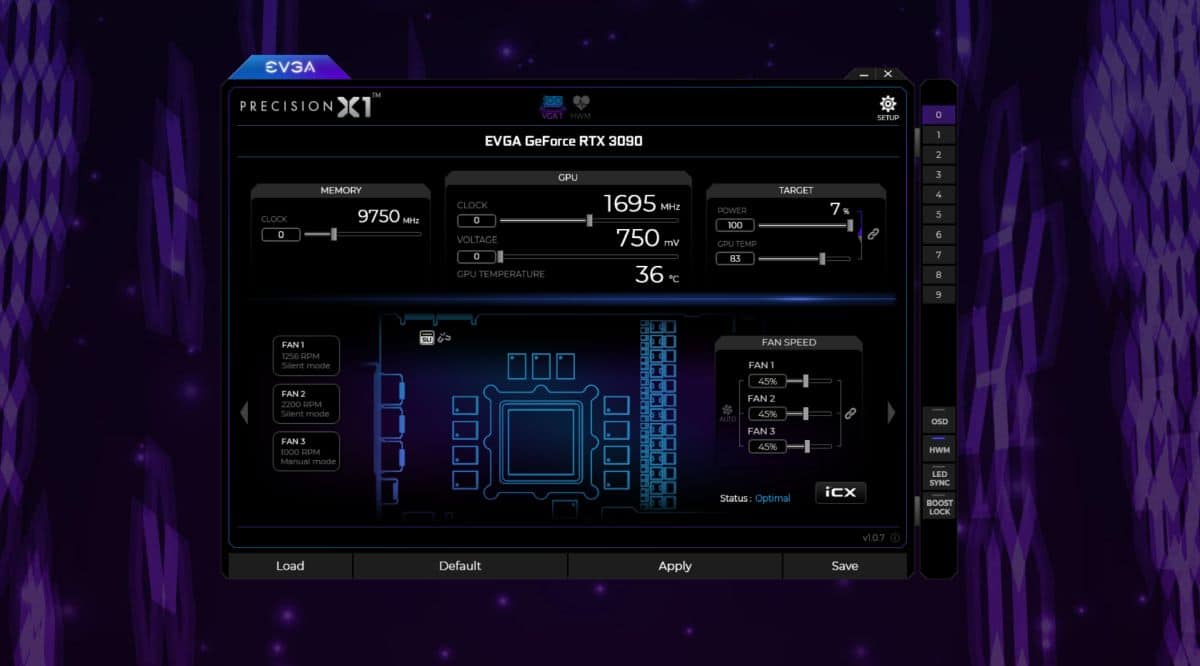
EVGA Precision X1 is another excellent overclocking tool, particularly for EVGA graphics cards. It boasts a sleek and modern interface and provides a wealth of features for monitoring and tweaking your GPU’s performance. Beyond standard overclocking, Precision X1 offers features like voltage control, fan curve customization, and LED synchronization for compatible EVGA hardware.
This software allows for detailed control over fan speeds, enabling users to create custom fan profiles that prioritize either cooling performance or noise levels. Additionally, the real-time monitoring displays essential information such as GPU temperature, clock speed, and memory usage, helping you to stay informed about your card’s performance.
- Voltage control
- Fan curve customization
- LED synchronization
- Real-time monitoring
Pricing: Free
Intel Extreme Tuning Utility (XTU)
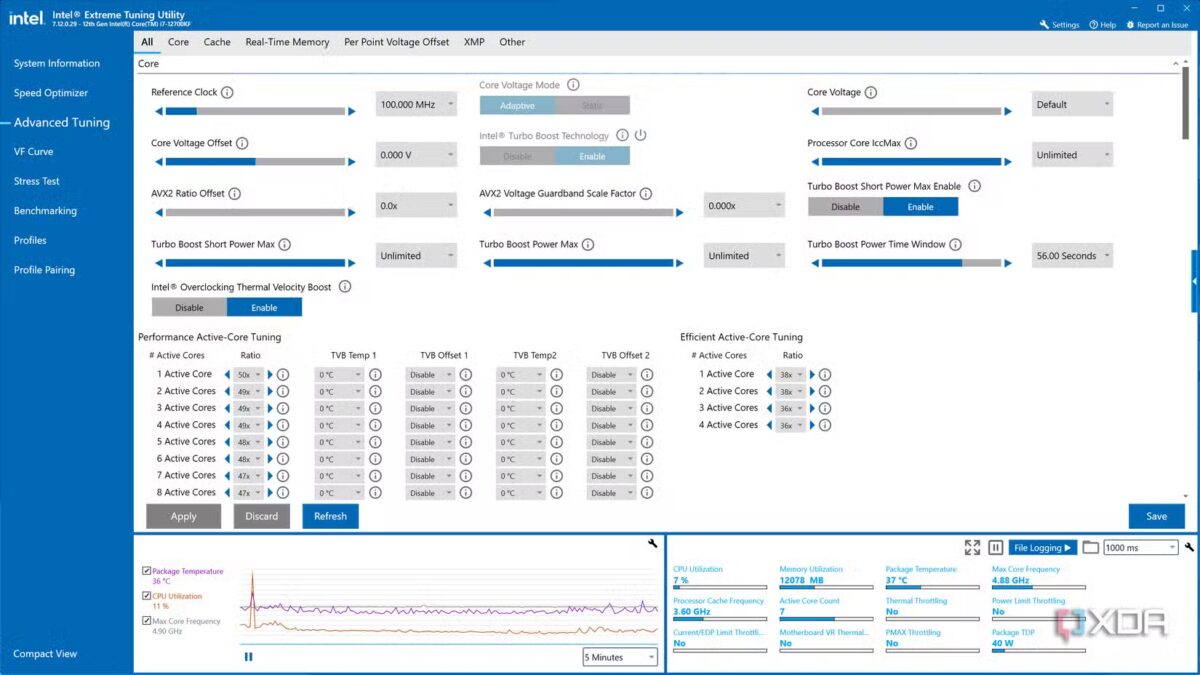
Intel XTU is specifically designed for overclocking Intel CPUs. It provides a simple and intuitive interface for adjusting various CPU parameters, such as core frequency, voltage, and memory settings. The built-in stress testing tools help you ensure the stability of your overclock.
With Intel XTU, you can monitor CPU temperature, voltage, and clock speeds in real-time, allowing you to track your overclocking progress and identify potential issues. The software also includes a profiling system that allows you to save and load different overclocking configurations for various tasks.
- Core frequency adjustment
- Voltage control
- Memory settings
- Real-time monitoring
Pricing: Free
AMD Ryzen Master
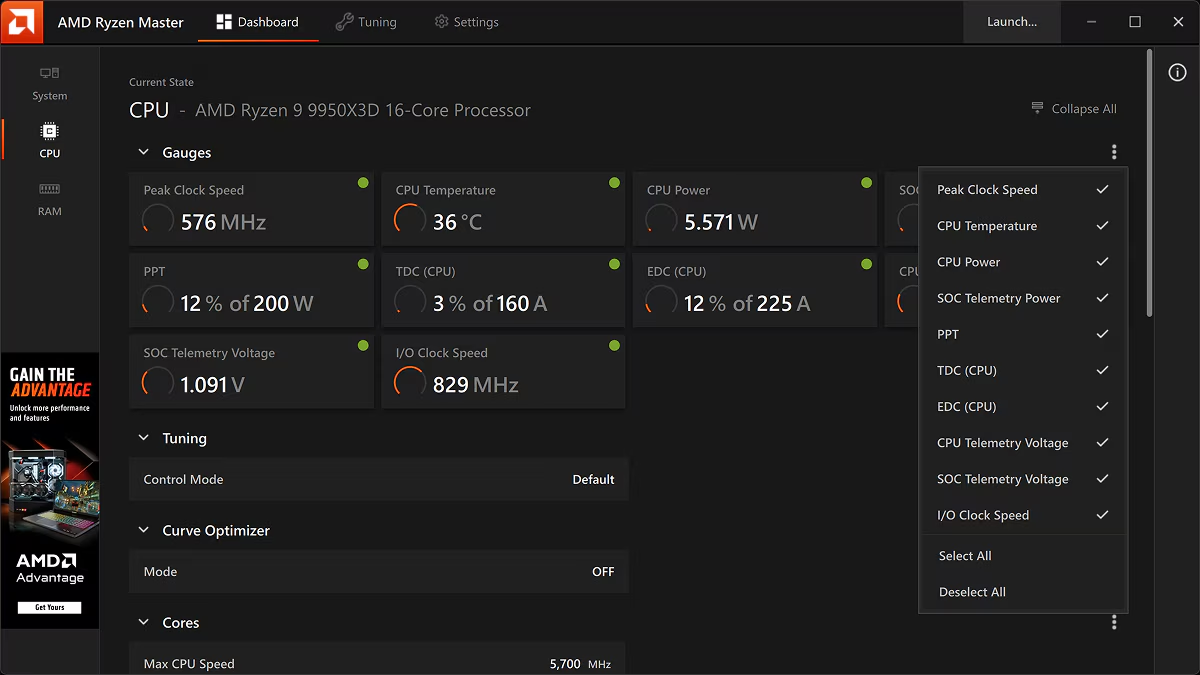
AMD Ryzen Master is the official overclocking utility for AMD Ryzen processors. It offers a user-friendly interface and a comprehensive set of features for overclocking and monitoring your Ryzen CPU. The software allows you to adjust core clocks, memory timings, and voltage settings, providing granular control over your CPU’s performance.
Ryzen Master includes a built-in stress testing tool to help you evaluate the stability of your overclock. The software also provides real-time monitoring of CPU temperature, voltage, and clock speeds, allowing you to track your overclocking progress and ensure system stability.
- Core clock adjustment
- Memory timings adjustment
- Voltage control
- Real-time monitoring
Pricing: Free
ASUS GPU Tweak II
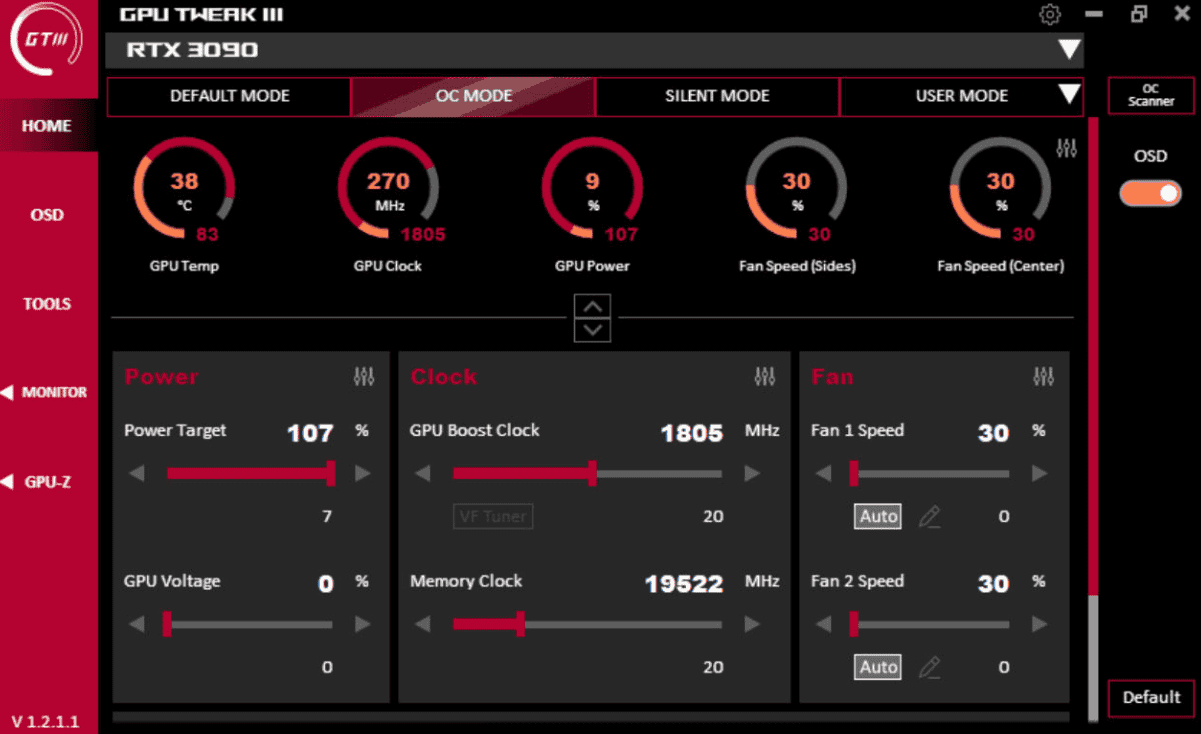
ASUS GPU Tweak II is designed for overclocking ASUS graphics cards, but it can also work with other brands. It offers a user-friendly interface and a range of features for monitoring and adjusting your GPU’s performance. The software includes pre-set overclocking profiles for different games and applications, as well as manual controls for advanced users.
ASUS GPU Tweak II provides real-time monitoring of GPU temperature, clock speeds, and memory usage. The software also features a built-in game booster that optimizes system settings for improved gaming performance.
- Pre-set overclocking profiles
- Manual controls
- Real-time monitoring
- Game booster
Pricing: Free
CPU-Z
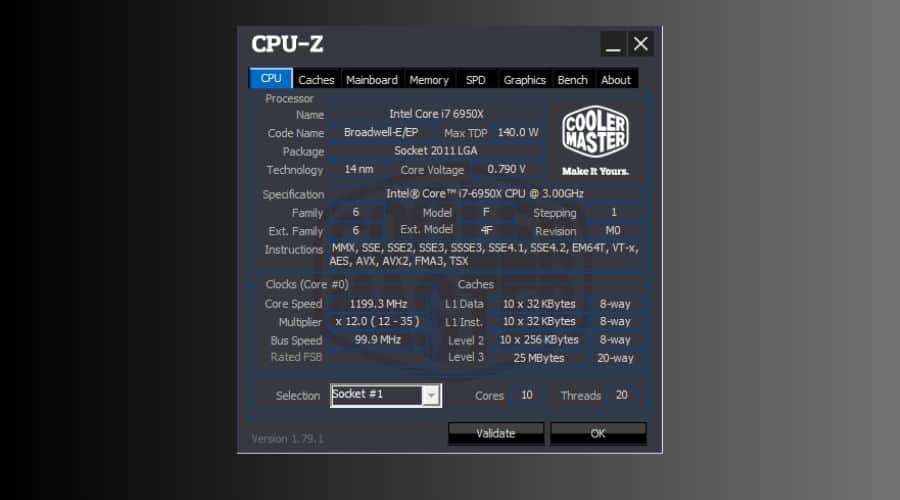
While CPU-Z is primarily a system information tool, it’s an invaluable asset for overclockers. It provides detailed information about your CPU, motherboard, and memory, including current clock speeds, voltages, and timings. This information is crucial for understanding your system’s capabilities and monitoring the effects of your overclock.
CPU-Z’s real-time monitoring capabilities allow you to track changes in clock speeds and voltages as you adjust your overclock settings. The software also includes a built-in benchmark that can be used to measure the performance gains achieved through overclocking.
- Detailed system information
- Real-time monitoring
- Built-in benchmark
Pricing: Free
RivaTuner Statistics Server (RTSS)
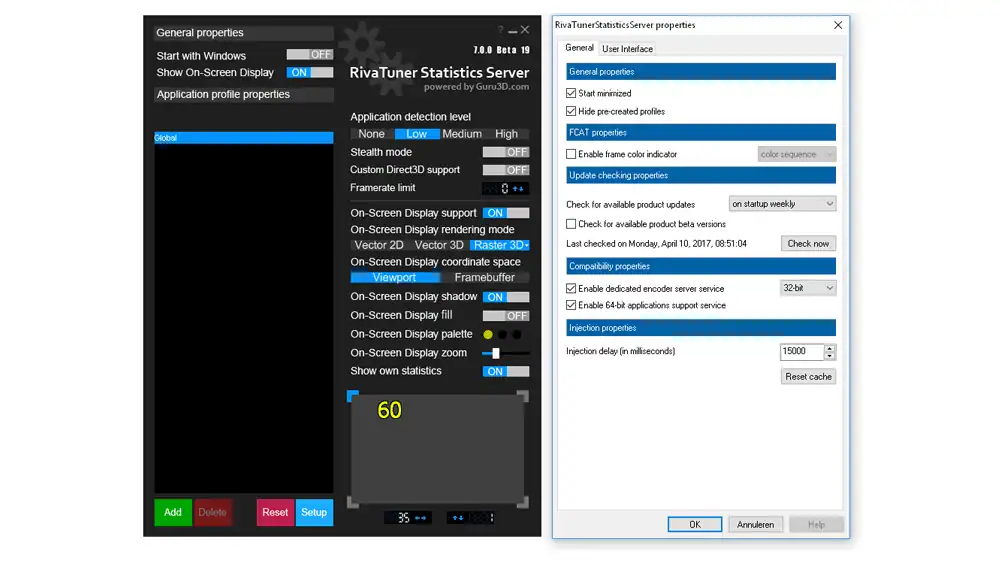
RTSS is often bundled with MSI Afterburner, but it can be used independently. Its primary function is to display real-time performance statistics on-screen while gaming or running other applications. This allows you to monitor your CPU and GPU usage, temperatures, and frame rates without having to switch between applications.
RTSS is highly customizable, allowing you to choose which statistics to display and how they are displayed. The software also supports a wide range of overlay styles and fonts, allowing you to create a personalized monitoring experience.
- Real-time performance statistics overlay
- Customizable display options
- Wide range of overlay styles
Pricing: Free
OCCT
OCCT is a stability testing tool that is essential for ensuring the reliability of your overclock. It puts your CPU and GPU under extreme load, allowing you to identify any potential weaknesses in your overclock. OCCT monitors temperatures, voltages, and clock speeds during the stress test, providing valuable information about the stability of your system.
OCCT offers a variety of different stress tests, each designed to target specific components of your system. The software also includes a built-in error detection system that will alert you to any problems encountered during the stress test. If you like to organize benchmarks and printed labels for your hardware or backups, tools similar to those covered in 6 Top Label Printing Software & Solutions can complement your overclocking workflow.
- CPU and GPU stress testing
- Temperature monitoring
- Voltage monitoring
- Error detection
Pricing: Free trial available, paid versions with more features
Feature Comparison
| Software | CPU Overclocking | GPU Overclocking | Real-Time Monitoring | Fan Control | Voltage Control | Pricing |
|---|---|---|---|---|---|---|
| MSI Afterburner | Yes | Yes | Yes | Yes | Yes | Free |
| EVGA Precision X1 | No | Yes | Yes | Yes | Yes | Free |
| Intel XTU | Yes | No | Yes | No | Yes | Free |
| AMD Ryzen Master | Yes | No | Yes | No | Yes | Free |
| ASUS GPU Tweak II | No | Yes | Yes | Yes | Yes | Free |
| CPU-Z | Yes (Monitoring) | Yes (Monitoring) | Yes | No | No | Free |
| RTSS | Yes (Monitoring) | Yes (Monitoring) | Yes | No | No | Free |
| OCCT | Yes (Testing) | Yes (Testing) | Yes | No | No | Free trial, Paid version |
Tips
- Start slow: Increase clock speeds gradually and monitor temperatures closely.
- Stress test: Use stability testing software like OCCT to ensure your overclock is stable.
- Monitor temperatures: Keep an eye on CPU and GPU temperatures to prevent overheating.
- Save profiles: Save different overclocking profiles for different tasks, and consider pairing tweaks with custom key layouts using tools similar to those in Top Key Mapper Tools For Windows 11.
- Research: Before overclocking, research your specific hardware to understand its limitations.
Fine-Tuning for Optimal Performance
Selecting the right overclocking software is only the first step; fine-tuning your settings is crucial for achieving optimal performance and stability. Experiment with different clock speeds, voltages and document your results so you can compare how each profile behaves in real-world use. If you capture gameplay or benchmark runs on mobile, guides like How To Record On IPhone: A Step-by-Step Guide can help you grab clean footage of your tests.
FAQ
How do I stop 8 best overclocking software for cpu gpu?
Open the relevant control, then choose Stop or Disconnect to end the session.
Does 8 best overclocking software for cpu gpu affect battery life?
Yes, it uses extra power for video and networking; keep the device charged.
Why can’t my TV or receiver be found during 8 best overclocking software for cpu gpu?
Both devices must share the same Wi-Fi and the feature must be enabled on the receiver.
Is a wired method more reliable for 8 best overclocking software for cpu gpu?
Usually yes; a cable removes Wi-Fi interference and lowers latency. And if you also manage files from your phone while testing, you can learn how to get to them quickly with How To Find Your Files On IPhone: A Step-by-Step Guide.


Read our disclosure page to find out how can you help MSPoweruser sustain the editorial team Read more



Improve this guide




User forum
0 messages