
Stellar Data Recovery Professional for Windows Review


 11 min. read
  Updated on
Key notes
- Simple but powerful Windows file recovery following deletion or corruption.
- Recovers all conceivable file types from any connected storage or optical drive.
- Finds lost partitions, raw and unallocated drives, and BitLocker drives.
- Lets you create a bootable recovery drive to salvage data from damaged systems.
Have you lost or accidentally deleted important files from your computer? The good news is data recovery software can help you get them back!
In this Stellar Data Recovery Professional for Windows review, I explore what files can be retrieved and how to do it effectively.
What is Stellar Data Recovery for Windows?
Stellar Data Recovery is a powerful set of tools for recovering documents, photos, videos, emails, and other data. This includes files that were deleted or stuck on drives that are corrupted, formatted over, or encrypted. As well as unbootable systems.
The intuitive software walks you through the process, allowing you to choose the type of data to recover and from which drives and folders.
Recovery works because most files deleted from a PC or storage device aren’t removed immediately. Instead, Windows marks the file’s space as “free” and for overwriting by new data. Until this space is overwritten, the data remains physically present on the storage medium, allowing Stellar Data Recovery to retrieve it.
Today, we take a closer look at the $89/yr Professional version.
Stellar Data Recovery Professional Features
While you can recover up to 1GB of data for free, the professional version is unlimited. It also supports disk images, optical disc drives, and includes other useful tools. Here’s everything you need to know:
Huge File Type Library
Stellar Data Recovery supports practically all file types for recovery, spanning documents, photos, videos, audio, archives (ZIP and RAR), and email data. E.g., Microsoft Outlook (PST), Exchange Server (EDB), OST, PST, NSF, EML, MBOX, MBX, DBX, etc.
What’s more, you can add custom file types in addition to the software’s native list. This is useful for recovering files with unique extensions that may not be recognized or when scanning seems to be missing certain file types.
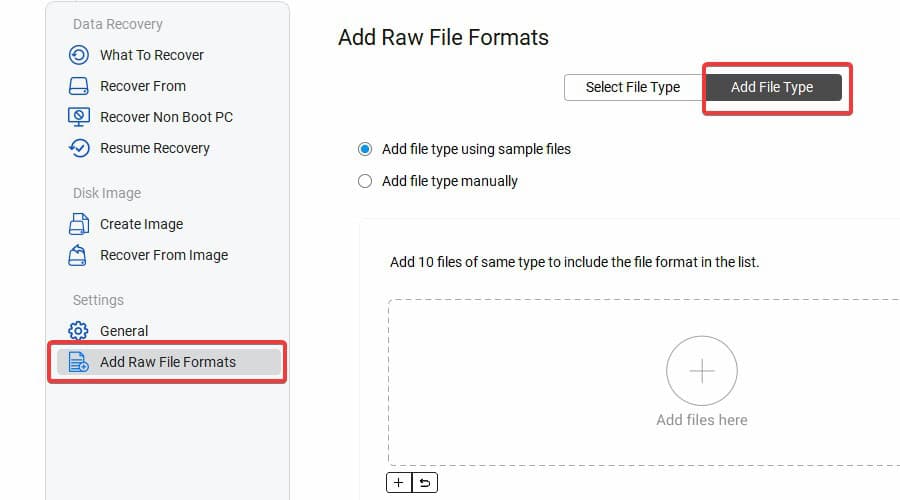
For best results, you can add up to 10 sample files of the same file type you wish to recover. This allows the program to recognize specific file signatures within the data when scanning.
In short, if a file exited on your PC, it has the capacity to be recovered.
All Drives and Storage Devices
Stellar Data Recovery supports file recovery from all common drives and storage devices, not just your main Windows drive.
This means data can be recovered from internal hard disks and SSDs, 4K drives, external HDDs, USB drives, SD Cards, and more.
Lost data from a DVD or CD? It also supports optical disc drives, as long as the drive is recognized by your PC. This lets you salvage files that were deleted or unreadable due to the disc itself being scratched or corrupted.
This includes discs burned on any system and all common media: CDs, DVDs, HD DVDs, and Blu-ray.
Although you cannot recover files directly to another disc, it preserves the original file names and folder structure of the recovered files in your chosen location. I.e., a folder on your hard drive.
Even data from encrypted BitLocker drivers may be recovered if you have the BitLocker key for decryption.
Lost Partitions
Sometimes data loss or corruption is only reflected on one Windows partition, causing it to be inaccessible. In some cases, you might even accidentally delete an entire partition itself.
Fortunately, Stellar Data Recovery checks for signs of lost partitions and knows every partition that has existed on the drive.
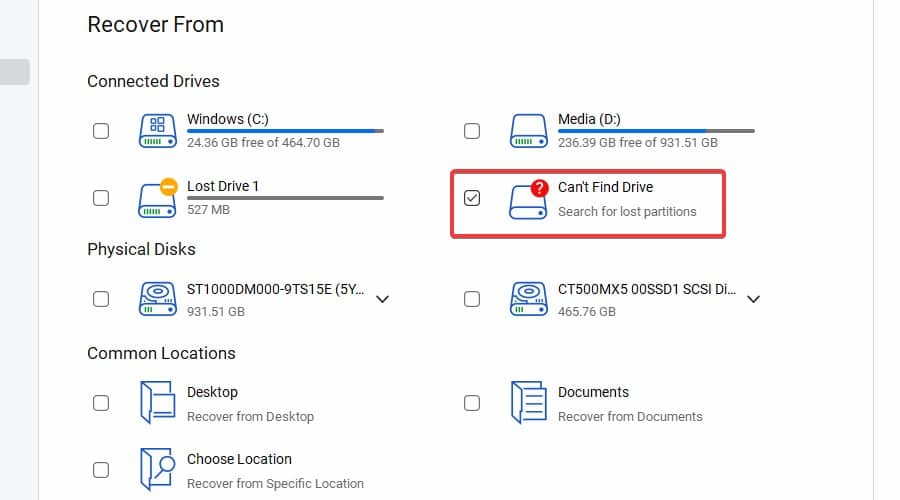
As long as it’s not been completely overwritten, clicking the “Can’t Find Drive” link when choosing where to recover from, will usually detect a lost partition. You can then select it for a full scan to search for recoverable files on the partition.
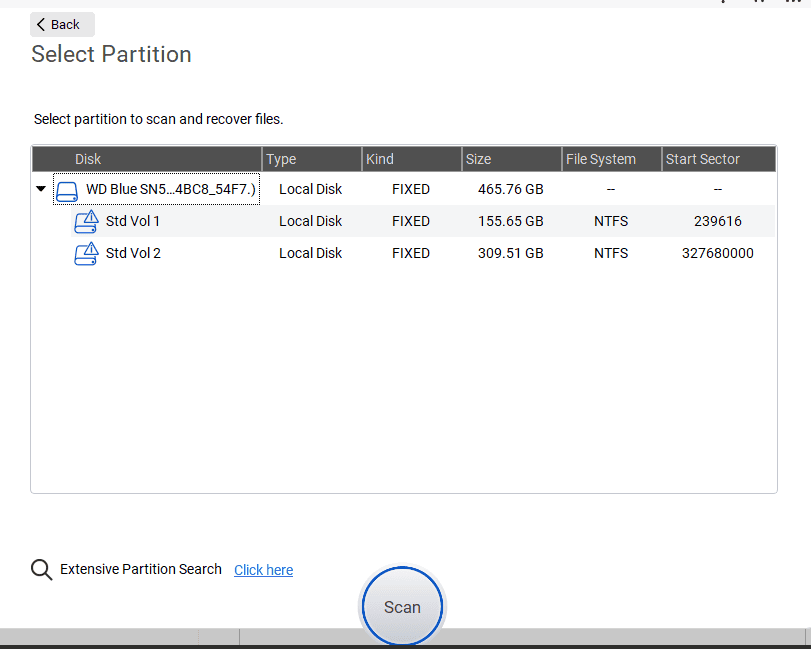
The program is not able to restore the partition itself, but you can choose where to save the partition’s recoverable files.
Recover from Inaccessible and RAW Drives
The software really shines when it comes to heavily corrupted drives that have lost their file structure or are otherwise inaccessible in Windows File Explorer. Drives in this state often don’t open, are unallocated, or show inaccurate storage information.
In this scenario, the drive will be listed under “physical disks” instead of directly under “connected drives”.
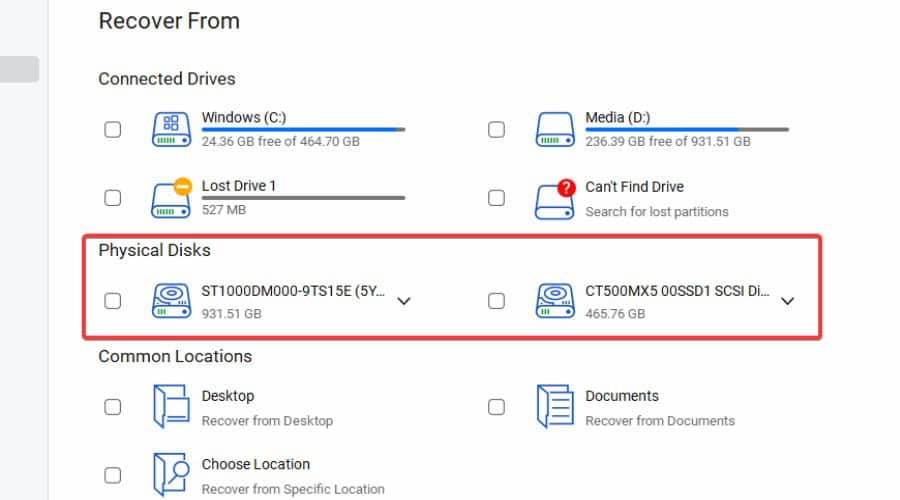
When scanning, the drive is analyzed based on common file signatures, which are the unique patterns within data that represent specific types of files.
If you know exactly what you’re trying to recover, you can choose Add Raw File Formats to select or add only the file types required, making the process more efficient.
Recover from Non-Booting Drive
There’s nothing worse than a PC or laptop that won’t even boot. Fortunately, just because it doesn’t boot, it doesn’t mean the data on the drive can’t be recovered.
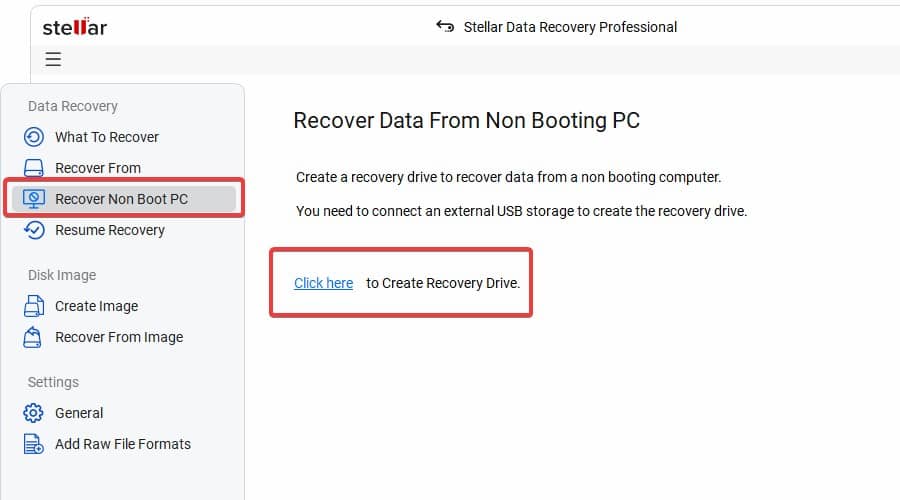
New in version 12, Stellar Data Recovery Professional has the ability to create a bootable recovery drive, which will run the software when attempting to boot and then retrieve files from the drive.
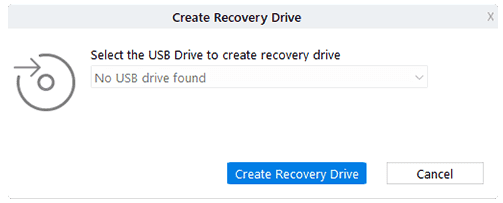
For this to work, you will need a secondary working PC and a removable USB storage device. You can then follow the steps within the software to create the recovery drive to be used on the unbootable system.
Disk Imaging
Stellar Data Recovery Professional also offers a full disk imaging tool. This allows you to create an image or copy of any connected drive for backup purposes and recover the files from an existing disk image.
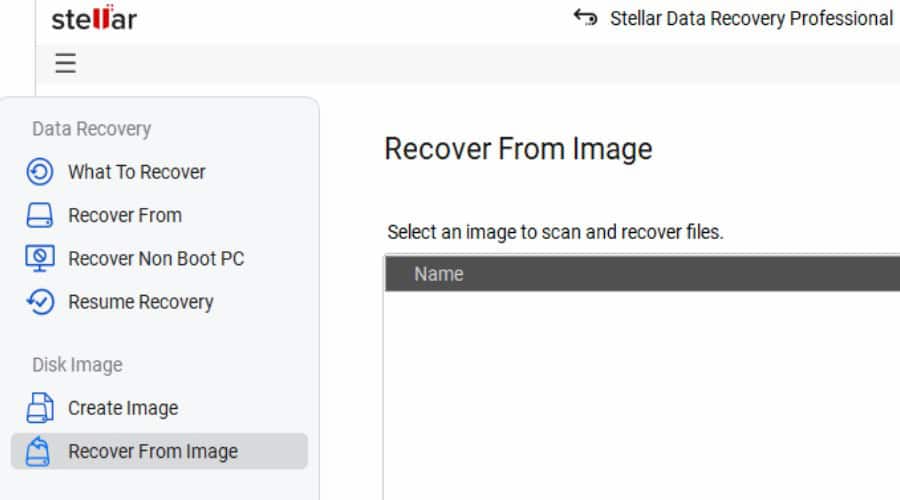
This feature is particularly useful in situations where the source drive is prone to failure or cannot sustain direct data recovery procedures.
Performance and Usability
On Windows, Stellar Data Recovery Professional is surprisingly lightweight and fast performing. The installer was less than 150MB and did not contain any bloat or annoyances when installing.
In most cases, it takes just a few clicks to start scanning, and a Quick Scan will suffice. This focuses on common Windows-based deletion and corruption scenarios.
However, if you’re willing to wait a bit longer, Deep Scan offers a more comprehensive file-signature based search that can recover items that were initially missed.
The software is very user-friendly, walking you through each step and not requiring much more than checking some boxes.
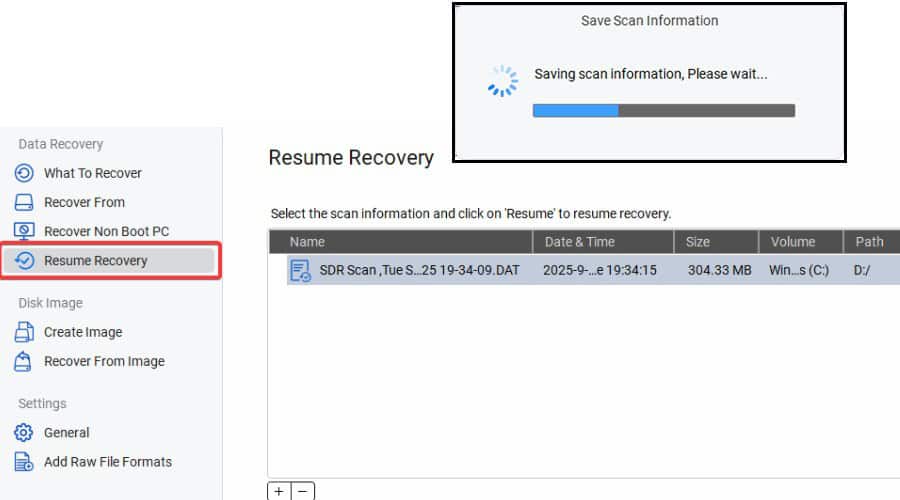
Users will appreciate the ability to save scans. I.e., you don’t have to complete the process right away. Free users can always carry out this step, even if they’ve reached the 1GB limit.
Another huge benefit is the ability to preview recoverable files and choose exactly what to recover, rather than going in blind and automatically recovering everything. The file systems are kept intact in the Classic List, and you can easily browse through the folder tree or filter and sort recoverable files.
For example, sorting by Date Modified is an effective way to find your most recent files, while Size can help you find the largest recoverable files, and Type groups different file types together.
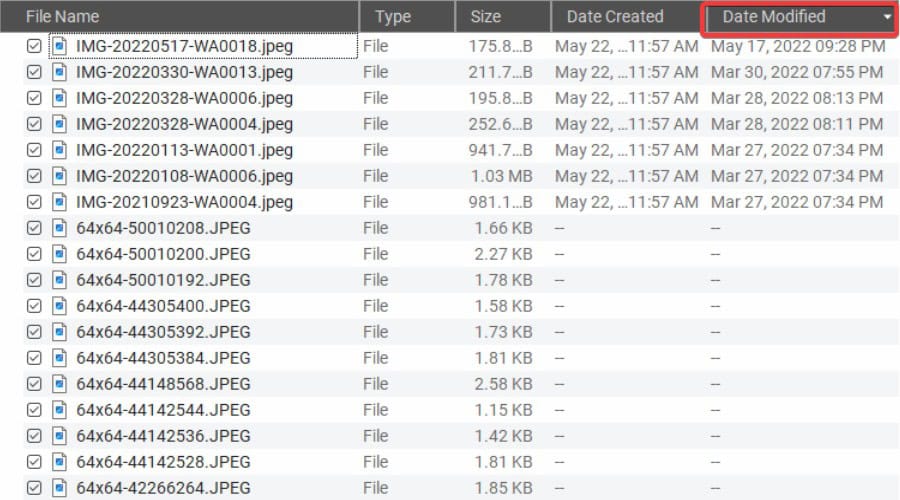
The Deleted List shows files that were manually deleted. The standard File List groups files by their parent file types, allowing you to easily find videos, photos, documents, etc.
Testing
While it’s difficult to guarantee files will be recoverable in your unique circumstances, it definitely worked for us.
Upon scanning my aging C Drive, which currently has 440GB of used space, it found approximately 508GB of recoverable data. In other words, about 68GB of deleted data was found.
For a clearer test, I filled up a USB drive with a Test Folder containing a wide variety of files, totalling 6.97GB.
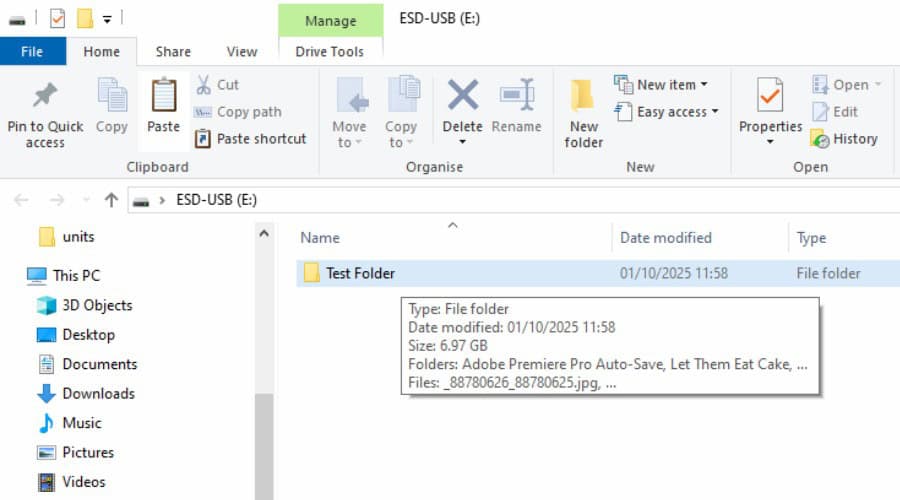
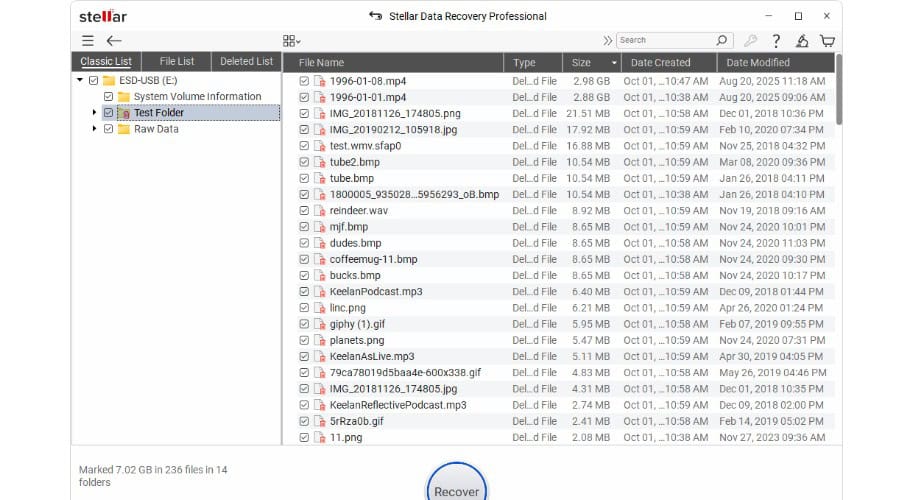
I then deleted the folder and used Stellar Data Recovery Professional to see what it would recover.
Not only did it find all files from the Test Folder, but some older files and raw data were also retrieved.
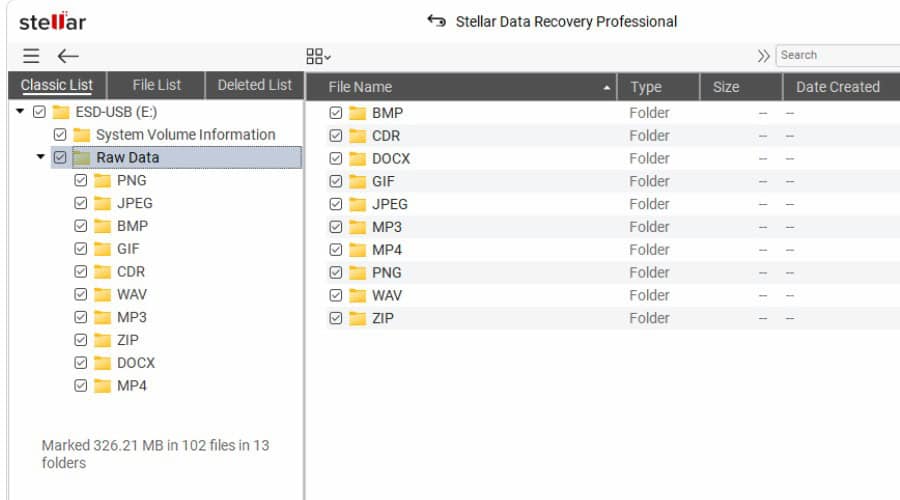
Next, I performed a full reformat of the drive, which erases the whole file system.
Following a deep scan, Stellar was still able to recover more than 300MB of data.
Pricing
Stellar Data Recovery can be tried for free but is limited to 1GB. To unlock more features, you can purchase a professional plan:
- Professional Annual Plan: $89
- Professional Lifetime Plan: $149
Other plans:
- Premium ($99/yr or $199 lifetime) – Same as Professional + photo and video repair features.
- Technician ($169/yr or $339 lifetime) – Same as Premium + RAID 0, 5, 6 recovery.
All plans come with a 30-day money back guarantee.
How to Use Stellar Data Recovery?
Once you have installed Stellar Data Recovery for Windows, it couldn’t be easier to get started:
1. Firstly, choose the data you wish to recover using the check boxes. All data is selected by default. Click Next.
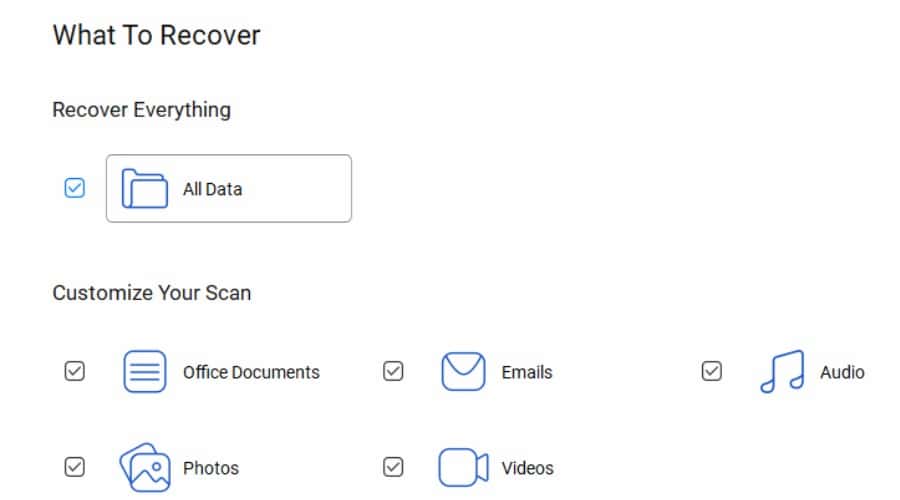
2. Select which connected drives or storage devices to recover from. E.g., your Windows drive, external HDD, or a USB storage device. You can also select common locations or manually browse a location on any drive.
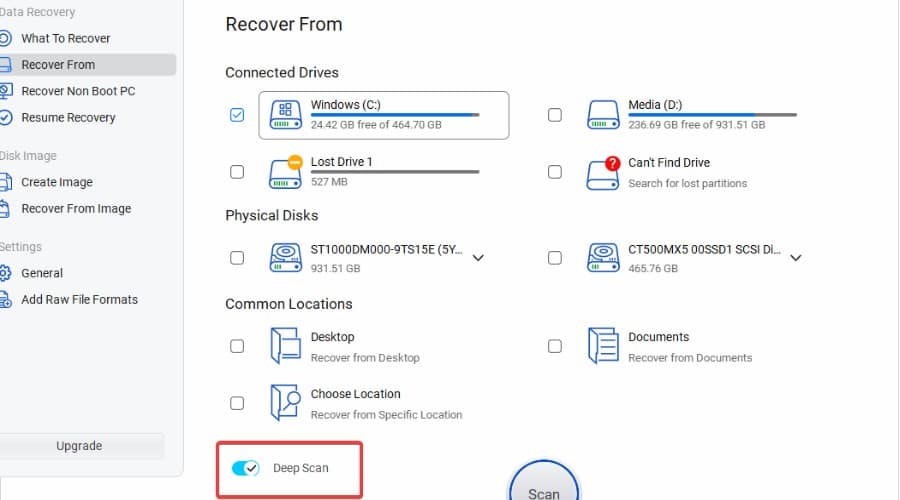
3. Use the toggle at the bottom to choose between a regular or deep scan. The latter takes longer but is more likely to recover data.
4. Click Scan, then wait for the process to be completed. Use the link to view the scan’s status.
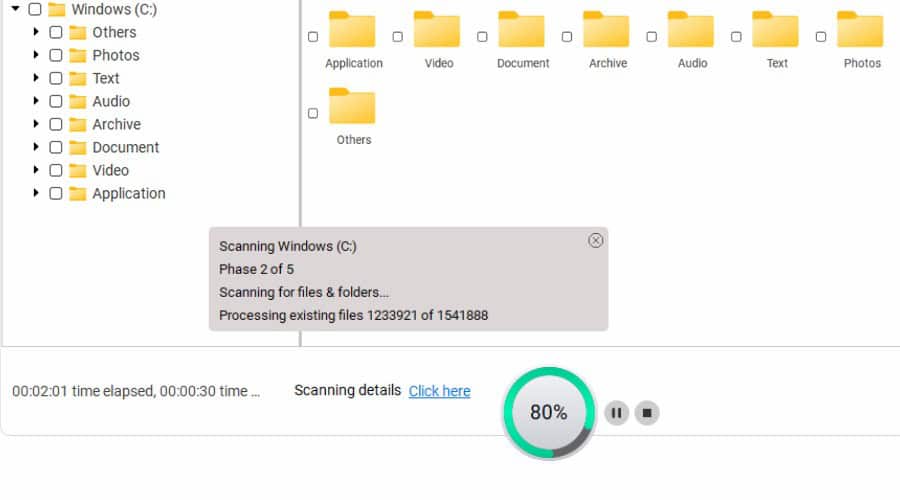
5. Once complete, you will get a summary of recoverable data. You can now browse the folder tree to further explore the folders and files, including filetype, size, and more.
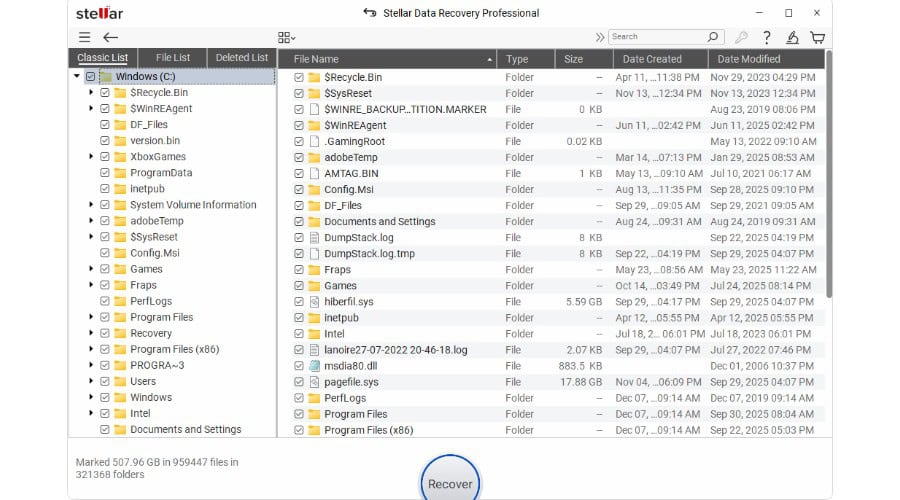
6. Click Recover to restore everything or use the checkboxes first to only recover specific files.
7. Select a stable drive and location to store the recovered files and wait until the data is saved.
8. Alternatively, scans can be saved, so you can complete the restoration process later by clicking the Resume Recovery tab on the left.
9. To create a recovery drive to recover data from a non-bootable PC, click Recover Non Boot PC from the menu. Then click the link and follow the steps. You will need a removable USB storage device to create the recovery drive.
10. Insert the recovery drive into the non-booting PC and power it on. Repeatedly press F12 (sometimes F2, F10, F1, Delete, or Esc, depending on your manufacturer), to open the BIOS interface.
11. Use the arrow key to select Boot Options/Order (or similar) and make USB or Removable Devices the priority. Exit to restart and the recovery drive will launch Stellar.
12. Now the software is open, follow the same steps as above to scan the drive and recover data. You will need a separate external storage drive to save the recovered files.
Following the above steps will allow you to easily navigate Stellar Data Recovery for Windows. All other options, such as creating or recovering a drive image, adding custom file formats, etc., can be found in the menu on the left hand side.
Tips for Optimal Recovery
Stellar Data Recovery Professional has an excellent success rate. However, there are some things to keep in mind to ensure the best chances of recovering your files:
Avoid overwriting data – Refrain from downloading new files or installing new software on the drive that contains the deleted or lost data. This will minimize the risk of overwriting the data you want to recover.
Likewise, the more you use the drive after data loss, the higher the risk of overwriting the deleted data. Therefore, stop using the affected drive right away.
Use Deep Scan – Remember, if the standard scan does not find your lost data, try using the “Deep Scan” option. While it takes longer, this thorough scan can often recover data that was not found during the initial scan.
Save to a different drive – When using Stellar Data Recovery, aim to save recovered files on a different storage device, such as an external HDD, SSD, or a USB drive. This prevents overwriting or further damaging the lost data during the recovery process.
Moreover, you don’t want to recover files to a drive that might be failing in the first place.
Verdict – Stellar Data Recovery Professional for Windows
In conclusion, Stellar Data Recovery Professional for Windows has everything you need to retrieve files. No matter the file type or storage drive, anyone can easily recover deleted or lost data in a few clicks.
Unlike similar tools, it’s extremely easy to use and gives users the necessary freedom to choose what to recover, how to recover it, and where to save the data.
Moreover, the ability to choose between a quick scan, for basic accidental deletions, and a deep scan for corrupt drives and more complex problems, is a nice touch.
The Professional version is perfect for individuals and businesses alike, who want unlimited recovery and all the core features. Higher tiers are available with more advanced features like video and photo repair.


Read our disclosure page to find out how can you help MSPoweruser sustain the editorial team Read more



Improve this guide




User forum
0 messages