
If Start and Taskbar are unresponsive on the latest Windows 11 build, here's how to resolve it


 1 min. read
  Updated on
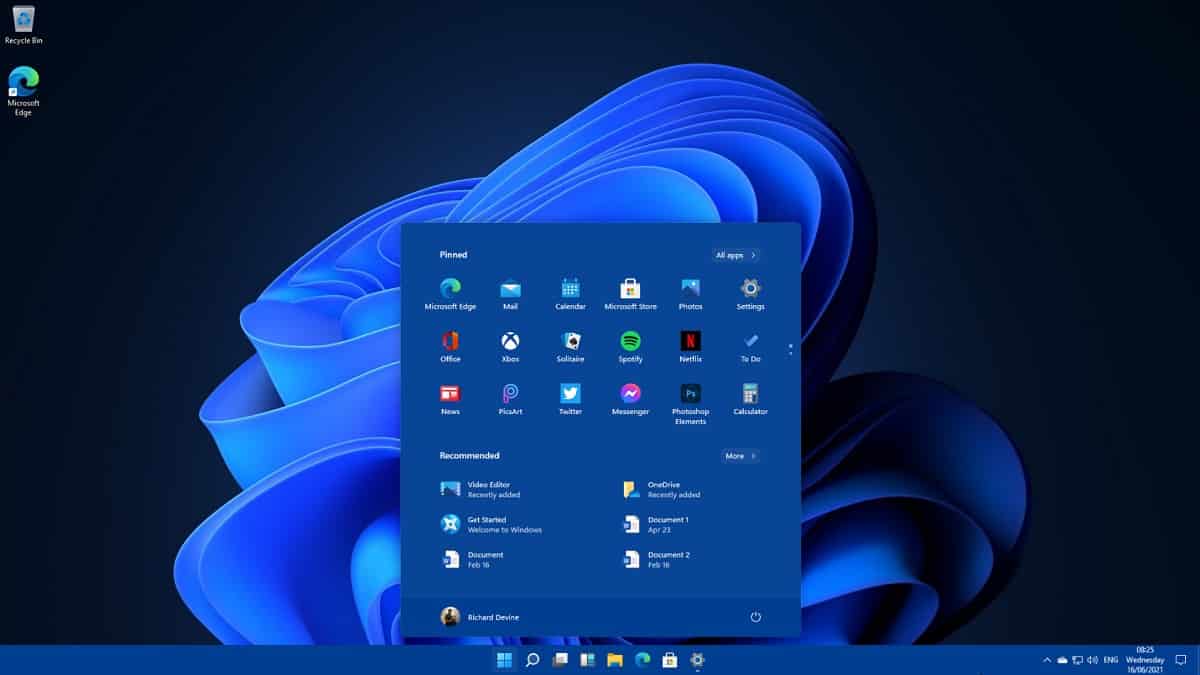
Early today, Microsoft released Windows 11 Build 22000.176 to Insiders in the Beta Channel and Windows 11 Build 22449 to the Dev Channel Insiders. After installing the build, several users are reporting that Start and Taskbar were unresponsive and Settings and other areas of the OS not responding. Microsoft is aware of this issue and has provided a temporary workaround to resolve the issue.
Here’s the fix to recover your unresponsive Windows 11 taskbar:
- Step 1: Use CTRL-ALT-DEL and choose to open Task Manager.
- Step 2: Choose “More details” at the bottom of Task Manager to expand Task Manager.
- Step 3: Go to “File” and choose “Run new task”.
- Step 4: Type “cmd” in the “Open” field.
- Step 5: Paste the following: reg delete HKCU\SOFTWARE\Microsoft\Windows\CurrentVersion\IrisService /f && shutdown -r -t 0
- Step 6: Hit enter, and then your PC should reboot. After rebooting, everything should be back to normal.
Source: Microsoft

Readers help support MSpoweruser. We may get a commission if you buy through our links.


Read our disclosure page to find out how can you help MSPoweruser sustain the editorial team Read more



Improve this guide




User forum
0 messages