
How to Open C Drive in Windows 11 Super Fast


 3 min. read
  Published on
The C drive (usually shown as C:) is the main hard disk partition where Windows 11 is installed. It stores:
- The Windows system files
- Your installed programs
- User folders like Desktop, Downloads, Documents
Accessing the C drive gives you full control over files and configurations.
Table of contents
5 Ways to Open the C Drive on Windows 11
1. Open via File Explorer
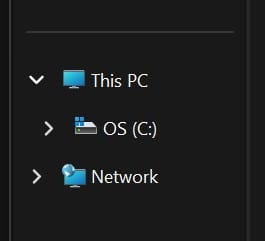
- Press Windows + E
- On the left panel, click This PC
- Double-click Local Disk (C:)
Tip: You can also pin the C drive to Quick Access for one-click access later.
2. Use the Run Dialog
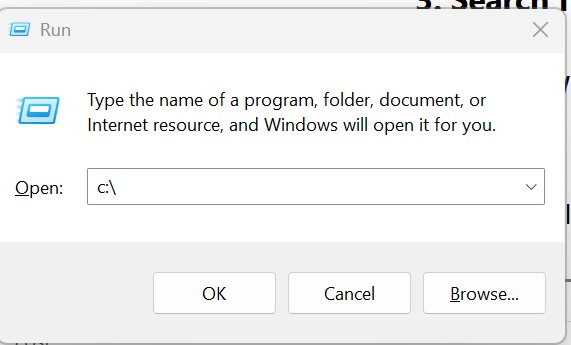
- Press Windows + R
- Type
C:\? press Enter
This will launch the C drive directly in File Explorer.
3. Search from Start
- Press Windows key
- Type
C:? hit Enter
Windows will automatically open the C drive in a new window.
4. Use the Address Bar in File Explorer

- Open any folder
- Click the address bar at the top
- Type
C:and hit Enter
Fastest way to jump between drives and folders.
5. From Command Prompt or PowerShell
- Open Command Prompt or PowerShell
- Type:
cd C:\? press Enter - Then:
start .to open the folder in Explorer
Useful for admins or advanced users navigating via terminal.
Access Denied to C Drive? Here’s the Fix
If you’re getting “Access is denied” errors:
- Make sure you’re using an administrator account
- Right-click C drive ? Properties ? Security tab
- Click Edit and ensure your user has full access
- Or, take ownership via: cmdCopyEdit
takeown /f C:\ /r /d y icacls C:\ /grant YourUsername:F /t
Caution: Don’t modify system folders like
WindowsorProgram Filesunless you know what you’re doing.
What Can You Do in the C Drive?
| Folder | What It’s For |
|---|---|
C:\Windows | Core Windows OS files |
C:\Program Files | Installed applications |
C:\Users | User accounts and documents |
C:\Temp | Temporary files (can be cleaned) |
FAQs
Why can’t I find my C drive?
It may be hidden due to group policy or disk issues. Check Disk Management (diskmgmt.msc) to confirm its status.
Can I rename the C drive?
Yes, you can rename the label, but the C: drive letter cannot be changed.
Is it safe to delete files from the C drive?
Only from non-system folders (e.g. Downloads, Temp). Avoid deleting anything inside Windows or System32.


Read our disclosure page to find out how can you help MSPoweruser sustain the editorial team Read more



Improve this guide




User forum
0 messages