
How to disable all live tiles on Windows 10


 2 min. read
  Updated on
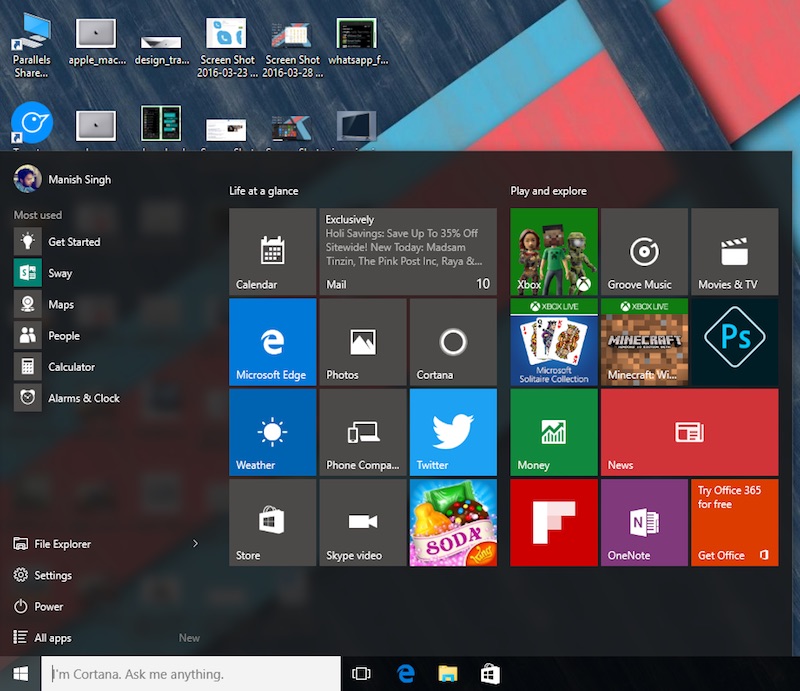
Microsoft’s Live tiles are incredible, incredible things in theory. They are primarily supposed to be displaying blocks of useful information so users don’t have to open apps like the messaging app to see who just sent them a text..
Yet for some users, they may make things more difficult than intended – often interfering with app visibility by surfacing random images over a tile logo or exposing sensitive information.
Now, there are three ways of disabling live tiles on Windows 10, but while the first can be done from the GUI but is more time intensive – especially if you have a more than a few tiles, the second needs to be done by Regedit and the third requires a Windows 10 Pro and above subscription.
Via the GUI (Graphical User Interface)
- 1. Open Start Menu
- 2. Right Click on the contentious tile, navigate to “More”
- 3. Select “Turn live tile off”
Via Regedit
- This is available to users on Windows 10 Home, Windows 10 Pro and above.
- Open the registry editor by typing Regedit into the search bar.
- . Navigate to the following key “HKEY_CURRENT_USER\Software\Policies\Microsoft\Windows\CurrentVersion\Pushnotications”. – If this doesn’t exist, then you can create it.
- . Create a new 32-bit D-Word value, called “NoTileApplictionNotification”
- . Set its value to 1.
- . Reboot your PC to set its settings.
- To revert the changes, repeat steps 1-3, but then change the value of the D-Word created to “0” and then reboot.
Via Group Policy Editor
This is only available for Windows 10 Pro and Enterprise users.
- .Open the group policy editor by typing gpedit.msc into the search/Cortana area and selecting “Edit Group Policy”
- Once in the Group Policy app, navigate to User Configurations > Administrative Templates > Start Menu and TaskBar > Notifications.
- Double click or double tap on the option that reads “Turn off toast notifications”, this will enable it and consequently disable all tile notifications prompt.y These changes require no reboot.


Read our disclosure page to find out how can you help MSPoweruser sustain the editorial team Read more



Improve this guide




User forum
0 messages