Fix Windows errors with Fortect: Fortect can repair common computer errors by scanning your entire system for damaged or missing OS files and replacing them with the original, working versions. Optimize your PC in 3 simple steps:
Use the PC Scan feature to look up any Windows issues (including drivers)
Right-click on Repair, and fix it within a few minutes.
Besides that, it helps you clean up junk files, fix stability problems, and get rid of annoying programs and malware traces.
Microsoft today announced the release of Windows 11 Insider Preview Build 22518.1012 to the Dev Channel Insiders.
The release (KB5009380) is an update to Build 22518 released two days ago, and does not bring any new features.
Microsoft writes:
We are starting to roll out Cumulative Update Build 22518.1012 (KB5009380). This update does not include anything new and is designed to test our servicing pipeline for builds in the Dev Channel.
Windows 11 Insider Preview Build 22518 was of course a pretty large release with an extensive changelog.
That build came with several new features including Spotlight collection backgrounds, voice access, new entry point for Widgets in task bar and more. Spotlight collection will allow you to enjoy fresh new desktop background everyday. Voice Access is a new feature that will allow you to interact with your PC using your voice.
Find the full change log below.
What’s new in Build 22518
View the world on your desktop with Spotlight collection
Keep your desktop fresh and inspiring with Spotlight collection. You will get beautiful new desktop pictures from around the world every day and fun facts about each picture. Here is how you can try out Spotlight collection:
Right-click on your desktop and choose “Personalize”.
On the Personalization settings page, choose “Background”.
Under the “Personalize your background” dropdown, select “Spotlight collection”.
Upon enabling Spotlight collection, you will see an inspiring picture from Whitehaven Beach in Australia on your desktop as well as the Spotlight icon.
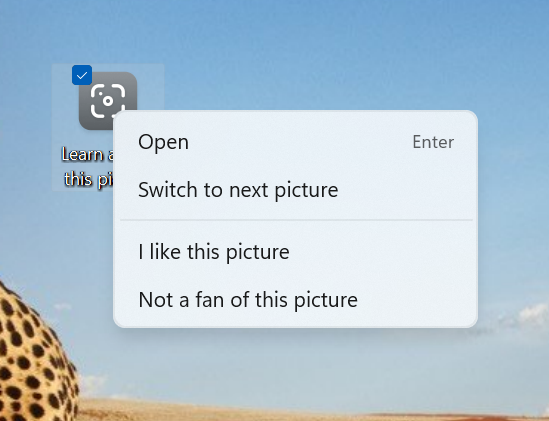
Right-click on the Spotlight icon on your desktop to switch to between Spotlight pictures or tell us whether you like or dislike a picture.
Later in the day, we will replace Whitehaven Beach with a collection of up to five background pictures from around the world. This could take up to 24 hours. If you hover over the Spotlight icon, you can learn more about each picture. Right-clicking on the Spotlight icon on the desktop opens a context menu where you can switch to a different background picture as well as tell us whether you like or don’t like one of the pictures. Double-clicking on the Spotlight icon launches the landing page where you can learn even more about any of the Spotlight collection pictures you saw throughout the day.
Please note the Spotlight collection experience is not yet localized and will show text in English only. Full localization will come in a future update. Spotlight collection is available to Windows Insiders in the following countries: Australia, Canada, China, Finland, France, Germany, India, Italy, Japan, Korea, Norway, Spain, Sweden, U.K., U.S. More countries will be added over time.
Updated entry point for Widgets on your taskbar
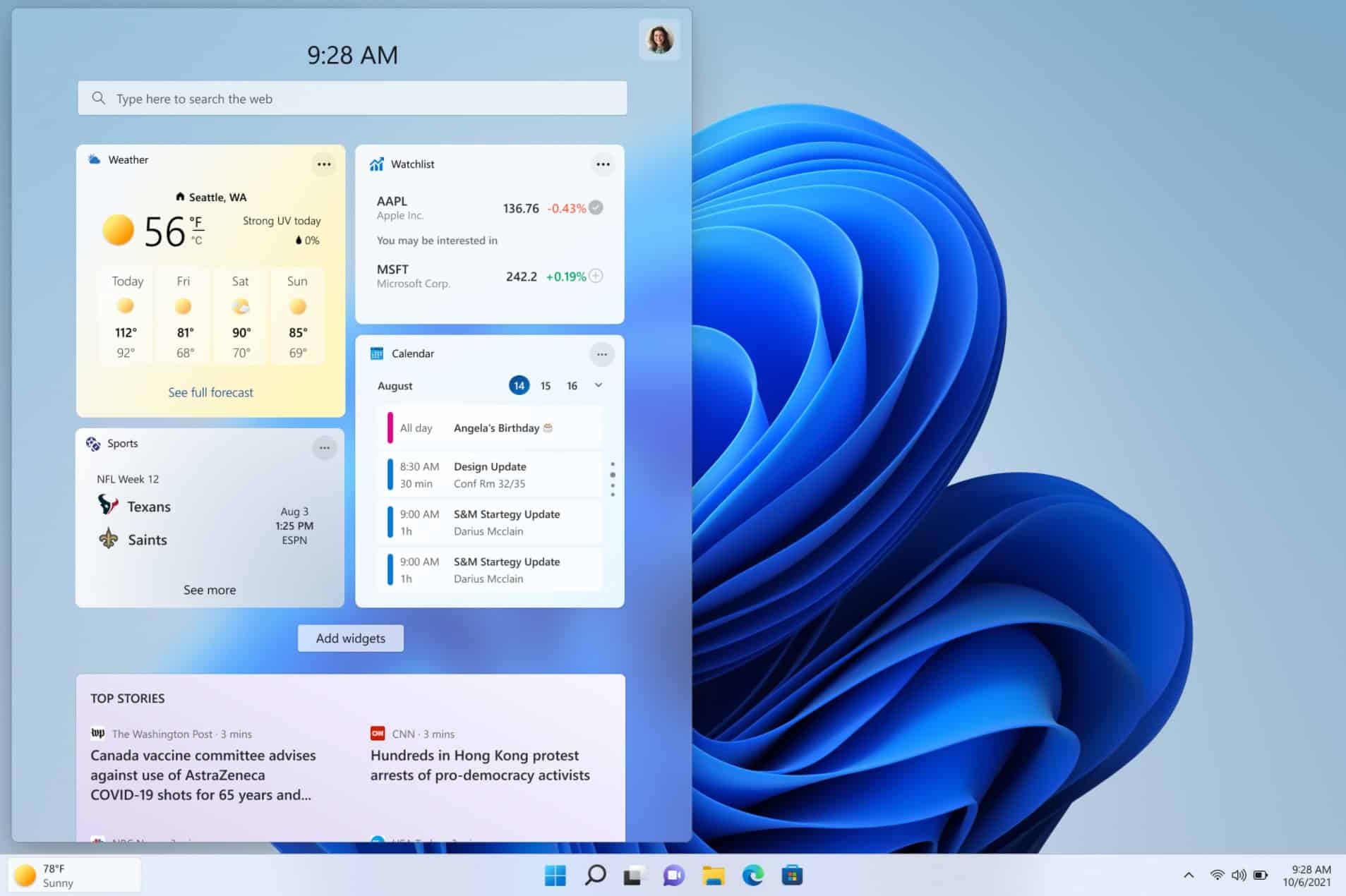
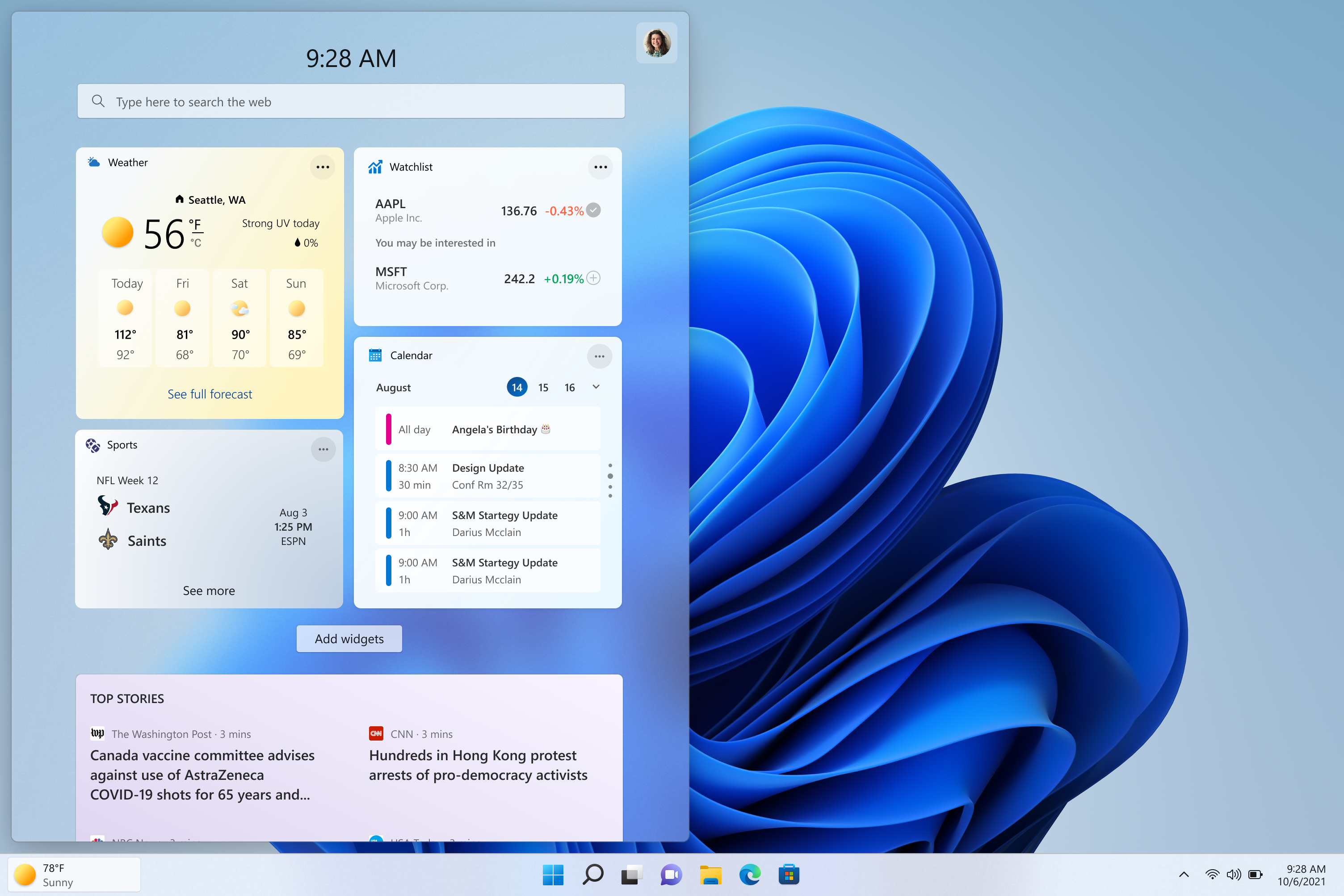
We are trying out showing the Widgets entry point on the left side of your taskbar with live weather content. You can also open the Widgets board by simply hovering over the entry point.
We’re trying out showing the Widgets entry point, with weather, on the left side of the taskbar.
For users who choose to align their taskbar, the Widgets entry point will be to the right of the Task view icon.
How the Widgets icon looks on a left-aligned taskbar with weather.
Group policies and the ability to show/hide the Widgets button from the taskbar remains unchanged.
We’re trying this out so let us know what you think and check out the known issues below for some issues we’re aware of for this experience.
[We are beginning to roll this change out, so it isn’t available to all Insiders just yet as we plan to monitor feedback and see how it lands before pushing it out to everyone.]
Introducing Voice Access
Voice access is a new experience that enables everyone, including people with mobility disabilities, to control their PC and author text using their voice. For example, voice access supports scenarios like opening and switching between apps, browsing the web, and reading and authoring mail. Voice access leverages modern, on-device speech recognition to accurately recognize speech and is supported without an internet connection. Voice access supports English-U.S. language only, so the Windows display language should be set to English-U.S., otherwise voice access may not work as expected.
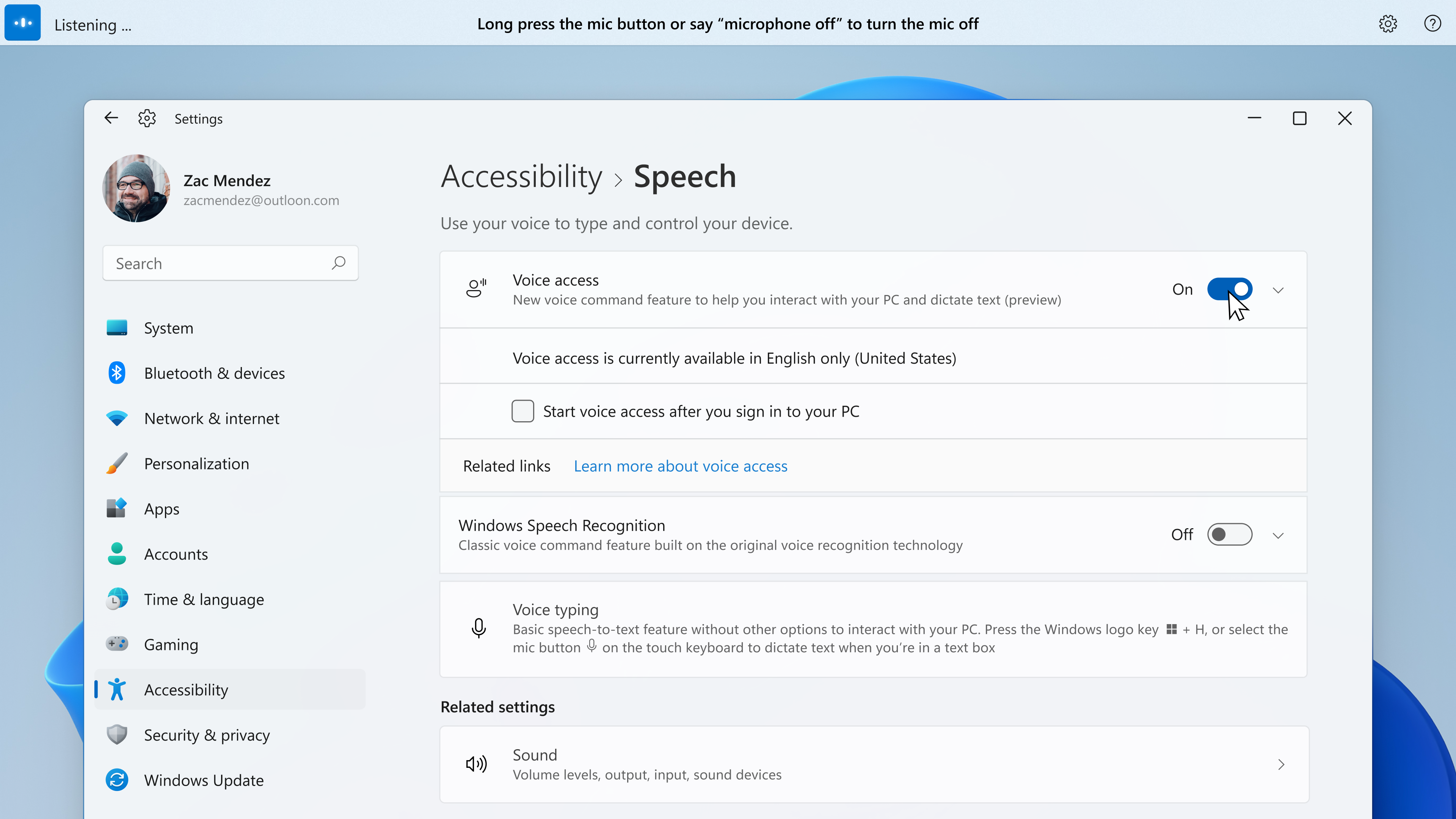
You can find voice access in Settings > Accessibility > Speech. When you turn on voice access for the first time, it will prompt you to download a speech model for the on-device speech recognition. Once it is downloaded, you can choose a microphone you want to use with voice access and start using your voice to control your PC.
You can choose to auto start voice access the next time you sign-in to your PC in settings. You can also use voice commands or keyboard shortcuts (Alt + Shift + C and Alt + Shift + B) to control whether voice access is listening or not listening.
To do this
Say this
Get voice access to start listening to you
“Voice access wake up”, “Unmute”
Put voice access to sleep (It’ll only respond to “voice access wake up” command)
“Voice access sleep”, “Mute”
Completely stop voice access from listening to you (You can use mouse or keyboard to click on the microphone button to change its state)
“Turn off microphone”
The voice access interactive guide.
Voice access includes an interactive guide that explains how to complete common tasks using your voice.
In addition to the interactive guide, you can access a complete list of commands by asking “what can I say?” when voice access is listening. You can also access the complete set of voice access commands here.
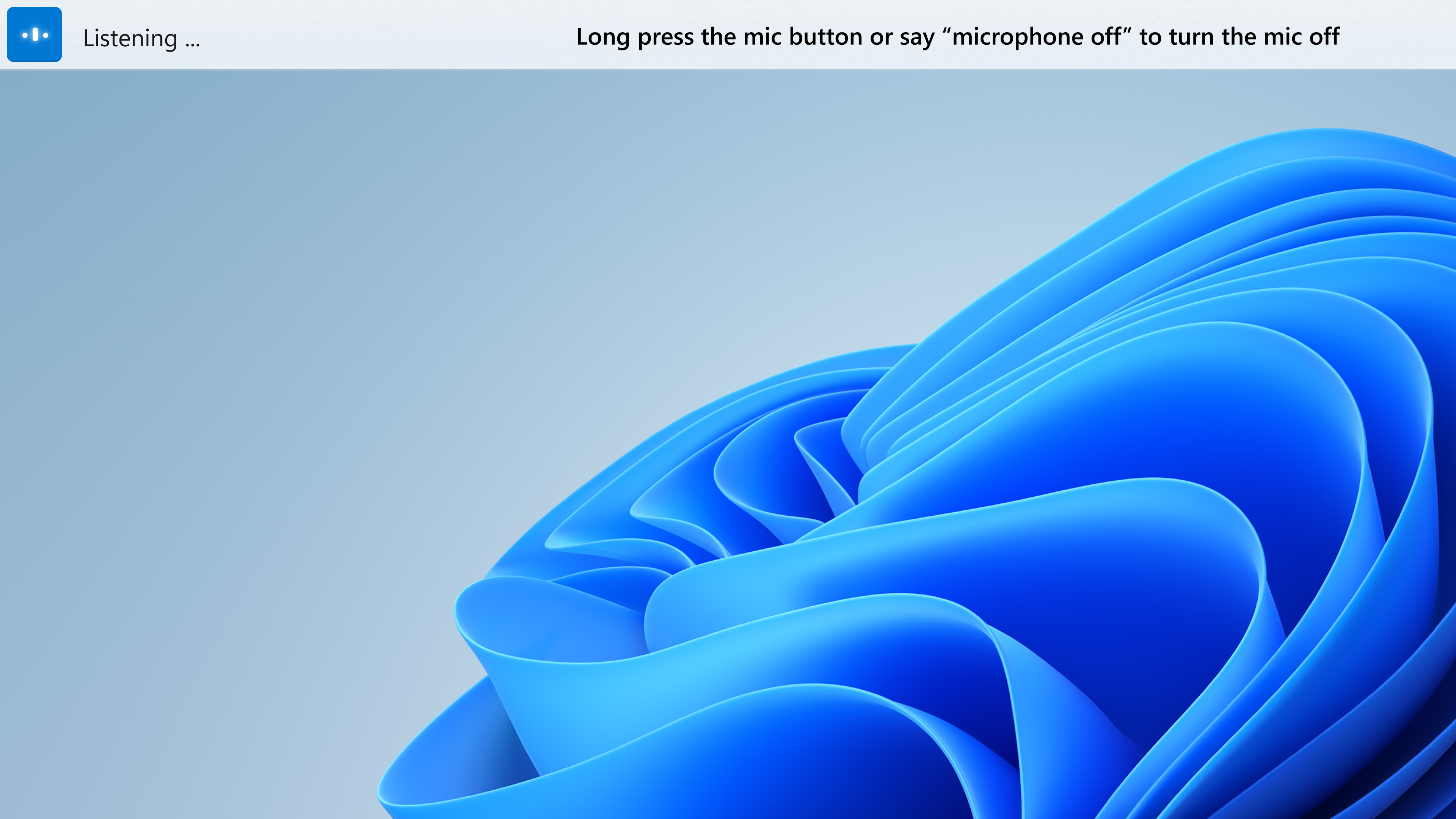
Voice access in the listening state.
Voice access gives real-time feedback of what voice access heard so that you know which word was not recognized correctly.
Navigate Windows with your voice
You can navigate and interact with Windows, including opening and switching applications using your voice. You can also emulate your standard inputs like keyboard and mouse via voice.
For example, the following table includes how to complete common tasks:
“Press Escape,” “Press and Hold Shift,” “Press tab 3 times”
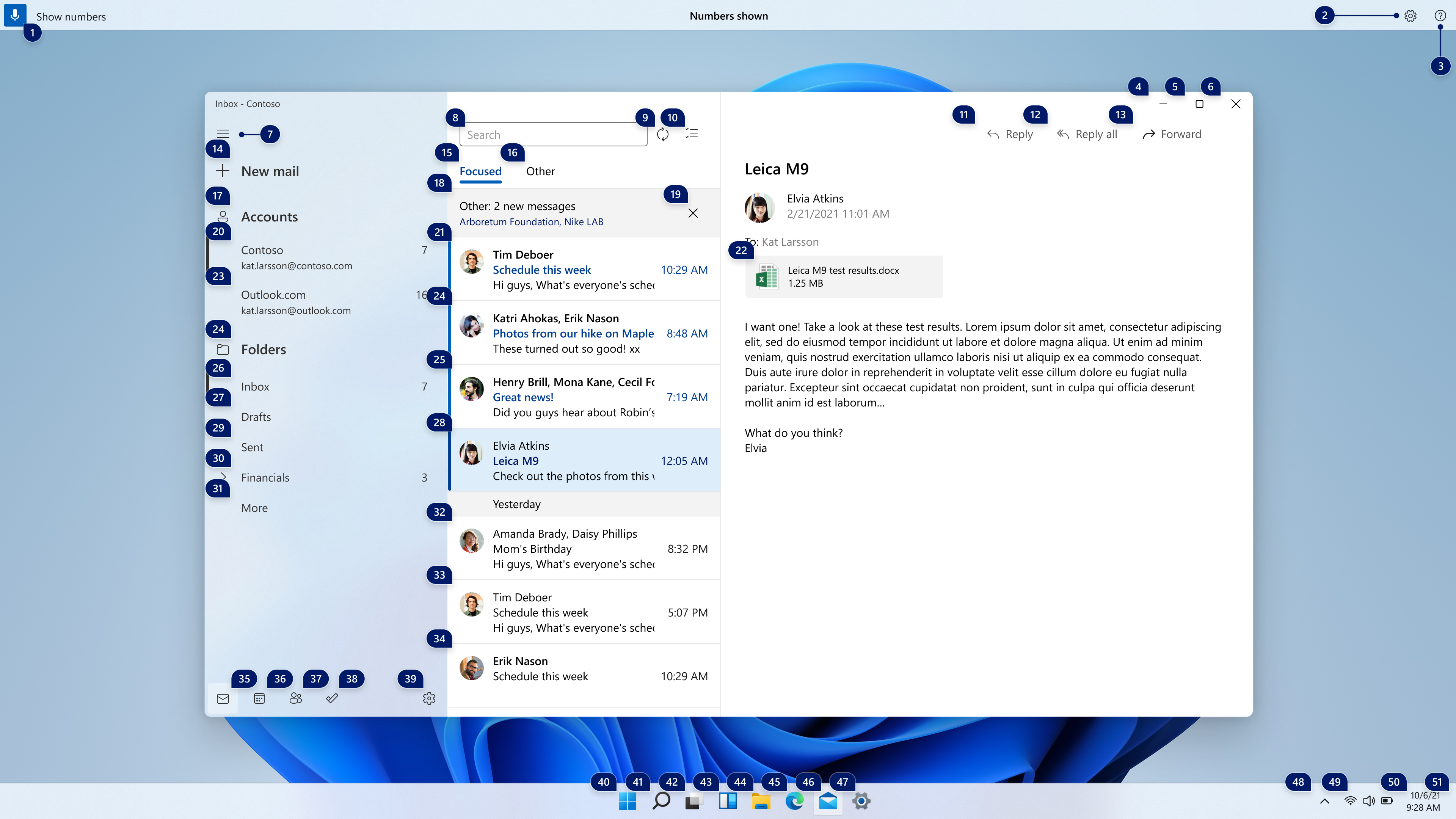
Voice access number overlays.
Voice access number overlays make it possible to interact with items which don’t have a name and they also put you in control when there are more than one matching items to a command.
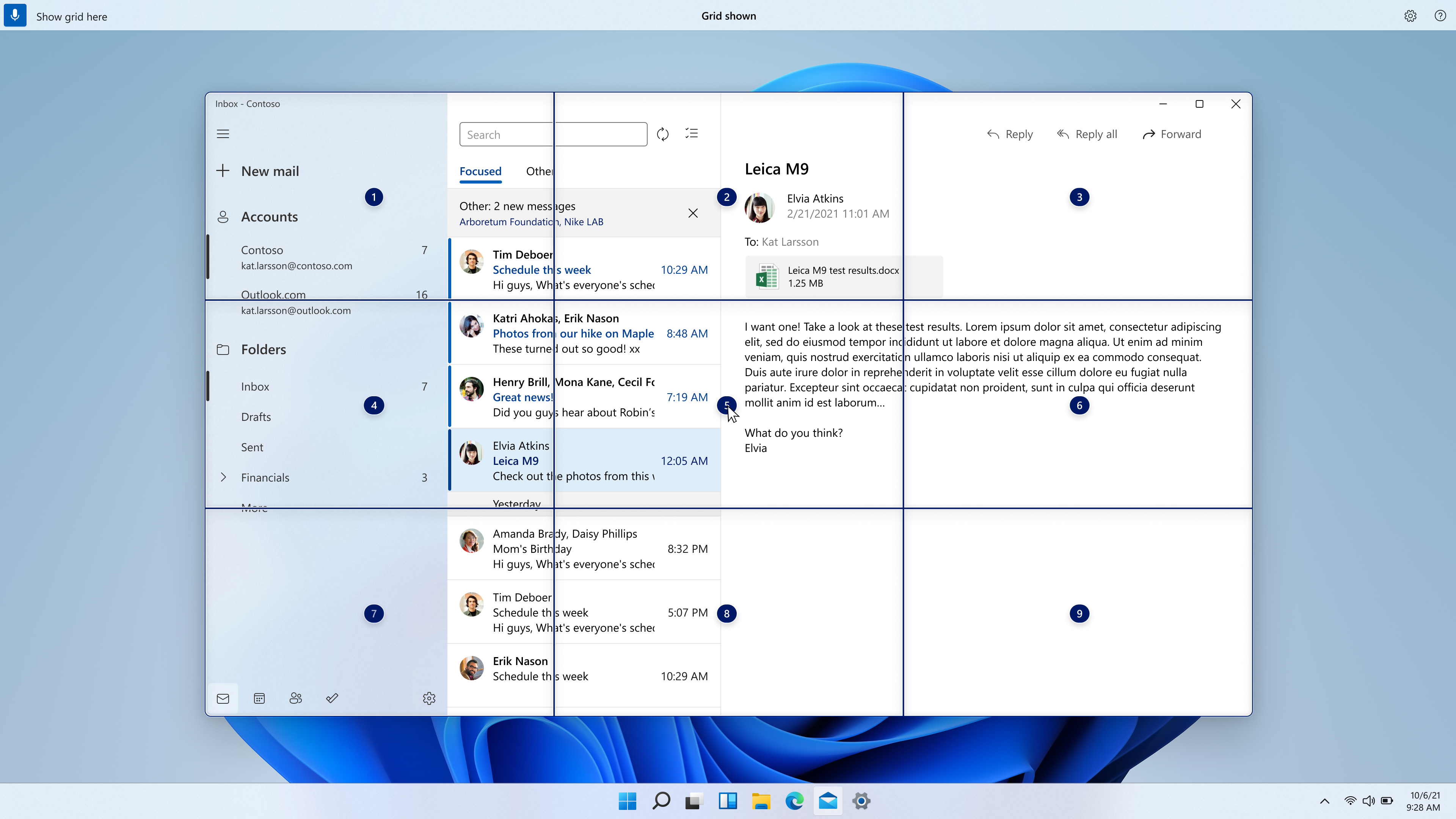
In addition, to interact with inaccessible UI and achieve precise mouse movement with grid overlay:
To do this
Say this
Show the grid
“Show grid” or “Show grid here”
Drill down into the grid
“,” e.g., “1”
Click an item at the centre of a grid
“Click ,” e.g., “Click 1”
Mark an object to drag
“Mark ,” e.g., “Mark 1”
Drop the marked object into a location
“Drag”
Author text with your voice
In addition to navigating Windows, you can dictate and edit text with voice access:
To do this
Say this
Insert text in a text box
“”, e.g., “hello world”
Select the last text you dictated
“Select that”
Select specific text in a text box
“Select ”, e.g., “select hello world”
Select previous or next character(s) or word(s) or line(s) or paragraph(s)
“Select next word”, “select previous two lines”
Delete the selected text or last dictated text
“Delete that”
Delete specific text in a text box
“Delete ”, e.g., “delete hello world”
Capitalize the first letter of a word
“Capitalize ”, e.g., “capitalize hello”
Capitalize all the letters of a word
“Uppercase ”, e.g., “uppercase hello”
Change all the letters in a word to lowercase
“Lowercase ”, e.g., lowercase hello”
Place cursor before/after specific text
“Move before ”, e.g., “Move before hello world”
Move cursor to beginning/end of a word or a line or a paragraph
“Go to beginning of line”, “go to end of paragraph”
Tips for best recognition quality:
Try to speak as clearly as you can
Work in an environment with minimal ambient background noise if possible
To prevent system audio (e.g., media playback or people speaking on a call) from being picked up by voice access, it is recommended to use headphones/earbuds or mute your system audio when voice access is actively listening
Be sure to check the known issues section below for known issues with voice access. We look forward to you trying out voice access and would love to hear your feedback and suggestions in Feedback Hub (Win + F) under Accessibility > Voice access. You can find the link to the Feedback Hub on the voice access help menu as well – use the voice command “Open Voice access help” > “Click Give feedback” to get there.
Install the Windows Subsystem from Linux (WSL) from the Microsoft Store
WSL is now available in the Microsoft Store. This is the same WSL you know and love but just a different delivery mechanism. Installing WSL from the Store will make it easier to get the latest WSL updates in the future. You can learn more about the Store preview at this blog post or by watching this video.
Starting in this preview build, we’ve made it easier for new users to get started with the WSL in the Microsoft Store by changing the `wsl.exe –install` command to install WSL from the Microsoft Store by default. Additionally, we’ve added some additional arguments to `wsl.exe –install` to make it easier to configure your install, such as `wsl –install –no-launch` which will install a new WSL distro without immediately launching it. To see a full list of available commands please run `wsl –help`. If you want to get started with the Store version right away and already have WSL installed just run `wsl –update` to update immediately to the Store version!
Changes and Improvements
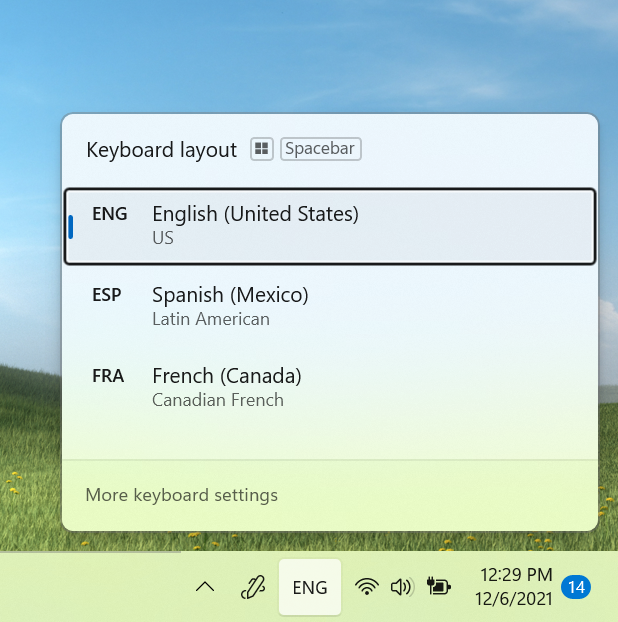
Starting with today’s build we’re rolling out an underlying platform change to improve the overall performance and reliability of the input switcher for Insiders using multiple keyboard languages and layouts. In addition to this, we’re updating the input switcher to now have an acrylic background. If you have any feedback for the input switcher, please file it in the Feedback Hub under Input and Language > Keyboard and language switching. [We are beginning to roll this change out, so it isn’t available to all Insiders just yet as we plan to monitor feedback and see how it lands before pushing it out to everyone.]
Input switcher UI with acrylic background.
Updated the context menu in File Explorer to make these options top level based on feedback:
“Install” when right clicking on font files and .inf files.
“Install certificate” when right clicking on .cer files.
“Map network drive” and “Disconnect network drive” when right clicking on This PC.
“Disconnect” when right clicking on network drives.
The ability for personalized combinations of emoji based on face and skin tones of family members, couples with heart, kissing, and people holding hands which we began rolling out with Build 22504 is now available to all Insiders in the Dev Channel.
Starting with Build 22509, we began rolling out a change to display your clock and date will now also be displayed on the taskbars of the secondary monitor or monitors. This is now available to all Insiders in the Dev Channel.
We’ve added a new extra-large candidate height option for Simplified Chinese IME users under Personalization > Text Input in Settings.
Fixes
[Taskbar]
Fixed an explorer.exe crash related to having websites pinned to the Taskbar.
[Search]
Did some work to help address an issue where an invisible window frame for the recent searches flyout could end up stuck on the screen, consuming input in that area.
When you’re hovering over items in the recent searches flyout, truncated text in the flyout (for example, when using the accessibility setting to make text larger) will now have a tooltip so you can see the full text.
Improved visibility of the text in the recent searches flyout if a contrast mode was enabled.
The recent searches flyout now has an accessible name when a screen reader sets focus to it, instead of just saying button.
Fixed an issue which was causing the search icon in the recent searches icon to become a garbage character for people using the Chinese display language.
Fixed a high hitting Search crash.
Did some work to help reduce the likelihood of keystrokes getting dropped if you start your search by pressing the Windows key and start typing.
If you use Search to run commands, the “Run as administrator” and “Open file location” options should be visible again for you to select on the side of the search window. In addition, CTRL + Shift + Enter should work again now for commands.
[File Explorer]
Mitigated an issue that could lead to not being able to add network drives as a source in Media Player.
Fixed an issue that could lead to seeing an unexpected blank icon after compressing a file, instead of the one corresponding to your default app for handling that file type.
Right clicking on a folder and then quickly closing and reopening the File Explorer window should no longer lead to an explorer.exe crash when the “run as a separate process” option is enabled.
Removed some unexpected characters in the dialog when moving user account folders to another location.
If you right click on files like .htm in File Explorer, the icon next to Microsoft Edge Canary, Beta or Dev should now display correctly (if installed) under Open With, instead of showing a generic icon.
Addressed an issue that could lead to icons for app entries (like Windows Terminal) in the context menu going missing / being invisible sometimes.
Improved the consistency of the background color of the command bar and menu dropdowns when a contrast mode was enabled.
Made some more little improvements to help with File Explorer folder navigation performance.
[Input]
If you’ve pressed WIN + Period and have navigated to the emoji or gifs section with a search term, when you go back to the main page, we will now clear out the search query so you can start fresh.
The IME candidate window should now appear more reliably when typing into Search immediately after booting your PC.
Fixed an issue where u-mode/v-mode/name-mode wasn’t not showing candidates when typing with the Simplified Chinese IME.
Fixed an issue where the Japanese IME was unexpectedly displaying candidates in horizontal mode instead of vertical mode.
Fixed an issue where the IME toolbar might randomly show on the lock screen.
Addressed an issue where the keyboard focus wouldn’t always be in the right place after pressing WIN + Period, depending on where you’d left focus the last time the window was used.
When personalizing your family emoji in the emoji panel, the UI should no longer unexpectedly dismiss when you click the white space.
Clicking on your personalized family emoji in the most recently used list in the emoji panel should no longer unexpectedly invoke the customization UI.
If you try to start voice typing (WIN + H) without setting focus to a text box first, the popup suggesting you move focus should work again now.
[Windowing]
Fixed issue where snap group thumbnails weren’t updating in real time in Task View after you moved a group window to a different Desktop.
[Settings]
Fixed an issue that was causing Settings to crash when going to open options for added languages for some Insiders.
Fixed a few issues on the Text Input page under Personalization, including:
The preview image for your current set up should be showing now.
Added a few keywords to help search for this page.
Improved read out of the page for screen reader users.
Searching for the word widgets should return to the corresponding Settings page with that toggle now.
[Other]
Mitigated an issue believed to be causing Insiders with certain devices to be experiencing bug checks with the error SYSTEM_SERVICE_EXCEPTION in recent flights.
Fixed an issue where users updating from Builds 22000.xxx, or earlier, to newer Dev Channel builds using the latest Dev Channel ISO would receive the following warning message: The build you are trying to install is Flight Signed. To continue installing, enable flight signing.
Removed some excess padding on the left of the boot logo, which was causing it to look off-center compared to the progress wheel.
Addressed an issue where UAC was unexpectedly showing “Unknown program” when trying to elevate certain programs, despite them having proper names.
Fixed an issue leading to Narrator unexpectedly saying “No item in view” sometimes when tabbing to win32 text boxes.
Fixed a crash that was leading to login issues in OOBE (if you were to reset your PC), and well as issues resetting your PIN from the lock screen in the last 2 flights.
Fixed an issue leading to acrylic unexpectedly not working in certain places in the preview flight.
Mitigated an issue leading to some people unexpectedly seeing “Something went wrong” when trying to click the “stop recording” button when recording a message in Voice Recorder.
NOTE: Some fixes noted here in Insider Preview builds from the active development branch may make their way into the servicing updates for the released version of Windows 11 that became generally available on October 5th.
Known issues
[General]
We’re investigating reports from Insiders that DWM is crashing (causing the screen to flash repeatedly) when trying to use certain apps.
[Start]
In some cases, you might be unable to enter text when using Search from Start or the taskbar. If you experience the issue, press WIN + R on the keyboard to launch the Run dialog box, then close it.
[Taskbar]
The taskbar will sometimes flicker when switching input methods.
The network icon sometimes goes missing in the taskbar when it’s supposed to be there. If you encounter this, please try using Task Manager to restart explorer.exe.
If you have multiple monitors connected to your PC and right-click on the date and time on the taskbar on your primary monitor, it will crash explorer.exe
[Search]
After clicking the Search icon on the Taskbar, the Search panel may not open. If this occurs, restart the “Windows Explorer” process, and open the search panel again.
[Settings]
When viewing the list of available Wi-Fi networks, the signal strength indicators do not reflect the correct signal strength.
[Widgets]
Changing the taskbar alignment can cause the Widgets button to disappear from taskbar.
Widgets board may not have the correct resolution when hovering the entry point on a secondary monitor.
The Widgets board may be temporarily blank.
Links may not open properly when opening the widgets board using hover.
When having multiple monitors, Widgets content on taskbar may get out of sync between monitors.
[Voice access]
Voice access is not yet fully compatible with screen readers like Narrator, and you may experience gaps or unexpected behavior running these together.
Some text authoring commands, e.g., “select that” or “delete that”, may not work as expected across Windows applications.
You cannot use the command “press Windows L” to lock your PC via voice.
Recognition of some punctuation marks and symbols such as @ sign is not accurate.



 18 min. read
  Updated on
Accessibility > Speech. ” width=”3840? height=”2160? /> You can enable voice access under Settings > Accessibility > Speech.

 Accessibility > Speech. ” width=”3840? height=”2160? />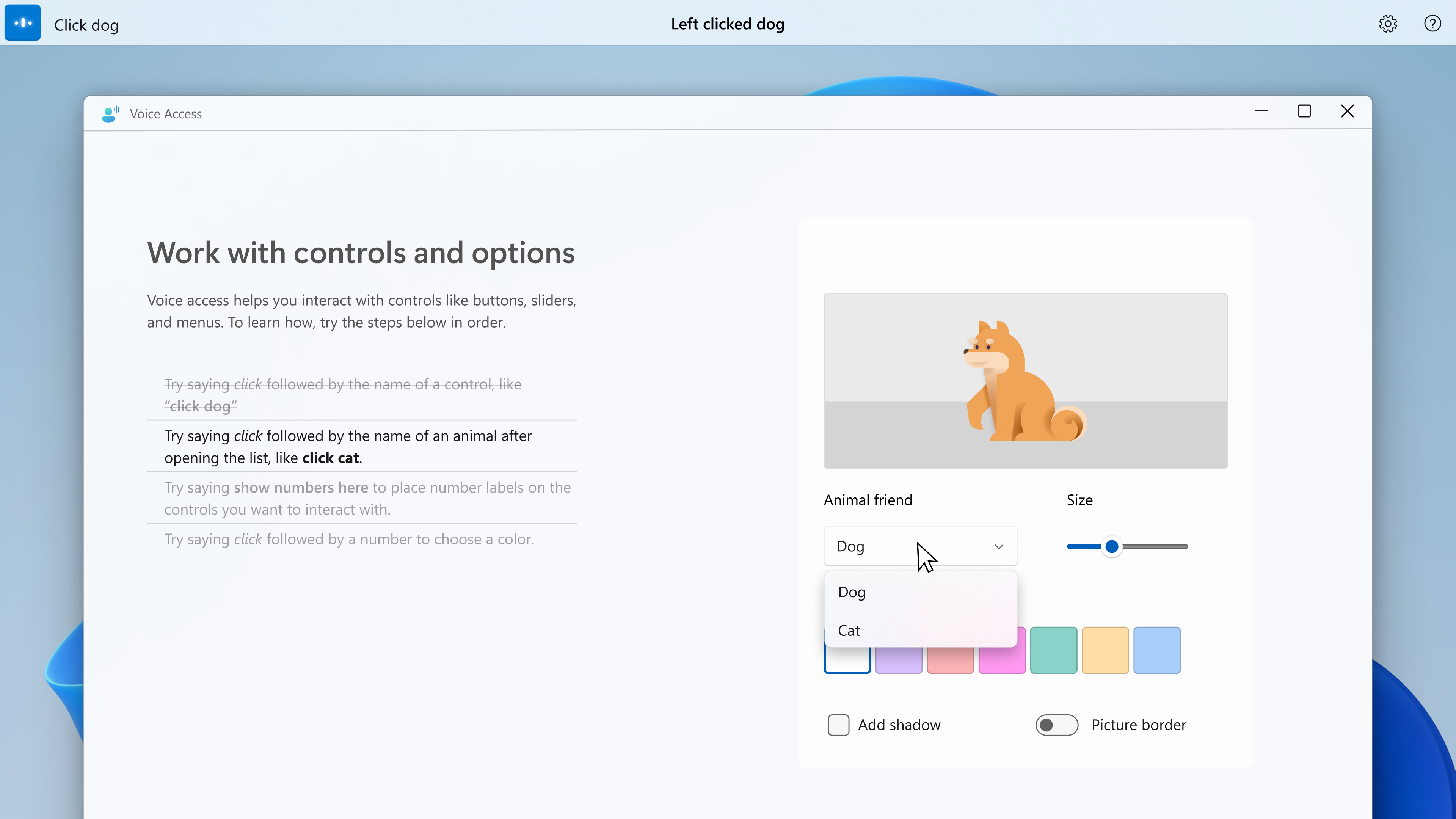









User forum
0 messages